
Are you looking to make your WordPress site more powerful without diving into complex coding? Adding a shortcode is one of the easiest ways to do just that.
Imagine being able to insert dynamic content, like galleries, forms, or buttons, with just a simple code snippet. This not only saves you time but also keeps your site clean and organized. In this guide, you’ll learn exactly how to add a shortcode in WordPress step-by-step, so you can enhance your website’s features quickly and confidently.
Keep reading, and you’ll unlock a tool that makes managing your site much simpler.
Credit: www.active24.co.uk
What Are WordPress Shortcodes
WordPress shortcodes are small pieces of code. They let you do complex tasks with little effort. Instead of writing long code, you use a simple tag. This tag looks like a word inside square brackets. When WordPress sees this tag, it replaces it with the right content.
Shortcodes save time. They help you add features without coding. You can put videos, galleries, buttons, and more into posts or pages. This makes your site more interactive and fun.
What Is A WordPress Shortcode?
A shortcode is a shortcut for longer code. It tells WordPress to add special content. You write it inside square brackets like [shortcode]. WordPress changes this into the content you want.
How Do Shortcodes Work?
WordPress reads the shortcode and finds its function. The function tells WordPress what to show. This can be text, images, or other elements. It keeps your page clean and easy to edit.
Where Can You Use Shortcodes?
Use shortcodes in posts, pages, and widgets. They work almost anywhere you write content. This gives you freedom to add special features easily.
Why Use Shortcodes?
They make complex tasks simple. No need to write code every time. Shortcodes keep your site neat and fast. They help add features without errors.
Credit: kinsta.com
Where To Use Shortcodes
Shortcodes are small codes that perform specific functions in WordPress. They make adding features to your site easy and fast. Knowing where to use shortcodes helps you get the best results. You can place them in various parts of your website to display content or add functionality. Below are common places where shortcodes work well.
Posts And Pages
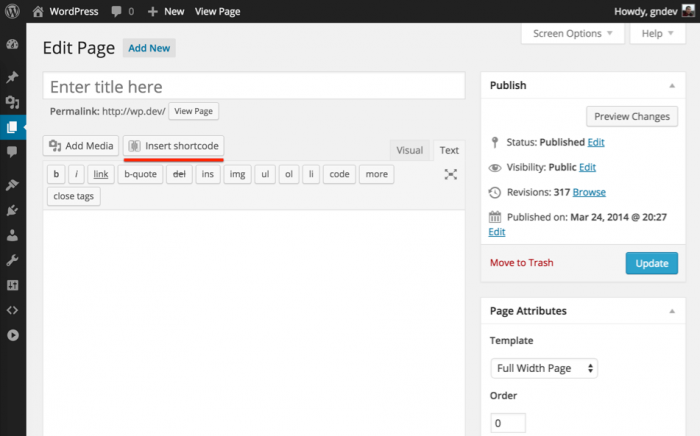
Posts and pages are the most common places to use shortcodes. You can insert shortcodes directly into the text editor. This allows you to add things like galleries, forms, or buttons without writing code. Shortcodes help keep your content clean and organized. They make your posts more interactive and useful for visitors.
Widgets And Sidebars
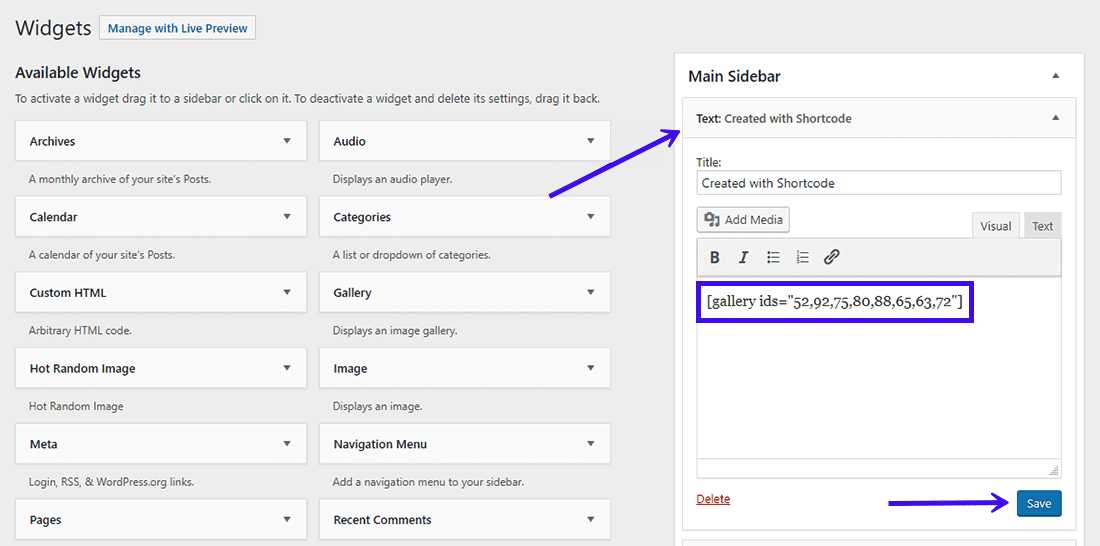
Widgets and sidebars also support shortcodes. Use shortcodes in text widgets to add extra features like calendars or social media feeds. This boosts your site’s functionality in areas outside the main content. It makes sidebars more dynamic and helps engage visitors on every page.
Theme And Plugin Files
Developers can place shortcodes inside theme and plugin files. This use is more technical and needs coding skills. Shortcodes in files let you show content automatically in certain areas. It helps customize your site’s design and behavior without changing the main content manually.
Creating A Simple Shortcode
Creating a simple shortcode in WordPress is a great way to add custom content easily. Shortcodes let you insert dynamic content inside posts or pages without coding every time. They save time and make your site look professional.
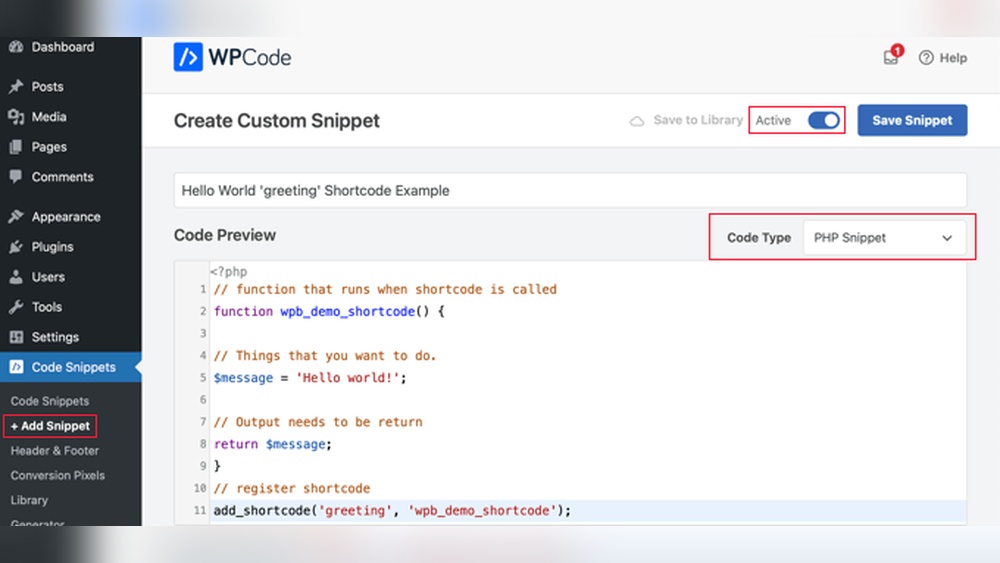
To create a shortcode, you write a small piece of code. This code tells WordPress what to display when the shortcode is used. It is simple and does not require complex programming skills.
Using Functions.php
The functions.php file is where you add your shortcode code. This file is part of your WordPress theme. Editing it lets you create custom functions that run on your site.
Open the functions.php file in your theme folder. You can access it via the WordPress dashboard or an FTP client. Be careful while editing this file. A small mistake can break your site.
Paste your shortcode code at the end of the file. Save the changes after adding the code. Your shortcode will then be ready to use on your site.
Writing The Callback Function
The callback function defines what the shortcode shows. It is a simple PHP function that returns content. This content appears wherever you place the shortcode.
Write a function that outputs text or HTML. For example, a welcome message or a custom button. Use the return statement to send content back.
Connect this function to the shortcode with WordPress’s add_shortcode function. This link tells WordPress which function to run for the shortcode.
Credit: www.wpbeginner.com
Inserting Shortcodes In Content
Shortcodes are small pieces of code that do big things. They let you add features without writing complex code. Inserting shortcodes in your WordPress content is simple. You can place them in posts, pages, or other content areas. This section shows how to insert shortcodes using different WordPress editors and widgets.
Classic Editor
Open the post or page you want to edit in the Classic Editor. Click inside the text area where you want the shortcode. Type or paste the shortcode exactly as given, including brackets [ ].
Make sure you place the shortcode on its own line. This avoids formatting issues. Update or publish your post to see the shortcode in action.
Block Editor
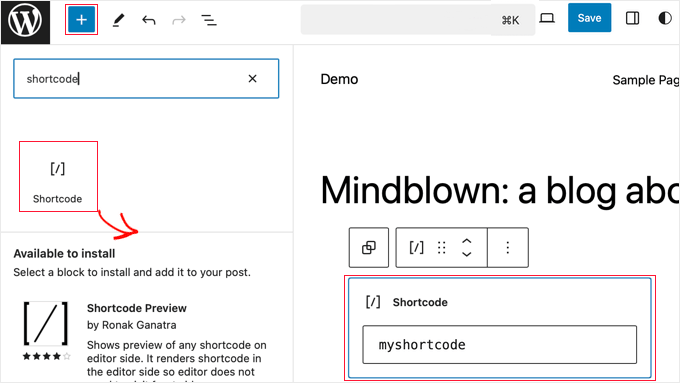
In the Block Editor, click the plus (+) icon to add a new block. Search for the “Shortcode” block and select it. Paste the shortcode inside the block’s text box.
The block will display the shortcode output on the front end. You can move the block up or down to position it. Save or publish your content to apply changes.
Widgets
Go to Appearance > Widgets in your WordPress dashboard. Choose a widget area like Sidebar or Footer. Add a “Text” or “Custom HTML” widget to that area.
Paste the shortcode inside the widget content box. Save the widget settings. The shortcode will display in the chosen widget area on your site.
Using Shortcode Plugins
Using shortcode plugins in WordPress makes adding custom features easy. These plugins offer ready-made shortcodes for different tasks. You do not need coding skills. Just insert the shortcode, and the plugin does the rest.
Shortcode plugins save time. They add buttons, forms, galleries, and more. You can choose from many options to suit your website’s needs. Plugins keep your site organized and professional.
Popular Shortcode Plugins
Some popular shortcode plugins include “Shortcodes Ultimate,” “WP Shortcode,” and “Easy Bootstrap Shortcode.” These plugins provide a wide range of useful shortcodes. They cover buttons, columns, sliders, and icons. Many offer user-friendly interfaces and regular updates.
How To Install And Activate
Go to your WordPress dashboard. Click on “Plugins” and select “Add New.” Type the plugin name in the search bar. Find the plugin and click “Install Now.” Wait for the installation to finish.
Click “Activate” to start using the plugin. You can find shortcode options in the editor or a new menu. Copy the shortcode you want and paste it into your post or page. Preview to see the result.
Troubleshooting Common Issues
Troubleshooting common issues with shortcodes can save time and frustration. Shortcodes sometimes do not work as expected. This section helps identify and fix common problems quickly.
Shortcodes Not Working
Shortcodes may not work if typed incorrectly. Check for missing brackets or spaces. Use lowercase letters as some shortcodes are case-sensitive.
Sometimes, shortcodes require specific plugins. Make sure the needed plugin is active. Clear your site cache after adding shortcodes to see changes.
Conflicts With Themes Or Plugins
Themes or plugins may conflict and break shortcode functions. Switch to a default WordPress theme to test. Deactivate other plugins one by one to find conflicts.
Update your theme and plugins to their latest versions. Outdated software often causes shortcode issues. Contact support if conflicts persist after updates.
Frequently Asked Questions
What Is A Shortcode In WordPress?
A shortcode is a small code snippet that adds dynamic content to WordPress posts or pages. It simplifies complex functions without coding. Users can insert forms, galleries, or other features quickly using shortcodes.
How Do I Add A Shortcode To A WordPress Post?
To add a shortcode, open the post editor, paste the shortcode in the content area, and update the post. WordPress will render the shortcode’s content automatically when the page loads.
Can Shortcodes Be Used In WordPress Widgets?
Yes, shortcodes can be added to text widgets. Enable shortcode support by adding a filter in your theme’s functions. php file or use plugins designed for this purpose.
Are Shortcodes Compatible With All WordPress Themes?
Most modern WordPress themes support shortcodes, especially those that follow WordPress standards. However, some custom themes may require additional adjustments for full shortcode functionality.
Conclusion
Adding a shortcode in WordPress is simple and saves time. It helps you add features without coding skills. Just copy the shortcode and paste it where you want it to show. You can use shortcodes in posts, pages, or widgets.
This method keeps your site clean and easy to update. Practice a few times to feel confident. Now, your WordPress site can do more with less effort. Keep exploring shortcodes to improve your site step by step.


