
Are you struggling to show your blog posts right on your WordPress pages? You’re not alone.
Many website owners want to combine the power of pages and posts but don’t know where to start. Imagine your visitors finding all your latest updates exactly where you want them—without extra clicks. You’ll discover simple, step-by-step ways to add posts to your WordPress pages.
By the end, you’ll have a clear, actionable plan to make your site more engaging and easier to navigate. Ready to boost your website’s impact? Let’s dive in!
Why Add Posts To Pages
Adding posts to pages in WordPress can improve your website in many ways. Pages usually hold static content, while posts are dynamic and frequently updated. Combining posts within pages helps create a richer and more interactive experience for visitors.
Benefits For User Engagement
Showing posts on pages keeps visitors interested. They can see new content without leaving the page. This encourages them to spend more time on your site. More time means higher chances they will explore other parts too.
Improving Site Navigation
Including posts on pages makes your site easier to navigate. Visitors find related articles quickly. This reduces the need for extra clicks. Clear navigation helps users find what they want fast and easily.
Boosting Seo
Search engines like fresh content. Displaying posts on pages shows updates regularly. It increases the chances of better ranking. Pages with posts also have more keywords and links. This helps your site appear higher in search results.

Credit: www.theblogmechanic.com
Preparing Your WordPress Site
Preparing your WordPress site is the first step before adding posts to pages. This process ensures your website is ready and works well. Proper preparation helps prevent issues and saves time later.
Start by setting up a theme that fits your site’s purpose. Next, install plugins that make adding posts easier. Finally, back up your site to protect your content.
Choosing The Right Theme
Pick a theme that matches your website style and goals. A good theme controls how your posts and pages look. Choose one that supports custom layouts and is mobile-friendly. Check reviews and updates to avoid problems.
Installing Necessary Plugins
Plugins add extra features to WordPress. For adding posts to pages, install plugins like “Post Grid” or “Content Views.” These tools help display posts in a clean, organized way. Keep plugins updated to maintain security and performance.
Backing Up Your Site
Back up your website before making changes. This protects your data if something goes wrong. Use plugins like “UpdraftPlus” or “BackupBuddy” for easy backups. Store backups in a safe place outside your site.
Using Built-in WordPress Features
WordPress offers built-in tools to help you add posts to your pages easily. These features work well for beginners and save time. They let you display your blog posts without extra plugins or coding.
Creating A Blog Page
Start by creating a new page. Name it something like “Blog” or “News.” This page will show your posts automatically. You do not need to add content to this page. WordPress will fill it with your latest posts.
Setting A Static Front Page
You can choose what your homepage shows. Go to Settings > Reading in your dashboard. Select “A static page.” Pick your new blog page as the posts page. This way, your posts appear on the page you made.
Using The Posts Widget
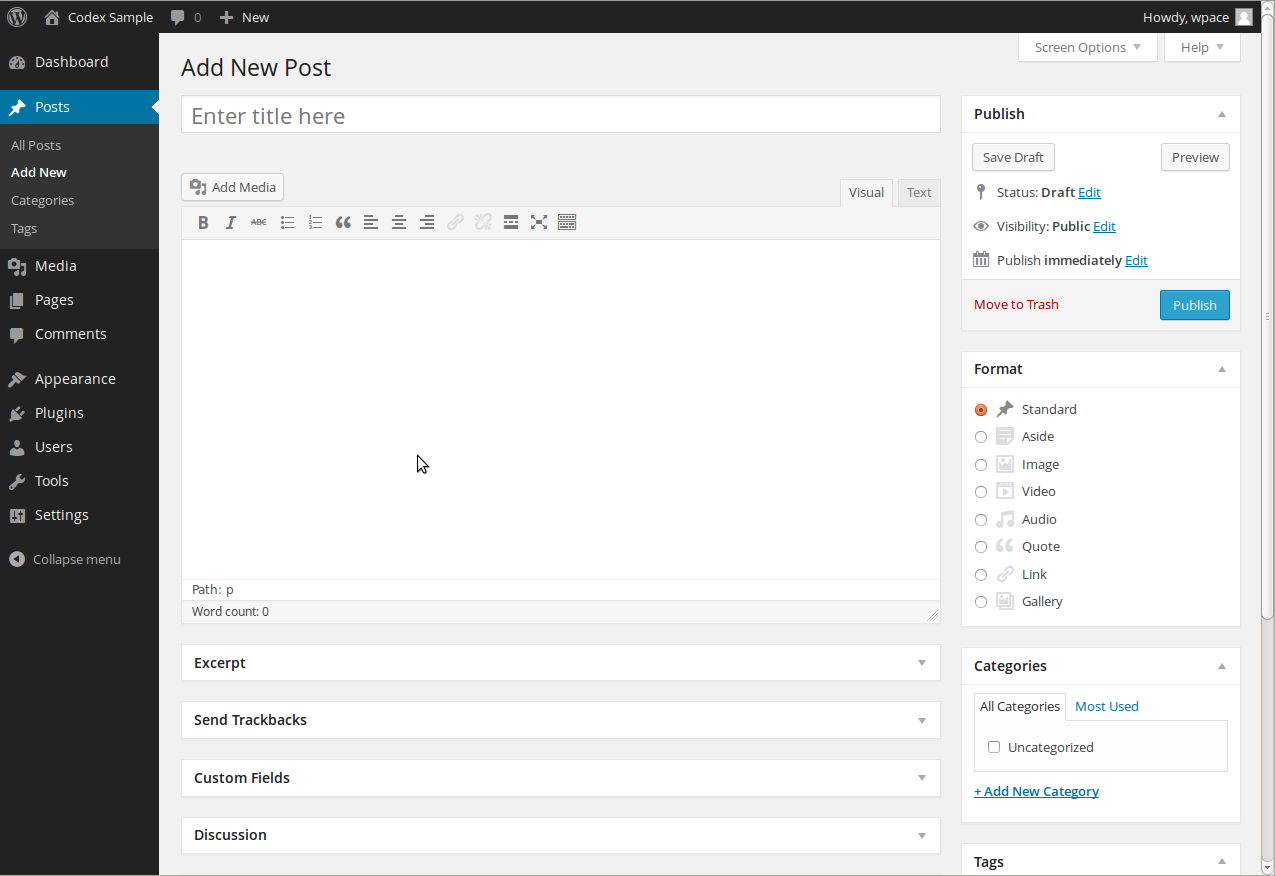
Widgets let you add posts to sidebars or footers. Go to Appearance > Widgets. Find the “Latest Posts” widget and drag it where you want. You can set how many posts to show. The widget updates automatically with new posts.
Credit: wordpress.org
Adding Posts With Shortcodes
Adding posts with shortcodes is a simple way to show blog posts on any page. Shortcodes let you place posts without changing your theme or coding. They work like small commands that WordPress reads and shows content automatically.
This method helps keep your pages fresh and dynamic. You can decide which posts to show and how they look. Shortcodes make managing content easier and faster.
Installing A Shortcode Plugin
First, install a shortcode plugin to use post shortcodes. Go to your WordPress dashboard. Click on “Plugins” and then “Add New.” Search for “post shortcode” or similar keywords. Choose a plugin with good reviews and many installs. Click “Install Now” and then “Activate.” The plugin will add new shortcode options to your site.
Using Shortcodes To Display Posts
After activation, find the shortcode settings in your dashboard. Most plugins provide examples and instructions. Copy the shortcode and paste it into any page or post. For example, [recent-posts] shows your latest blog posts. Save or update the page. Visit the page to see the posts appear automatically. This method works without editing the theme files.
Customizing Post Displays
Shortcodes often include options to customize how posts look. You can change the number of posts, categories, or order. For instance, use [recent-posts count="5" category="news"] to show five posts from the news category. Some plugins let you control layout styles, like grids or lists. Adjust these settings in the shortcode to match your site’s design. Customizing shortcodes helps present your posts clearly and attractively.
Embedding Posts With Page Builders
Embedding posts with page builders makes your WordPress pages more dynamic. You can display blog posts directly inside pages without coding. This approach helps you showcase your latest articles or featured posts in a clean layout. It also improves user engagement by keeping visitors on your pages longer.
Page builders offer easy drag-and-drop tools. They let you add post content blocks or modules quickly. You control which posts appear and how they look on the page. This method works well for portfolios, news sections, or any site with frequent updates.
Popular Page Builder Plugins
Several page builders support embedding posts. Elementor is a top choice with a user-friendly interface. Beaver Builder offers flexible post modules and good customization. Divi Builder includes built-in post grid and slider options. WPBakery Page Builder also provides post content elements. These plugins work with most themes and post types.
Adding Posts Blocks Or Modules
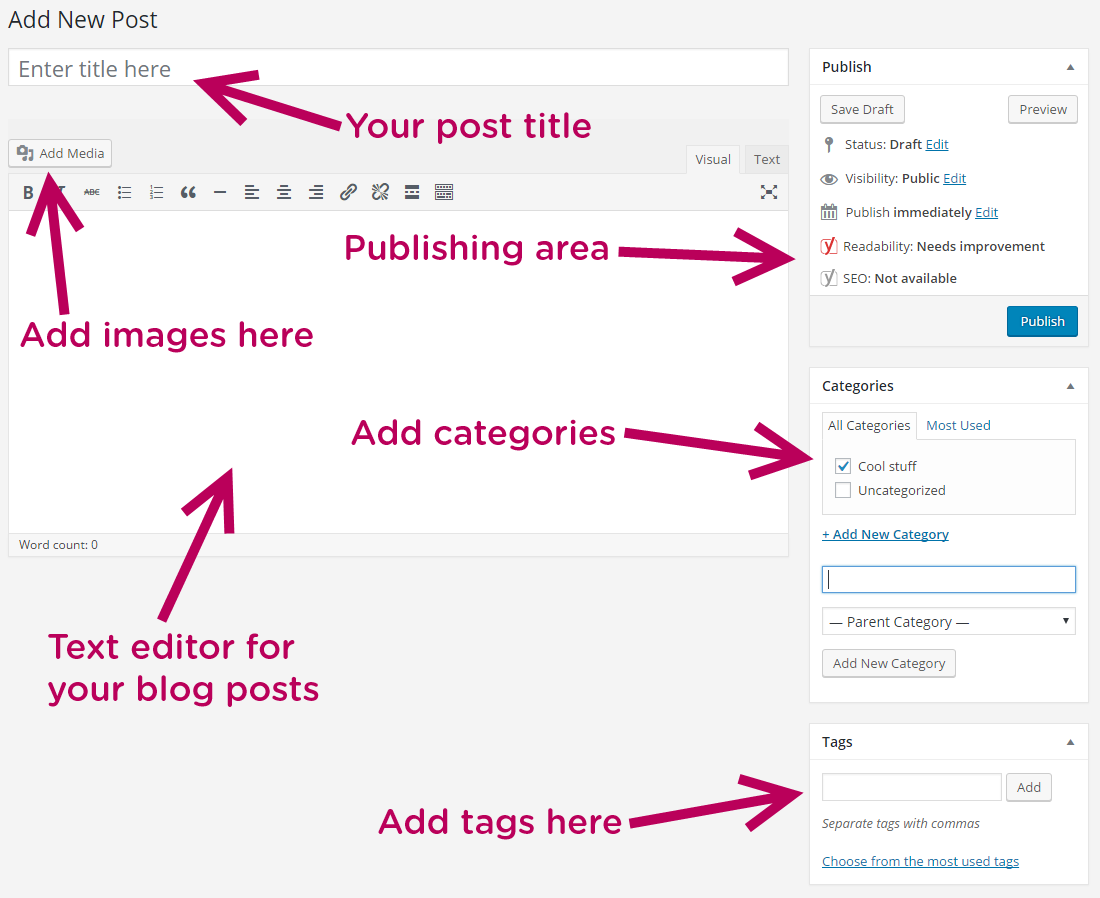
Start by opening your page in the page builder editor. Find the block or module for posts. Select it to add to the desired page section. Choose which posts to show by category, tag, or author. Set the number of posts to display. You can also filter by date or custom fields. Save and preview your changes instantly.
Styling Post Layouts
Customize the look of your embedded posts. Change the layout style to grid, list, or slider. Adjust spacing, margins, and padding for better alignment. Modify fonts, colors, and background to match your site design. Add or hide post elements like titles, images, or excerpts. Use responsive settings to ensure mobile-friendly views.
Credit: www.lcn.com
Using Custom Queries And Code
Using custom queries and code lets you control how posts appear on your WordPress pages. This method gives more flexibility than default options. You can show specific posts, order them differently, or filter by categories. It requires adding PHP code to your theme files. The process is simple when you follow clear steps.
Creating Custom Loops
A custom loop is a PHP code block that fetches posts based on your rules. You start by using WP_Query to define which posts to get. For example, you can pull posts from a certain category or tag. The loop then runs through each post and displays the content you want.
Here is a basic example:
php $args = array( 'category_name' = 'news', 'posts_per_page' => 5 ); $custom_query = new WP_Query($args); if ($custom_query->have_posts()) : while ($custom_query->have_posts()) : $custom_query->the_post(); the_title('', '
'); the_excerpt(); endwhile; wp_reset_postdata(); endif; ?> This code shows the latest five posts from the “news” category. You can change the $args array to fit your needs.
Adding Php Code To Templates
To use custom queries, add the PHP code to your theme files. Common files include page.php, single.php, or a custom template. Open the file and insert your loop where you want posts to appear.
Use a child theme to avoid losing changes during updates. Upload your modified files via FTP or your hosting panel. Always back up your site before editing code.
Best Practices For Code Safety
Test your code on a staging site before using it live. Check for errors and fix them promptly. Use wp_reset_postdata() after custom loops to avoid conflicts.
Keep code simple and clean. Avoid direct database queries to prevent security risks. Use WordPress functions and hooks for better compatibility. Sanitize and escape all data output to protect against attacks.
Managing Post Display Settings
Managing post display settings helps control what visitors see on your pages. It makes your site organized and user-friendly. You can choose which posts appear, how many show, and the order they follow. Adjusting these settings improves the visitor experience and keeps your content fresh.
Filtering Posts By Category Or Tag
Choose posts from specific categories or tags. This narrows down the posts shown on a page. It helps visitors find related content easily. Use WordPress widgets or plugins to set filters quickly. Filtering keeps your pages relevant and focused.
Controlling Number Of Posts Shown
Limit how many posts appear on each page. Showing too many posts can slow down your site. A smaller number loads faster and looks cleaner. Set the post count in WordPress reading settings or via plugins. Change this number to fit your page design and needs.
Sorting And Ordering Posts
Decide the order in which posts display. Sort by date, title, or custom order. Newer posts can show first to keep content current. Alphabetical order helps visitors find posts easily. Use plugins or theme options to arrange posts as you like.
Troubleshooting Common Issues
Troubleshooting common issues helps keep your WordPress site running smoothly. Problems with posts not showing or slow pages can frustrate visitors. Knowing how to fix these issues saves time and stress. This section covers common problems and easy solutions.
Posts Not Showing On Pages
Sometimes posts do not appear on your chosen page. Check if you assigned the right page template. Some themes have special templates for displaying posts. Also, verify your query settings in the page editor. Make sure the posts are published and not set to draft.
Conflicts With Plugins Or Themes
Plugins or themes can cause conflicts that stop posts from showing. Disable all plugins and see if posts appear. Reactivate plugins one by one to find the problem. Switch to a default theme like Twenty Twenty-One to test theme issues. Keep plugins and themes updated to avoid conflicts.
Performance Optimization Tips
Slow pages affect user experience and SEO. Use caching plugins to speed up load times. Optimize images to reduce file size without losing quality. Limit the number of plugins to avoid heavy server load. Regularly clean your database to keep WordPress fast.
Enhancing Post Presentation
Enhancing the way posts appear on your pages makes your site more attractive. Clear, well-structured posts help visitors find key information fast. Good presentation keeps readers interested and encourages them to explore more content.
Adding Featured Images
Featured images give each post a visual identity. They appear at the top or alongside the post preview. This image draws attention and makes your page look lively. Choose bright, clear photos that relate to the post topic. Always set a featured image for every post to keep your site consistent.
Using Excerpts Vs Full Content
Excerpts show a short summary instead of the full post. This helps visitors scan posts quickly without reading everything. Use excerpts to keep your page tidy and easy to browse. Full content shows the entire post on one page. Use it only if you want readers to see all details immediately. Excerpts improve page speed and user experience.
Incorporating Read More Links
Read More links invite visitors to continue reading the full post. They appear after the excerpt or a short intro. These links guide users to the full content without cluttering your page. Use clear, simple text like “Read More” or “Continue Reading.” This method balances neat page design with access to detailed posts.
Frequently Asked Questions
How Can I Display Posts On A WordPress Page?
To display posts on a WordPress page, use the Posts block or a plugin like Elementor. You can also create a custom page template with a query to show posts dynamically.
Can I Add Blog Posts To A Static WordPress Page?
Yes, you can add blog posts to a static page by using shortcodes, blocks, or custom queries. This allows posts to appear within any page layout.
What Is The Easiest Way To Show Posts On WordPress Pages?
The easiest way is using the WordPress Posts block or a widget. These options require no coding and allow quick post display on pages.
How Do I Customize The Posts Layout On A WordPress Page?
Customize posts layout with page builders or by editing theme templates. Plugins and blocks also offer style and layout options for posts on pages.
Conclusion
Adding posts to pages in WordPress is simple and useful. You can show your latest articles on any page. This helps visitors find your content faster. Using categories or plugins makes it easier. Try different ways to see what fits best.
Keep your site organized and user-friendly. Regular updates keep your audience interested. Now, you can improve your website with these easy steps. Give it a try today!


