
Are you ready to expand your online presence without the hassle of buying a new hosting plan? Adding an addon domain to your TMD Hosting account is the perfect solution.
It lets you manage multiple websites under one roof, saving you time and money. In this guide, you’ll discover simple, step-by-step instructions to set up your addon domain quickly and easily. By the end, you’ll have everything you need to grow your web projects smoothly.
Let’s dive in and unlock the full potential of your hosting!
Credit: www.thewebmaster.com
Prepare Your Domain
Preparing your domain is the first step to adding an addon domain on TMD Hosting. This step ensures your domain is ready to connect with your hosting account. A well-prepared domain helps avoid common issues during setup. Follow the simple tasks below to prepare your domain correctly.
Check Domain Registration
Make sure your domain is registered and active. You cannot add a domain that is expired or inactive. Use a domain lookup tool to confirm its status. If the domain is not registered, buy it from a trusted domain registrar. Keep your registration information up to date to avoid any interruptions.
Update Nameservers
Point your domain to TMD Hosting by updating its nameservers. Find the nameserver details in your TMD Hosting welcome email or control panel. Log in to your domain registrar account to change the nameservers. Enter TMD Hosting’s nameservers exactly as provided. Wait for the changes to take effect, which can take a few hours to 48 hours.

Credit: www.youtube.com
Access Tmd Hosting Control Panel
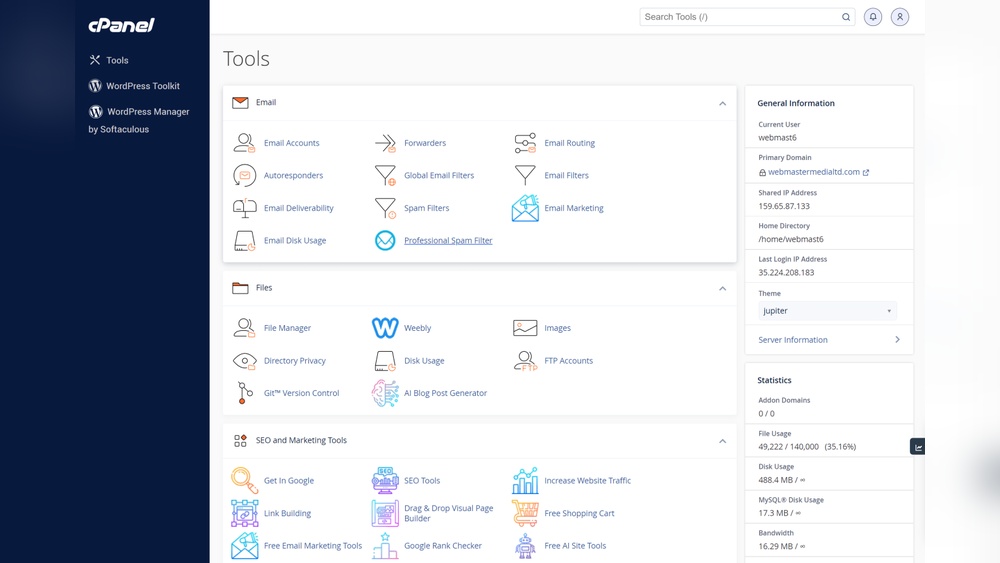
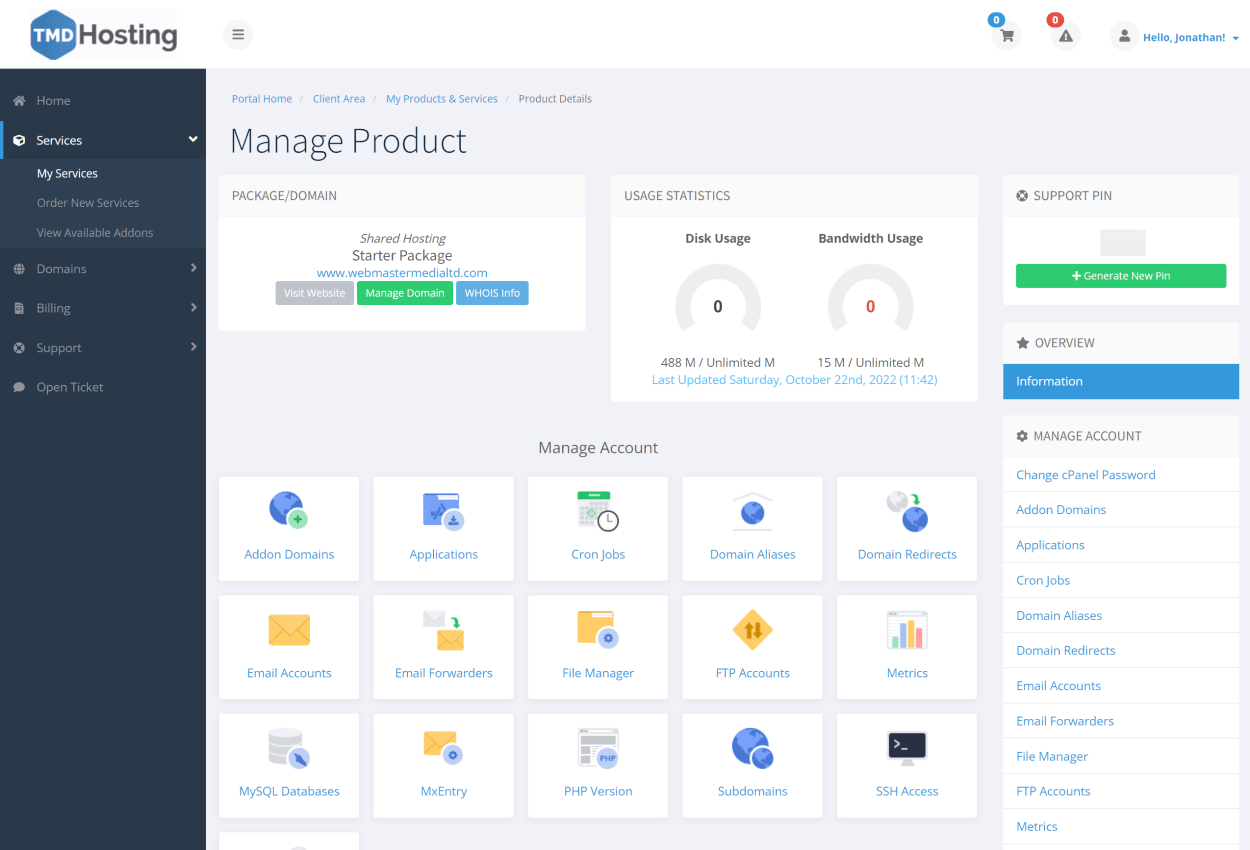
Accessing the TMD Hosting control panel is the first step to add an addon domain. The control panel lets you manage your website and domains easily. You can find all the tools you need in one place. This guide helps you open the control panel and find the addon domains section quickly.
Login To Cpanel
Start by opening your web browser. Enter your TMD Hosting cPanel URL in the address bar. Usually, it looks like yourdomain.com/cpanel. Type your username and password carefully. Click the login button to enter the control panel. If you forget your login details, check your welcome email from TMD Hosting.
Navigate To Addon Domains Section
Once logged in, look for the “Domains” area. Find and click on “Addon Domains.” This section lets you add new domains to your hosting account. The interface is simple and clear. Follow the steps on the screen to add your domain name. This adds the new website to your hosting space.
Add The Domain
Adding a domain to your TMD Hosting account is a simple process. This lets you host multiple websites using one account. The key step is to add the domain correctly. Follow these instructions carefully to avoid errors.
Enter Domain Details
Start by logging into your TMD Hosting control panel. Find the “Addon Domains” section and click it. Enter the new domain name you want to add. Make sure to type it without “www” or “http://”. Check the spelling to avoid mistakes. This step connects your domain to your hosting account.
Set Document Root
Next, set the document root folder. This folder stores your website files for the new domain. By default, TMD Hosting suggests a folder name based on your domain. You can change it if you want a custom folder name. Keep it simple and clear to find your files easily later.
Create Ftp Account (optional)
You can create an FTP account for this new domain. This step is optional but helpful for managing files. Enter a username and password for the FTP account. This lets you upload files directly to the domain’s folder. Skip this if you prefer using the main account for file management.

Credit: www.pcmag.com
Verify Domain Setup
Verifying your domain setup is a key step after adding an addon domain in TMD Hosting. This process ensures your domain points correctly to your hosting account. It also helps avoid errors when visitors try to access your site.
Proper verification confirms that your domain is live and ready for use. It also checks that your website files are in place and accessible. Follow these steps to verify your domain setup smoothly.
Check Dns Propagation
DNS propagation means updating your domain’s records across the internet. This process can take time, usually from a few minutes to 48 hours. You can check propagation using online tools like DNS Checker. Enter your domain name to see if the new records have spread worldwide. Complete propagation means your domain points to TMD Hosting servers. Without it, your site may not load or show errors.
Upload Website Files
Uploading website files is the next step after DNS propagation completes. Use an FTP client or the TMD Hosting file manager to upload files. Place your files in the addon domain’s root folder. This folder is usually inside the public_html directory. Make sure the main file is named index.html or index.php. This file loads first when visitors open your site. Check your site by typing your addon domain in a browser. If the site loads correctly, your domain setup is verified.
Manage Addon Domain Settings
Managing addon domain settings is important for keeping your website organized. It lets you control how each domain works on your TMD Hosting account. Proper management helps avoid errors and ensures smooth operation of your sites.
This section explains how to modify domain configurations and how to remove or disable addon domains. Follow these steps carefully to keep your hosting clean and efficient.
Modify Domain Configurations
To change settings for an addon domain, log in to your TMD Hosting control panel. Find the “Addon Domains” section. Select the domain you want to edit.
You can update the document root folder for the domain here. This folder holds all website files. Changing it lets you organize files better or point the domain to a new location.
You may also update domain redirection settings. Redirect the addon domain to another URL if needed. Save all changes after editing.
Remove Or Disable Addon Domain
Removing an addon domain stops it from working on your account. To remove, go to the “Addon Domains” area in your control panel. Find the domain and click the remove option.
Disabling a domain is useful if you want to keep files but stop the site from showing. This option may not be available in all control panels. Contact support if unsure.
Always backup your website files before removing or disabling domains. This prevents accidental data loss.
Troubleshoot Common Issues
Adding an addon domain to TMD Hosting can sometimes bring up issues. These problems may slow your website or stop it from working. Knowing how to fix common errors can save time and stress. This guide covers simple ways to solve three frequent problems. Follow these tips to keep your addon domain running smoothly.
Dns Errors
DNS errors happen when your domain does not connect to the right server. This causes your website to not load. Check that your domain’s nameservers point to TMD Hosting. Wait a few hours after changes; DNS updates take time. Use online tools to check DNS status. Clear your browser cache to avoid old data.
File Permission Problems
File permission issues stop your website from showing content correctly. Incorrect permissions block access to files and folders. Set folders to 755 and files to 644 permissions. Use your hosting control panel or FTP client to change permissions. Avoid setting permissions to 777, as it is unsafe. Fixing permissions helps keep your site secure and accessible.
Ssl Certificate Setup
SSL errors make your site show as “Not Secure.” This scares visitors and lowers trust. TMD Hosting offers free SSL certificates. Activate SSL in your control panel for your addon domain. After activation, force HTTPS to protect your visitors. Check SSL status using online tools. Renew SSL certificates before they expire to avoid warnings.
Frequently Asked Questions
What Is An Addon Domain In Tmd Hosting?
An addon domain lets you host multiple websites under one TMD Hosting account. It uses a separate directory for each site. This saves cost and simplifies management. You can easily add new domains without extra hosting plans.
How Do I Add An Addon Domain In Tmd Hosting?
Log in to your TMD Hosting cPanel. Locate the “Addon Domains” section. Enter the new domain name, subdomain, and document root. Click “Add Domain” to complete. Your addon domain will be active shortly.
Can I Use An Addon Domain For A New Website?
Yes, an addon domain works like a separate website. You can upload unique content and customize it independently. It functions fully with its own files and databases. This allows hosting multiple sites on one hosting plan.
Is There A Limit To Addon Domains In Tmd Hosting?
TMD Hosting usually allows multiple addon domains depending on your plan. Check your hosting package for the exact limit. Higher-tier plans offer more addon domains. If unsure, contact TMD Hosting support for details.
Conclusion
Adding an addon domain in TMD Hosting is simple and quick. Follow the steps carefully to avoid errors. This allows you to manage multiple websites from one account. Keep your domain details organized for easy access. Regularly check your hosting settings to ensure smooth operation.
Practice these steps to gain confidence in managing domains. This skill helps you grow your online presence effectively. Start adding addon domains today and expand your website options.


