
Have you ever wondered how to find the exact IP address behind a website? Knowing the IP address that hosts a domain can unlock valuable insights—whether you want to troubleshoot a connection issue, enhance your website’s security, or simply satisfy your curiosity.
You’ll learn simple, step-by-step methods to quickly check the IP address hosting any domain. By the end, you’ll have the tools to uncover this crucial information with ease and confidence. Keep reading to discover how!

Credit: smart.dhgate.com
What Is An Ip Address
An IP address is a unique set of numbers assigned to devices connected to the internet. It acts like an address that tells other devices where to send information. Every website, computer, or smartphone uses an IP address to communicate online.
This address helps in finding and identifying devices on a network. Without IP addresses, sending data across the internet would be impossible. Understanding IP addresses is important for checking what IP address hosts a domain.
What Does An Ip Address Look Like?
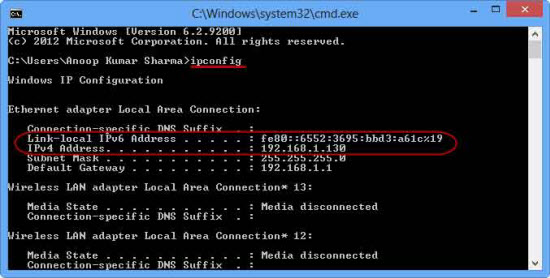
An IP address usually appears as a series of numbers separated by dots. For example, 192.168.1.1 is a common format. There is also a newer version that uses letters and numbers separated by colons.
Types Of Ip Addresses
There are two main types of IP addresses: IPv4 and IPv6. IPv4 has four sets of numbers. IPv6 uses eight groups of letters and numbers. IPv6 was created to handle more devices on the internet.
Why Are Ip Addresses Important?
IP addresses allow devices to find each other online. They help deliver emails, load web pages, and stream videos. Without IP addresses, your device could not connect to websites or other devices.

Credit: support.intermedia.com
Why Check A Domain’s Ip Address
Checking a domain’s IP address helps you learn where a website is hosted. It reveals the server that holds the website data. This information is useful for many reasons. Knowing a domain’s IP can improve your website management and security.
You can find out if two domains share the same server. This can affect website speed and reliability. It also helps in identifying fake or harmful websites. Tracking a domain’s IP address can help solve technical problems quickly.
Understand Website Hosting Location
The IP address shows the physical location of the web server. This location can affect the website speed for visitors. Knowing the hosting location helps choose the best server for your audience. It also helps comply with local laws and rules.
Improve Website Security
Checking the IP can reveal suspicious activity. If a domain points to a strange IP, it might be unsafe. You can block harmful IPs to protect your site. Monitoring IP addresses helps stop cyber attacks early.
Diagnose Website Issues
When a website is slow or down, the IP address is key. It helps find if the server is the problem. You can test the connection to the IP for errors. This speeds up fixing technical issues.
Compare Hosting Services
Knowing a domain’s IP lets you see which hosting company it uses. This helps you compare different hosting providers. You can learn about server quality by checking IPs. It guides better decisions for your own hosting needs.
Using Command Prompt Or Terminal
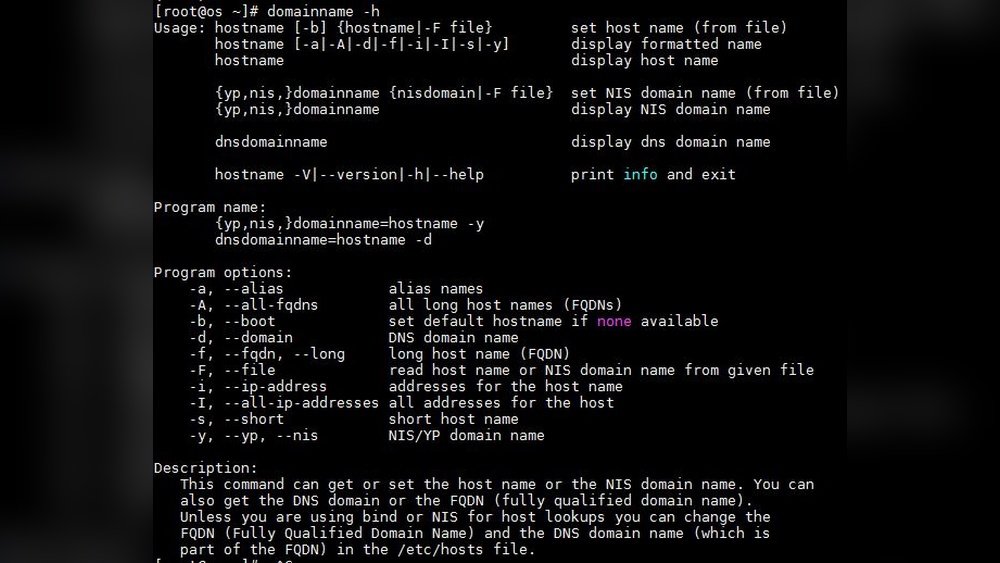
Using Command Prompt or Terminal is a quick way to find a domain’s IP address. These tools come pre-installed on most computers. They allow you to run simple commands to get network information fast. You do not need extra software or websites. Just type a command and see the result.
This method works on Windows, Mac, and Linux. It is useful for checking website addresses or troubleshooting network problems. Two common commands for this task are ping and nslookup.
Ping Command
The ping command sends a small packet of data to a domain. It then shows the IP address that hosts the domain. Open Command Prompt or Terminal and type ping domain.com. Replace domain.com with the site you want to check.
The result shows the IP address in square brackets next to the domain name. It also shows how long the packet took to reach the server. This command is simple and fast for finding IP addresses.
Nslookup Command
The nslookup command queries the Domain Name System (DNS) for detailed info. It gives the exact IP address of the domain. Open Command Prompt or Terminal and type nslookup domain.com. Change domain.com to the domain you want.
The output shows the server used for the query and the domain’s IP address. It is more detailed than ping. This command helps check DNS records and troubleshoot domain issues.
Online Tools For Ip Lookup
Online tools make it simple to find the IP address behind a domain. These tools work fast and do not need any software installation. They provide clear results in just a few clicks.
Many websites offer free IP lookup services. These tools help you learn more about a domain’s hosting location. They also give details about the server and network.
Websites To Use
Several reliable websites let you check IP addresses easily. Some popular ones include:
- Whois Lookup
- IPinfo.io
- WhatIsMyIPAddress.com
- DomainTools
- MXToolbox
These sites offer a simple input box. Type the domain name, and the tool shows the IP address quickly.
How To Interpret Results
Results usually show the IP address in a clear format. This looks like four groups of numbers separated by dots.
You might see extra details such as the server’s location or the Internet Service Provider (ISP). These details help understand where the website is hosted.
Some tools also show if the IP is shared by many domains or dedicated to one. This information helps with website research or troubleshooting.
Checking Ip Address On Mobile Devices
Checking the IP address of a domain on mobile devices is simple and quick. You do not need a computer to find this information. Mobile phones and tablets can do the job with a few easy steps.
Many apps and websites work well on mobile devices. They show the IP address of any domain you enter. This helps you understand where a website is hosted or troubleshoot connection issues.
Using Online Tools On Mobile Browsers
Open your mobile browser and visit an IP lookup website. Sites like WhatIsMyIPAddress or IPinfo work well. Enter the domain name in the search box. The site will display the IP address immediately.
This method requires an internet connection but no app installation. It is fast and easy for occasional checks.
Installing Ip Lookup Apps
Search your app store for “IP lookup” or “domain IP checker.” Many free apps can find IP addresses. Download and open the app. Enter the domain name. The app shows the IP address and sometimes more details.
Apps can offer extra features like ping tests or traceroutes. They work offline after initial setup.
Using Command Line Tools On Mobile
Some mobile devices support command line apps like Termux on Android. Install the app to access terminal commands. Use the command “ping domain.com” or “nslookup domain.com.” The IP address appears in the results.
This method suits users familiar with technical tools. It provides detailed network information.
Credit: www.c-sharpcorner.com
Troubleshooting Common Issues
Checking the IP address hosting a domain usually goes smooth. Sometimes, errors appear. These errors may confuse users or stop the process. Understanding common issues helps fix them fast. Troubleshooting clears the way to find the right IP address.
Dns Lookup Errors
DNS lookup errors happen when the domain name cannot convert to an IP address. This may occur due to a typo in the domain name. Another cause is problems with the DNS server. Try retyping the domain or use a different DNS service.
Timeout Issues
Timeouts happen when the server takes too long to respond. This can mean the server is down or overloaded. Try checking the domain later or use online tools to test the server status. A slow internet connection may also cause timeouts.
Wrong Or No Ip Address Shown
Sometimes, the tool shows a wrong or no IP address. This can happen if the domain uses a content delivery network (CDN). CDNs hide the original IP for security. Use advanced tools like WHOIS or traceroute to find the real IP address.
Blocked Or Restricted Access
Access to IP checking tools may be blocked by firewalls or network settings. Some websites limit access based on region or IP. Try using a VPN or a different network to bypass restrictions. Also, check firewall settings on your device.
Frequently Asked Questions
What Is An Ip Address For A Domain?
An IP address is a unique number that identifies a server hosting a domain. It helps browsers find and load the website online.
How Can I Find A Domain’s Ip Address?
You can find a domain’s IP by using tools like ping, nslookup, or online DNS lookup services. They reveal the associated IP quickly.
Why Should I Check A Domain’s Ip Address?
Checking a domain’s IP helps troubleshoot connectivity issues and verify website hosting details. It is useful for network diagnostics and security.
Can Ip Addresses Change For A Domain?
Yes, IP addresses can change due to hosting changes or server updates. Domains often use dynamic or load-balanced IPs for flexibility.
Conclusion
Checking a domain’s IP address is simple and useful. It helps you learn where a website is hosted. You can use online tools or command prompts to find this information. Knowing an IP address can improve your understanding of websites and internet safety.
Keep practicing these steps to get faster and more confident. Now, you can easily check any domain’s IP address on your own.


