
Thinking about deleting your WordPress site? Whether you want to start fresh or simply remove an old project, knowing exactly how to delete WordPress safely is crucial.
You don’t want to lose important content or get stuck with unexpected charges. In this guide, you’ll discover simple, clear steps to delete your WordPress site the right way — from backing up your data to completely removing files and databases.
Stick with us, and you’ll have full control over your website’s future in no time. Ready to take the first step? Let’s dive in.
Backup Your Site
Backing up your WordPress site is essential before deleting it. This step saves your content and media. It protects your work from being lost forever. Backups also allow you to restore your site if needed later. Follow the steps below to save your site safely.
Export Content And Media
Start by exporting your posts, pages, and comments. WordPress has a built-in export tool for this. Go to the dashboard, then to Tools > Export. Choose “All content” to download everything in one file. This file contains your text and links to media.
Next, download your media files. Media files include images, videos, and audio. You can use an FTP client or your hosting file manager. Find the “wp-content/uploads” folder. Save this folder to your computer. This step keeps all your site’s images and files.
Save Database Files
Your WordPress database stores all site data, including settings and user info. It is crucial to save this before deletion. Access your hosting control panel and open phpMyAdmin. Select your WordPress database from the list.
Click “Export” to download the database. Choose the “Quick” export method and the SQL format. Save the file securely on your computer. This file contains all your site’s data for future use or migration.
Credit: wordpress.com
Cancel Subscriptions
Cancelling subscriptions is an important step before deleting your WordPress site. It stops ongoing payments and avoids future charges. Many WordPress users have premium themes or plugins that require active subscriptions. These must be cancelled to prevent billing after the site is gone.
Take time to check all services linked to your WordPress. Cancel each one carefully to avoid surprises. This process helps you clean up your account and keeps your finances in order.
Remove Premium Themes
Premium themes often come with subscription fees. Log into your theme provider’s website. Locate your account and find active subscriptions. Cancel the theme subscription to stop payments. Removing the theme from your WordPress site does not cancel billing. You must cancel directly with the theme provider. Confirm cancellation by checking your email for confirmation messages.
Unsubscribe From Plugins
Many plugins require subscriptions for full features. Visit the plugin provider’s website and log into your account. Look for active plugin subscriptions and cancel them. Do this before deleting your WordPress site. Simply deleting plugins from WordPress does not stop billing. Check your payment method for any recurring charges. Canceling ensures you do not pay for unused services.
Delete WordPress.com Site
Deleting a WordPress.com site is a straightforward process. It helps clear space and remove unwanted content. Before deleting, save any important data or media from your site. This ensures you keep valuable information for future use.
Use the WordPress.com app for quick site deletion. This method is user-friendly and works on both mobile and desktop. Follow the clear steps to remove your site without hassle.
Use WordPress.com App
Open the WordPress.com app on your device. Tap My Site to see your list of sites. Select the site you want to delete. Next, tap More and then Site Settings. Scroll down to find the Delete Site option. Tap it to start the deletion process.
Confirm Site Deletion
The app will ask you to confirm the deletion. Read the prompts carefully to understand what deleting means. Confirm your choice by typing the site’s address or name, if requested. This step prevents accidental deletions. Once confirmed, your site will be permanently deleted from WordPress.com.

Credit: pressable.com
Remove Self-hosted WordPress
Removing a self-hosted WordPress site involves deleting both the WordPress files and its database. This process ensures that your website is completely erased from the server. Follow these steps carefully to avoid leaving any data behind.
Access Hosting Control Panel
Start by logging into your hosting control panel. Most hosts offer cPanel or a similar dashboard. Look for the file manager and database management tools. This panel is your gateway to managing your website files and databases.
Delete WordPress Files
In the file manager, locate the folder where WordPress is installed. This is often the public_html directory or a subfolder inside it. Select all files and folders related to WordPress. Use the delete option to remove these files permanently from the server.
Remove Database Via Phpmyadmin
Next, open phpMyAdmin from your hosting control panel. Find the database linked to your WordPress site. Select the database and click on the drop or delete option. This action will remove all your site’s data, including posts and settings.
Manual Deletion Steps
Manual deletion of a WordPress site requires careful steps. It involves removing files and databases directly from the server. This process ensures complete removal of your site. Follow each step carefully to avoid errors. Back up important data before starting.
Use File Manager Or Ftp
Access your website files using File Manager in your hosting control panel. Alternatively, connect via FTP with a client like FileZilla. Locate the folder where WordPress is installed. This folder contains all site files needed for deletion.
Delete Root Directory Files
Select all files and folders inside the WordPress root directory. Delete them permanently to remove your website content. This action clears all themes, plugins, and uploads. Make sure no important files remain before deleting.
Delete Associated Database
Open your hosting control panel and find the database section. Identify the database linked to your WordPress installation. Delete this database to erase all website data and settings. Confirm the deletion to complete the process.
Remove Database Users
After deleting the database, remove its associated users. This step improves security by preventing unwanted access. Find the database users section in your control panel. Delete users connected only to the deleted database.
Credit: www.greengeeks.com
Handle Domain And Hosting
Handling your domain and hosting is a key step in deleting a WordPress site. These services keep your website online. Managing them correctly stops future charges and frees up resources.
Domain names point visitors to your website. Hosting provides the space where your website files live. You must take care of both after deleting WordPress.
Cancel Domain Renewal
Domains renew automatically unless you cancel them. Visit your domain registrar’s dashboard. Find the renewal settings for your domain name. Turn off auto-renew or set the domain to expire. This prevents unexpected charges in the future. You can also transfer the domain to another owner if needed. Keep in mind, once expired, your domain may become available to others.
Close Hosting Account If Needed
Hosting accounts cost money monthly or yearly. If you no longer need hosting, log into your hosting provider’s control panel. Look for account cancellation options. Follow the steps to close the account securely. Make sure to download any backups before closing. Some hosts require you to submit a cancellation request via support. Confirm the account closure to stop billing. Closing hosting frees up your resources and protects your data.
Troubleshooting Deletion Issues
Deleting a WordPress site might seem simple but can face some problems. Troubleshooting deletion issues is necessary to complete the process smoothly. Some common hurdles can stop the deletion or cause confusion during the steps. Knowing how to fix these issues helps avoid delays and errors.
This section covers two important checks to ensure a smooth deletion. Follow these steps carefully to resolve typical problems and delete your WordPress site without trouble.
Check Active Purchases
Active purchases like plans or domains can block site deletion. WordPress prevents deleting sites with ongoing subscriptions. Confirm no active purchases remain linked to your site. Cancel or transfer any paid plans before trying to delete the site.
Look for any domain registrations or premium services connected to your WordPress account. These must be removed or expired. The deletion process often prompts you to handle these first. This step ensures no billing issues occur after deletion.
Verify Site Ownership
WordPress requires proof you own the site before deletion. Confirm you are logged in with the correct account. Sometimes, multiple accounts cause confusion and stop deletion.
Check the email address and user details linked to the site. You might need to verify your identity through email confirmation or security questions. This verification keeps sites safe and prevents unauthorized deletions.
If you lost access to the account, contact WordPress support for help. Only verified owners can delete sites to protect site data and users.
Frequently Asked Questions
How Do I Completely Delete A WordPress Website?
Back up your content first. Log in to your hosting or WordPress. com account. Locate your site settings. Choose the delete or remove option. Confirm deletion by following on-screen prompts. Cancel any active subscriptions before deleting to avoid charges. This fully removes your WordPress website.
Why Can’t I Delete My WordPress Site?
You can’t delete your WordPress site if you have active plans or domains. Cancel these first. Also, confirm you use WordPress. com or a self-hosted setup. Back up your content before deleting. Deletion requires accessing your hosting control panel or WordPress settings to remove files and databases.
How Do I Delete My WordPress Account Permanently?
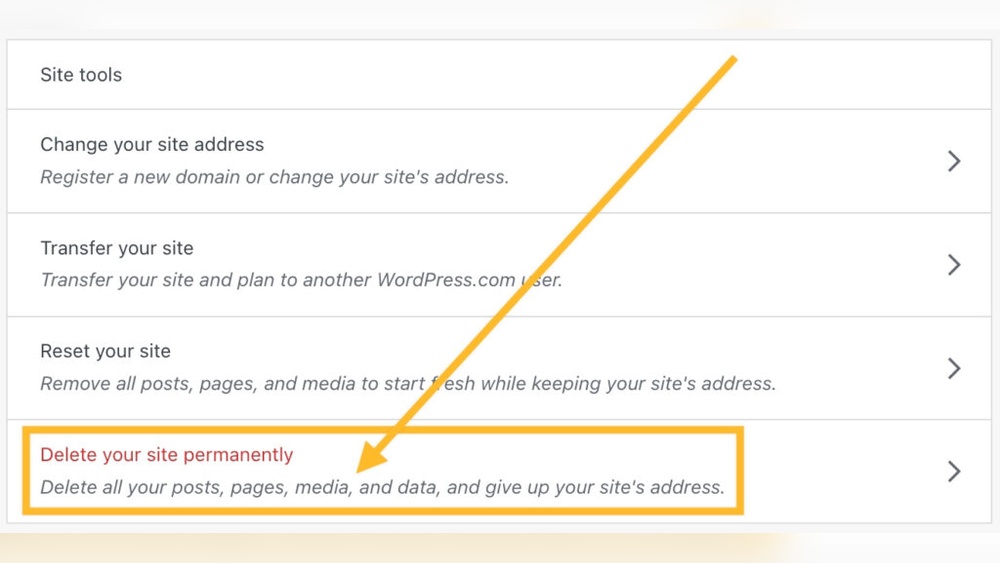
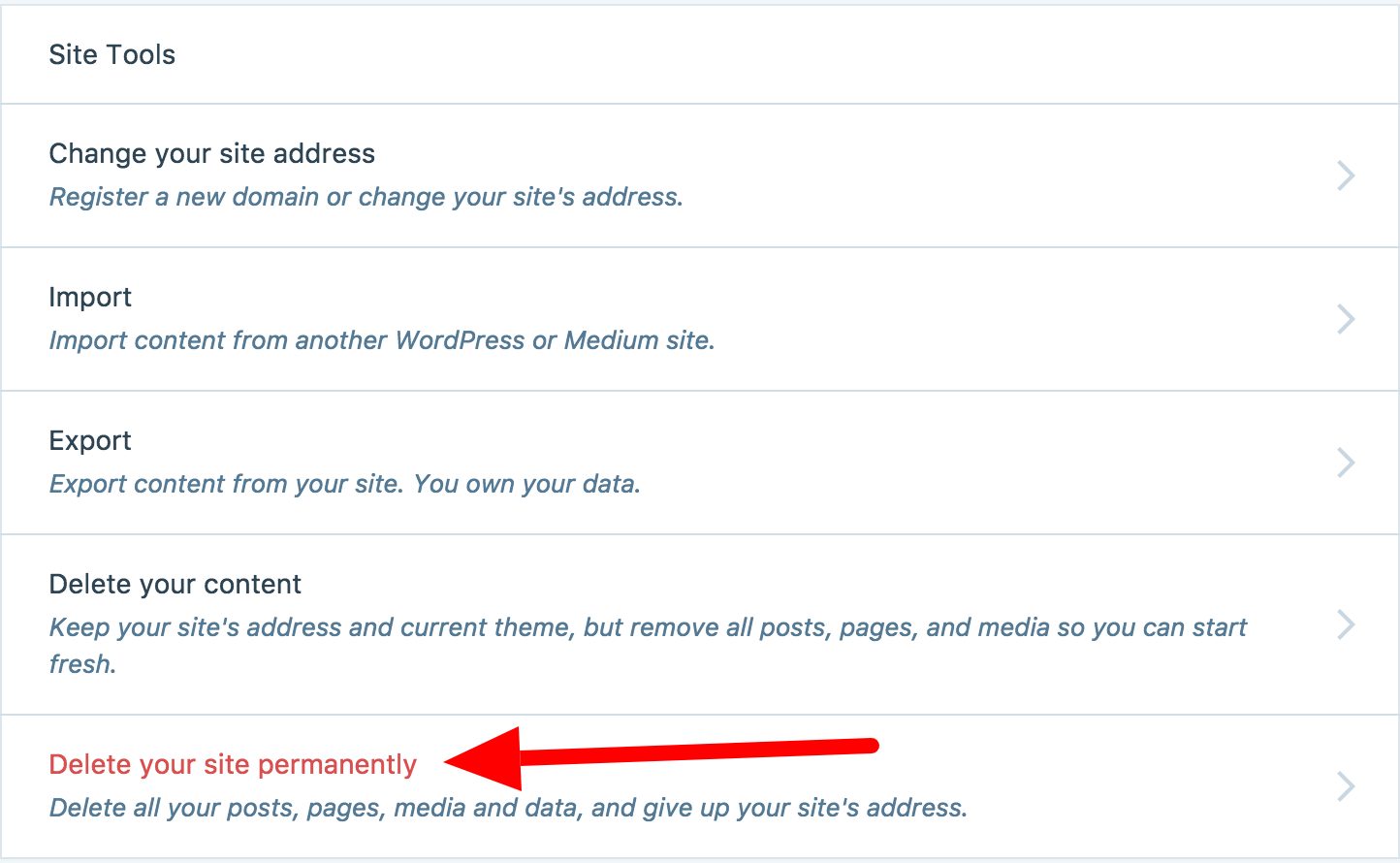
Log in to your WordPress account. Go to My Site > Manage > Settings. Scroll down and click “Delete your site permanently. ” Confirm the deletion and export any content you want to keep before deleting. This removes your WordPress account and site permanently.
How Do I Delete Installed WordPress?
To delete installed WordPress, log in to your hosting control panel. Locate your WordPress files in the root or subfolder. Delete all WordPress files and the database. Confirm removal. Always back up your site before deleting to avoid data loss.
Conclusion
Deleting a WordPress site is simple with the right steps. Always back up your content first to avoid losing important data. Cancel any active subscriptions to prevent unexpected charges. Choose the deletion method based on your hosting type—WordPress. com or self-hosted.
Follow instructions carefully to remove files and databases completely. Taking these actions ensures a clean and safe site deletion process. Now, you can move forward with confidence and peace of mind.


