
Are you ready to transform your WordPress website without writing a single line of code? Elementor makes it easy for you to design stunning pages with simple drag-and-drop tools.
Whether you want to build a sleek portfolio, an online store, or a personal blog, Elementor puts the power in your hands. In this guide, you’ll discover step-by-step how to use Elementor to create beautiful, professional-looking websites that grab attention and keep visitors engaged.
Keep reading, and you’ll be amazed at how quickly your vision comes to life.
Credit: knowledge.gate39media.com
What Elementor Is
Elementor is a popular page builder plugin for WordPress. It helps users create and design web pages easily. No coding skills are needed. Elementor offers a visual drag-and-drop interface. This makes building websites fast and simple. It works inside the WordPress platform, adding powerful design tools. Many beginners and professionals use Elementor to build unique sites.
Key Features
Elementor comes with many useful features. It has a live editor that shows changes instantly. You can drag and drop widgets like text, images, and buttons. Pre-designed templates make starting a new page easy. It supports responsive design, so your site looks good on all devices. The plugin also includes style and layout controls for full customization. Users can add animations, custom fonts, and more.
How It Works
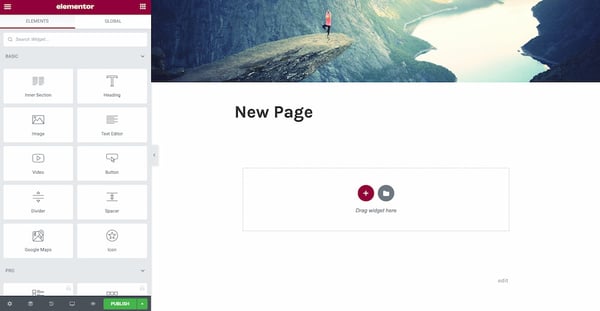
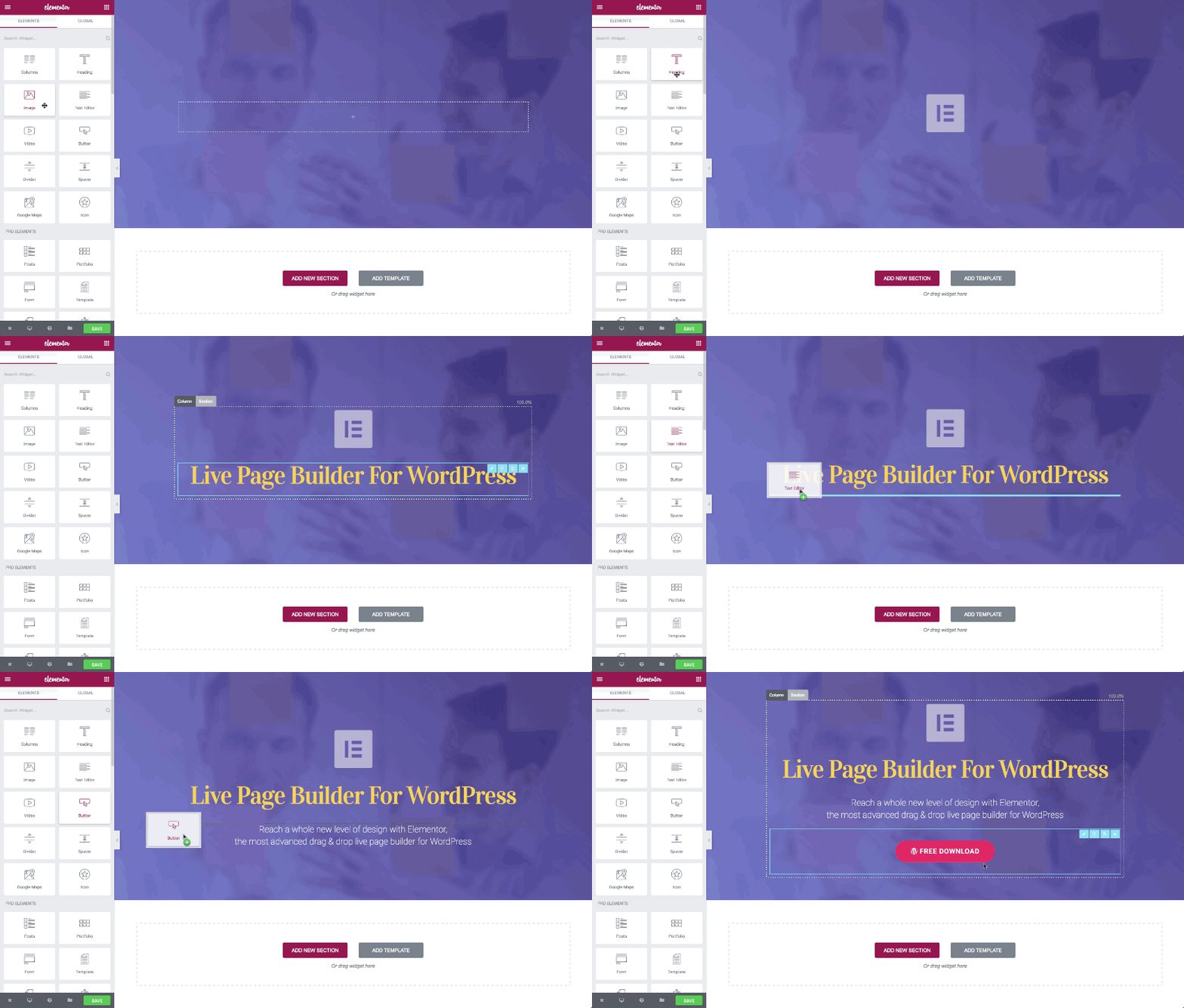
After installing Elementor on WordPress, open the page you want to edit. Click the “Edit with Elementor” button. This opens the visual editor. You can add sections and columns as the page structure. Drag widgets from the sidebar into these sections. Customize each widget using simple controls. Changes appear in real time on the screen. When done, save or publish your page. Your new design goes live immediately.
Credit: kinsta.com
Installing Elementor
Installing Elementor is the first step to creating stunning websites with ease. This plugin fits perfectly into WordPress, allowing you to build pages visually. The installation process is straightforward and quick.
Before installing, ensure your site meets the basic needs to run Elementor smoothly. This helps avoid errors and performance issues later.
Requirements
- WordPress version 5.0 or higher
- PHP version 7.0 or higher
- At least 128 MB of PHP memory limit (256 MB recommended)
- A compatible WordPress theme
- Active internet connection for plugin download
Meeting these requirements ensures Elementor works without problems. Check your hosting environment if you are unsure about these details.
Step-by-step Installation
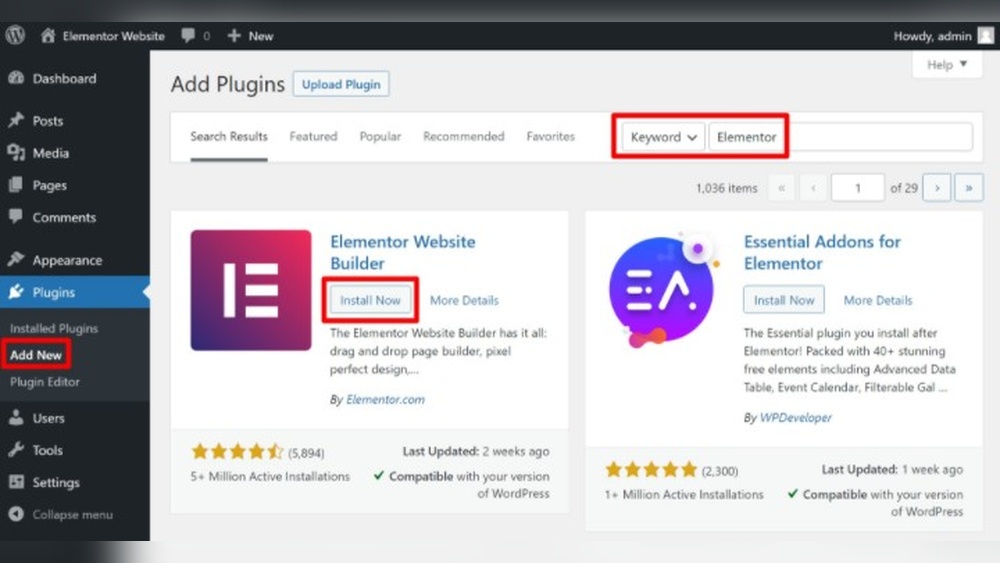
- Log in to your WordPress dashboard.
- Go to “Plugins” and click “Add New.”
- In the search bar, type “Elementor.”
- Find “Elementor Page Builder” and click “Install Now.”
- After installation, click “Activate” to enable the plugin.
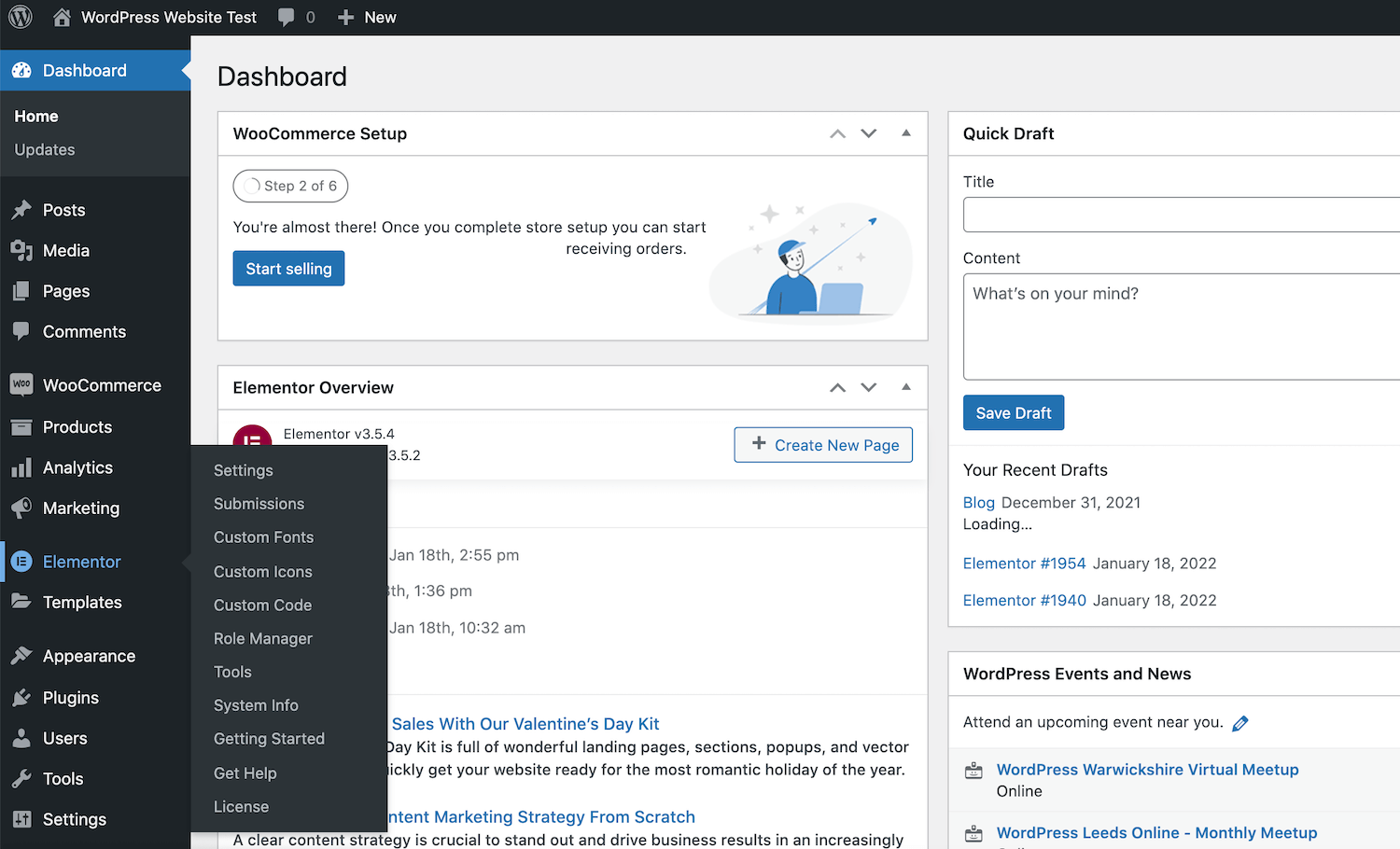
- Once activated, a new Elementor option appears in your dashboard menu.
You can start creating pages by opening any page and clicking the “Edit with Elementor” button. This launches the drag-and-drop editor instantly.
Navigating The Interface
Navigating the Elementor interface in WordPress is simple and clear. The layout is designed to help you build pages quickly. Understanding the main parts will speed up your design process. You can see your changes live as you work. This real-time editing makes it easy to adjust your site’s look and feel.
Dashboard Overview
The Elementor dashboard is your starting point. It shows all your created pages and templates. From here, you can create a new page or edit an existing one. The dashboard also lets you access settings and tools. Everything is organized to keep your workflow smooth. You can switch between WordPress and Elementor easily.
Widgets And Elements
Widgets are the building blocks of your page. Elementor offers many widgets like headings, images, and buttons. You drag and drop widgets onto your page. Each widget can be customized with simple controls. You can change colors, sizes, and layouts without coding. Widgets help you add content and style quickly and flexibly.
Creating Your First Page
Creating your first page with Elementor is simple and fun. This powerful tool helps you build beautiful pages easily. You do not need to write any code. Just drag, drop, and customize your elements.
Start by opening Elementor from your WordPress dashboard. You will see options to create and design your page step by step. Focus on structure first, then add your content.
Choosing A Template
Elementor offers many ready-made templates to save time. Pick one that fits your page’s purpose. Templates come in different styles and layouts. Browse through the library and select your favorite.
Click the template to preview it. If it looks good, insert it on your page. Templates give you a strong start and a clean design. You can change anything later to make it yours.
Adding And Editing Sections
Sections are the building blocks of your page. Add a new section by clicking the plus (+) icon. Choose the column layout you want for that section.
Inside each section, add widgets like text, images, buttons, or videos. Drag widgets from the sidebar and drop them into the columns. Edit content by clicking directly on the widget.
Use the left panel to change text, colors, fonts, and sizes. Adjust spacing and alignment to make the page look neat. Save your work often to avoid losing changes.
Customizing Design
Customizing design in Elementor lets you create a website that fits your style perfectly. You control every detail, from fonts to colors and layout. This helps your site stand out and look professional. Elementor’s tools make it easy to change design without coding.
Typography And Colors
Start by choosing the right fonts for your site. Elementor offers many font options, including Google Fonts. You can set font size, weight, and style for headings and body text. Clear typography improves readability and user experience.
Colors are key to your brand identity. Use Elementor’s color picker to select primary, secondary, and background colors. Keep your color scheme simple and consistent. This creates a clean and attractive look that visitors will remember.
Responsive Settings
Websites must look good on all devices. Elementor lets you adjust settings for desktops, tablets, and phones. You can hide or show sections based on screen size. Change font sizes, margins, and padding for smaller screens.
This ensures your content is easy to read and navigate everywhere. Responsive design improves user engagement and helps your site rank better in search engines.
Using Advanced Features
Using advanced features in Elementor allows you to build more dynamic and professional websites. These tools save time and keep your design consistent. They help you create site-wide elements easily. Understanding these features improves your workflow and website quality.
Global Widgets
Global Widgets let you reuse the same widget across multiple pages. Edit the widget once, and changes apply everywhere it appears. This keeps your site design uniform without extra work. It is useful for buttons, forms, or custom content blocks. To create a Global Widget, right-click on any widget and select “Save as Global.” Then, add it to other pages from the Global tab.
Theme Builder Basics
The Theme Builder helps you design header, footer, and other theme parts. You can create custom templates without coding. This feature replaces your theme’s default layouts with your designs. It lets you control the look of archive pages, single posts, and more. Access the Theme Builder from the Elementor menu and choose the part to customize. Assign templates to show on specific pages or site-wide.
Optimizing Performance
Optimizing performance is key to creating a smooth, user-friendly website with Elementor. Fast loading pages keep visitors engaged and reduce bounce rates. Good performance also improves your site’s ranking on search engines. Focus on both SEO and speed to get the best results from Elementor.
Seo Considerations
Elementor helps build SEO-friendly websites if used wisely. Use clean, semantic HTML tags for headings and content. Add alt text to all images to improve search visibility. Avoid overusing widgets that add unnecessary code. Keep your URLs clear and keywords relevant. Use plugins like Yoast SEO to guide optimization. Make sure meta titles and descriptions are unique for each page. Proper heading structure helps search engines understand your content.
Speed Enhancements
Speed is vital for user experience and SEO. Use caching plugins to serve pages faster. Compress images before uploading to reduce load times. Limit the number of Elementor widgets on a page. Avoid heavy animations or video backgrounds that slow loading. Enable lazy loading for images to load them only when visible. Keep your WordPress and Elementor updated for best performance. Use a reliable hosting service to ensure fast server response.
Credit: elementor.com
Troubleshooting Common Issues
Troubleshooting common issues in Elementor helps keep your website running smoothly. Many users face small problems that stop them from building pages easily. Fixing these quickly improves your experience and saves time. Below are typical problems and how to solve them.
Plugin Conflicts
Elementor may clash with other WordPress plugins. This causes errors or stops features from working. To check, deactivate all other plugins except Elementor. Then, reactivate them one by one. This shows which plugin causes trouble. Update all plugins to their latest versions for better compatibility. Avoid using plugins that serve the same function as Elementor. Clear your site cache after changes to see updates.
Layout Problems
Sometimes your page looks different than expected. Sections may overlap or spacing may break. This happens due to theme or CSS issues. Switch to a default WordPress theme like Twenty Twenty-One to test. If the problem clears, your theme may need adjustment. Check Elementor’s responsive settings to fix mobile layout issues. Use the built-in preview tool to test designs on different devices. Clear browser cache and reload pages to apply fixes.
Integrating Third-party Plugins
Integrating third-party plugins with Elementor enhances your WordPress website’s capabilities. Plugins add new features and improve design options. They help customize your site beyond the basic Elementor tools. Using compatible plugins ensures smooth performance and fewer conflicts.
Popular Compatible Plugins
Several plugins work well with Elementor to boost your site’s functionality. Elementor Pro adds advanced widgets and templates. Essential Addons for Elementor offers extra design elements and blocks. Another popular choice is Ultimate Addons for Elementor, which provides creative modules. These plugins blend seamlessly with Elementor’s interface.
Extending Functionality
Plugins extend what you can do with Elementor. You can add contact forms, sliders, and social media feeds easily. Some plugins improve SEO or speed up your site. Others help create online stores or booking systems. Integrating these tools lets you build a fully functional website without coding.
Tips For Beginners
Starting with Elementor can feel simple yet challenging. Beginners need clear guidance to build attractive pages easily. This section shares useful tips to help beginners use Elementor effectively. Follow these guidelines to create smooth, professional websites without confusion.
Best Practices
Use Elementor’s drag-and-drop feature to place elements quickly. Start with a clear plan for your page layout. Choose a simple template to customize. Keep your design consistent with the same fonts and colors. Save your work often to avoid losing progress. Preview your page on different devices to ensure it looks good everywhere. Use headings and short paragraphs for easy reading. Keep images optimized to improve page speed. Use Elementor’s built-in widgets to add buttons, text, and images easily.
Avoiding Common Mistakes
Do not overload pages with too many elements. Too much content can slow your site down. Avoid using too many fonts or colors; it confuses visitors. Don’t ignore mobile responsiveness; check your design on phones. Avoid skipping the preview step before publishing. Do not forget to update Elementor and WordPress regularly. Avoid using too many third-party add-ons that can cause conflicts. Do not ignore SEO basics; add alt text to images. Avoid copying complex designs at first; keep it simple to learn well.
Frequently Asked Questions
How Does Elementor Work In WordPress?
Elementor works in WordPress by providing a drag-and-drop page builder. It allows easy website design without coding, directly within WordPress. Users customize layouts, content, and styles visually, speeding up the design process and enhancing creativity.
Is Elementor Easy For Beginners?
Elementor is easy for beginners due to its intuitive drag-and-drop interface. It requires no coding skills and offers simple customization options.
What Is The Disadvantage Of Using Elementor?
Elementor can slow website speed and increase page size. It may limit SEO control and cause plugin conflicts.
Can I Use Elementor On Any WordPress Site?
Yes, you can use Elementor on any WordPress site with a compatible theme. It works well with most themes and plugins. Elementor also offers its own Hello Theme to start designing immediately.
Conclusion
Using Elementor in WordPress makes website design simple and fast. It lets you build pages by dragging and dropping elements. No coding skills are needed to create a professional look. You can customize layouts, colors, and fonts easily. This tool fits well for beginners and experts alike.
Keep practicing to improve your design skills. Your website will stand out with clear and attractive pages. Start exploring Elementor today and enjoy building your site step by step.


