
If you’re new to WordPress or just want to get the most out of your website’s editing tools, understanding how to use the default WordPress editor is a game-changer. This editor lets you create and customize your posts and pages with ease, whether you’re writing a blog, showcasing your portfolio, or running an online store.
By mastering this simple yet powerful tool, you’ll save time and avoid frustration, making your content look exactly the way you want. Ready to unlock the full potential of your WordPress editor? Keep reading, and you’ll learn step-by-step how to navigate and use it like a pro.
Getting Started With WordPress Editor
Starting with the WordPress editor is simple and straightforward. The editor helps create and manage content on your website. Understanding how to access and use it saves time and effort. WordPress offers two main types of editors: the block editor and the classic editor. Each has unique features suited for different needs.
Accessing The Default Editor
Log in to your WordPress dashboard first. On the left menu, click on either “Posts” or “Pages.” Choose “Add New” to open the default editor. You will see a clean, user-friendly interface ready for content creation. The editor opens automatically in the block mode unless changed.
Navigating The Dashboard
The dashboard is your control center for website management. The left sidebar includes links to posts, pages, media, and settings. The top bar shows quick options for updates and user profiles. Use the dashboard to easily switch between editing and site management tasks.
Differences Between Block And Classic Editors
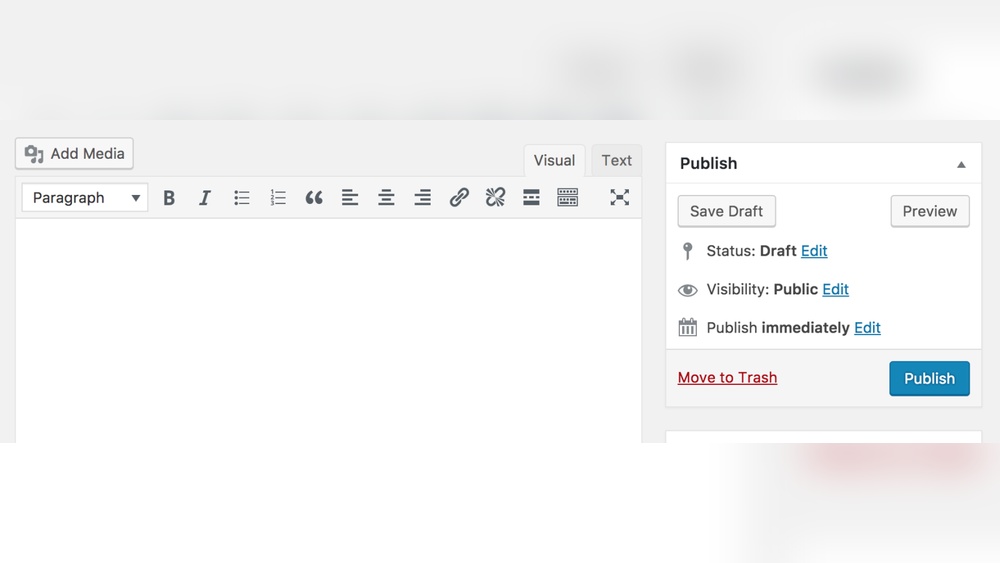
The block editor uses content blocks for text, images, and more. Each block can be moved, edited, or styled independently. It offers a modern and flexible way to build pages. The classic editor looks like a simple text box with formatting buttons. It works like a basic word processor. Choose the editor that fits your style and needs best.

Credit: css-tricks.com
Creating Content With Blocks
Creating content with blocks in the default WordPress editor is simple and flexible. Blocks allow you to build pages and posts by adding different content types. Each block can hold text, images, videos, or other media. This method helps organize your content clearly and attractively.
Adding And Arranging Blocks
Start by clicking the plus (+) button to add a new block. Choose from many block types like paragraphs, headings, images, or lists. After adding blocks, drag them up or down to change their order. This lets you arrange your content exactly how you want it to appear.
Using Text And Media Blocks
Text blocks include paragraphs, headings, and quotes. Use them to write and format your words. Media blocks let you insert images, videos, or audio files. Upload files directly or select from your media library. Combining text and media blocks creates engaging and rich posts.
Customizing Block Settings
Select any block to see its settings in the sidebar. Adjust options like font size, color, and alignment for text blocks. For media blocks, change image size or add captions. These settings help match your site’s style and improve readability.
Formatting And Styling Content
Formatting and styling content in the default WordPress editor is simple yet powerful. It helps your posts look clean and professional. Clear structure and good design improve reader experience. The editor offers many tools to format your text, add links, images, and reuse blocks. These tools make content creation faster and easier. Let’s explore some key features.
Applying Text Styles
Select the text you want to style. Use the toolbar to apply bold or italic styles. You can also add headings to organize content. Headings help break text into sections. Lists are easy to create, either numbered or bulleted. Use blockquotes to highlight important quotes. Text alignment options let you place text left, center, or right. These styles improve readability and structure.
Inserting Links And Images
To add a link, highlight the text and click the link icon. Enter the URL and press enter. Links connect your readers to other pages or sites. For images, click the plus icon and choose the image block. Upload or select an image from your media library. You can add alt text for accessibility and SEO. Adjust image size and alignment to fit your layout. Images make posts visually appealing and engaging.
Using Reusable Blocks
Reusable blocks save time by storing content you use often. Create a block with text, images, or other elements. Click the three dots in the block toolbar and select “Add to Reusable blocks.” Name your block and save it. Insert it in any post by choosing it from the reusable blocks list. Edit once, and changes apply everywhere. This feature keeps your content consistent and easy to update.

Credit: wordpress.org
Managing Posts And Pages
Managing posts and pages is a key part of creating a WordPress site. The default WordPress editor makes this task simple and clear. You can write, save, and publish your content quickly. Organizing your posts helps visitors find what they need fast. The editor offers tools to set images and sort posts with categories and tags. These features improve your site’s look and usability.
Saving Drafts And Publishing
Start writing your post or page in the editor. Use the “Save Draft” button to keep your work. This saves your content without making it public. You can return later to finish or edit. When ready, click the “Publish” button. This makes your post live on your site. You can also schedule posts to publish later.
Setting Featured Images
Featured images show a preview of your post on your site. In the editor sidebar, find the “Featured Image” box. Click “Set Featured Image” and choose a picture. The image should relate to your content. It grabs visitors’ attention and makes your site look good. You can change or remove the image anytime.
Organizing With Categories And Tags
Categories group your posts by broad topics. Tags describe specific details or keywords. Both help visitors find related content fast. In the editor, look for the “Categories” and “Tags” boxes. Select existing categories or create new ones. Add tags that match your post’s content. Good organization improves your site’s SEO and user experience.
Switching Between Editors
Switching between editors in WordPress lets you choose how to create and edit your content. WordPress offers two main editors: the Classic Editor and the Block Editor. Each editor has its strengths. You can switch to the one that fits your workflow best. Below are simple steps to manage your editor preferences.
Enabling Classic Editor Plugin
To use the Classic Editor, install its plugin first. Go to your WordPress dashboard and click on Plugins > Add New. Search for “Classic Editor” in the search bar. Click Install Now and then Activate. This plugin restores the old editor interface.
Once activated, you can switch between editors when creating or editing posts. WordPress will show a toggle option to select either the Classic or Block Editor. This flexibility helps users who prefer the older style.
Setting Default Editor Preferences
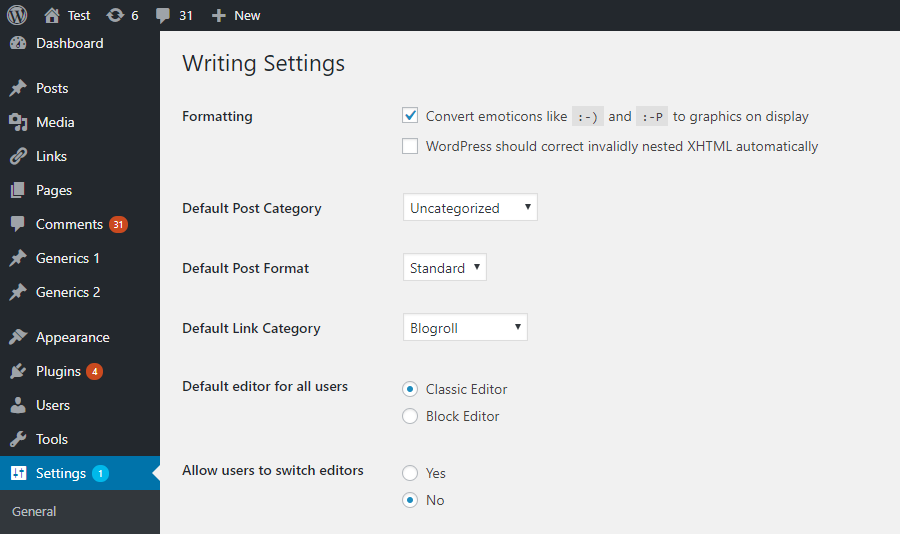
Set your preferred editor to load by default for all users or specific users. Navigate to Settings > Writing in your dashboard. Look for the option named Default editor for all users. Choose either Classic Editor or Block Editor.
You can also allow users to switch editors manually. This setting helps teams with mixed preferences. Save your changes to apply the default editor across your site.
Advantages Of Each Editor
The Block Editor offers a modern, visual way to build pages using blocks. It is good for layouts with images, columns, and media. Its drag-and-drop style makes creating rich content easier.
The Classic Editor is simple and familiar. It looks like a traditional word processor. This editor is faster for writing plain text and quick posts. It suits users who want a straightforward editing experience.
Choosing the right editor depends on your content type and comfort. Switching editors lets you pick the best tool for each task.
Enhancing Workflow
Enhancing your workflow in the default WordPress editor can save time and reduce frustration. Small changes help you write and edit faster. They also make managing content easier. Focus on simple tricks that improve your daily tasks.
Using Keyboard Shortcuts
Keyboard shortcuts speed up editing without clicking menus. For example, press Ctrl + B to bold text or Ctrl + I to italicize. Use Ctrl + K to add links quickly. These shortcuts keep your hands on the keyboard and your focus on writing.
Learn common shortcuts to format text, add headings, and undo mistakes. This reduces mouse use and improves flow. You can find a list of shortcuts in the WordPress help menu inside the editor.
Installing Helpful Plugins
Plugins can add extra features to the default editor. Some improve usability, like adding reusable blocks or better image handling. Others help with SEO or content organization. Choose plugins that fit your editing style.
Keep plugins light and updated. Too many plugins slow down your site. Always test new plugins on a staging site before using them live. Good plugins enhance the editor without causing problems.
Troubleshooting Common Issues
Sometimes the editor may not work as expected. Common issues include slow loading, missing buttons, or formatting errors. Clear your browser cache first. Disable plugins one by one to find conflicts.
Use the WordPress support forums for help. Make sure your WordPress and plugins are up to date. Fixing small problems quickly keeps your workflow smooth and stress-free.
Optimizing Content For Seo
Optimizing content for SEO in the default WordPress editor helps your site rank better. It makes your content easier to find and understand for both users and search engines. Using simple tools within the editor improves your page’s visibility and user experience.
Using Seo-friendly Blocks
The WordPress editor offers blocks that support SEO best practices. Use heading blocks to create clear titles and subheadings. Paragraph blocks let you write concise and focused text. Image blocks should include alt text that describes the image. Lists and quote blocks organize content and highlight key points. These blocks help search engines understand your content structure.
Adding Meta Descriptions
Meta descriptions summarize your page content in search results. They encourage users to click your link. The default editor does not add meta descriptions directly, but you can use SEO plugins like Yoast or Rank Math. These plugins add fields below the editor where you write clear, keyword-rich descriptions. Keep meta descriptions under 160 characters for best results.
Improving Readability
Readable content keeps visitors engaged and reduces bounce rates. Write short sentences with simple words. Break text into small paragraphs to avoid large blocks. Use bullet points or numbered lists for clarity. Add images or videos to support your text. The WordPress editor tools make it easy to format and structure content clearly.
Credit: wordpress.org
Frequently Asked Questions
How To Set The Default Editor In WordPress?
Go to your WordPress dashboard, navigate to Plugins, and install the “Classic Editor” plugin. Activate it, then set your preferred editor under Settings → Writing. This sets the default editor for all posts and pages.
How Do I Switch To The Classic WordPress Editor?
To switch to the classic WordPress editor, install and activate the “Classic Editor” plugin from your dashboard. Then, go to Settings → Writing and select “Classic Editor” as the default editor. Save changes to start using the classic editor for posts and pages.
How To Set The Default Editor?
To set the default editor in WordPress, install and activate the Classic Editor plugin. Then, go to Settings → Writing and choose your preferred editor. Save changes to apply the default editor for posts and pages.
How To Switch From Classic Editor To Block Editor?
Go to your WordPress dashboard. Navigate to Settings → Writing. Set the default editor to “Block Editor” and save changes.
Conclusion
Using the default WordPress editor makes content creation simple and fast. It offers a clean, block-based layout for easy editing. You can add, move, or style content without coding skills. This editor fits beginners and experienced users alike. Practice regularly to get comfortable with its tools.
Start creating posts and pages that look great on any device. Keep exploring its features to improve your website’s appearance. The default WordPress editor helps you build content your visitors will enjoy.


