
Ready to build your own website but not sure where to start? Creating a WordPress site is easier than you might think, and it puts you in full control of your online presence.
Whether you want a simple blog, a business homepage, or an online store, WordPress gives you the tools to make it happen without needing to be a tech expert. In this guide, you’ll learn step-by-step how to set up your WordPress site quickly and confidently.
By the end, you’ll have a website that looks great, works smoothly, and feels truly yours. Let’s dive in and get your site live!
Choosing Between WordPress.com And WordPress.org
Choosing between WordPress.com and WordPress.org is an important step in creating your WordPress site. Each platform offers unique features and different levels of control. Understanding their differences helps you pick the right one for your needs. This section explains the key differences, pros and cons, and guides you on which option suits you best.
Key Differences
WordPress.com is a hosted service. It handles hosting, backups, and security for you. WordPress.org is self-hosted software. You install it on your own web host and manage everything yourself.
WordPress.com limits customization and plugins. WordPress.org allows full control over design and functionality.
WordPress.com offers free plans with restrictions. WordPress.org is free software but requires paid hosting and domain.
Pros And Cons
WordPress.com Pros: Easy setup, no technical skills needed, free hosting included.
WordPress.com Cons: Limited storage, WordPress branding, fewer themes and plugins.
WordPress.org Pros: Full control of your site, unlimited themes and plugins, no ads.
WordPress.org Cons: Requires hosting and domain purchase, more responsibility for maintenance.
Which One Suits You
Choose WordPress.com if you want a simple site without much hassle. Great for blogs or small projects.
Choose WordPress.org if you want full control and plan to grow your site. Ideal for businesses and advanced users.
Consider your budget, skills, and site goals before deciding. Both have strong communities and resources.
Setting Up Your Domain And Hosting
Setting up your domain and hosting is the first step in creating your WordPress site. This step gives your website a unique address on the internet and a place to store its files. Choosing the right domain and hosting provider ensures your site runs smoothly and loads fast.
Picking A Domain Name
Your domain name is your website’s address. It should be simple, easy to remember, and related to your content. Use keywords that describe your site’s topic. Avoid long or complex words that confuse visitors. Check if the domain is available using online tools. Choose a domain extension like .com, .net, or .org depending on your site’s purpose.
Selecting A Hosting Provider
Hosting is where your website lives online. It stores all your files and data. Pick a hosting provider with good speed and uptime. Look for plans that support WordPress and offer easy installation. Consider customer support and pricing. Shared hosting is affordable for beginners. VPS or dedicated hosting suits bigger sites with more traffic.
Connecting Domain To Hosting
After buying your domain and hosting, link them to make your site live. This usually involves changing the domain’s nameservers to point to your hosting provider. Your hosting company provides these details. Log in to your domain registrar’s account and update the nameservers. It may take a few hours to propagate. Once done, your domain will direct visitors to your hosting server.
Installing WordPress
Installing WordPress is the first step in creating your website. The process is simple and fast. You can install WordPress using automatic tools or by doing it manually. Both methods lead you to the same result—a fully functional WordPress site ready for customization.
Using One-click Installers
Many web hosts offer one-click installers. These tools install WordPress with a few clicks. You just need to log in to your hosting control panel. Find the WordPress installer, enter your site details, and start the installation. The system sets up WordPress automatically. This method saves time and avoids technical steps.
Manual Installation Steps
Manual installation gives you more control over the setup. First, download the WordPress package from the official website. Upload the files to your web server using FTP. Create a MySQL database and user for WordPress. Open your site URL in a browser and follow the setup wizard. Enter your database details and site information. Finish the installation to create your WordPress site.
Accessing Your Dashboard
After installation, access your WordPress dashboard. Go to yoursite.com/wp-admin in a browser. Enter the username and password you created. The dashboard is your site’s control center. Here, you add content, install themes, and manage plugins. It’s easy to navigate and use for beginners.

Credit: gretathemes.com
Configuring Basic Settings
Configuring the basic settings of your WordPress site sets the foundation for its success. This step ensures your site runs smoothly and looks professional. It helps you control how visitors see and interact with your website.
General Site Settings
Start by visiting the General Settings in your WordPress dashboard. Here, enter your site’s title and tagline. These appear in search results and browser tabs. Set your email address for site notifications. Choose the time zone that matches your location. Select the date and time format you prefer. These details help your site display accurate information to users.
Permalink Structure
Permalinks are the URLs of your posts and pages. Go to the Permalink Settings to choose a structure. Select “Post name” for clean and easy-to-read URLs. This choice improves SEO and user experience. Clear URLs help search engines find your content faster. Avoid using default numeric links as they are less friendly.
Setting Up Users And Roles
WordPress allows multiple users with different roles. Assign roles carefully to control access and permissions. The Administrator role has full control. Editors can manage and publish posts. Authors write and publish their own posts. Contributors can write but not publish. Subscribers can only read content. Proper user roles protect your site and keep it secure.
Choosing And Customizing A Theme
Choosing and customizing a theme is a key step in building a WordPress site. The theme controls your site’s look and feel. It affects colors, fonts, layout, and overall style. Picking the right theme helps your site stand out and match your brand.
WordPress offers many themes, both free and premium. Customizing these themes lets you create a unique site without coding. You can change colors, add logos, and adjust layouts easily. This section explains how to find, install, and customize a theme for your WordPress site.
Finding Free And Premium Themes
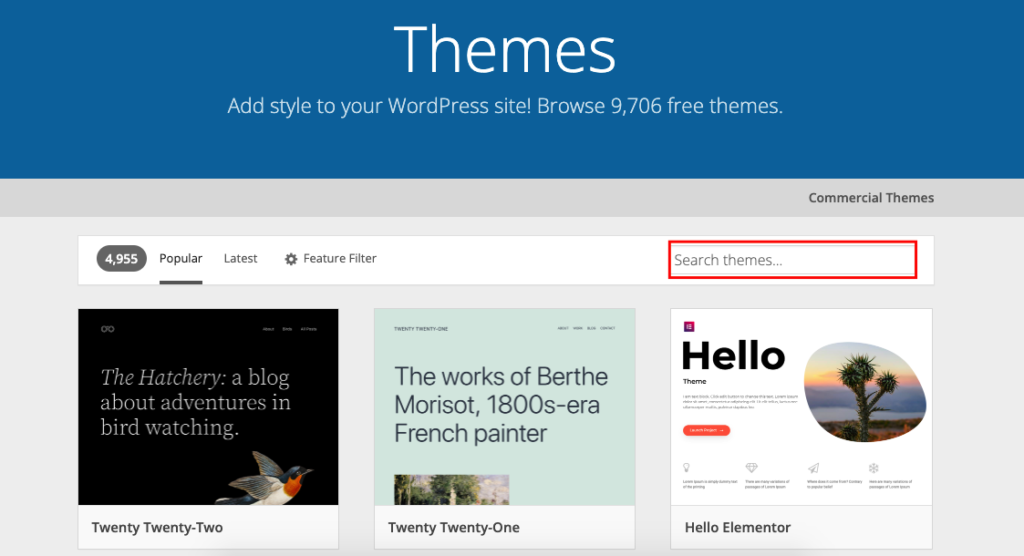
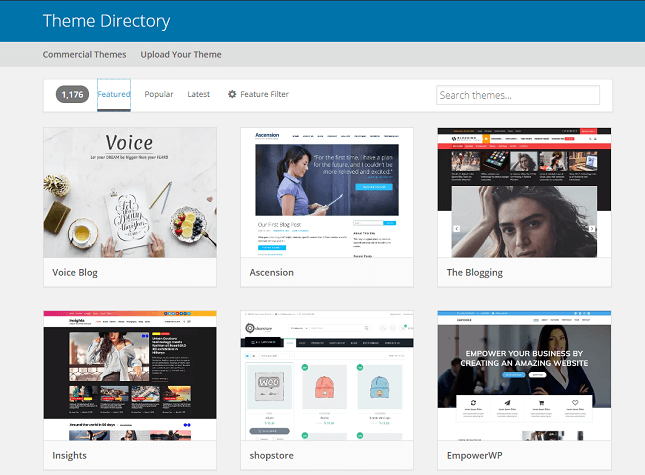
WordPress has thousands of free themes in its official directory. These themes are easy to install and often updated. You can search by features, style, or industry. Free themes are good for simple websites or beginners.
Premium themes cost money but offer more features and support. They often include built-in page builders and advanced customization options. Premium themes suit business sites or those needing extra design control. Many premium themes come with demo content to help you start quickly.
Installing A Theme
To install a theme, go to your WordPress dashboard. Click “Appearance” then “Themes.” Click “Add New” to browse free themes or upload a premium theme ZIP file. After selecting a theme, click “Install” and then “Activate.”
Once activated, your site will use the new theme’s design. You can switch themes anytime without losing your content. Installing a theme is fast and does not require technical skills.
Customizing Appearance
After installing, customize your theme to fit your style. Go to “Appearance” then “Customize.” This opens the WordPress Customizer with live preview. You can change site identity, colors, menus, and widgets.
Many themes add extra options like typography and layout settings. Upload your logo, choose background colors, and set your homepage display. Save changes and preview your site before publishing.
Customizing the appearance lets you create a professional look. Small changes make your site feel personal and inviting. Keep your design simple and consistent for the best results.
Adding Essential Plugins
Adding essential plugins is a key step in building your WordPress site. Plugins extend the core features of WordPress. They help you add new functions without coding. The right plugins improve site performance, security, and user experience. This section covers the must-have plugins, how to install them, and how to manage their settings.
Must-have Plugins For Beginners
Some plugins are necessary for every new WordPress site. A security plugin protects your site from threats. Popular options include Wordfence or Sucuri. An SEO plugin helps your site rank better on search engines. Yoast SEO and All in One SEO are good choices. A caching plugin speeds up your site by storing a static version. WP Super Cache and W3 Total Cache are widely used. Contact form plugins like Contact Form 7 allow visitors to reach you easily.
Installing And Activating Plugins
To add a plugin, go to your WordPress dashboard. Click on “Plugins” and select “Add New.” Use the search bar to find the plugin you want. Click “Install Now” on the plugin’s card. After installation, click “Activate” to enable it on your site. You can install multiple plugins this way. Avoid installing too many plugins as they may slow your site down.
Managing Plugin Settings
After activating a plugin, configure its settings for best results. Most plugins add a new menu item in the dashboard. Click on it to open the settings page. Follow the plugin’s guide or documentation to adjust options. For example, set up your SEO titles in Yoast SEO. Customize your caching plugin to clear cache automatically. Regularly update plugins to keep them secure and working well.
Creating Key Pages And Content
Creating key pages and content is essential for any WordPress site. These pages give your visitors important information about your business or project. They also help improve your site’s search engine ranking. Focus on clear, simple content that guides visitors easily.
Start by building core pages such as About and Contact. These pages build trust and allow visitors to reach you. Next, add blog posts to share updates, news, or helpful tips. Use WordPress’s block editor to design your pages and posts with ease. This tool helps you organize content quickly without coding skills.
Adding Pages Like About And Contact
To add a new page, go to your WordPress dashboard and select “Pages.” Click “Add New” to start. Create an About page that tells your story clearly. Explain what you do and why visitors should care. For the Contact page, include your email, phone, and a contact form. Make sure this page is easy to find in your menu.
Creating Blog Posts
Blog posts keep your site fresh and attract visitors. Click “Posts” then “Add New” in your dashboard. Write short, focused posts on topics your audience cares about. Use headings, images, and lists to make posts easy to read. Publish regularly to keep readers coming back.
Using The Block Editor
The block editor lets you add text, images, videos, and more using blocks. Each block is a content unit you can move or style separately. Click the “+” icon to add blocks like paragraphs, headings, or galleries. This editor helps you build pages that look good on all devices. Save your work often and preview before publishing.
Credit: wedevs.com
Optimizing Site Security And Backups
Securing a WordPress site and maintaining regular backups are vital for website health. These steps protect your content and keep your site running smoothly. Simple actions reduce risks of hacking or data loss. This section explains how to pick security tools, set up backups, and keep WordPress updated.
Choosing Security Plugins
Security plugins guard your site against threats. Select plugins that scan for malware and block attacks. Look for features like firewall protection and login security. Popular choices include Wordfence and Sucuri. Install one plugin that fits your needs. Avoid using many plugins, as this can slow your site.
Setting Up Backups
Backups save your site data regularly. They allow recovery after errors or hacks. Use plugins like UpdraftPlus or BackupBuddy. Schedule automatic backups weekly or daily. Store backups in a remote location, such as cloud storage or email. Check backups often to ensure they work correctly.
Keeping WordPress Updated
Updates fix security flaws and improve performance. Always update WordPress core, themes, and plugins. Enable automatic updates for minor releases. Test major updates on a staging site first. Staying current reduces vulnerability to attacks. Regular updates keep your site stable and safe.
Launching Your WordPress Site
Launching your WordPress site marks the exciting step from building to sharing your work with the world. This phase requires careful attention to ensure your website runs smoothly and attracts visitors. Preparing your site well helps make a strong first impression and sets the stage for growth.
Final Checklist
Review your site’s content for typos and broken links. Test all pages to confirm they load quickly and correctly. Ensure your contact forms work and your images display properly. Check your site on different devices like phones and tablets. Make sure your site is secure by updating WordPress, themes, and plugins. Backup your site to avoid data loss. Set your site’s visibility to public so everyone can visit.
Sharing Your Site
Tell friends and family about your new website first. Use your social media accounts to announce the launch. Join online groups related to your site’s topic and share your link there. Add your website URL to your email signature and business cards. Consider writing guest posts on other blogs to reach more readers. The goal is to increase traffic through genuine sharing and connections.
Tracking With Analytics
Install a tool like Google Analytics to monitor your site’s visitors. Analytics show how many people visit and which pages they like most. This data helps you understand your audience better. Use it to improve content and fix any weak spots. Set up goals to track important actions like sign-ups or purchases. Regularly check analytics to keep your site growing and engaging.
Credit: www.websitebuilderexpert.com
Frequently Asked Questions
Can I Create A WordPress Site For Free?
Yes, you can create a free WordPress site on WordPress. com with a subdomain and limited features. WordPress. org software is free but requires paid hosting and a domain.
Why Are People Moving Away From WordPress?
People move away from WordPress due to security risks, frequent updates, complex customization, slower performance, and high maintenance needs.
Can A Beginner Make A WordPress Website?
Yes, beginners can create a WordPress website easily using WordPress. com or WordPress. org with available tutorials and support.
How Much Does It Cost To Create A WordPress Site?
Creating a WordPress site costs between $0 and $100+ yearly. Free options include WordPress. com with limited features. Paid options require hosting ($3-$15/month) and a domain ($10-$20/year). Premium themes or plugins may add extra costs.
Conclusion
Creating a WordPress site is simpler than it seems. Choose between WordPress. com or WordPress. org based on your needs. WordPress. com offers an easy start with free hosting but limited features. WordPress. org gives full control but requires buying hosting and a domain.
Follow the basic steps, and your site will be online quickly. Keep your content clear and update regularly for best results. This guide helps beginners build a strong online presence with WordPress. Start today and enjoy sharing your ideas with the world.


