
Imagine waking up to a fresh start, where your website is a clean slate, ready for new ideas and growth. Sometimes, wiping your web hosting is the best way to achieve this.
Whether you’re planning a redesign, fixing persistent issues, or simply decluttering, knowing how to wipe your web hosting effectively is crucial. But where do you begin? The process might sound daunting, but it doesn’t have to be. In this guide, you’ll learn straightforward steps to wipe your web hosting clean, ensuring a smooth transition without losing your precious data.
Stick around to discover how you can tackle this task with confidence and ease, setting the stage for a vibrant new digital presence.
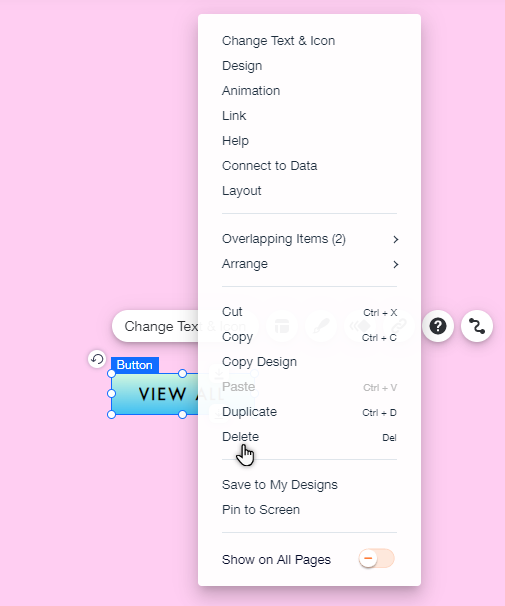
Credit: support.wix.com
Preparing For The Wipe
Always save your important files before deleting anything. Use a safe place like an external drive. Backups help if something goes wrong. You can use tools like cloud storage for extra safety. Make sure everything is copied.
Tell everyone who needs to know about the wipe. This includes your team and clients. They must be ready for any changes. Clear communication avoids confusion. Always give enough time for people to prepare.
Learn about your hosting provider’s rules. Different companies have different terms. Knowing these helps you avoid mistakes. Check your contract or ask support. Make sure you are allowed to wipe your data.
Choosing The Right Tools
cPanel and Plesk are popular tools for web hosting. They help manage websites easily. Both have clear interfaces. You can delete files and databases with just clicks. Users often prefer these because of their simplicity. They also offer backups before wiping. This ensures safety for your data. Choose the option that suits your needs best.
Some users use third-party software to wipe hosting. These tools can offer extra features. They might have more flexibility than built-in panels. Always check reviews before choosing. Many people trust them for specific tasks. Look for software that is user-friendly. Ensure it supports your hosting type.
Advanced users might prefer command line tools. They offer more control over tasks. Commands can delete files quickly. This method is powerful but requires some knowledge. Beginners may find it tricky. It is essential to follow instructions carefully. Mistakes can cause issues with your hosting.
Performing The Wipe
Log in to your hosting account using your credentials. Find the control panel. It’s your main hub for managing your site. Look for options like File Manager or Database settings. These are key for wiping data.
Visit the File Manager. Select all files and click delete. This removes your site’s content. Next, go to the database section. Choose your database and use the delete option. This clears stored data. Double-check everything is gone.
Head to the DNS settings. Check for existing records. Remove any old entries. This ensures no data points to your site. It’s crucial for a complete wipe. Confirm changes once done.
Post-wipe Activities
Check if all old data is gone. Ensure no files or settings remain. Use a tool to scan for leftover files. Missing this step can cause issues later. Double-check each folder for any traces. Make sure everything is clean and clear.
Sometimes important data is lost. Restore from a backup if needed. Always keep backups safe and updated. They can save you in emergencies. Choose the right backup to restore. Not all backups are the same.
After wiping, update your security settings. Change passwords and user access. This keeps your data safe from harm. Review firewall and antivirus settings. Secure your web hosting with strong defenses.
Common Mistakes To Avoid
Avoid common errors when wiping your web hosting. Ensure all data is backed up to prevent loss. Double-check settings to avoid accidental deletions.
Ignoring Backups
Backups are crucial for website safety. Many skip this step. Losing data is a big risk. Always keep a copy of your files. It helps when things go wrong. Restoring data becomes easy then. Safe backups save you stress.
Overlooking Dns Records
DNS records guide your website. Changes can confuse visitors. Keep them updated and correct. Wrong records cause site problems. They might stop users from reaching your site. Fix them before wiping hosting. It makes transitions smoother.
Neglecting Security Protocols
Security keeps your site safe. Many forget security steps. This can lead to hacks or data loss. Use strong passwords and update them. Set up firewalls and antivirus tools. Protecting your site is important.
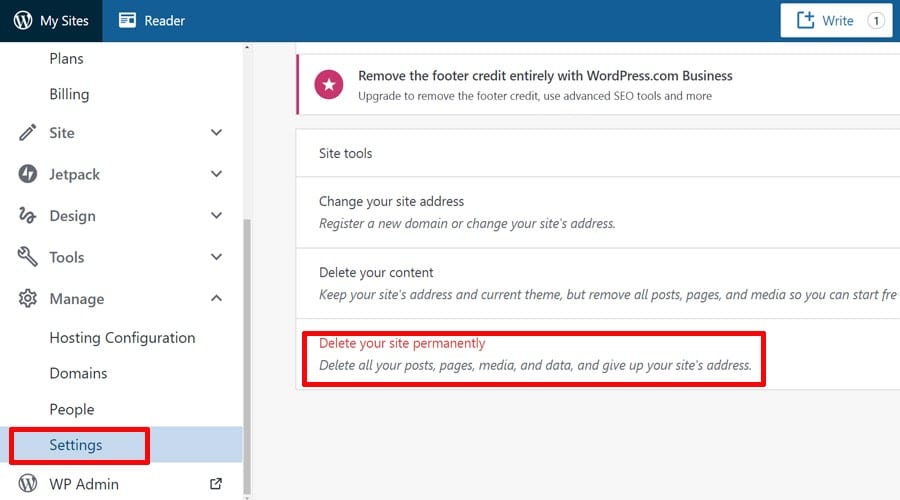
Credit: www.fixrunner.com
When To Seek Professional Help
Facing technical difficulties while wiping your web hosting can be frustrating. Professional help ensures data safety and avoids errors. Experts handle complex tasks efficiently, saving time and preventing potential issues.
Complex Hosting Environments
Complex hosting setups can be tricky to manage. Many moving parts make it hard. Professionals know how to handle these setups. They can fix problems quickly. This keeps your website running smoothly. Experts can save you time and stress. They know the ins and outs of hosting. This makes them very helpful for complex tasks.
Data Recovery Needs
Data loss is a big worry. Important files might get lost. Professionals can help recover these files. They have special tools for this job. They can find lost data safely. This is important to keep your site safe. It also helps protect your important information.
Security Concerns
Security is very important for websites. Hackers try to break into sites. Professionals know how to keep sites safe. They use special tools to block hackers. This keeps your data safe and sound. Experts can also find weak spots. They fix these spots to keep your site secure.

Credit: www.malcare.com
Frequently Asked Questions
How Do I Reset My Web Hosting?
To reset your web hosting, access your hosting control panel. Locate the “reset” or “restore” option under settings. Follow the prompts to confirm the reset. Always back up your data before proceeding to avoid data loss. Contact your hosting provider for detailed guidance if needed.
How Do I Take Over A Website Host?
To take over a website host, obtain login credentials from the current owner. Access the hosting account, update passwords, and verify domain settings. Ensure billing information is updated for future payments. Check server settings to align with your website requirements and ensure seamless functionality.
How Do I Remove The Hosting Website?
To remove a hosting website, log into your hosting account. Locate the website you wish to remove. Select delete or remove option and confirm your action. Ensure you have backups before proceeding to avoid data loss. Contact your hosting provider for detailed support if needed.
How Do I Reset Godaddy Web Hosting?
To reset GoDaddy Web Hosting, log into your account, go to “My Products,” select “Web Hosting,” and click “Manage. ” Choose the “Reset Account” option under “Settings” to start the process. Remember, resetting will erase all data, so backup important files beforehand.
Conclusion
Clearing your web hosting is essential for a fresh start. It’s simple and effective. Follow the steps carefully to avoid data loss. Backup your files before you begin. This ensures important data is safe. Use your hosting control panel for guidance.
Take your time with each step. A clean slate can enhance website performance. It also helps with security and management. Regularly wiping hosting is a good practice. Keep your site running smoothly and securely. Remember, a little effort goes a long way in maintaining your digital space.


