
Imagine having the power to turn your own computer into a web hosting machine. Sounds intriguing, right?
Whether you’re a tech enthusiast or a small business owner looking to save on hosting costs, using your computer as a web host can open up a world of possibilities. In this guide, you’ll discover just how simple it can be to set this up and start hosting your own website right from home.
You’ll learn the essential steps, the tools you need, and how to keep everything running smoothly. By the end, you’ll see that hosting a website on your own computer is not only possible but also surprisingly easy and rewarding. So, are you ready to dive in and unlock the potential of your computer? Let’s get started!
Understanding Web Hosting
Web hosting is a service that lets your website be seen online. Servers store all website files. They send these files when someone visits your site. Your computer can act like a server. This means you can host your site yourself. Purpose of web hosting is to make sure your site is available 24/7. Without hosting, people can’t see your website. It’s like renting space online for your site.
There are different types of web hosting. Shared hosting means many sites share one server. It’s cheap but slower. Dedicated hosting gives your site its own server. It’s faster but costs more. VPS hosting is a mix of both. It splits a server into parts. Cloud hosting uses many servers. It’s flexible and can handle more traffic. Choose based on your site’s needs.

Credit: medium.com
Benefits Of Hosting Your Website Locally
Hosting your website on your computer saves money. There are no monthly hosting fees. You use your own internet connection. Upfront costs are minimal. No need to pay for expensive hosting plans. This is perfect for small websites. You save more when you host locally. It is a budget-friendly option. You get to save and learn at the same time.
You have full control over your server. You decide everything. Software updates happen when you want. No waiting for a hosting company. Change settings anytime. Add or remove features easily. You are in charge of security too. Choose your own security measures. It’s your server, your rules. This gives you freedom and flexibility.
Setting Up Your Computer For Web Hosting
Your computer should have enough RAM. At least 4GB is good. A reliable processor is also important. An Intel i3 or better will work. Hard drive space should not be less than 20GB. A stable internet connection is a must. Your computer must stay on all the time. This ensures your website is always available.
There are many software options for hosting. Apache is a popular choice. It’s free and open-source. Nginx is another option. It’s fast and works well. XAMPP is great for beginners. It includes Apache and more. Easy to install and use. Choose software that you can understand.
Installing Web Server Software
There are many choices for web servers. Some popular options include Apache, Nginx, and Microsoft IIS. Apache is open-source and free. Nginx is fast and great for handling many users. Microsoft IIS is for Windows users. Each has unique features. Choose based on your needs.
First, download the web server software. Follow the instructions on the website. Run the installer file on your computer. Choose default settings if unsure. Wait for installation to complete. Next, configure the server settings. Open the configuration file. Edit basic settings like server name and port. Save changes and restart the server. Check if the server runs by opening your browser. Type “localhost” in the address bar. You should see a welcome page.
Configuring Network Settings
Setting a static IP address is important for web hosting. First, open your computer’s network settings. Look for the option that says “IP Configuration.” Select “manual” or “static.” Enter the IP address you want. Make sure this IP is unique. Avoid using an IP that another device uses. Save the settings. Restart your computer. Check if the IP is set correctly.
Port forwarding lets your computer talk to the outside world. Find your router’s settings page. Look for “Port Forwarding” or “Applications.” Add a new rule. Enter your computer’s static IP. Choose the ports you want to open. Common port for web hosting is port 80. Save your changes. Test the connection. Make sure the ports are open. Your computer is ready to host.
Managing Domain Names
First, think of a name for your website. Make it simple. Once you have a name, check if it’s available. Use a domain registrar for this. Popular registrars include GoDaddy and Namecheap. Registering a domain means buying it. This makes it yours. You will need to create an account with the registrar. Then you can purchase the domain. It usually costs money every year. Make sure to keep track of this. Without paying, you might lose your domain.
To link your domain, find your computer’s IP address. This is like a phone number for computers. Go to your domain registrar’s settings. Look for DNS settings. Here, you can add a new record. Choose A record. Then, enter your IP address. Save the changes. This links your domain to your computer. Your website will now be online. People can visit it using your domain name.
Testing Your Local Web Server
Open your browser. Type localhost in the address bar. Press enter. Your website should appear. If it doesn’t, check your server settings. Ensure your server is running. Use the correct port number. Sometimes, firewalls block access. Adjust settings if needed.
Does your site refuse to load? Check if your server is active. Verify your configurations. Make sure files are in the right place. Typing errors can cause problems. Review your code for mistakes. Restart your server if required. Still facing issues? Consult help forums for guidance. Solutions are often simple.

Credit: webuyusedtape.net
Enhancing Security Measures
A firewall is like a shield for your computer. It keeps unwanted traffic out. This protects your data from hackers. Firewalls can be hardware or software. Most computers have a built-in firewall. Always make sure it is on. You can also buy extra firewall software. This adds more layers of protection.
Software updates are very important. They fix bugs and improve security. Always allow automatic updates on your computer. This ensures you have the latest protection. Sometimes updates add new features too. But the main goal is keeping your system safe. So, do not ignore update alerts. They help keep your computer healthy.
Exploring Advanced Hosting Features
Database servers store and manage data. MySQL and PostgreSQL are popular choices. They are easy to install. Follow step-by-step guides. Start by downloading the software. Next, follow the installation steps. Configure settings for best performance. Ensure your data is safe. Use backups often. Keep software updated.
Secure connections protect your data. SSL certificates are important. They encrypt information. Install them on your server. This keeps data private. Use strong passwords. Change them often. Firewalls add extra security. They block unwanted access. Regularly check security settings. Update them for new threats.
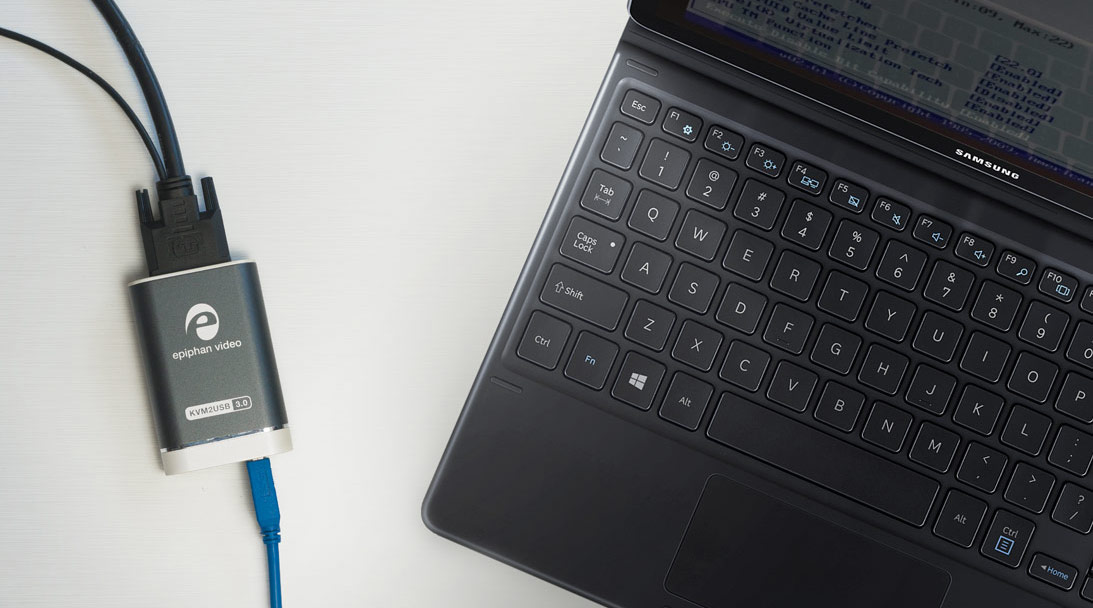
Credit: www.epiphan.com
Maintaining Your Web Host
Backing up data is very important. It keeps your site safe. If something breaks, you can get it back. Use backup tools to save your files. Schedule backups daily or weekly. Always check if the backup works. Keep a copy of your data in another place. This helps if your computer fails. Backing up is smart and easy.
Check how your site runs often. Slow sites make people leave. Use tools to track speed and uptime. Make sure your computer is strong enough. Check memory and CPU use. Fix problems quickly to keep users happy. Always look for updates to improve performance. Good performance is key for success.
Frequently Asked Questions
Can I Use My Own Computer To Host A Website?
Yes, you can host a website on your own computer. Ensure it’s always powered on and has a stable internet connection. Install a web server software like Apache or Nginx. Be aware of potential security and performance issues. For larger sites, consider professional hosting services.
How Can I Host A Website From My Computer?
Install web server software like Apache or Nginx. Connect to the internet with a static IP. Configure firewall and router settings for port forwarding. Ensure your computer stays on and connected. Regularly update security settings to protect against threats.
How Do I Use My Pc As A Host?
To host on your PC, install server software like Apache or Nginx. Configure your firewall settings and ensure a static IP. Test by accessing the server through your web browser. Regularly update software for security.
Can I Turn My Pc Into A Web Server?
Yes, you can turn your PC into a web server. Install web server software like Apache or Nginx. Configure your network settings and ensure proper security measures are in place. Host your website files and manage server resources effectively. Regularly update software for optimal performance and security.
Conclusion
Hosting your own website is within reach. Your computer can serve as a reliable web host. Follow the steps outlined earlier to set up successfully. Remember, security is crucial. Protect your data and privacy. Backup regularly to avoid data loss.
With patience and practice, hosting becomes easier. Enjoy the benefits of complete control over your site. A rewarding experience awaits. Embrace the opportunity to learn and grow. Happy hosting!


