
Are you trying to manage your website files on Ionos but feeling a bit lost about how to get started with Filezilla? You’re not alone!
Many find themselves puzzled when it comes to accessing their web hosting files. The good news is, logging into Filezilla to manage your Ionos web hosting files is simpler than you might think. In this guide, we’ll break down the process into easy-to-follow steps that will have you navigating your files like a pro in no time.
Imagine the peace of mind you’ll feel once you have complete control over your website files right at your fingertips. Ready to dive in and master this essential skill? Let’s get started!

Credit: www.youtube.com
What Is Ionos Web Hosting
Ionos Web Hosting is a service for hosting websites. It helps you show your website online. Many people use Ionos to make their sites live. It’s known for being easy to use. With Ionos, you get a place for your site on the internet.
People choose Ionos because it offers good support. They provide tools to help build your site. You also get email accounts with your plan. Ionos is a popular choice for new website owners.
Web hosting by Ionos gives you many features. You can manage your site easily. They keep your site safe from hackers. Ionos is trusted by many users worldwide.
Benefits Of Using Filezilla With Ionos
Filezilla is a great tool for managing your website files. It helps in uploading, downloading, and organizing files easily. This tool is free and open source. It works well with many hosting services. Ionos users find it especially helpful. Filezilla has a simple interface. Even beginners can use it without trouble. It supports file transfers quickly and safely. You can transfer large files with ease. FTP, FTPS, and SFTP protocols are supported. This ensures secure data transfer. Filezilla also allows for simultaneous transfers. This saves time when updating many files. It has a drag-and-drop feature. Moving files is faster and simpler. The tool also supports multiple languages. This makes it accessible to more users. Using Filezilla with Ionos can make website management stress-free.
Preparing Filezilla For Ionos
Filezilla is a free tool. It helps you transfer files. You need to download it first. Go to the official website. Click the download button. Choose the version for your computer. Follow the installation steps. It’s easy and quick. Just click next until done.
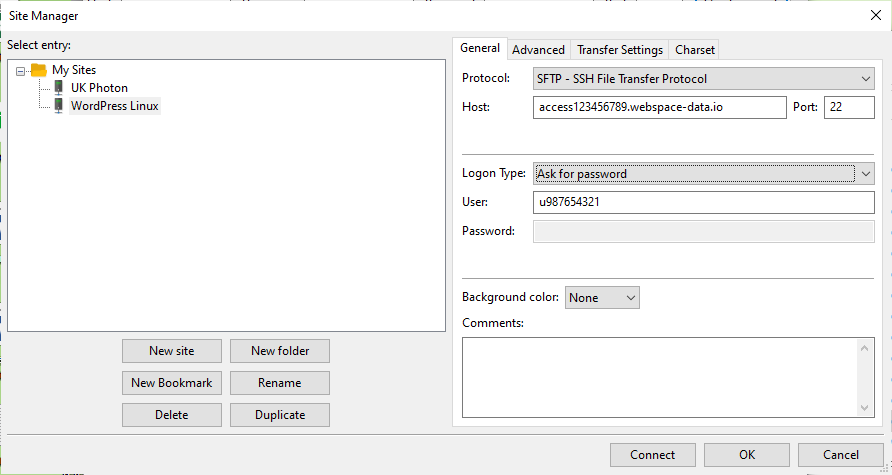
To use Filezilla with Ionos, you need FTP details. Go to your Ionos account. Look for the FTP section. Find your FTP username. Write down your FTP password. Note your FTP server name. These are needed for logging in. Keep them safe and easy to find.
Credit: www.ionos.com
Logging Into Filezilla
First, find the Filezilla icon on your computer. Double-click to open. It should load in a few seconds. Make sure your internet is working. Without it, you can’t connect to the server.
You will see fields for Host, Username, Password, and Port. Enter your Ionos FTP details. The Host is usually your domain name. Use your Ionos username and password. Leave the Port field empty for default use.
Click the Quickconnect button. Wait for the connection to establish. You will see directories on the right side. This means you are connected to the Ionos server.
Troubleshooting Common Connection Issues
Invalid Credentials Error: Check your username and password. Make sure they are correct. Double-check if caps lock is on. Sometimes, wrong credentials stop the connection. Enter the right login details to fix this.
Firewall and Security Settings: Firewalls block connections. Check your firewall settings. Allow Filezilla access through the firewall. Adjust security settings to permit access. This helps in establishing a stable connection.
Network Connectivity Problems: Ensure the internet is working. Check if the router is on. A slow network may cause problems. Restart the router if needed. This may solve connectivity issues easily.

Credit: www.youtube.com
Tips For Secure File Transfers
Secure your files with SFTP or FTPS. These protocols keep data safe. They add a layer of protection. Hackers find it harder to access files. Always choose secure options when transferring files. This keeps personal data safe.
Updates fix bugs and improve security. Always update Filezilla to the latest version. Developers work hard to fix issues. Keep your data safe by using updated software. Regular updates mean better performance too.
Limit access to important files. Only give permissions to people who need them. This reduces the risk of unwanted changes. Check permissions regularly. Make sure only trusted people have access. Managing permissions helps keep your data secure.
Frequently Asked Questions
How Do I Connect Filezilla To My Web Hosting?
Open FileZilla. Enter your FTP server address, username, and password. Use port 21. Click ‘Quickconnect’ to connect.
How Do I Access Ionos Ftp?
Log into your Ionos account. Navigate to “Hosting” and select “FTP Access. ” Use your FTP credentials to connect.
How Do I Login Into Filezilla?
Open FileZilla and enter your FTP server details. Input your username and password in the respective fields. Click “Quickconnect” to establish a connection. Verify the connection in the status pane. Your local files are on the left, and server files are on the right.
How Do I Log Into A Website Via Ftp?
To log into a website via FTP, download an FTP client like FileZilla. Enter your website’s FTP address, username, and password. Connect and access your site’s files for transfer. Ensure your login credentials are correct for seamless access.
Conclusion
Logging into Filezilla with Ionos is straightforward. Follow the steps carefully. Always double-check your login details. Secure your files for peace of mind. Familiarity with Filezilla boosts efficiency. Reliable access to files is crucial. The process might seem complex initially.
But practice makes it easier. Keep learning and exploring new features. This ensures better management of your web hosting tasks. Remember, consistent practice leads to mastery. Stay updated with any changes from Ionos. This helps in troubleshooting issues promptly. Enjoy a smoother, more efficient hosting experience with Filezilla.


