
Are you eager to launch your online store but worried about the costs? Imagine having a robust e-commerce platform without spending a dime on hosting.
Sounds too good to be true? It isn’t! With OpenCart CMS on free web hosting, you can start your dream store today. This guide will show you exactly how to do it, step-by-step, without any technical jargon. You’ll learn how to harness the power of OpenCart’s features while keeping your budget intact.
Ready to discover how you can make this happen? Keep reading to unlock the secrets of setting up a successful online store for free.
Choosing The Right Free Web Hosting
Picking the best free web hosting is important. Storage space is key. Opencart needs enough room to work well. Bandwidth matters too. It affects how fast your site runs. Support options can help solve problems quickly. Look for hosts with strong customer service. Ease of use is crucial. Easy setup saves time. Security features keep your site safe. Protect your data. Ads can be annoying. Some hosts show ads on your site. Choose wisely to avoid them.
| Provider | Key Feature |
|---|---|
| 000webhost | Ad-free, easy setup |
| InfinityFree | Unlimited bandwidth |
| ByetHost | Good customer support |
| AwardSpace | Secure, no ads |
Credit: litextension.com
Setting Up A Free Web Hosting Account
Discover how to use OpenCart CMS with free web hosting. Set up your account by choosing a reliable provider. Install OpenCart through the hosting control panel. Start creating your online store effortlessly.
Registration Process
Start by visiting the web hosting site. Find the sign-up button. Click it. Fill in the required details. Use a valid email. Choose a unique username. Select a secure password. Confirm your email. Check your inbox for a confirmation link. Click the link to finish registration.
Activating Your Account
Log in with your new credentials. Look for an activation button. Click it to activate your account. Some hosts may send an activation email. Check your inbox again. Click the activation link if needed. Your account is now active. You can start using the hosting services. Enjoy the free web hosting features.
Installing Opencart On Free Hosting
Installing OpenCart on free hosting allows users to explore this popular CMS without financial investment. Start by choosing a reliable free web hosting provider, then follow straightforward steps to set up OpenCart for managing online stores efficiently. Enjoy experimenting with themes and extensions to customize your shop.
Downloading Opencart
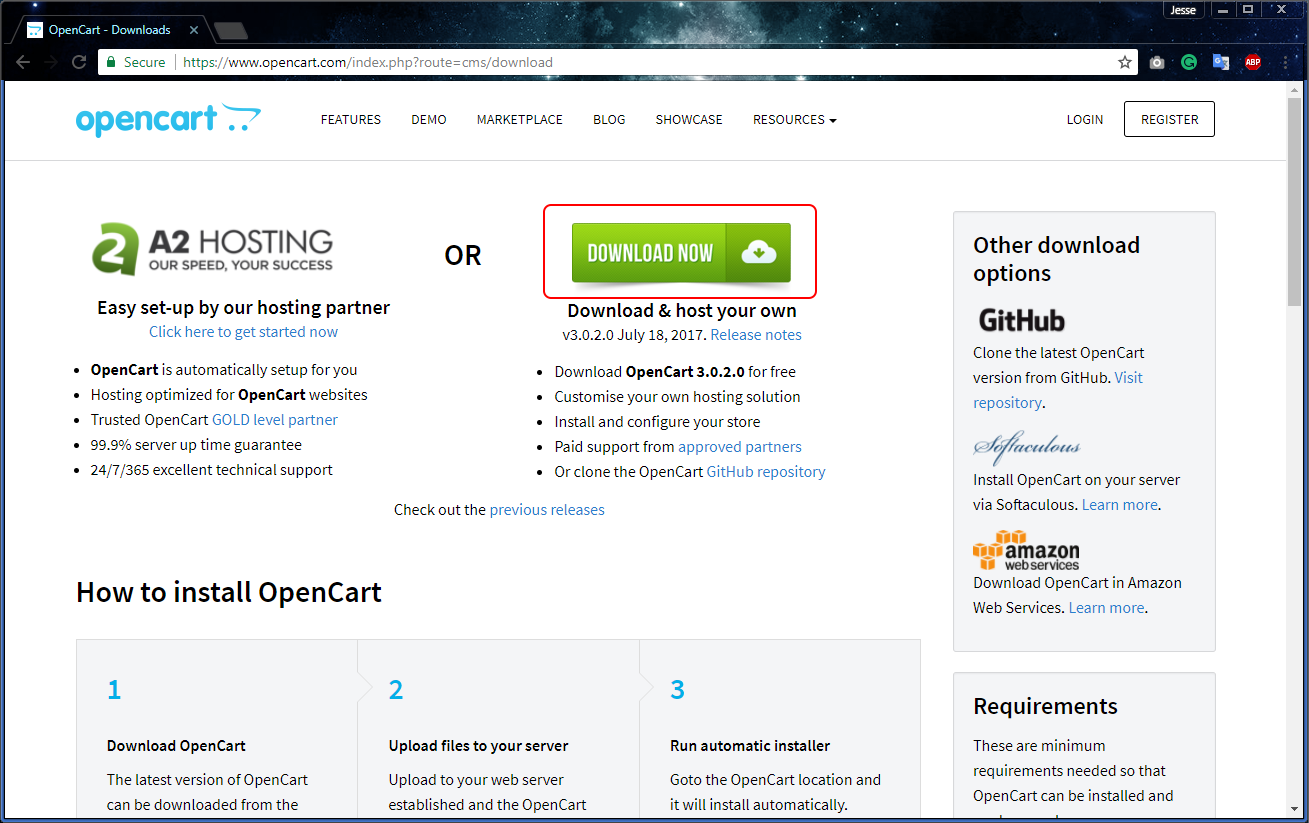
OpenCart is a popular choice for online stores. First, visit OpenCart’s official site. Find the download section. Click on the latest version to download. Save the file to your computer. The file is usually in ZIP format. Extract the ZIP file once downloaded. Keep it ready for the next steps.
Uploading Files Via Ftp
Use FTP to upload files. Download an FTP client like FileZilla. Open your FTP client. Connect to your free hosting server. Enter your hosting credentials. Locate the extracted OpenCart files on your computer. Select all files. Drag and drop them into the server’s public directory. Wait for the upload to complete.
Creating A Database
Databases store important data. Log into your hosting control panel. Find the database section. Click on “Create New Database.” Name your database. Write down the database name. Also note username and password. You will need them for OpenCart setup. Check if the database was created successfully.
Credit: docs.opencart.com
Configuring Opencart Settings
OpenCart settings can be configured easily in free web hosting environments. First, install OpenCart using the web host’s control panel. After installation, navigate to the admin panel to set up store details, payment methods, and shipping options. Ensure compatibility with the hosting provider to optimize performance.
General Store Settings
OpenCart makes it easy to set up your store. First, log in to your OpenCart dashboard. Look for the system settings menu. Click it. You will find options to change your store name, address, and contact details. It’s important to fill these correctly. Customers need this info. You can also set your store’s currency and language. This helps customers understand prices and information better. Remember to save changes. This ensures your store is up to date.
Payment And Shipping Options
Payment and shipping settings are crucial. Go to the extensions section in your dashboard. Select payments to set up methods like PayPal or credit cards. Choose what suits your store best. For shipping, select shipping methods. Options may include flat rate, free shipping, or pickup from store. Adjust these to fit your needs. Always test these settings. Ensure they work smoothly for customers. It makes shopping easier and more fun for them.
Customizing Your Opencart Store
Explore OpenCart CMS on free web hosting to personalize your online store. Customize themes and plugins easily for a unique shopping experience. Manage products and orders effectively while enjoying cost-saving benefits.
Choosing And Installing Themes
Start by picking a theme. Themes change how your store looks. Many themes are free. Some themes cost money. Choose a theme that fits your style. After choosing, install it. It’s easy. Go to the theme section. Click install. Your store will look new.
Adding Extensions And Modules
Extensions add features. They make your store better. Modules help with tasks. Some make shopping easier. Others help with payments. Find extensions in the OpenCart store. Many are free. Download and install them. Make sure they fit your needs. They should match your store’s goal.
Managing Products And Categories
First, log into your Opencart dashboard. Find the Products section. Click on Add New. Fill out the product name and price. Add a description. Upload a product image. Save your changes. Your product is now live.
Go to the Categories section in the dashboard. Click on Add New Category. Enter a name for the category. Describe the category briefly. Assign products to this category. This helps customers find products easily. Save your changes. Your category is ready.
Optimizing Performance On Free Hosting
Improving Site Speed is crucial for user experience. Begin by using a light theme. This reduces the load time. Compress images before uploading. Smaller images load faster. Remove unused plugins. They slow down your site. Use a caching tool. It stores data for quick access. Choose a free hosting service with good uptime. Ensure the server speed is reasonable. This affects site speed directly.
Ensuring Security is vital for protecting data. Update your OpenCart regularly. New updates fix security issues. Use strong passwords for admin accounts. Passwords should be hard to guess. Install an SSL certificate. It encrypts data between server and browser. Set file permissions correctly. This prevents unauthorized access. Use security plugins. They help detect threats early. Regularly back up your data. This ensures you can recover lost files.
Troubleshooting Common Issues
Setting up OpenCart on free web hosting can be tricky. Common issues include server errors and slow loading times. Address these by checking server compatibility and optimizing images for faster performance.
Dealing With Hosting Limitations
Free web hosting has limits. It may have less storage and bandwidth. Opencart CMS might need more resources. This can slow down your site. Try to keep your site simple. Use fewer images and plugins. This can help your site run better. Check your hosting plan often. Make sure it fits your site’s needs. You might need to upgrade if your site grows. Always know the limits of your hosting. This helps prevent problems.
Fixing Installation Errors
Errors can happen during Opencart installation. Check if your server meets Opencart’s needs. This includes PHP version and database support. Make sure files are uploaded correctly. Permissions should be set right. Check your server logs for error messages. They can show what went wrong. Read the error messages carefully. They often tell you the solution. If you can’t fix it, ask for help in forums. Many people share their solutions there.

Credit: seomator.com
Frequently Asked Questions
How To Install Opencart To Hosting?
Download OpenCart and unzip the package. Upload files to your server using FTP. Create a database in hosting. Run the installation script by visiting your domain. Follow on-screen instructions to complete installation.
How To Setup Opencart On Localhost?
Download OpenCart and extract files to your localhost server folder. Create a database using phpMyAdmin. Run the OpenCart installation script by accessing “localhost/your-folder” in your web browser. Follow the installation prompts to configure database and admin settings. Ensure PHP, MySQL, and Apache are correctly installed and running.
How To Set Up An Opencart Website?
To set up an OpenCart website, install OpenCart on your server. Choose a hosting provider and domain name. Follow the setup wizard to configure your store settings. Customize your design and add products. Ensure secure payment gateways are integrated. Regularly update and maintain your site for optimal performance.
How To Use A Web Host?
Choose a reliable web host. Register a domain, then connect it to your hosting account. Upload website files using FTP. Use the control panel to manage settings and databases. Regularly back up your data for security.
Conclusion
Using OpenCart CMS on free web hosting is a smart choice. It’s cost-effective and straightforward. You can set up your online store quickly. Just follow the steps carefully. Ensure your hosting supports OpenCart requirements. Optimize your site for better performance.
Keep your store updated and secure. Engage with your customers through a user-friendly interface. Troubleshoot common issues promptly. Free hosting offers a great start for beginners. With OpenCart, managing your store becomes easier. Enjoy running your store without high costs.


