
Are you puzzled by the thumbnail image settings in WordPress? You’re not alone.
Setting the right dimensions for your thumbnail images can be the difference between a sleek, professional-looking site and one that looks messy and unorganized. Think of thumbnails as the unsung heroes of your website. They grab your visitors’ attention and can significantly impact the first impression they have of your content.
But how do you know what settings are best? We’ll dive into the perfect thumbnail settings for your WordPress site, ensuring your images look sharp and load quickly. Stick with us, and you’ll discover how to optimize your settings for a seamless, eye-catching user experience.
Credit: www.ionos.com
Thumbnail Image Importance
Thumbnails are small pictures. They catch the eye quickly. They help visitors understand your content. Thumbnails make your website look nice. People decide to click based on thumbnails. Great thumbnails can bring more visitors. They can make your site grow.
Choose bright and clear images. They should be related to your content. Size matters for thumbnails. Too big, and they slow your page. Too small, and they look bad. WordPress lets you set the right size. Perfect size is important for speed and looks. Use 150×150 pixels for better results.
Thumbnails are also good for sharing. They appear on social media. They make posts stand out. Good thumbnails make people share your content. They help in getting more traffic.
Default Settings
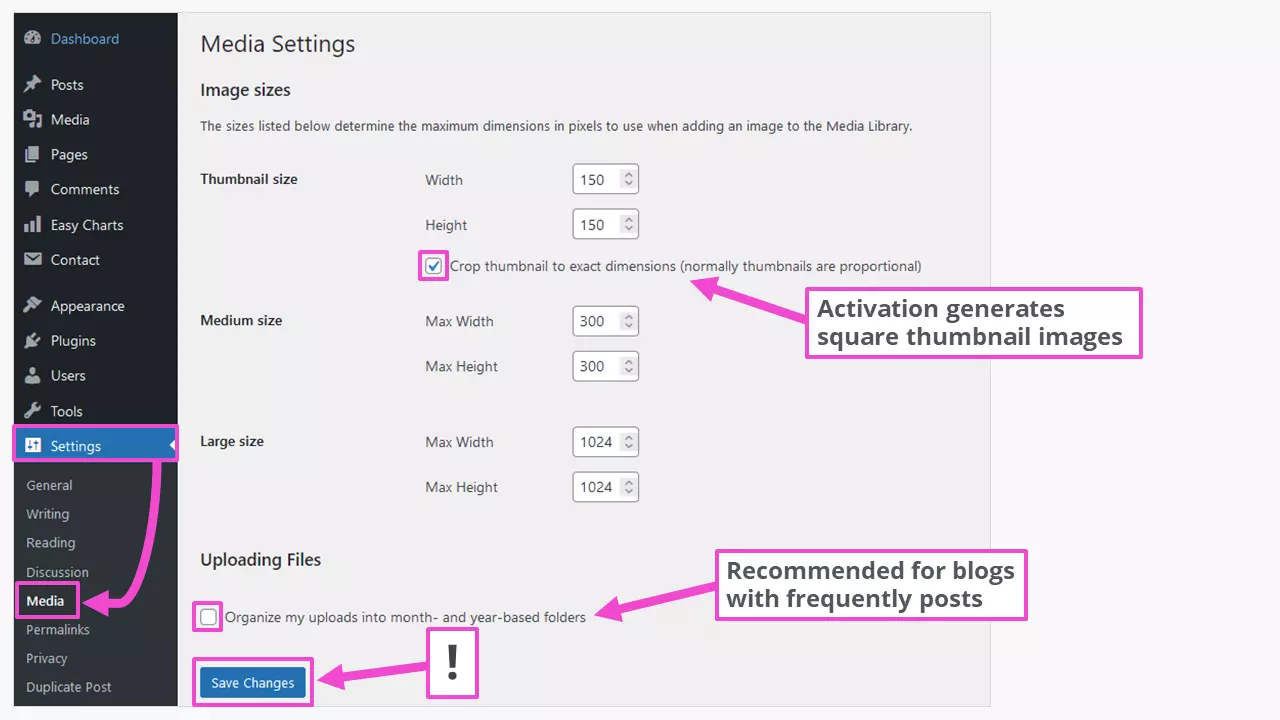
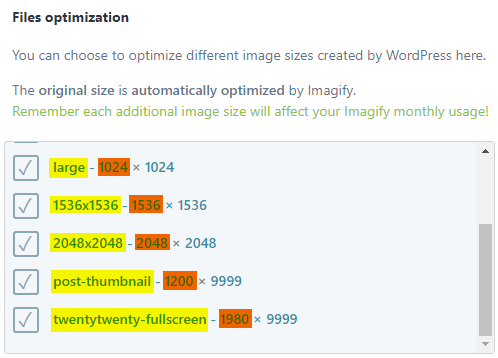
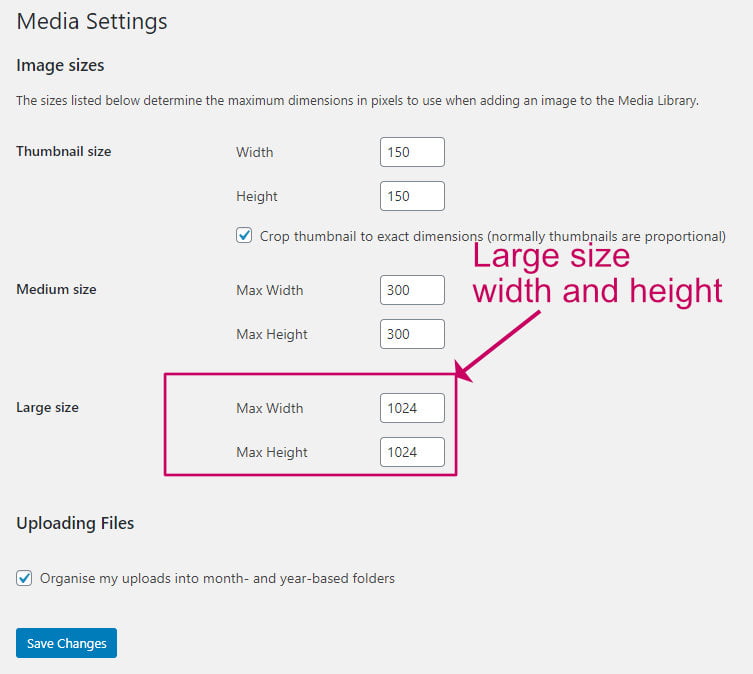
WordPress offers three size options for thumbnail images. These options are small, medium, and large. Small thumbnails are usually 150×150 pixels. Medium size is 300×300 pixels. Large thumbnails can be up to 1024×1024 pixels.
The default setting for thumbnails is often small. This saves space and keeps the website fast. You can change these settings in the media section. Adjust the size to fit your needs. Choose a size based on your website design. Large thumbnails show more detail. Small ones load faster. Picking the right size is important.
Customizing Image Sizes
Choosing the right thumbnail size is important. It helps your website look neat. Set the width and height in pixels. Common sizes are 150×150 or 300×300. Smaller images load faster. But they can look blurry if stretched. Larger images take longer to load.
The aspect ratio keeps images in shape. It means the width and height grow together. A common ratio is 1:1, like a square. Other ratios like 16:9 fit wide screens. Keeping the same ratio stops images from looking odd. Always check your images fit well with your website design.
Credit: imagify.io
Impact On Website Performance
Small images load faster. Large images take more time to load. Choose the right size for your thumbnails. It helps in improving loading speed. Fast loading pages keep visitors happy. Happy visitors stay longer. More visits mean better website performance.
Proper thumbnails improve SEO rankings. Search engines prefer fast websites. Fast websites rank higher. Set the right image size. This helps search engines find your page. Good SEO attracts more visitors. More visitors mean more success.
Choosing The Right Resolution
High resolution images look very clear. They show details well. But, they can be heavy. They take longer to load on websites. This might slow your site down.
Low resolution images load fast. They are light and easy on your site. But, they might look blurry or pixelated. Quality is sometimes lost.
Finding a balance is key. Use images that are not too big or too small. A good choice is 150×150 pixels. This size loads quickly. It also keeps a good image quality. Try using JPEG format. It is often a good choice for the web.
Credit: wpkind.com
Tools And Plugins
Thumbnail image settings in WordPress help optimize your site’s visual appeal. Choose image dimensions suitable for your theme’s layout. Ensure file size balances quality and loading speed for better user experience.
Popular Image Optimization Plugins
Many plugins help with image settings. Some make images smaller. Others make them look better. These tools work with WordPress easily. Popular choices include Smush, EWWW Image Optimizer, and ShortPixel. These plugins offer simple controls. Users can set image sizes without hassle. They also enhance loading speed. Smush automatically compresses images. EWWW Image Optimizer changes formats for speed. ShortPixel optimizes images without losing quality. Users find these plugins useful.
Automating Image Settings
Automation saves time. Plugins automate image settings for ease. Users set rules once. The tool does the rest. Smush can resize images automatically. It also compresses them without loss. EWWW Image Optimizer changes formats on upload. ShortPixel offers bulk image optimization. Users don’t need to adjust settings manually. These plugins simplify image tasks. They ensure images fit perfectly on websites.
Common Mistakes To Avoid
Using large thumbnails can slow down your site. Thumbnails should be small. This helps your website load fast. Fast sites keep visitors happy. Large images use more data. This can frustrate users with slow connections. Keep thumbnail sizes consistent and not too big.
Many people use phones to browse. Thumbnails must fit small screens. If they don’t, they look bad. Mobile-friendly sites are important. Thumbnails should adjust to any screen. Use responsive design tools in WordPress. This ensures images look good on all devices.
Best Practices For WordPress Thumbnails
Thumbnails should have a consistent style. This makes your site look neat. Choose a specific size for all thumbnails. For example, 150×150 pixels work well. This size is common and looks good. It loads fast too. Make sure the images are clear.
Keep the colors balanced. Bright colors can hurt the eyes. Use colors that match your site’s theme. It makes the site visually appealing. Avoid using too many different colors. This can make your site look messy.
Test your images on different devices. This includes phones, tablets, and computers. Make sure they fit well on all screens. Check both portrait and landscape modes. Thumbnails should look good in both.
Loading time should be short. Large images can slow down your site. Use tools to test the speed. Adjust as needed. This ensures a better user experience. Keep testing to maintain quality.
Frequently Asked Questions
What Are The Best Thumbnail Image Dimensions?
The ideal dimensions for WordPress thumbnail images are 150×150 pixels. This size ensures that your images are clear and sharp. It’s important to maintain these dimensions to avoid distortion. Consistent sizing helps maintain a professional look across your site. Adjust settings under WordPress media settings for uniformity.
How Do I Change WordPress Thumbnail Settings?
To change thumbnail settings, go to ‘Settings’ > ‘Media’ in your WordPress dashboard. Here, you can adjust the dimensions for thumbnail images. Save changes to apply new settings. Adjusting these settings ensures your images are displayed correctly across your site.
Always preview changes to ensure they meet your needs.
Why Are My Thumbnails Blurry?
Blurry thumbnails often result from incorrect sizing or low-quality images. Ensure your images match the set thumbnail dimensions. Upload high-resolution images for better clarity. Double-check your media settings for any size discrepancies. Adjustments can often resolve blurriness and improve visual appeal.
How Can I Regenerate Thumbnails?
Use a plugin like ‘Regenerate Thumbnails’ to easily regenerate WordPress thumbnails. This tool updates your image sizes according to new settings. It’s useful after changing dimensions or updating themes. Regenerating ensures all images display correctly. Always back up your site before making changes.
Conclusion
Setting the right thumbnail image size is crucial. It impacts website speed and aesthetics. Consider your theme’s design when choosing dimensions. Smaller sizes can speed up loading times. Larger sizes enhance visual appeal. Balance is key. Test different settings to find what works best.
Tailor the size to your content type. Images in posts might need different dimensions. Always optimize for clarity and performance. This approach ensures a user-friendly experience. Keep experimenting and adjusting as needed. Your WordPress site will benefit from these thoughtful choices.


