Have you ever wondered where your WordPress pages are stored? You’re not alone.
Navigating through WordPress can sometimes feel like trying to find your way out of a maze. But knowing exactly where your pages are saved is crucial for managing your website efficiently. Imagine having the power to control, edit, or back up your content with ease.
By unlocking this knowledge, you’ll not only improve your website’s performance but also enhance your own skills as a WordPress user. Dive into this article to discover the secret location of your WordPress pages and empower yourself to take full charge of your website. Your curiosity and the desire for control over your digital space will guide you through this straightforward journey. Ready to unravel the mystery? Let’s get started!
WordPress File Structure
WordPress uses a unique file structure. Most files are in the root directory. This includes files like wp-config.php and index.php. The wp-content folder is crucial. It contains plugins, themes, and uploads. Pages are not stored as files. WordPress saves them in the database. This keeps the site organized. Understanding the structure helps in troubleshooting. It aids in customization too. Each folder has a role. The wp-includes folder holds vital files. These are for core functions. Always be careful when modifying files. Mistakes can break the site.
Core WordPress Folders
The wp-admin folder holds the files for the admin area. It is where you manage your WordPress site. You can find dashboard and settings here. This folder is important for site management. Be careful when you change files in this folder.
The wp-includes folder contains WordPress core files. It is where many important functions live. These files help your site work. It is best not to edit files here. Mistakes can cause problems for your site.
The wp-content folder holds your themes and plugins. It is where you store media files. You can customize your site here. This folder is safe to edit. You can add and remove files easily. Be sure to back up important files.
Locating WordPress Pages
Many users ask where WordPress stores pages. WordPress does not store pages in folders. Instead, WordPress keeps pages in a database. This database organizes data in tables. Pages are saved in the “wp_posts” table. This table holds all post types. Posts, pages, and attachments are in this table.
WordPress uses a PHP template system. This system shows pages to visitors. Templates are in the themes folder. The “page.php” template is for pages. Templates help display pages with style.
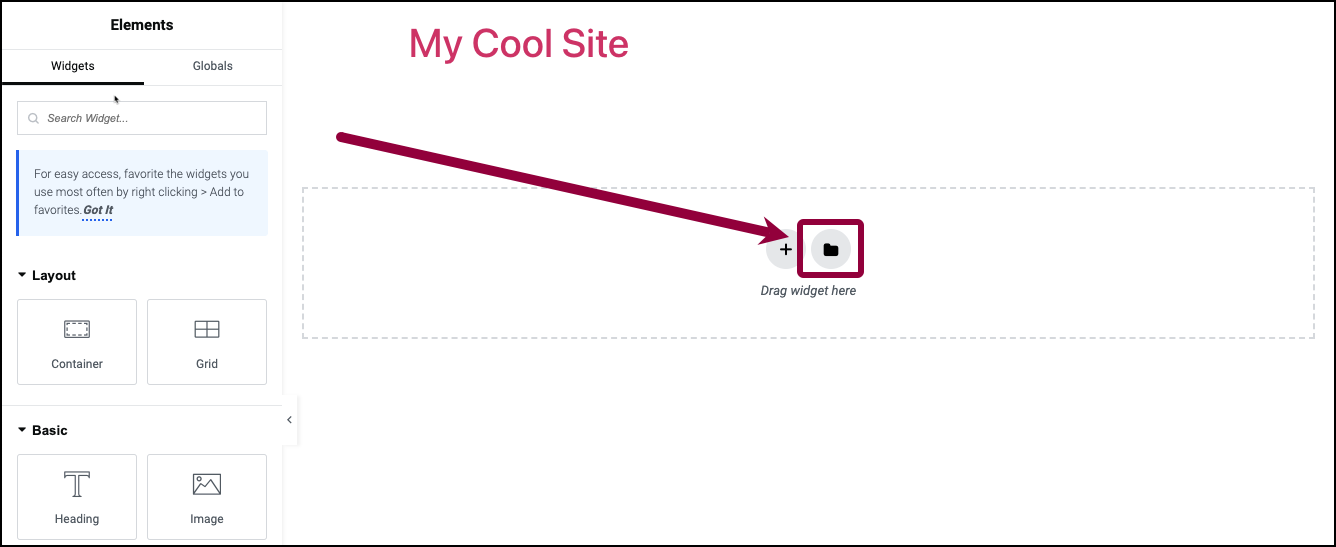
To edit or find pages, use the WordPress dashboard. Go to “Pages” and you can see all your pages. It’s simple and user-friendly. No need to search through files. The dashboard is the best place to manage your content.
Credit: elementor.com
Database Role In Page Storage
WordPress does not store pages in folders. It saves them in a database. The database keeps all your page data safe. It uses tables to manage data. One important table is the wp_posts table. This table holds posts and pages. Each page has its own row. The row has information like title and content.
Databases are like huge filing cabinets. They store and organize data. Pages are not visible as files. They exist as records. This makes WordPress fast and flexible. You can change page content easily. Just update the database. No need to move files around.
Wp-content Directory
Themes change how your site looks. You find them in the wp-content/themes folder. Each theme has its own folder. It holds files like style.css and index.php. These files control your site’s design. You can switch themes easily. Just go to your WordPress dashboard. Pick a new theme. Your site’s appearance changes fast.
Plugins add new features to your site. They live in the wp-content/plugins folder. Each plugin has its own folder. Inside are files and code. They make plugins work. You can find plugins in the WordPress dashboard. Install them with a few clicks. They help your site do more.
Uploads are where your media files go. You find them in the wp-content/uploads folder. Photos, videos, and documents live here. WordPress saves them by date. You can see them in your dashboard. Media files make your site lively. They give it color and action.

Credit: wickedplugins.com
Custom Page Templates
Custom page templates are special files in WordPress. They help you create unique designs for your pages. These templates are stored in the theme folder. Each template has its own PHP file. You can find them in the WordPress Dashboard. Look under ‘Pages’ and choose ‘Add New’ or ‘Edit’. Then, select a template from the ‘Template’ dropdown menu.
Creating a custom template is simple. First, make a new PHP file. Name it wisely, like custom-template.php. Add a comment at the top. Use this format: / Template Name: Your Template Name /. Save the file in your theme folder. Now it’s ready to use. Custom templates give your pages a unique look. They make your site stand out.
Using File Manager For Navigation
Finding your pages in WordPress is simple. Use the File Manager in your hosting account. It helps you see all files and folders. Pages are not stored in a single folder. WordPress uses a database for storing pages and posts. File Manager shows important folders like wp-content and wp-admin. These folders hold themes and plugins. They do not contain pages. Look for the uploads folder for images and media files. WordPress pages are in the database, not in these folders. Use phpMyAdmin to access the database. Here, you can view tables storing page content. Understanding this helps in managing your site better.
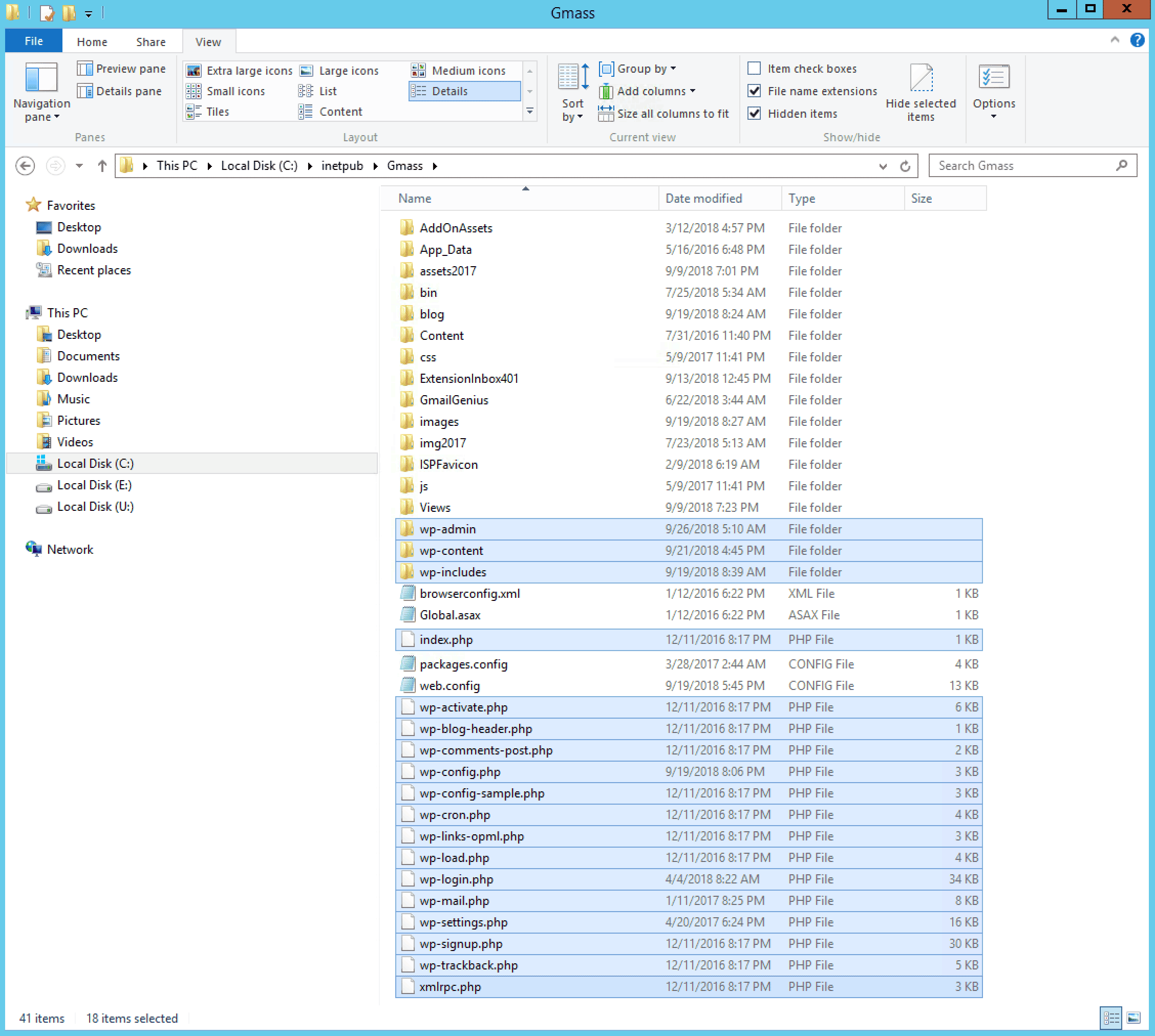
Credit: www.gmass.co
Common Misconceptions
WordPress can seem tricky. Many users think pages are in folders. This is not true. WordPress stores pages in a database. It does not use folders like on a computer. The database keeps all content safe.
Some people search for folders to find pages. This can lead to confusion. Instead, use the WordPress dashboard. The dashboard shows all pages clearly. You can edit or add new pages there.
Remember, WordPress does not organize pages in folders. The database is the key. It organizes and manages all your content. Knowing this will help you use WordPress better.
Tips For Efficient File Management
Organize your files in a clear way. Use folders to keep files tidy. This helps find files fast. Name your files well. Clear names save time. Avoid long names. Short names work best.
Back up files often. A backup keeps files safe. Use cloud storage for extra safety. This saves files from loss. Delete old files you don’t need. This keeps things tidy and saves space.
Regular checks on folders help. This keeps files in order. Clean up once a month. It keeps your system neat. Neat systems save time and effort.
Frequently Asked Questions
Where Are WordPress Pages Stored?
WordPress pages are stored in the database, not in folders. Specifically, they reside in the “wp_posts” table. This table holds all post types, including pages, posts, and custom post types. Files like themes and plugins are in the “wp-content” folder, but actual page content is database-driven.
Can I Find WordPress Pages In Specific Folders?
No, WordPress pages are not stored in specific folders. They are stored in the database. The database organizes them within the “wp_posts” table. This setup allows for dynamic content management. Files like images and themes exist in folders, but page content does not.
How Does WordPress Organize Its Content?
WordPress organizes content using its database. Pages, posts, and custom post types are stored in the “wp_posts” table. This organization allows for dynamic content retrieval. Media files, themes, and plugins are stored in specific folders within the “wp-content” directory.
Why Can’t I Find WordPress Pages In Folders?
WordPress pages are stored in the database, not in folders. This design enhances flexibility and content management. The database approach allows for dynamic content updates. Folders in WordPress primarily store themes, plugins, and media files, not the actual page content.
Conclusion
Understanding WordPress file structure helps manage your site better. Pages are not in folders like regular files. WordPress stores them in a database. This setup might seem confusing. But it’s efficient. Knowing this can save you time and frustration. It helps you troubleshoot issues effectively.
With practice, navigating WordPress becomes easier. So, stay patient and explore its features. Your skills will grow with experience. Enjoy building your site with confidence. Keep learning, and you’ll soon feel comfortable with WordPress.