
Have you ever wondered, “What version of WordPress do I have?” If so, you’re not alone.
Keeping track of your WordPress version is crucial for maintaining a secure and smoothly running website. Imagine missing out on a vital update that could enhance your site’s performance or protect it from cyber threats. You wouldn’t want that, right?
Understanding your WordPress version is like knowing the foundation of your digital home. It empowers you to make informed decisions about updates, plugins, and themes. So, if you’re ready to unlock the secrets of your WordPress site and ensure it’s operating at its best, keep reading. This guide will walk you through simple steps to find out your WordPress version and explain why it’s important for your website’s health. Let’s dive in and take control of your WordPress experience!

Credit: www.youtube.com
Checking WordPress Version
Login to your WordPress dashboard. Look at the bottom of the screen. There, you will find your WordPress version. It’s displayed in the footer. This method is easy and quick. You don’t need any special tools. Just your login details.
Right-click on your website page. Select “View Page Source” from the menu. Use the “Ctrl + F” keys to search. Type “generator” in the search box. You will see the WordPress version in the meta tag. This method needs a bit of searching.
Use your FTP client to access your files. Find the wp-includes folder. Look for the file named version.php. Open the file and check for the version number. This method requires FTP access. It’s more technical but effective.
Using Plugins For Version Detection
Many plugins help find your WordPress version. One popular choice is WP Site Manager. Another is Health Check & Troubleshooting. These plugins are easy to use and reliable. They show your WordPress version in seconds.
First, go to your WordPress dashboard. Click on Plugins in the sidebar. Then, click Add New. In the search box, type the plugin name. Once you find it, click Install Now. After installation, click Activate. The plugin will now show your WordPress version. This process is simple and quick. Make sure your plugins are always up-to-date.
Why Knowing Your Version Matters
Knowing your WordPress version is crucial for security. Older versions might have vulnerabilities. Hackers can exploit these easily. Always update to stay safe. New updates fix bugs and security holes. They protect your site from attacks. Regular updates keep your site secure.
WordPress updates ensure compatibility with themes and plugins. Older versions may not support new features. This can break your site or affect performance. Compatibility issues can cause display errors. This impacts user experience negatively. Always check the version to avoid such issues.
New WordPress versions bring new features. These features improve site functionality. Older versions may lack these enhancements. Staying updated ensures access to the latest tools. Enjoy better options and improve your website. New features can simplify tasks. They make site management easier.
Updating WordPress Version
Creating a backup is very important. It saves your work. Use plugins to back up your site easily. Store your backup in a safe place. You can use cloud storage for safety. This ensures your data is secure.
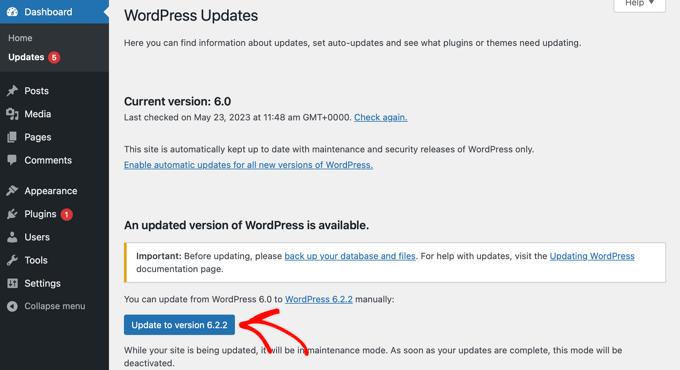
WordPress can update itself. This makes things easy. Automatic updates keep your site safe. They fix bugs and add new features. Check settings to see if auto-update is on. This helps you stay updated without extra work.
You can update WordPress by hand. First, download the latest version. Then, go to your dashboard. Click on update and follow the steps. Make sure your plugins and themes are compatible. This keeps your site working well.
Troubleshooting Version Issues
Many people face errors with their WordPress version. Sometimes, the website does not load properly. Other times, plugins don’t work well. These issues often arise from an outdated WordPress version. Updating to the latest version can solve many problems. It’s important to check for updates regularly.
WordPress offers many support resources for users. The official WordPress website has guides and forums. Users can ask questions and get answers. There are also video tutorials available. These resources help users fix errors easily. Always make sure to read the guides carefully.

Credit: www.greengeeks.com
Credit: www.wpbeginner.com
Frequently Asked Questions
How Do I Check My WordPress Version?
To check your WordPress version, log in to your dashboard. Look at the bottom right corner of the screen. Alternatively, go to “Dashboard” > “Updates” to see your version. You can also view the “readme. html” file in your WordPress directory for version details.
Why Is Knowing My WordPress Version Important?
Knowing your WordPress version is crucial for security and compatibility. Older versions might have vulnerabilities that hackers exploit. Staying updated ensures you have the latest features and security patches. It also helps in troubleshooting and ensuring compatibility with themes and plugins.
Can I Update WordPress Automatically?
Yes, WordPress offers automatic updates for minor versions by default. For major updates, you need to initiate them manually. To enable automatic updates for major versions, you can use plugins or modify the wp-config. php file. Always back up your site before any update to prevent data loss.
Where Can I Find WordPress Version In Files?
Locate your WordPress version in the wp-includes/version. php file. Open this file and search for the line containing $wp_version. This line will display your current WordPress version. Alternatively, check the readme. html file in your WordPress root directory for version information.
Conclusion
Finding out your WordPress version is simple and crucial. It helps keep your site secure and functioning well. Stay updated to enjoy the latest features and improvements. Always check your version before installing new plugins or themes. This ensures compatibility and smooth performance.
Regular updates protect your site from potential threats. So, keep your WordPress version current. Doing this safeguards your website and enhances its capabilities. A little effort goes a long way in maintaining a healthy WordPress site. Keep exploring and learning about WordPress to make the most of it.


