
Picture this: you’re about to publish a crucial blog post or check on your site’s latest stats, and suddenly, you can’t access your WordPress site. Panic sets in.
The dreaded server downtime has struck, leaving you feeling helpless and frustrated. But don’t worry—you’re not alone, and there are steps you can take to get things back on track quickly. In this guide, we’ll walk you through practical actions you can take when your WordPress server is down.
By the end, you’ll feel empowered with the knowledge you need to tackle this issue head-on, ensuring your site is up and running smoothly in no time. Ready to regain control of your online presence? Let’s dive in!

Credit: www.hostarmada.com
Identifying Server Issues
Servers can go down for many reasons. A power outage can stop servers. A hardware failure might cause issues. Sometimes, network problems make servers slow or unresponsive. High traffic can also crash a server. It’s important to check these causes first.
Use tools to check server health. Pingdom can track server uptime. UptimeRobot watches server status every five minutes. GTmetrix helps analyze server speed. These tools are simple to use. They give alerts if the server is down. It’s best to keep them handy.
Contacting Your Hosting Provider
Reach out to your hosting provider when your server is down. It’s important to act quickly to resolve the issue. Check if the problem is with your website or the server itself. Hosting providers can help with both. They have the tools to fix server problems efficiently. Contact them if your site is slow or not loading.
Provide clear information when contacting support. Share your website address with them. Explain what happened and when it started. Mention any error messages you see. This helps them understand the issue better. Tell them about any changes made recently. This information is important for quick solutions. Keep your message short and to the point.
Checking WordPress Configuration
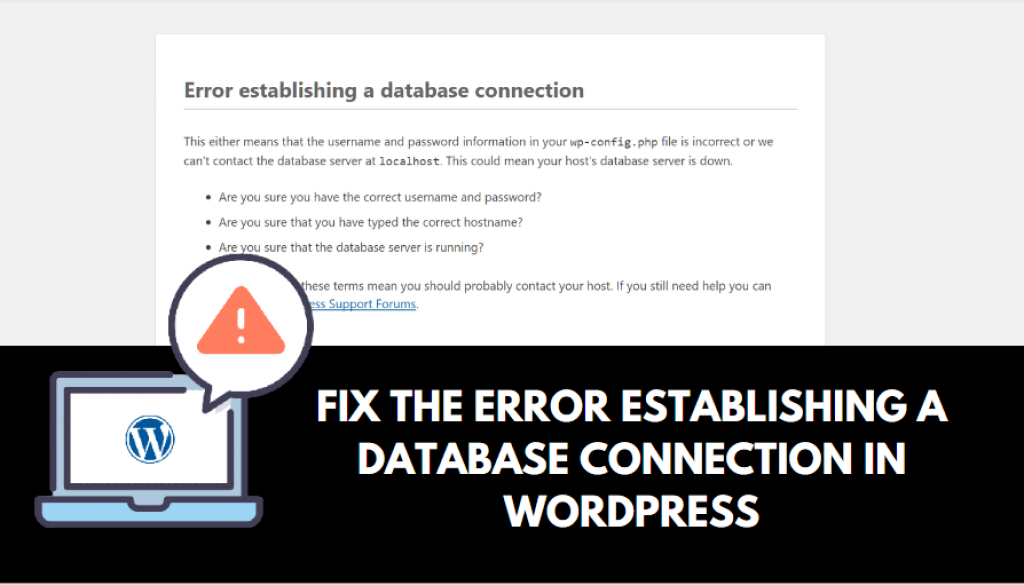
Start by checking the wp-config.php file. This file controls important settings. Look for any typos or errors in the code. Make sure the database name, username, and password are correct. Even a small mistake can cause big problems. If changes are needed, save the file and try again. Always keep a backup of the file before editing.
A broken database connection can stop your site. Check if the database server is running. Use your hosting panel to access database settings. Test the connection with correct login details. If you see an error, the database might be offline. Contact your hosting provider for help. Sometimes resetting the password helps solve the issue.
Credit: user-meta.com
Resolving Plugin Conflicts
Deactivating All Plugins can help solve server problems. Start by logging into your WordPress dashboard. Navigate to the plugins section. Find the option to deactivate all plugins. Click on it. This action will turn off all plugins. Sometimes, a faulty plugin causes server issues. Deactivating them all helps identify the problem.
Reactivating Plugins Individually is the next step. Go back to the plugins section. Turn on one plugin at a time. Check your server after activating each plugin. This process helps find the troublesome plugin. If the server crashes again, deactivate the last plugin. This method helps pinpoint the exact problem. Keeping plugins updated can prevent future issues.
Fixing Theme Issues
Theme problems can cause server issues. Switch to a default theme like Twenty Twenty-One. This can help find if the theme is the issue. Access your WordPress dashboard. Navigate to Appearance. Select Themes. Activate a default theme. Check if this solves your problem. It is a quick and easy solution. No coding needed.
Sometimes themes have errors. These errors can break your site. Check your theme settings. Look for any mistakes or wrong codes. Disable all plugins. Activate one by one. Find the plugin causing issues. Update your theme to the latest version. Updates fix bugs. Contact theme support if problems stay. They can help you. Always backup your site first. Avoid losing data.
Credit: myunlimitedwp.com
Restoring Backups
Experiencing server downtime with WordPress can be challenging. Quickly restoring backups ensures your site is back online fast. Check your hosting provider’s backup options and follow their guidelines for recovery.
Using Backup Plugins
Backup plugins help save your site data. They create copies of your WordPress site. This makes restoring easy. First, log into your plugin dashboard. Look for the backup section. Choose the latest backup file. Click restore. Wait for the process to finish. Your site will return to its last saved state.
Manual Backup Restoration
Manual restoration needs a bit more work. First, download your backup files. You will need FTP access. Connect to your site via FTP. Upload the files to your site. Overwrite the existing files. This might take some time. Once done, check your website. It should be back to normal.
Optimizing Server Performance
Caching makes websites fast. It stores files to use later. This reduces load time. Use plugins like WP Super Cache or W3 Total Cache. They help a lot. They keep websites quick. Fast sites keep visitors happy. Happy visitors stay longer.
Content Delivery Networks, or CDNs, make websites better. They store files in many places. This helps serve content faster. Popular options include Cloudflare and Akamai. They ensure content reaches users quickly. Speed matters for all websites. Faster websites make visitors smile. Smiling visitors often come back.
Preventative Measures
Keep your site healthy. Clean it often. Update plugins regularly. Always use the latest WordPress version. This helps keep your site safe. Backup your site each week. Store these backups away from the server. This ensures data safety. Check for broken links often. Fix them to help users and search engines. Look at site speed. Fast sites are better. Slow sites can lose visitors.
Monitoring tools are key. They watch your site day and night. Alerts tell you when things go wrong. Some tools are free. Others cost money but give more features. Use them to see problems early. Fix them before users notice. This helps keep the site running well. They check uptime. They check performance. They check security issues. Choose tools that fit your needs. Make sure they are easy to use.
Frequently Asked Questions
How Do I Check If My Server Is Down?
To check if your server is down, try accessing your website from different devices and networks. Use online tools like “Is It Down Right Now” or “Down For Everyone Or Just Me” to verify server status. These tools provide real-time server status updates, helping you identify connectivity issues.
What Steps To Take If Server Is Down?
First, contact your hosting provider to report the issue. Check your server logs for error messages and inspect recent changes. Temporarily disable plugins or themes to rule out conflicts. If necessary, restore your website from a recent backup to resolve the issue quickly.
Can Plugins Cause Server Downtime?
Yes, poorly coded or incompatible plugins can cause server downtime. They may conflict with other plugins or themes, leading to errors. Regularly update your plugins and themes to ensure compatibility. Always test new plugins in a staging environment before deploying them on your live site.
How Can I Prevent Future Server Downtime?
To prevent server downtime, choose a reliable hosting provider with robust infrastructure. Regularly update WordPress, themes, and plugins to avoid compatibility issues. Implement security measures like firewalls and malware scans. Schedule regular backups to quickly restore your site if downtime occurs.
Conclusion
Fixing a WordPress server issue can be stressful. Stay calm and follow steps. Check server status and contact your hosting provider. Back up your site regularly to avoid data loss. Use reliable plugins to monitor server health. Educate yourself on basic troubleshooting techniques.
Don’t panic; solutions are often simple. Reach out to WordPress community forums for help. They can offer valuable advice. Remember, every problem has a solution. With patience, your website will be back online. Keep learning, and stay prepared for future issues.
Your site’s health depends on it.


