
Have you ever worried about your content being copied without permission? As a WordPress user, protecting your work is crucial.
You might be wondering how to stop others from right-clicking and copying your text or images. Imagine the peace of mind knowing your hard work stays protected. In this blog post, you’ll discover the best plugin to disable right-click on WordPress.
This simple solution can safeguard your content and ensure it remains uniquely yours. Keep reading to learn which plugin will help you maintain control over your website’s valuable assets.

Credit: sdlccorp.com
Reasons To Disable Right Click
Protecting your content is important. Some people steal photos and text. Disabling right click helps stop this. It keeps your work safe. Online stores use it too. They protect product images from theft. Artists and photographers need it. Their pictures are valuable. Right click is used for copying. Disabling it adds a layer of security. Websites with special codes use it. They want to keep their codes private.
Some people use right click for bad things. They might mess with your website. Disabling it helps prevent trouble. It makes your site more secure. Visitors can still enjoy your site. They just can’t copy or mess with it. This keeps your website safe and secure.
Popular Plugins For Right Click Disabling
Many WordPress users want to protect their content. Disabling right click helps keep photos and text safe. The No Right Click Images Plugin is a top choice. It stops people from copying your pictures. Another option is the WP Content Copy Protection. This plugin guards all your content. No one can right click or select text. Right Click Disable is simple and easy. It blocks right click on your site. These plugins are free. They are also easy to set up. Protect your work today.
Features Of Right Click Disable Plugins
These plugins offer customizable options for users. You can choose which features to disable. Right-click, text selection, and copy-paste are common choices. Some plugins let you add a warning message. This shows when someone tries to right-click. It can be a friendly note or a strict alert. Adjust settings easily in the plugin dashboard.
Most plugins work with popular themes. They adjust to different styles automatically. This ensures your site looks consistent. Check plugin details for theme compatibility. Some plugins might need extra settings for certain themes. Easy integration is key for smooth use.
Disabling right-click affects user experience. People may find it annoying if not done right. Use plugins that balance security and user comfort. Always test changes on your site. Ensure that users can still navigate easily. Keep your site user-friendly while protecting content.

Credit: kinsta.com
How To Install A Plugin
Easily disable right-click on WordPress by installing the WP Content Copy Protection plugin. Navigate to your WordPress dashboard, select “Plugins,” click “Add New,” and search for the plugin. Install and activate it to protect your content effectively.
Finding The Right Plugin
Choosing the right plugin is very important. Search in the WordPress Plugin Directory. Use simple keywords like “disable right-click”. Look at the ratings and reviews. Choose a plugin with good ratings. Check the last update date. Recent updates mean better support. Make sure it’s compatible with your WordPress version.
Step-by-step Installation Guide
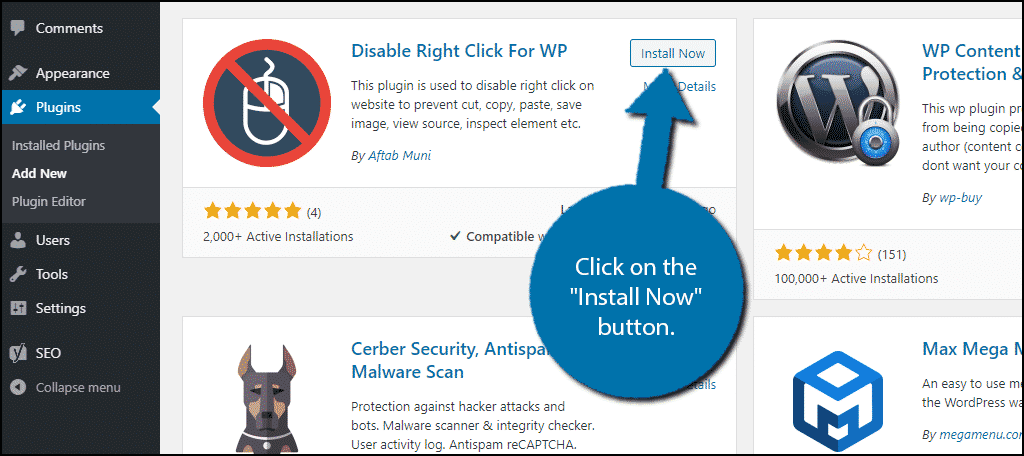
First, go to your WordPress dashboard. Click on “Plugins” and then “Add New”. In the search box, type the plugin name. Find the plugin you want. Click “Install Now”. After installation, click “Activate”. Your plugin is now ready. Check the plugin settings. Adjust them as needed. Your site is now more secure.
Best Practices
Disabling right-click can improve site security. But, it may annoy users. Make sure your site stays friendly. Offer alternatives for common actions. This way, users won’t feel blocked. A good balance keeps both site owners and visitors happy.
Keep an eye on your plugin’s performance. Slow plugins can affect site speed. Check regularly for updates. An updated plugin works better and keeps your site secure. If a plugin causes issues, consider changing it. A fast site is a happy site.
Credit: www.greengeeks.com
Alternatives To Plugins
Adding custom code can disable right-click on your site. Use JavaScript to prevent right-click. This code is easy. Place it inside your theme’s header or footer. The code blocks the right-click menu. Users can’t copy text or save images. It’s simple but effective. Make sure to test the code. Ensure it works well on different browsers. This method is lightweight. It doesn’t slow down your site. Perfect for those who understand basic coding.
Some third-party tools can help disable right-click. These tools often have extra features. Like watermarking images. Or blocking text selection. They offer a smooth setup. No coding is needed. Just install and configure. Some may be free. Others might charge a fee. Choose the one that fits your needs. Ensure the tool is compatible with your theme. Always check user reviews. This helps find reliable tools.
Frequently Asked Questions
How To Disable Right Click On WordPress?
To disable right click on WordPress, use plugins like WP Content Copy Protection & No Right Click. These plugins help protect your content by blocking right-click actions, ensuring your images and text remain secure from unauthorized copying or downloading.
Which Plugin Is Best For Blocking Right Click?
WP Content Copy Protection & No Right Click is highly recommended. It effectively prevents right-click actions and content theft. Additionally, it offers features like disabling text selection and image dragging to enhance security on your WordPress site.
Is Disabling Right Click On WordPress Effective?
Yes, disabling right click is effective for preventing content theft. It helps safeguard your images and text from being copied. Although not foolproof, it adds a layer of protection against casual content copying and unauthorized use.
Can Right Click Be Disabled Without Plugins?
Disabling right-click without plugins requires custom code. You can add JavaScript code to your theme’s files. However, using plugins is easier and provides additional security features without the need for coding knowledge.
Conclusion
Choosing the right plugin enhances your WordPress security. Disabling right-click protects your content. It’s simple and effective. Many options exist, each with unique features. Consider your needs and site goals. Test a few plugins to find the best fit. Remember, while plugins protect, they aren’t foolproof.
Keep content backed up regularly. Stay informed on new security updates. Content safety is crucial for site success. Secure your site today. Enjoy peace of mind knowing your work is safe. Your effort deserves protection.


