
You’ve decided to give your WordPress site a fresh new look by changing its theme. The excitement of a website facelift can quickly turn to frustration when you realize that not everything transitions smoothly.
Have you ever wondered what settings and customizations might be lost when you switch themes? This is a common concern for many WordPress users, and understanding these changes can save you time and headaches. We’ll uncover the hidden elements that might not make it through the transition and how you can prepare for a smoother experience.
If you’re eager to maintain your site’s functionality and appearance without any hiccups, keep reading to discover what you need to know before you hit that “activate” button.
Credit: www.inmotionhosting.com
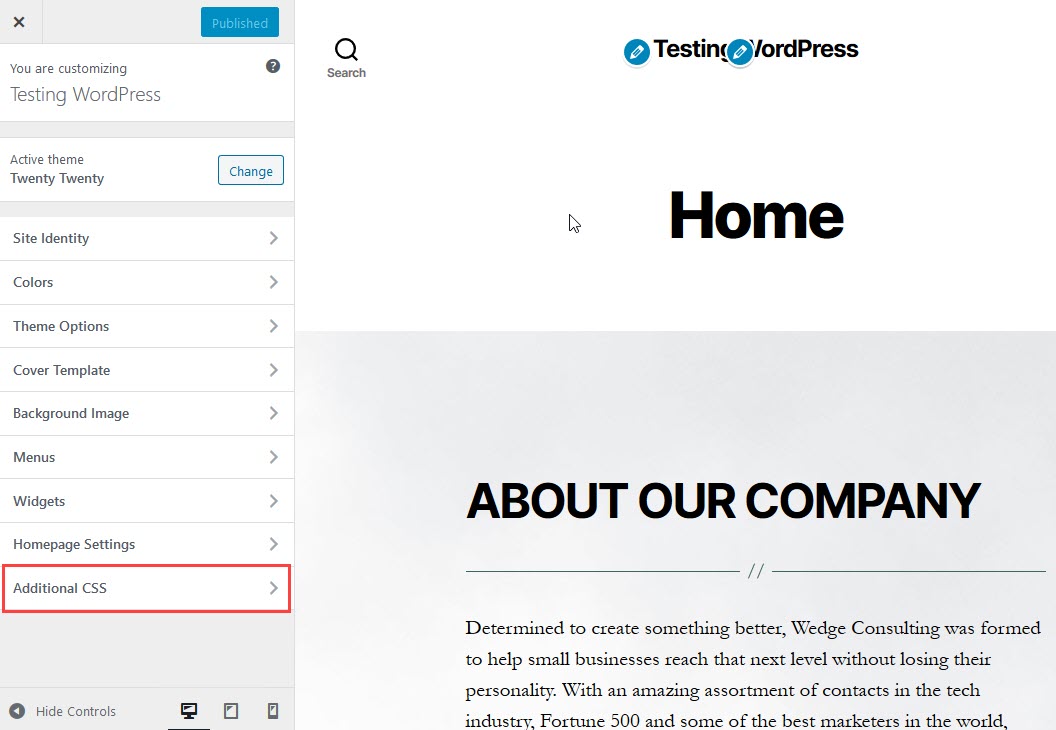
Theme Customization
Changing themes can affect your site’s look. Color schemes might not stay the same. New themes often have different color options. This can change your site’s vibe. Users might notice this immediately. Consistent colors are important for brand identity.
Fonts can change with new themes. Your old font styles might not transfer. This can make your text look different. Some themes have unique fonts. New fonts can change readability. It’s good to check them after a theme change.
Layout adjustments are common with new themes. Your site’s structure might shift. This affects how content is displayed. Some items can move to new spots. Checking the layout is important after a theme switch. It keeps your site user-friendly.
Credit: www.wpzoom.com
Widget Configuration
When you change themes, your sidebar widgets can disappear. This can make your site look broken. You may need to add each widget again. Some widgets might not be available in the new theme. Always check if they work before going live.
Footer widgets might get lost too. This can affect important links. Visitors may find it hard to navigate. Always save a backup of your widgets. This helps to restore them quickly.
Custom widget areas can vanish when changing themes. These are special places for widgets. Some themes do not support them. You may need to recreate these areas manually. Keep a list of widgets used in custom areas. This makes setup easier.
Menu Settings
Changing themes can alter your primary navigation. This is the main menu of your site. It helps visitors find important pages. Your menu may lose its order. Links might disappear. This confuses users. Always check your menu after a theme change. Restore links if needed.
Some themes have a secondary navigation. This is a smaller menu. It might show extra options or pages. Changing themes can hide this menu. You might lose important links. Make sure to add them back. This helps users explore your site easily.
Custom links are special links you add to menus. They might lead to external sites or specific pages. Changing themes can affect these links. They might not appear in new menus. Check your menu settings. Re-add custom links if missing.

Credit: www.wpzoom.com
Homepage Settings
Switching themes can change your homepage settings. Your site might lose its static front page. This can confuse visitors. They may see your latest posts instead. Always check this setting after a theme change.
Featured areas may disappear with new themes. Content might not display as before. Some themes have specific featured content layouts. Others might not support them. It is important to review these areas. Ensure your featured content remains visible.
Sliders and carousels are often theme-specific. They can vanish after a theme update. This affects the site’s look and feel. Check if your new theme supports these features. If not, consider plugins to maintain them. Sliders can enhance visitor engagement.
Plugin Compatibility
Changing themes can cause slow website speed. This happens because of extra code. Some themes have large files. These files take time to load. Visitors may leave if pages load slowly. Fast loading is important for good user experience.
Different themes have different styles. Switching themes can change how your site looks. Buttons, fonts, and colors might change. Old settings can disappear. Your site may not look good anymore. It’s important to check style changes. Make sure everything looks right.
Some plugins work with specific themes. New themes may not support all plugins. Some features might stop working. Important features can break. Check your plugins after switching themes. Ensure all features work as expected.
Seo Settings
Meta tags are little snippets of code. They help search engines understand your site. Changing your WordPress theme can sometimes remove them. You might need to add them back. Make sure your title tags and description tags are correct. They tell search engines about your page content. Keep them short and clear.
Permalinks are the URLs for your pages and posts. They help people find your content. Changing themes might change these links. Check your permalink settings after a theme change. Ensure they match your old structure. This keeps your links from breaking.
Site indexing helps search engines list your pages. Some themes might block this. Check your robots.txt file. It should allow search engines to find you. Also, look at your sitemap. Ensure it is up-to-date. This helps in making your site easy to explore.
Custom Post Types
Custom post types may vanish with a new theme. This affects your content display. They might not show as before. It’s crucial to check each post type. Ensure they look right. Themes handle content differently. Some themes support limited post types.
Changing themes can affect how content appears. Layouts may shift. Images might not align well. Text might wrap differently. This can make your site look messy. It is important to preview changes. See how your content displays. Adjust settings if needed. Keep your site tidy.
Templates control page look. Theme change might alter these. Pages can lose their design. Some templates disappear. Others might not fit new themes. Check template assignments. Adjust them to match the new look. Keep your pages looking good.
Taxonomy structures help organize content. New themes can disrupt this. Categories and tags might change. Custom taxonomies may not work. Ensure your content stays organized. Review and adjust taxonomies. Keep your content easy to find.
Media Settings
When you change your WordPress theme, image sizes might get lost. Every theme has its own default image sizes. These sizes help your images look good. If the sizes change, images can look stretched or blurry. Always check your media settings. Adjust them to match your new theme’s needs. Some themes have special sizes for featured images. Others might need different thumbnail sizes. Keeping your images in the right size is important.
Gallery layouts might also change with a new theme. Each theme can have its own style. Some themes show galleries in grids. Others might use sliders or columns. This can change how your pictures appear. Always preview your galleries after a theme change. This helps ensure that your pictures look nice and organized. You might need to adjust gallery settings in your media library.
Video embeds can lose their settings too. Different themes handle videos in various ways. Some themes might not support certain video formats. Others might change the embed size or style. Always test your videos after changing themes. Ensure they play correctly and look good. Check if your theme supports popular video platforms. Like YouTube or Vimeo. Adjust the embed code if needed.
Frequently Asked Questions
What Settings Are Lost When Changing Themes?
Changing themes can affect widget settings, menus, and customizer options. Your site may lose custom CSS, header, and footer settings. Always back up your site before switching themes to safeguard your configurations and content.
Does Changing Themes Affect Seo Settings?
Yes, theme changes can impact SEO settings like meta tags and schema. Ensure your new theme supports SEO plugins and settings. Always review your SEO configurations after switching themes to maintain search engine visibility.
Will I Lose My Site’s Design Elements?
Switching themes can alter design elements like fonts, colors, and layout. Some design settings may not transfer seamlessly. It’s essential to preview the new theme and adjust design settings to match your site’s branding.
Can I Restore Settings After A Theme Change?
You can manually restore settings using backups or theme options. Consider using a child theme to preserve customizations. Regularly backing up your site ensures you can revert changes without losing important configurations.
Conclusion
Changing WordPress themes can impact your site’s settings. Widgets might disappear. Custom menus could reset. Sidebar content may change. Backup your site before switching themes. Save all important settings. Review your site post-change. Ensure everything looks good. Test your site on multiple devices.
Check for any missing elements. Adjust settings as needed. Keep your visitors in mind. A smooth transition keeps them happy. Regularly updating your theme helps maintain your site’s look and feel. Always plan changes carefully. Protect your hard work. Your site deserves the best.


