
Have you ever published a post on WordPress, only to realize there’s more you want to tweak or add? Or perhaps you clicked ‘publish’ a bit too soon, and now you’re scrambling to make changes?
Enter the lifesaver feature: WordPress Switch to Draft. This handy tool allows you to unpublish a post, giving you the freedom to make those crucial edits without the pressure of an already live article. Imagine having the power to pause, refine, and perfect your content before presenting it to the world again.
Intrigued? Let’s dive deeper to discover how this feature can become your secret weapon for flawless blog posts.
Credit: themelooks.com
WordPress Draft Mode
WordPress offers a draft mode for posts. It keeps your work safe. You can edit anytime. It does not show on your site. You can save changes easily. Draft mode is helpful for writers. It is like a safe place. You can take your time when writing. No rush to publish. You can write, edit, and think. Your readers will not see drafts. Only you can see them. This gives you control over your content. Make sure to save often. Drafts are perfect for checking your ideas. They help you improve your writing.

Credit: support.17thavenuedesigns.com
Purpose Of Switching To Draft
WordPress Switch to Draft is a useful feature. It allows users to edit posts without publishing them. This option is great for making changes at any time. Users can save their work and come back later. Drafts let you work without pressure. They are safe from public view. It’s a chance to improve content.
Switching gives freedom to update articles. It helps fix mistakes before going live. Writers can test ideas quietly. This feature is for everyone. Beginners and experts benefit from it. It makes writing easier and more flexible. Drafts are like a secret lab for creativity. Edit, review, and publish when ready.
How To Switch A Post To Draft
First, open the WordPress dashboard. Find the posts section. Click on it. Choose the post you want to edit. Click on Edit. This opens the editor. Now you are ready to make changes. It’s easy to find your posts here.
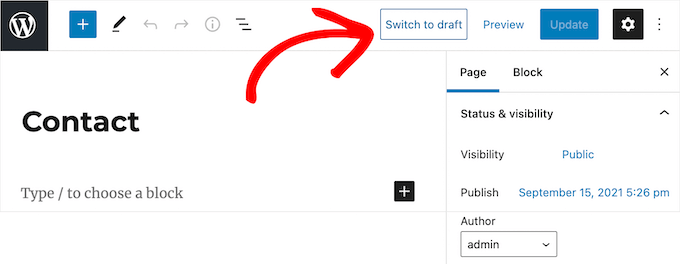
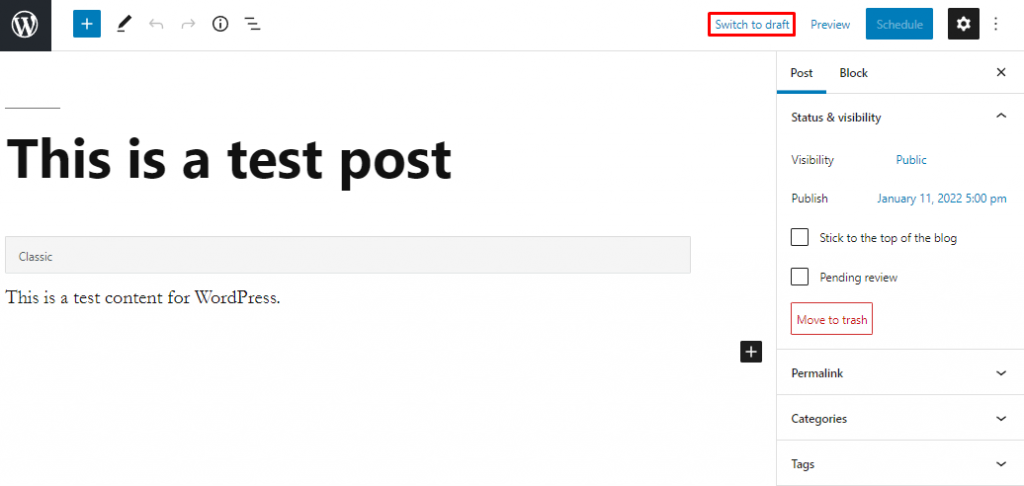
Look for the publish box. It’s on the right. Find the button that says Switch to Draft. Click it. Your post goes back to draft mode. Now, you can make more changes. You can save it for later.
Benefits Of Using Draft Mode
Draft mode lets you change content easily. You can edit and improve your text. This helps in making your article better. Mistakes can be fixed without stress. You have time to make it right.
Errors happen in writing. Draft mode is there to fix errors. You can read and find mistakes. Fix them before you show others. This makes your work cleaner and correct.
You can plan your posts. Write now, post later. This is what draft mode offers. It gives you time. Post when you are ready. No rush or pressure to hurry.
Common Use Cases
Switch to Draft helps edit posts after publishing. Authors can fix mistakes or add new info. This tool keeps content fresh. It’s easy to change posts this way. No need to delete old content. Just switch, edit, and publish again.
Many people work together on blogs. They use Switch to Draft for teamwork. One person writes, others edit. This way, everyone can add ideas. Editors can suggest changes easily. The final post is better because of teamwork.
Sometimes posts are not ready for public view. Switch to Draft keeps posts private. Authors can store them safely. This option is good for sensitive topics. Posts stay hidden until they are ready. This ensures privacy for important content.
Potential Drawbacks
Changing a post to draft can affect its SEO rank. Once unpublished, search engines may not show it in results. This can lead to a drop in traffic. Users looking for the post might not find it anymore. The site might lose its position in search rankings. It could take time to regain the lost rank. Consistent publishing is key for good SEO.
Readers might face confusion when a post is switched to draft. They expect content to be available. Missing content can lead to frustration. Visitors may trust the site less. It could decrease their engagement. Always check if the content is ready before publishing. Reliable content builds trust with visitors.
Best Practices
Content should be checked often. This helps keep it fresh. Old content can be updated or improved. New ideas can be added. This makes the site better. Readers will like up-to-date information. It shows care and attention.
Tracking changes is important. Version control keeps everything organized. Everyone knows what changed. It prevents confusion. This helps teams work better. Mistakes are easy to spot and fix. Teams stay on the same page.
Good communication is key. Team members must talk often. Share ideas and updates. This builds trust. It helps everyone understand tasks. Problems can be solved quickly. The team works smoothly together.
Troubleshooting Common Issues
Drafts might not save if there’s a poor internet connection. Make sure your connection is stable. Also, check if your browser is updated. Old browsers can cause saving issues. Using a different browser might help too. Sometimes, plugins can interfere with saving drafts. Try disabling them one by one. This can help find the problem plugin. Ensure your WordPress and plugins are updated. Updates fix many bugs.
Posts may not show to everyone due to visibility settings. Check if the post is set to private. Change it to public if needed. Also, clear your browser’s cache. Old data might cause display errors. If images or text are missing, check your theme settings. Some themes hide parts of posts. You can also try switching to another theme. This can help see if the theme is the problem. Remember to save any changes made.
Credit: www.hostinger.com
Frequently Asked Questions
What Does “switch To Draft” Mean In WordPress?
“Switch to Draft” in WordPress allows you to unpublish a post. This feature is useful when you need to make changes without the content being live. It reverts a published post back to a draft state, enabling further editing or updates before republishing.
How Do You Use “switch To Draft”?
To use “Switch to Draft,” navigate to your WordPress post list. Find the published post you wish to edit, open it, and click “Switch to Draft” in the Publish box. This action will unpublish the post, allowing you to make necessary changes and save them as a draft.
Why Use “switch To Draft” In WordPress?
“Switch to Draft” is helpful for maintaining content accuracy. It allows you to make updates or corrections without the post being visible to the public. It’s essential for ensuring your content remains current and error-free before republishing it on your site.
Can “switch To Draft” Affect Seo?
Switching a post to draft temporarily removes it from public view, potentially affecting SEO. Search engines may de-index the content, impacting rankings. To mitigate this, limit the time a post remains in draft and ensure it’s optimized before republishing to maintain search engine visibility.
Conclusion
Switching to draft in WordPress is a helpful feature. It allows you to edit posts without stress. This feature ensures your content is ready before publishing. Keeping drafts organized helps maintain your workflow. It’s simple to switch and manage your content.
Perfect for bloggers and content creators. Understanding this feature can improve your writing process. It offers flexibility and control over your work. Use it to refine your ideas and polish your posts. With WordPress, managing your drafts is easy and efficient.
Enjoy crafting well-thought-out content with ease.


