
Are you struggling with transferring your certificate from your personal environment to a web hosting platform? You’re not alone.
Many find this process daunting, yet it’s crucial for ensuring a secure and professional online presence. Imagine the peace of mind knowing your website is protected and your visitors are safe. In this guide, we’ll walk you through each step in simple terms, so you can confidently make the switch without technical headaches.
Get ready to transform your online security with ease. Dive in, and discover how you can enhance your website’s credibility and trustworthiness today.

Credit: www.hostgator.com
Understanding Ssl Certificates
SSL Certificates help keep data safe online. There are different types of SSL certificates. Domain Validated is the simplest type. It checks if you own the domain. Organization Validated is more secure. It checks if your company is real. Extended Validation gives the highest level of trust. It shows your company name in the browser. Each type offers different levels of protection and trust.
SSL Certificates protect information. They keep data private between server and user. Websites with SSL show a padlock icon. This means the site is secure. Visitors feel safe when they see the padlock. Search engines prefer sites with SSL. These sites rank higher. SSL is important for trust and safety. Without SSL, data can be stolen easily.
Credit: manage.accuwebhosting.com
Preparing For Transfer
Always create a backup of your certificate first. It is important. Store it in a safe place. Use a secure folder on your computer. You can also use a USB drive. Double-check the backup. Make sure it’s complete and correct. This step is crucial for safety.
Check if your certificate works with the new host. Some certificates may not fit. Compare the requirements of both hosting services. Ensure the certificate will function properly. Always confirm compatibility to avoid problems. Ask your hosting provider if unsure. They can offer guidance and support.
Accessing Personal Certificate Store
Start by opening the Control Panel on your computer. Find the Internet Options and click. Navigate to the Content tab. Here, you will find the Certificates button. Click it. A new window will open. This window shows all your certificates. It is called the Certificate Store. Look for the certificate you need. Check its details carefully. Ensure it is the correct one.
Click the certificate you want to export. Then, click the Export button. Follow the wizard steps. Choose the format you need. Save the file on your computer. Make sure to remember its location. You will need it later. Protect the file with a password if possible. This keeps it safe from others.
Transfer To Web Hosting
Selecting a hosting provider is an important step. Look for one that supports SSL certificates. Make sure they offer good customer support. This helps if you face issues later. Check their pricing plans. Some providers are cheaper but lack features. Compare features like bandwidth and storage. Choose a provider with high uptime. This ensures your site stays online.
Certificates protect your data. First, download the certificate file. Log into your hosting account. Find the SSL section in the control panel. Click on import certificate. Follow the steps provided. You might need the certificate key. Upload both files. Your site is now secure. Double-check if the certificate is active. Ask for help if needed. Your hosting provider can assist.
Configuring Web Server
Apache needs SSL to keep your site safe. First, find the SSL module in your server. Load it. Next, locate your certificate file. This file must be placed in the right directory. Check the Apache configuration. Add paths to your certificate and key files. Ensure they are correct. Restart Apache. Test your site. It should be secure now.
Nginx uses SSL for security too. Start by installing SSL certificates. Move them to the right folder. Go to your Nginx configuration. Find the server block. Add lines for your certificate and key. Check if paths are correct. Restart Nginx. Test your site. Make sure it is safe and secure.
Testing Ssl Certificate
Moving an SSL certificate from personal storage to web hosting involves exporting the certificate and private key. Next, import them into your hosting control panel. This ensures secure data transmission on your website, protecting user information effectively.
Ssl Certificate Validation
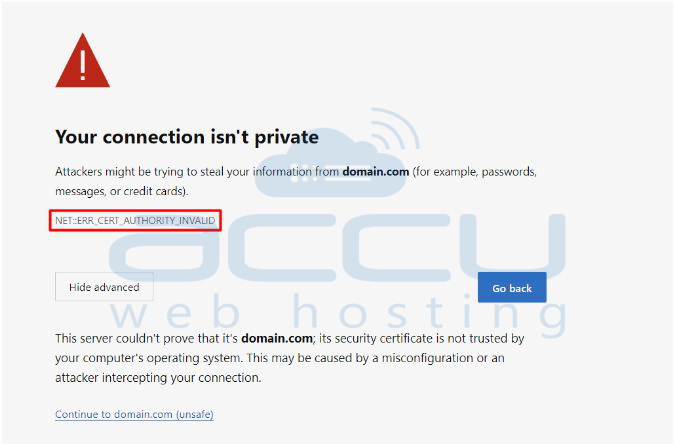
SSL certificates keep your data safe. They are like a lock for your website. First, check if the certificate is installed correctly. Visit your website and look for a padlock icon. This icon is near the URL. It shows the SSL certificate is working. Use online tools for more tests. These tools show if there are any errors. Pay attention to any warning messages. Fix them quickly to keep the site secure.
Troubleshooting Common Issues
Sometimes, SSL certificates don’t work. This can be frustrating. Check the date on the certificate. An expired certificate won’t work. Also, ensure the domain matches the certificate. A mismatch causes errors. Double-check the installation steps. A small mistake can cause big problems. Seek help if needed. Many online guides offer help. Fixing these issues keeps your site safe.
Maintaining Ssl Security
Certificates help keep your website safe. Regular renewals make sure they work well. It is important to check expiry dates. Renew before they end. Security can be at risk if you forget. A new certificate keeps things secure. Always keep track of renewal dates.
Updates help fix problems. Monitoring them is key for safety. New threats come often. Security updates protect against them. Check for updates often. Install them quickly. This keeps your website safe. Security should always be strong.
Credit: knowledge.digicert.com
Frequently Asked Questions
How Do I Move A Certificate From Personal To Web Hosting?
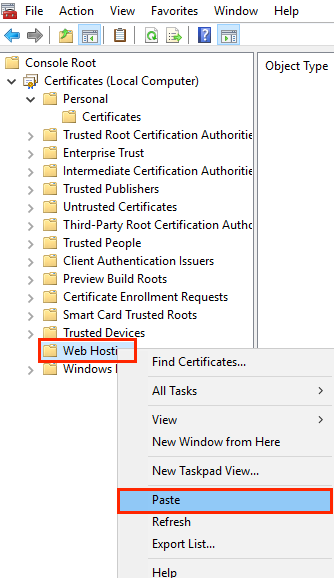
Export the certificate from personal storage as a. pfx file. Import it to your web hosting platform. Ensure compatibility and update the web server settings to use the new certificate. Check secure connections to verify successful implementation.
How Do I Import A Certificate To My Website?
Import a certificate by accessing your website’s control panel. Navigate to SSL/TLS settings. Choose “Import Certificate” and upload your certificate file. Save changes to activate it on your site. Ensure you verify the certificate’s installation through your browser’s security settings.
What Is The Difference Between Personal And Web Hosting Certificate Store?
Personal certificate stores user-specific certificates for secure communication. Web Hosting certificate stores server certificates for website security.
Can I Move My Ssl Certificate To Another Server?
Yes, you can move your SSL certificate to another server. Export the certificate and private key, then install them on the new server. Ensure the new server supports the certificate format. Always keep your private key secure during the transfer process.
Conclusion
Transferring your certificate to web hosting can boost site security. Follow clear steps to ensure a smooth process. Remember, your website’s protection is crucial. Use trusted tools for seamless migration. Avoid common mistakes to maintain trust. Regularly update security settings for best results.
A secure site builds confidence among visitors. Don’t overlook the importance of SSL certificates. They safeguard your data and enhance user experience. Keep your online presence safe and secure. Act now to strengthen your site’s defenses. Make security a priority and see the benefits unfold.


