
Are you ready to unlock the power of hosting a web service right on your local machine? Imagine having the ability to test and develop your projects without the need for an external server.
It’s simpler than you might think, and mastering this skill can significantly enhance your workflow. Whether you’re a seasoned developer or just stepping into the world of web services, understanding how to host locally is a game-changer. In this guide, you’ll discover step-by-step instructions, insightful tips, and the essential tools to make your local hosting seamless and efficient.
Dive in, and take control of your development environment today!
Choosing The Right Development Environment
Local servers are tools to host web services on your computer. The most popular ones are XAMPP, WAMP, and MAMP. XAMPP works on Windows, Mac, and Linux. WAMP is for Windows users. MAMP is best for Mac users.
Each server has features to help developers. They offer PHP, MySQL, and Apache. These tools are essential for web development. Choose a server based on your needs and operating system.
Not all servers work on every system. Check the compatibility before installing. Windows users should try XAMPP or WAMP. Mac users should consider MAMP or XAMPP. Linux users can choose XAMPP for flexibility.
Always download from the official site. This ensures safety and updates. Follow installation guides carefully. This helps avoid errors and saves time.

Credit: m.youtube.com
Installing Required Software
Start with a web server. Choose Apache or Nginx. Both are popular. Download the installer from their website. Follow the steps. It’s easy. Ensure it runs after installing. Check using a browser. Type “localhost”. It should show a welcome page. This means it works.
Choose a database. MySQL or PostgreSQL are common. Download the installer. Install using default settings. Set a username and password. Remember them. You need these for connection. Test the database. Use a simple query. It should return results. This confirms it’s ready.
Install programming language support. PHP, Python, or JavaScript are options. Download the necessary files. Follow setup instructions. Ensure the language works with the server. Test with a simple script. Run it on the server. Check for errors. Fix if needed. Now, your machine can host web services.
Configuring Server Settings
Choose a port number for your server. Common ports are 80 or 8080. Make sure the port is open on your firewall. Otherwise, connections won’t work. Avoid using ports below 1024 for non-root users. These are for system processes.
Environment variables help your web service run smoothly. Set variables like PATH and HOME. These variables tell the system where to find programs. They also provide important settings. Store sensitive data in environment variables. This includes passwords and API keys.
Security is key to protect your web service. Use strong passwords for all accounts. Enable SSL to secure data during transfer. Check for updates regularly. Updates fix security holes in your software. Configure a firewall to block unwanted access.
Deploying Your Web Service
To deploy code, use a version control system like Git. It helps keep your code safe. Branches in Git allow team collaboration. Each team member can work on separate parts. Merging combines all changes into one place. This keeps everything up-to-date. Continuous integration tools like Jenkins automate the process. They build and test code automatically. This saves time and reduces errors.
Testing your web service is important. Local testing checks if it works on your machine. Use tools like Postman to test API endpoints. It helps ensure that all parts of the service work. Check for errors and fix them early. Unit tests focus on small parts of the code. These tests make sure individual functions work correctly. Integration tests check how different parts work together. Run these tests often to find issues early. A well-tested service runs smoothly.
Accessing The Web Service Locally
Localhost means your own computer. It acts like a small server. You can test web service here. Type localhost in your browser. It shows your web page. No internet needed. Easy and quick.
Connect your computer to a LAN network. LAN stands for Local Area Network. Share your web service with others. IP address helps others find your computer. Type your IP in their browser. They can see your web page. Safe and private.
Credit: medium.com
Troubleshooting Common Issues
Sometimes, the web service may not connect. Check your network settings first. Make sure the IP address is correct. Also, verify the firewall settings. Firewalls can block connections. Ensure that your service port is open. This helps in allowing traffic.
Fast services are important. Optimize your server settings. Ensure the server has enough memory. Also, reduce unnecessary processes running. This will free up resources. Use tools to monitor server load. Adjust settings based on results. This helps in improving speed.
Logs are like a diary for servers. They tell what happens. Check log files for errors. Look for any unusual messages. Logs can help identify problems. Make it a habit to review them. This helps in fixing issues quickly.
Best Practices For Local Hosting
Keep software updated to avoid bugs. Check updates weekly. Updates improve security. New features come with updates. Update plugins too. They are important.
Make copies of your data. Use external drives for backups. Cloud storage is helpful. Check backups monthly. Backup saves time during problems. Use backup tools for ease.
Monitor your machine’s resources. Track CPU usage. Check memory regularly. Avoid overloading your system. Balance tasks for smooth performance. Use resource management tools. They help keep everything steady.
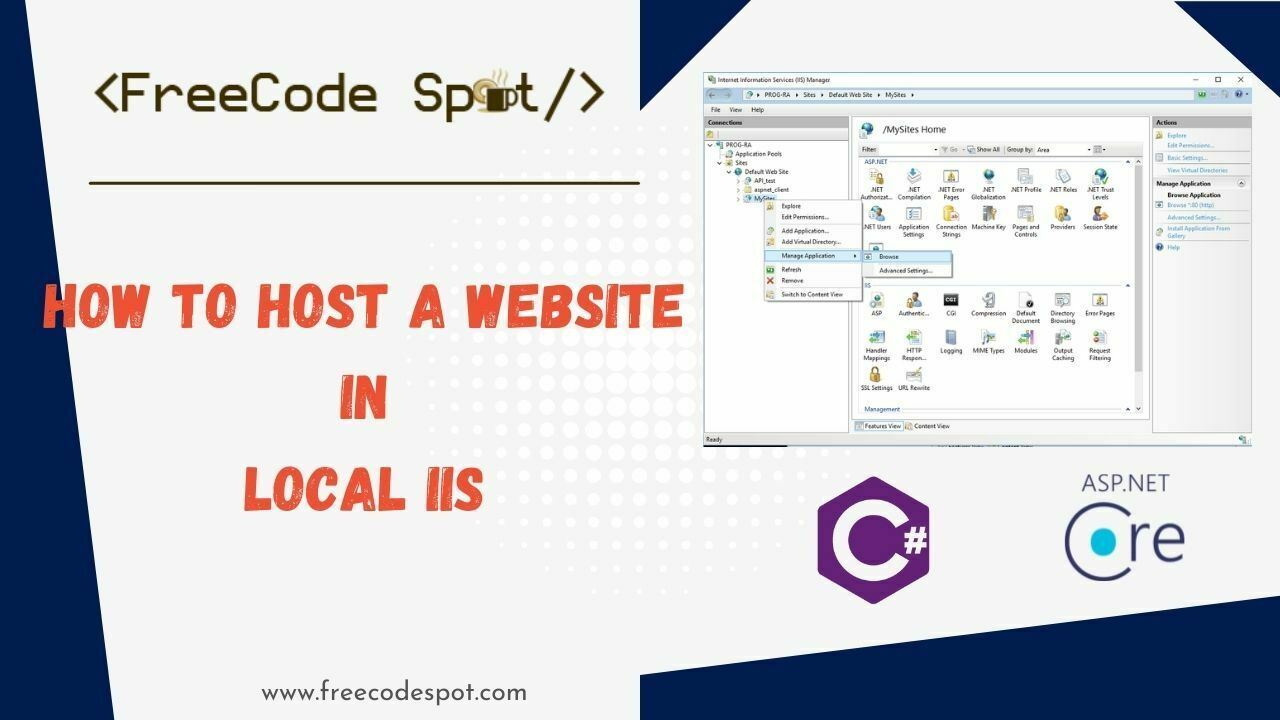
Credit: www.freecodespot.com
Frequently Asked Questions
How To Host A Website On A Local Machine?
Install a local server software like XAMPP or WAMP on your computer. Place website files in the “htdocs” or “www” folder. Start the server and access your website via “localhost” in a browser. Ensure your firewall allows the server access.
Use a static IP for broader network access.
How Do I Host A Webservice?
To host a WebService, choose a reliable hosting provider, configure your server, and deploy your WebService application. Ensure your server supports necessary protocols and security measures. Regularly monitor performance and maintain updates for optimal functionality.
How To Run A Web Application In Localhost?
Install a local server like XAMPP or WAMP. Place your web files in the server’s root directory. Start the server and open a browser. Enter “localhost/yourfilename” in the address bar. Your web application will run on localhost.
How To Call A Web Service From Localhost?
Use a tool like Postman or cURL to call the web service. Ensure your web server is running locally. Configure the API endpoint with “localhost” or “127. 0. 0. 1” followed by the port number. Verify firewall and security settings to allow local access.
Conclusion
Hosting a web service on your local machine is manageable. Start with the basics. Set up your server environment carefully. Use the right tools and software. Ensure your configurations are correct. Test your service thoroughly before deployment. Troubleshooting is part of the process.
Patience helps in resolving issues. Always keep security in mind. Regular updates and backups are essential. With practice, hosting becomes easier. Remember, each step builds your skills. Soon, you’ll confidently host services locally. Enjoy the learning journey and keep exploring new possibilities.


