
Are you feeling overwhelmed by the thought of moving your email from one web host to another? You’re not alone.
Many people find themselves in this position, wondering how to make the transition smooth without losing important messages or facing technical headaches. The good news is that it doesn’t have to be a stressful experience. You’ll discover simple steps and insider tips to ensure your email migration is seamless and efficient.
Imagine finally having your emails organized exactly the way you want, with no disruptions to your daily routine. You’ll gain peace of mind knowing that your communications are secure and easily accessible. Dive in to learn how you can accomplish this with ease and confidence.
Email Migration Basics
Email migration means moving emails from one place to another. This can be from your web host to another service. First, check your current email settings. Write down important information like server names and ports.
Create a backup of your emails. This keeps your emails safe during the move. Find a new email service that suits your needs. Make sure it supports your email format.
Start by setting up your new email account. Use the settings you noted earlier. Begin transferring emails using the new service’s tools. Check each email to make sure it moved correctly.
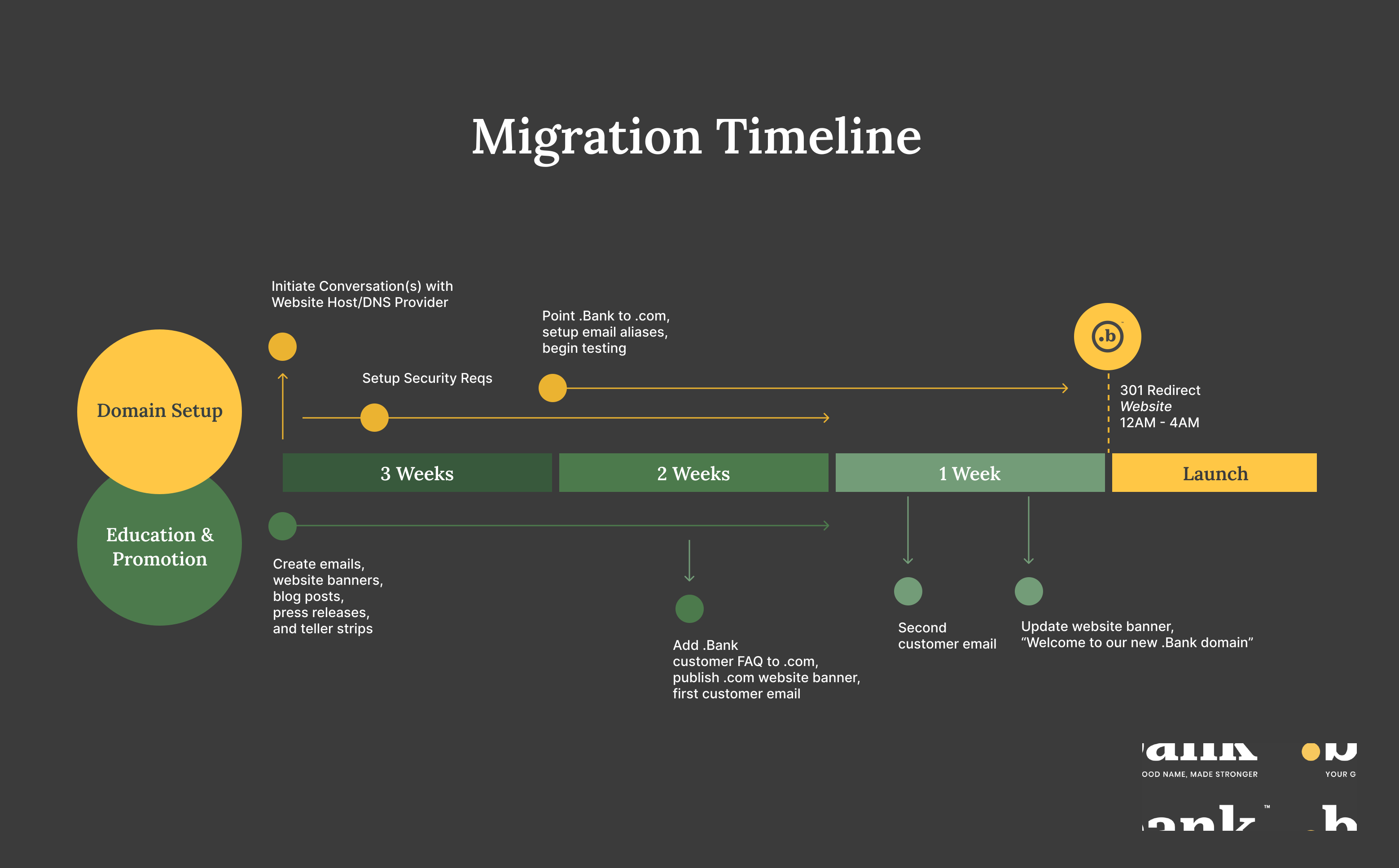
Credit: register.bank
Preparation Steps
Backing up your emails is very important. Emails can hold valuable information. Create a backup before moving them. Use your web host’s backup tool. You can also use email client software. Save emails to your computer. Check all folders for important emails. Don’t forget spam and junk folders. Important emails might be there. Verify the backup is complete. Check for missing emails. Make sure everything is saved. Keep the backup safe. Use a secure location. This ensures emails won’t be lost.
Finding a new provider is crucial. Research different providers online. Look for reliability. Consider storage and features. Make sure it fits your needs. Compare prices and plans. Choose one with good reviews. Sign up for an account. Check email migration options. Ensure easy transfer from your old host. Test the new provider. Send test emails. Check for issues or delays. Evaluate customer service. Good support can help with problems.
Dns Configuration
MX Records tell mail where to go. Change them for new hosts. First, find your new mail server details. They will give you the new MX Records. Go to your domain’s DNS settings. Look for the MX Records section. Delete old records there. Add the new ones from your new host. Make sure each record is correct. Wrong records mean lost emails. Save changes after updating.
Check if DNS changes worked. Use a tool to test DNS settings. Many websites offer free DNS check tools. Enter your domain name there. Look for the MX Records section. Do new records show? If yes, changes are good. If not, check settings again. It might take a few hours for changes to show. Wait and test again later. Proper settings keep emails safe.

Credit: www.cnet.com
Email Account Setup
First, log into your web hosting account. Find the email section. Click on create new email. Enter your desired email address. Choose a strong password. Save the details. Repeat for each email account.
Go to the settings of each email. Find incoming server details. Enter them in your email program. Next, find outgoing server details. Enter them too. Make sure to save settings. Check your email. Send a test email. Ensure everything works well.
Transferring Emails
Email client tools help move emails easily. They connect to the server. They download emails to your computer. Popular tools are Outlook and Thunderbird. Set up your email account on the tool. Use the IMAP or POP settings from your web host. Ensure you have the right login details. It will fetch all emails for you. This way, you keep emails safe. You won’t lose important messages.
Manual transfer means moving emails yourself. Log in to your web host. Open your email inbox. Select the emails you need. Download them to your computer. You might need to save them as EML files. After downloading, upload them to the new host. Choose the import option in your new email service. This way, you move emails without tools. Careful steps make sure emails stay safe.
Testing And Verification
Testing is very important. Send a test email to yourself. Check if it arrives in your inbox. Also, reply to this email. Ensure it reaches your sent folder. Look for errors in sending or receiving. Double-check your email settings. They must be correct. This ensures smooth email function.
Open your email client. Look at the folder list. Ensure all folders are present. Inbox, Sent, Drafts, and Spam must be there. Verify folder contents. Make sure nothing is missing. Compare with the original setup. Every folder should mirror the old structure. This helps you find emails easily.
Troubleshooting Common Issues
Moving email from a web host can be tricky. First, back up your emails to prevent data loss. Then, use an email client or migration tool to transfer them to the new host.
Resolve Connection Problems
Email connection issues can be frustrating. Check your internet connection first. Ensure your email settings are correct. Verify your username and password. Sometimes, the server name might be wrong. Check your port settings. They should match your provider’s instructions. Restart your router if problems persist. Contact your email provider for more help.
Fix Missing Emails
Missing emails can cause worry. Check your spam folder first. Emails might be there by mistake. Search your email account for lost messages. Sometimes, emails are accidentally deleted. Verify your account filters and rules. They might hide emails. Check your email storage space. Full accounts can reject new emails. Contact your support team if needed.

Credit: www.seekahost.com
Post-migration Tasks
Updating your email clients is crucial. Ensure settings are correct. Check incoming and outgoing servers. Verify your login details. Change settings if needed. Test sending and receiving emails. Problems might occur if settings are wrong. Fix them quickly. Clients include Outlook and Thunderbird. Mobile apps too. Keep all updated.
Notify contacts of email changes. Send a short message. Inform them about new email address. Explain why changes were made. This prevents confusion. Let them know how to reach you. This keeps communication smooth. Update your email signature too. It helps in sharing new information. Everyone stays informed.
Frequently Asked Questions
How Do I Move Emails From One Hosting To Another?
Transfer emails by exporting them from your current host and importing them to the new host. Use IMAP for synchronization. Update DNS settings to point to the new host. Ensure no emails are lost during transfer. Consult support if needed for smooth migration.
Will I Lose My Emails If I Change Hosting?
You won’t lose emails if you change hosting, provided you back them up. Ensure proper email migration to retain access. Use IMAP settings for seamless transfer. Always consult your new host for guidance on email migration to avoid data loss.
Backup is crucial for email security during hosting changes.
How Do I Transfer My Email Address To Another Provider?
Select a new email provider. Export emails from the old account. Import them into the new provider. Update DNS settings for your domain. Inform contacts of the new email address.
How Do I Move An Email From One Domain To Another?
To move an email from one domain to another, update DNS settings and create new email accounts on the new domain. Migrate emails using tools like IMAP or third-party services. Ensure all email clients are configured with new settings to receive emails seamlessly.
Conclusion
Moving email from a web host doesn’t have to be hard. Follow clear steps to ensure a smooth transition. Start by backing up your emails for safety. Choose a reliable new host that fits your needs. Then, migrate your emails using the right tools.
Double-check settings and configurations. This ensures everything works perfectly. Test your email after moving it. Make sure you receive and send messages. Stay patient and focused throughout the process. A little effort can lead to a hassle-free email migration experience.
Enjoy your new setup with peace of mind.


