
Are you eager to launch your first website but feel overwhelmed by the technical jargon surrounding web hosting and HTML? You’re not alone.
Starting with a static website can be surprisingly simple and rewarding. Imagine having a personal corner of the internet that’s entirely yours, where you can showcase your talents or promote your business. With the right guidance, you can turn this dream into reality without the headache of complex coding or expensive tools.
This article will walk you through the basics of web hosting for static websites using HTML, making it easy for anyone to get started. By the end, you’ll have the confidence and knowledge to bring your vision to life on the web. Ready to take control of your online presence? Let’s dive in!
Choosing The Right Web Host
Evaluating hosting options is important before deciding. Some hosts offer great support. Others provide high speed. Check how much space you need. Ensure the host can handle your site’s traffic. Security features are also key. A good host keeps your site safe. Some hosts offer free backups. This can be helpful if you lose data.
Considering budget and features helps in choosing wisely. Some hosting plans are cheap. Others are more costly. Think about what you need. Compare the features you get for the price. Some offer free domains. Others may have hidden fees. Always read the details carefully.
Credit: www.pulumi.com
Preparing Your Html Files
Keep your files in a neat folder. Name your main folder clearly. Inside, have folders for HTML, CSS, and JavaScript files. It’s good to have an images folder too. This way, everything is easy to find. Your project looks organized and neat.
Write clean and simple code. Use tags properly. Close them correctly. Indent your code for better readability. This helps you and others understand it. Remove any unused code. This makes your file size smaller. Faster loading for your site.
Setting Up Your Hosting Account
First, visit the hosting website. Click on the sign-up button. Fill in your details. Use a strong password. Choose a plan that fits your needs. It’s good to start with a basic plan. Check your email for a confirmation link. Click the link to verify your account. Now you have a hosting account. Keep your login details safe. You will need them often.
Log in to your hosting account. Look for the control panel. It’s the dashboard for your website. Here, you can manage files, emails, and settings. Find the file manager to upload your site. Explore other options like email setup. Learn to use the control panel step-by-step. It makes managing your site easy. Always save changes before you exit. If unsure, ask for help from support.
Uploading Your Website
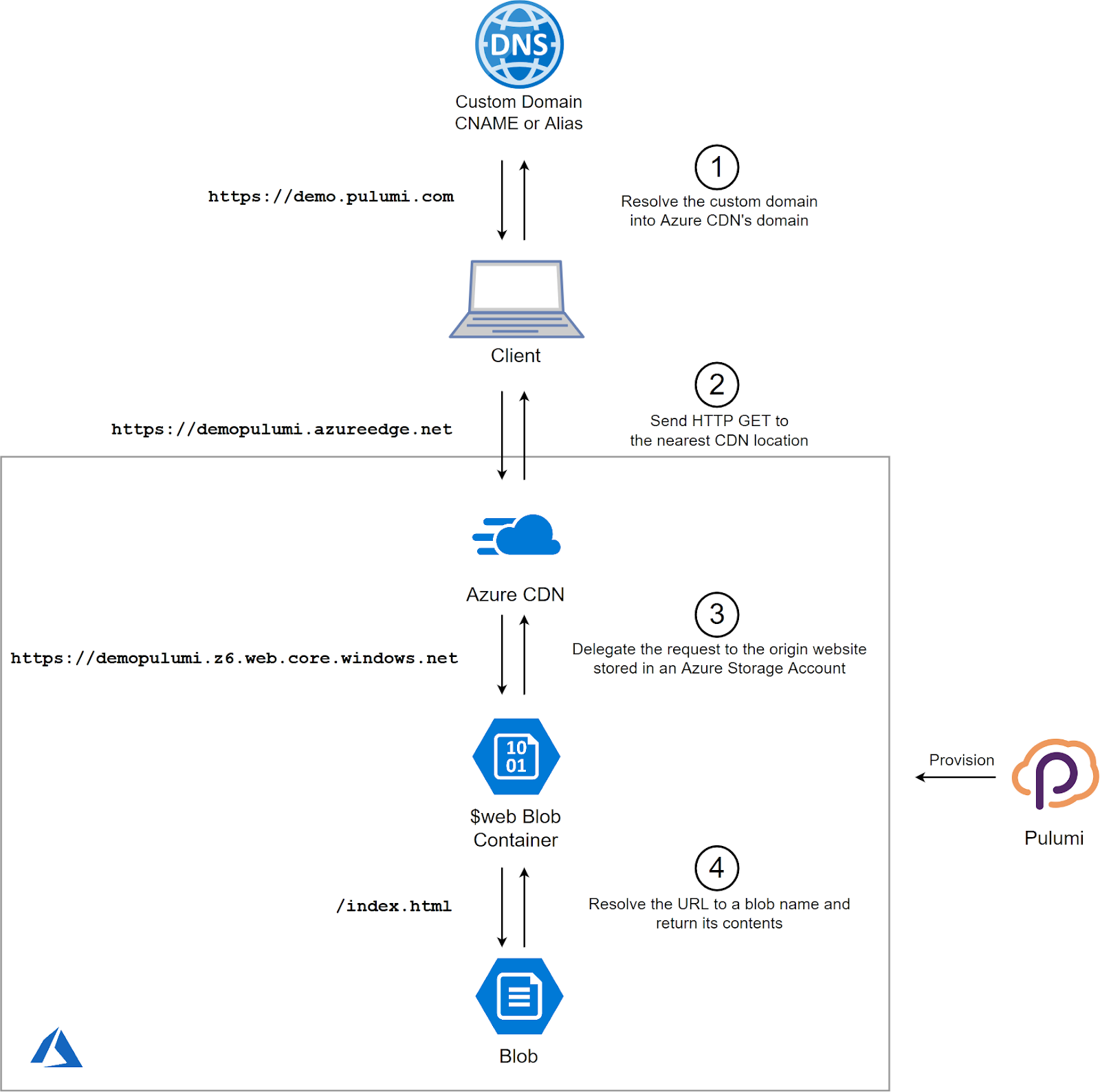
Begin hosting a static website by selecting a reliable web host. Upload HTML files through the hosting platform’s file manager. Ensure all files are correctly named and linked to maintain website functionality.
Using Ftp Or File Manager
First, you need an FTP client like FileZilla. This helps move your files from your computer to your server. Enter your server login details in the FTP client. These details include username, password, and host name. Connect to your server and find the folder named “public_html”. This is where your website files will go.
Drag and drop your files into this folder. Wait for the upload to complete. You can use a File Manager in your hosting account too. It works like an FTP but is in your web browser. Both methods are good for uploading your website.
Checking For Errors
After uploading, check your website in a browser. Make sure all links work and images show correctly. Look for any spelling or format errors. Fix any mistakes quickly. This ensures your site is ready for visitors.
Configuring Domain Settings
First, buy a domain from a domain registrar. After buying, visit your registrar’s website. There, find the option to manage your domain. Look for the field to enter your web host’s nameservers. These are often called DNS settings. Copy the nameservers provided by your web host. Then, paste them into the fields in your registrar’s website. This links your domain to your host.
DNS records help route internet traffic. Log into your domain registrar’s account. Locate the DNS settings. Here, you can add or edit DNS records. The A record points your domain to your server’s IP address. Make sure it matches your web host’s details. Add a CNAME record for any subdomains you use. These steps ensure your domain works correctly.

Credit: aws.amazon.com
Ensuring Website Security
HTTPS keeps your website safe. It protects data from hackers. Browsers show a lock icon with HTTPS. This icon means your site is secure. Users trust sites with this icon. SSL certificates help enable HTTPS. These certificates are easy to get. Many hosting services offer them free. Using HTTPS boosts search rankings. Search engines prefer secure sites.
Backups save your data. They protect against data loss. Data loss can happen anytime. It can be because of errors or hackers. Regular backups are important. They help restore lost data quickly. Use automated backup tools. These tools make backups easy. Store backups in a safe place. Cloud storage is a good option. It keeps data secure and accessible.
Monitoring And Maintenance
Always keep an eye on your website’s speed. Fast websites make visitors happy. Use tools to check your site’s load time. If your site is slow, fix it quickly. Look at how many people visit your site. Traffic tells you if people like your content. Track bounce rate too. If it’s high, improve your site. Add fresh content often. Keep an eye on server uptime. Downtime can make visitors go away. Use alerts to know when your site is down.
Change your content to keep it fresh. New content brings more visitors. Update old pages with new info. Add new images and videos. Make sure links work. Broken links look bad. Check your site for errors. Fix them quickly. Errors can make people leave. Keep your site secure. Protect it from hackers. Use strong passwords and update software.
Credit: www.youtube.com
Frequently Asked Questions
How To Host A Static Html Website?
Choose a hosting provider. Upload your HTML files using the control panel or an FTP client. Configure domain settings. Ensure your site is secure with HTTPS. Test your website to confirm everything works properly.
How Do I Host A Static Html Page?
Host a static HTML page using services like GitHub Pages, Netlify, or Vercel. Upload your files, configure settings, and deploy. These platforms offer free hosting with easy setup, allowing your site to be accessible online quickly. Ensure your HTML file is named ‘index.
html’ for automatic detection.
How Do I Launch My Website In Html?
Upload your HTML files to a web server using FTP. Set the domain to point to your server. Ensure that your index. html file is in the root directory. Test the website for functionality and responsiveness. Use tools like Google Search Console to monitor and optimize your site’s performance.
Can I Host An Html Website For Free?
Yes, you can host an HTML website for free using platforms like GitHub Pages, Netlify, and Vercel. They offer simple deployment options for static sites. These services provide free hosting with easy setup, allowing you to showcase your website without any cost.
Consider bandwidth and feature limitations before choosing.
Conclusion
Starting with web hosting for a static HTML website is simple. Choose a reliable provider. Set up your domain. Upload your HTML files. Keep your design clean and straightforward. Regularly update your content. Monitor your site’s performance. Basic skills are enough to manage.
Learn as you go. Enjoy seeing your website live online. It’s rewarding and fun. With patience, your site will grow. Remember, practice makes perfect. Happy hosting!


