
Are you thinking about moving your website to a different web hosting service from GoDaddy? Whether you’re searching for better performance, more features, or simply a change, transferring web hosting can feel like a daunting task.
But don’t worry—you’ve come to the right place! In this guide, you’ll discover the straightforward steps you need to take to make the transition smooth and stress-free. Imagine the freedom and potential growth you can achieve with a hosting service that perfectly matches your needs.
You deserve a website that operates at its best, so let’s unlock the secrets to a seamless transfer and ensure your online presence stays strong. Ready to dive in? Let’s get started!

Credit: www.godaddy.com
Choosing A New Web Host
Understanding your hosting needs is key. Do you need shared hosting or dedicated servers? Look at your website size and traffic. More traffic needs stronger hosting. Think about storage space. Do you need lots or just a little? Consider security needs. Is your site handling sensitive data? Make a list of needs before you choose a host.
Make a list of hosting providers. Compare their prices and features. Look at customer reviews. Do they have good support? Check uptime guarantees. You want a host with strong uptime. Look at how easy it is to use. Is the control panel friendly? Compare all these things before deciding.
Ensure your new host supports your website technology. Is it compatible with your current setup? Check for support of PHP, MySQL, or other tech you use. See if they offer migration assistance. This can make the transfer easier. Compatibility is crucial for smooth operation.
Preparing For Transfer
Always create a backup of your website data. This ensures safety. Use tools like cPanel for this task. Save the backup on your computer. This step is very important.
Open your hosting account. Find the database section. Use phpMyAdmin to export databases. Choose the right database. Click “Export” and save the file. Keep this file safe.
Collect all needed details. This includes login credentials and server names. Note down your domain name information. Ensure you have FTP details. This helps in a smooth transfer process.
Initiating Domain Transfer
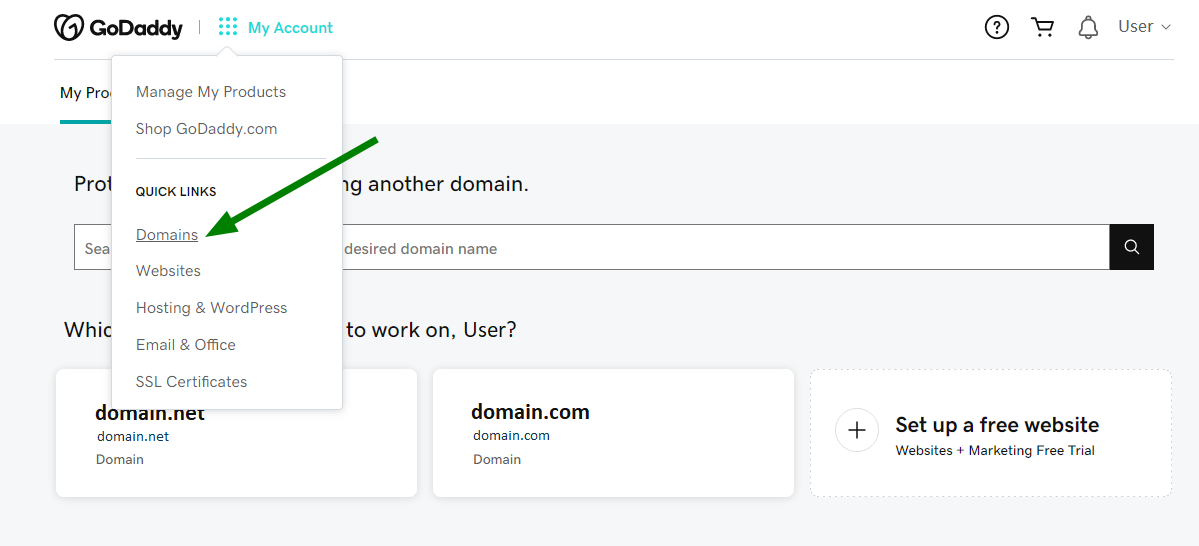
First, log in to your GoDaddy account. Find your domain in the list. Click to manage it. Look for the lock icon. Domains need to be unlocked for transfer. Click to unlock. It’s simple.
You need an authorization code. This code is like a key. It lets you transfer your domain. Go to the domain settings page. Find the option for the code. Request it. GoDaddy will send it to your email.
Ensure your contact details are current. The new host needs to reach you. Check your email address. It must be valid. Update phone numbers if needed. This ensures a smooth transfer.
Migrating Website Files
First, download all your website files. Use an FTP client like FileZilla. Connect to your old hosting account. Select and download the files to your computer. Now, connect to your new host. Upload these files to the new host server. Ensure all files are in the right directory. This is important for your site to work.
Check each file after uploading. Ensure they are not corrupted. Compare file sizes on both servers. This helps in spotting any issues. Use tools like WinMerge for this. Correct file integrity is crucial for website functionality.
Check file permissions on the new server. Files should have the right permissions for security. Use your FTP client to adjust them. Common permissions are 644 for files and 755 for directories. Incorrect permissions can cause errors. Secure your site by setting them correctly.
Transferring Databases
Create a new database on your new hosting account. Ensure the name is unique. Use simple names to avoid confusion. Access your hosting control panel. Navigate to the database section. Click on “Create Database”. Follow the prompts carefully. Save the login details securely.
Export data from the old database. Use tools like phpMyAdmin for this task. Save the exported file carefully. Access the new database. Import the file into the new database. Follow instructions closely. Double-check for errors in data. Ensure all data is transferred correctly.
Locate the database configuration files. Change the database host to the new server. Update the database name and username. Use the new password for login. Test connections to ensure they work. Fix any connection issues promptly. Verify the database is accessible.
Credit: www.namecheap.com
Updating Dns Settings
First, log in to your GoDaddy account. Find the domain you want to update. Look for the DNS settings. You need to change the Name Servers. Enter the new server names provided by your new host. Save the changes. It’s simple and quick.
DNS changes do not happen instantly. They take time to propagate. This means updating across the internet. It can take up to 48 hours. During this time, your site might not be reachable for everyone.
After updating, test the changes. Use online DNS lookup tools. Check if the new name servers are active. Ensure your site loads correctly. This confirms the update is successful.
Testing And Troubleshooting
Switching web hosting from GoDaddy involves careful steps. Backup your site data, then transfer files to the new host. Update DNS settings to point to the new server. Testing ensures everything works smoothly post-transfer. Troubleshooting common issues, like broken links, guarantees a seamless transition.
Verifying Website Functionality
Check each page on your website. Make sure it opens correctly. Look for missing images or broken links. Test all buttons and forms. Do they work? If not, fix them soon. This keeps visitors happy.
Resolving Common Issues
Loading problems can happen. Slow pages frustrate users. Check server settings. Adjust them if needed. This helps speed. Fix errors in code. Keep scripts simple. This reduces issues. Test again after fixing.
Ensuring Email Functionality
Email setup is important. Check if emails send and receive. Look for errors. Fix them quickly. Use simple settings. This makes emails reliable. Test with different accounts. Ensure all work well.
Finalizing Transfer
Make sure your new hosting is live. Then, cancel the old hosting plan. Check for any remaining fees. Read all terms before cancellation. Keep all important data backed up. Ensure emails are transferred too. It’s crucial to avoid data loss.
Check your website on the new host. Visit different pages to confirm everything works. Verify that all links are active. Inspect images to ensure they load correctly. Test forms and other interactive features. Everything must work smoothly.
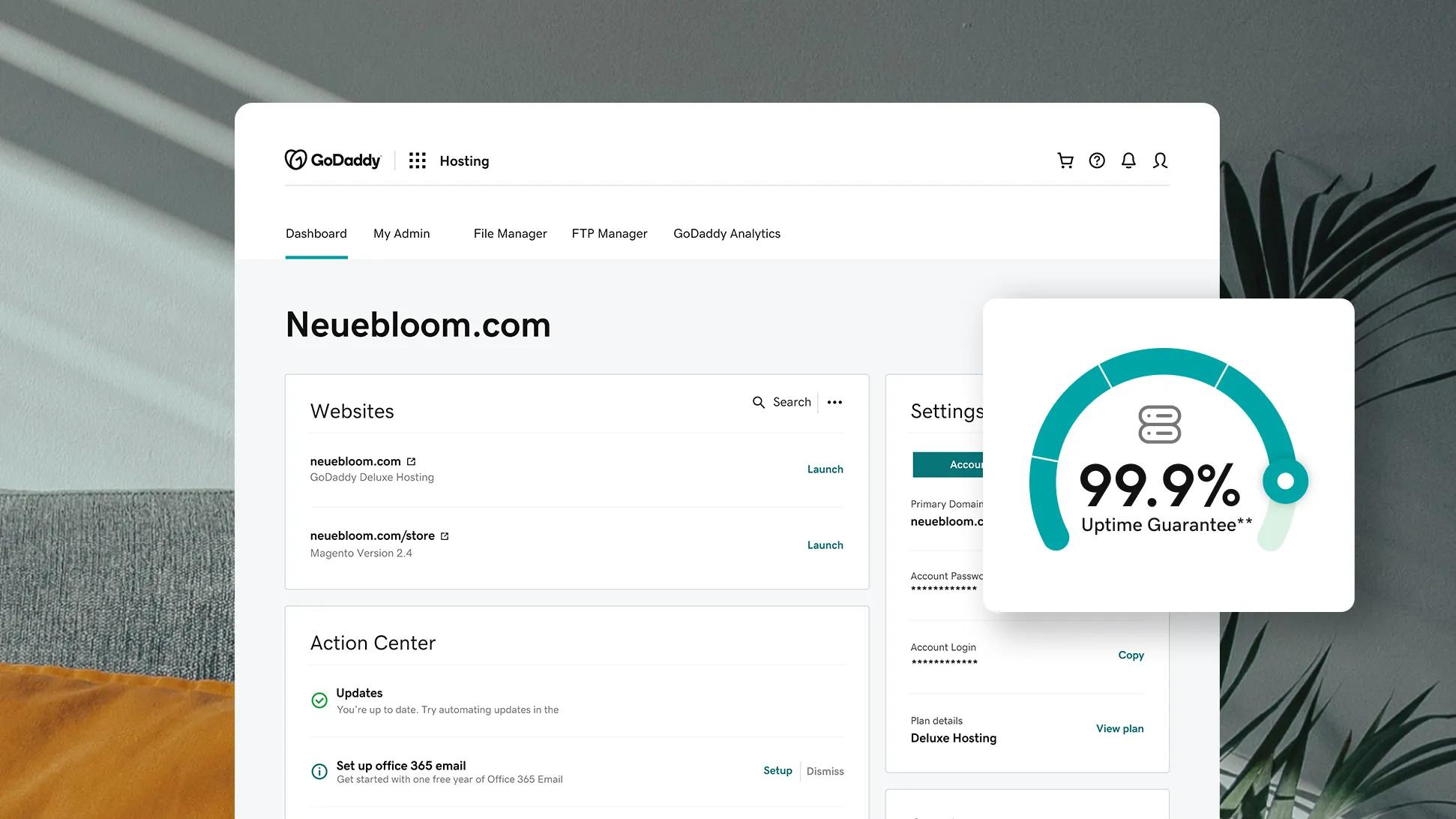
Watch your website’s speed and uptime. Use tools like Google Analytics to track visits. Check server response times regularly. Keep an eye on bounce rates. Make adjustments if performance drops. Fast sites keep visitors happy.
Credit: www.godaddy.com
Frequently Asked Questions
Can I Move My Website From Godaddy To Another Host?
Yes, you can move your website from GoDaddy to another host. Backup your files and database first. Choose a new hosting provider and set up your site there. Update DNS settings to point to the new host. Confirm everything works properly after the transfer.
How Do I Transfer My Web Hosting From One Company To Another?
Transfer web hosting by backing up your website files and database. Choose a new host and set up DNS. Upload files to the new server and import the database. Test your website thoroughly to ensure everything works. Finally, cancel the old hosting service once the transfer is complete.
How Do I Export A Website From Godaddy?
Log into your GoDaddy account and access the cPanel. Use the Backup Wizard to download website files. Export the database via phpMyAdmin. Save both files securely. Transfer them to your new hosting provider using FTP. Ensure DNS settings are updated for seamless website migration.
How Do I Transfer My Domain From Godaddy To Squarespace?
Log in to GoDaddy, unlock your domain, and get the authorization code. Enter the code in Squarespace’s transfer tool. Confirm the transfer via email. Wait for the transfer to complete, usually within 7 days. Ensure your domain is eligible for transfer before starting.
Conclusion
Transferring hosting from GoDaddy can seem complex. But with patience, it’s manageable. Follow each step carefully. Backup your data before starting. Double-check settings to ensure a smooth transition. Reach out to support if needed. It’s okay to ask for help.
You can successfully transfer hosting. Remember, take it one step at a time. Your website’s future depends on careful planning. With your hosting transferred, your site can grow. New opportunities await with your new provider. Embrace the change and move forward confidently.
Your website is ready for a new chapter.


