Have you ever felt overwhelmed by the clutter of options in your WordPress dashboard? If so, you’re not alone.
Navigating through a sea of buttons and settings can be daunting, especially if you’re trying to focus on what really matters—creating amazing content for your audience. But what if there was a way to simplify your workspace, making it not only more organized but also more tailored to your specific needs?
Enter “Screen Options” in WordPress. This often-overlooked feature can be your secret weapon to streamline your workflow. By customizing your dashboard, you can enhance productivity and focus on the essentials. Imagine the peace of mind that comes with knowing you’re only a click away from optimizing your WordPress experience. Are you ready to transform the way you manage your site? Let’s dive into how Screen Options can help you take control of your WordPress dashboard and make it work for you.
Screen Options Overview
Screen Options help you control what you see in WordPress. They are found at the top of your screen. You can hide or show different sections. This makes your work easier. You can also change how many items appear. It is simple to use.
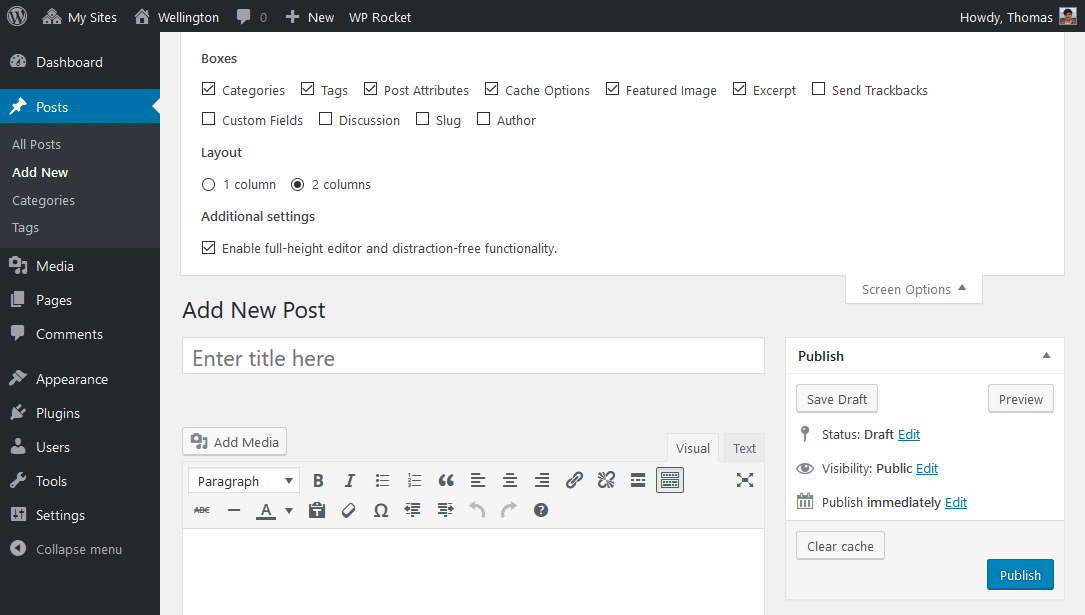
Click the Screen Options tab. A panel will drop down. Here, you can check or uncheck boxes. This changes what you see. It is quick and easy. You can make your screen less crowded.
Many WordPress pages have Screen Options. For example, on the dashboard and post pages. Each page may have different options. This helps you focus on what you need. Customize your view anytime. It saves time and helps you work better.
Credit: themezee.com
Accessing Screen Options
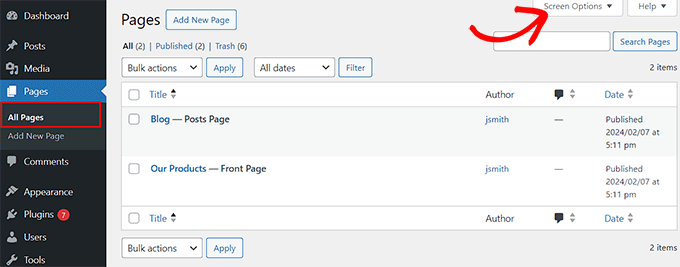
Screen Options in WordPress help customize the admin area. Find them at the top right corner of the dashboard. Click on the button labeled “Screen Options” to open it. A menu will drop down. This menu has checkboxes. These checkboxes control what you see on the screen. You can add or remove items by checking or unchecking them. This helps make the admin area easier to use. It is useful for focusing on what you need most. Screen Options are different for each page. This means you can adjust settings based on tasks. Explore these options to improve your workflow. It is simple and user-friendly.
Customizing The Dashboard
Screen Options help you change your dashboard view. You can add or remove widgets easily. Each widget shows different information. Some show your recent posts. Others display your site’s health. Decide which ones you need. Too many widgets can make it messy. Fewer widgets keep it clean. Just click on the Screen Options tab. It’s on the top right corner. Check or uncheck the boxes. Simple and quick.
You can rearrange elements in your dashboard. Drag and drop them where you like. Place important elements at the top. Less important ones can go lower. This makes your work easier. You find things faster. Click and hold a widget’s title. Move it to a new spot. Release to drop it there. Now, your dashboard is how you want it.
Managing Post And Page Views
WordPress lets you choose what to see in posts and pages. Screen Options help you adjust columns. You can show or hide details like the author, date, or categories. Just click on Screen Options at the top-right of your screen. Then, check or uncheck boxes to choose what you want. This helps keep your workspace clean. It’s like tidying up your room!
You can decide how many posts or pages to see at once. Screen Options lets you set this number. If you want to see more, type a bigger number. If less, type a smaller number. This setting makes it easy to find what you need. It helps you manage your posts better. Try different numbers to see what you like best.
User Roles And Screen Options
Screen Options in WordPress allow users to customize the admin interface. Adjust visibility and layout of elements on the dashboard. Tailor the view to suit individual preferences and streamline workflow.
Administrator Capabilities
Administrators have the most control in WordPress. They can see and change all settings. Screen Options help them customize their dashboard view. This makes their work easy and fast. They can add or remove panels on their screen. They can also manage other users and their permissions. This level of control helps keep the site organized.
Editor And Author Options
Editors and Authors have different permissions than Administrators. Editors can edit posts from all users. They can also manage categories and tags. Screen Options let them choose what they see on their dashboard. This helps them focus on their writing tasks. Authors have fewer options. They can only edit their own posts. Screen Options let them adjust their view too. This way, they see only what they need. It helps them write better and faster.
Plugins And Screen Options
Screen Options in WordPress provides a customizable view of your dashboard. Users can choose which information boxes to display. This feature enhances user experience by offering a tailored interface, ensuring easy access to essential tools and data.
Enhancing Functionality
Plugins make WordPress powerful. They add features easily. But too many can be confusing. Screen Options help manage this. You can hide or show plugin features. This keeps your screen clean. Only see what you need. It saves time. It makes work easier. Customize your workspace with a few clicks. This means everyone can have their own setup. It fits their needs best.
Troubleshooting Plugin Conflicts
Sometimes plugins don’t work well together. This causes problems. Screen Options can help find the issue. Turn off some features. See if it fixes the problem. Do this one at a time. It helps find the bad plugin. Then, you can update or replace it. This keeps your site running smoothly. Always test new plugins carefully. This avoids future problems.
Common Issues And Fixes
Sometimes, the Screen Options in WordPress may not save changes. This can be very annoying. The issue might be due to conflicting plugins or theme problems. Try disabling plugins one by one. This helps find the conflicting plugin. Also, switching to a default theme can help. This checks if the theme causes the problem.
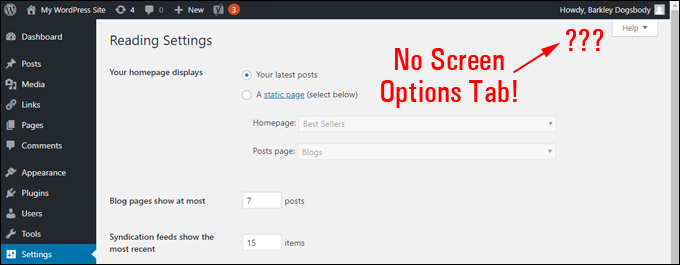
The Screen Options tab can disappear sometimes. This often happens due to JavaScript errors. Clearing the browser’s cache can help. Also, try using a different browser. If the tab is still missing, check the WordPress version. An outdated version may cause this issue. Updating WordPress can solve it. Make sure to back up your site before updating.
Credit: wptrainingmanual.com
Best Practices For Using Screen Options
Setting up a clear workspace helps you work better. Screen Options in WordPress can hide parts you don’t need. This makes your tasks simpler. You can focus on what matters most. Customize your dashboard based on what you do often. Keep it tidy and neat. This saves you time and effort. Finding things quickly is key. Use Screen Options to arrange your tools. This helps in doing tasks faster. It is smart to adjust settings for your needs. Make sure everything is easy to reach.
Accessibility is vital for everyone. Make your site usable for all. Screen Options help make this happen. Adjust settings for better visibility. Use clear labels and big fonts. This supports users with different needs. Screen Options allow you to change views easily. This helps people who use assistive tools. Keep your content simple and clean. Avoid clutter to boost readability. A good setup helps users navigate better. Make your site friendly for all visitors. This is important for inclusivity.
Credit: www.wpbeginner.com
Frequently Asked Questions
What Are Screen Options In WordPress?
Screen Options in WordPress are settings that allow you to customize the visibility of certain sections on your admin pages. Located at the top-right of your dashboard, they provide checkboxes to show or hide items. This helps streamline your workflow by displaying only the information you find relevant.
How Do I Access Screen Options?
To access Screen Options, navigate to the top-right corner of your WordPress admin screen. Click on the “Screen Options” button. This will reveal a panel where you can adjust visibility settings. Simply check or uncheck boxes to customize your view based on your preferences.
Can Screen Options Improve Workflow Efficiency?
Yes, Screen Options can significantly improve your workflow efficiency. By customizing your dashboard, you focus only on relevant sections. This reduces clutter and enhances productivity. Adjust settings to display necessary information, making tasks easier and faster. It’s a simple yet effective way to streamline your WordPress experience.
Are Screen Options Available On All Pages?
Screen Options are not available on all WordPress admin pages. They are typically found on pages where customization is useful, like the dashboard, posts, and pages sections. The availability can vary depending on plugins or themes installed. Always check the top-right corner to see if options are available.
Conclusion
Screen Options in WordPress enhance user control and customization. They let you manage your dashboard view effortlessly. Adjust your settings to suit your needs. Hide unnecessary information. Focus on what’s essential for your tasks. This feature simplifies your WordPress experience.
Beginners and seasoned users benefit alike. Customizing your workspace saves time and boosts efficiency. Familiarizing yourself with Screen Options can improve productivity. Explore this feature to make WordPress more intuitive. Happy customizing!