
Imagine having your website run smoothly, with fast load times and robust security. Hosting your website on Amazon Web Services (AWS) can make that a reality.
Whether you’re launching a personal blog or managing a complex business site, AWS offers the reliability and scalability you need. But how do you get started? The process might seem daunting at first, but with the right guidance, you can master it with ease.
This article will take you through the steps to host your website on AWS, ensuring your site is not just online, but optimized for success. Dive in to discover how AWS can elevate your online presence and give you the control you need to thrive in the digital world.

Credit: www.signitysolutions.com
Setting Up Aws Account
Starting with Amazon Web Services is easy. Visit the AWS website. Click on ‘Create an AWS Account’. Fill in your email and password. Choose a unique name for your account. Verify your email through the link sent to you. Enter your credit card details. They need this for identity verification. Don’t worry, it’s safe. Complete the security questions. Your account is ready. Log in and explore AWS.
AWS offers a Free Tier. It’s perfect for beginners. You get to use AWS services for free. Explore services like EC2, S3, and Lambda. Each has its free limits. Stay within these limits to avoid charges. The Free Tier lasts for 12 months. Great way to learn and test AWS. Always check your usage to stay free. Enjoy learning without costs.
Choosing The Right Service
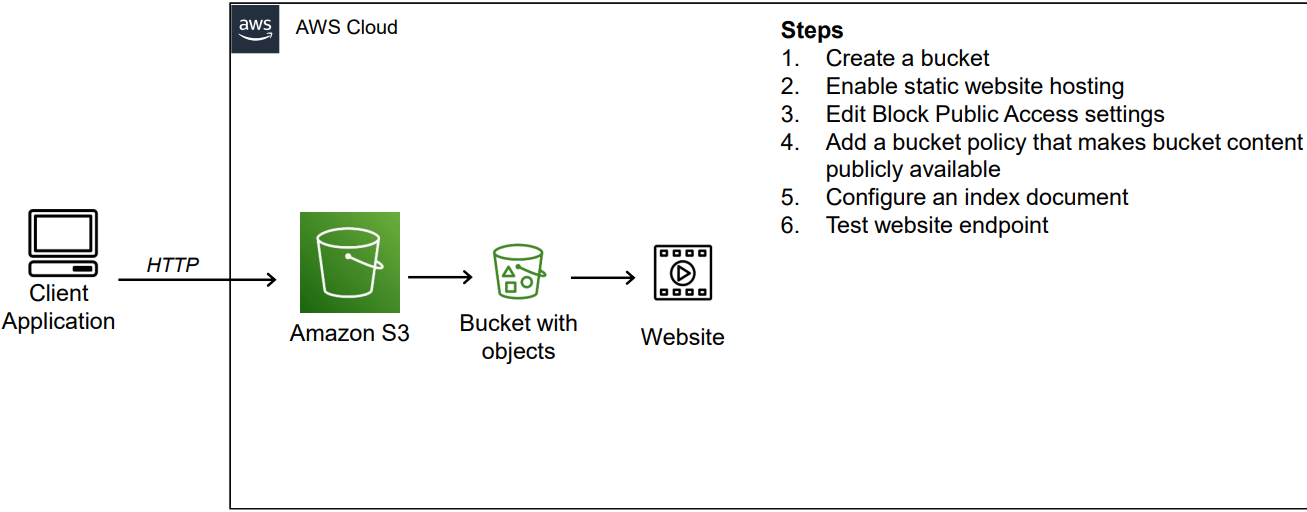
Amazon S3 is great for hosting static websites. It stores HTML, CSS, and JavaScript. Files are stored in buckets. S3 is easy and cheap. You only pay for what you use. No need to manage servers. It’s very reliable. Many big sites use S3. It’s safe and fast. Perfect for small sites or blogs.
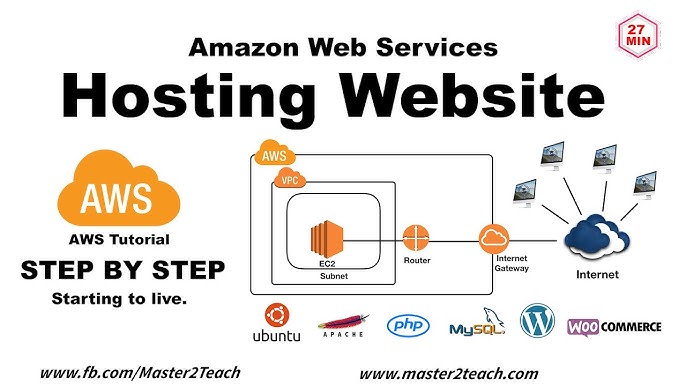
Amazon EC2 is best for dynamic websites. It runs applications and databases. You can choose the size of your server. More power means more cost. EC2 is flexible and powerful. Suitable for big projects. You control everything. Good for businesses and complex sites. EC2 is a top choice for developers.
Amazon Lightsail is easy to use. Perfect for beginners. It offers a simple setup. You get a fixed cost each month. Lightsail includes storage, data transfer, and DNS management. It’s like a mini EC2. Great for small businesses. Lightsail is good for simple apps and websites. A friendly option for new users.
Configuring Domain And Dns
Start by choosing a unique domain name. It should be simple and easy to remember. Visit a domain registrar. Popular options include GoDaddy or Namecheap. Enter your desired domain name in the search bar. Check its availability. If taken, try different variations. Once available, proceed with registration. Fill in your details. Pay the registration fee. Complete the process. Now, you own the domain name.
Log into your AWS account. Open the Route 53 dashboard. Click on “Create Hosted Zone.” Enter your domain name. Choose the public hosted zone type. Click “Create.” Add DNS records. These include “A” and “CNAME” records. Point them to your server’s IP address. Save the changes. Your domain is now linked to AWS. This enables smooth website access.
Credit: www.youtube.com
Deploying Website Files
Start by creating an S3 bucket. This is where files go. Make sure the bucket name is unique. Names can’t be reused. After creating, click on the bucket name. Now, you can upload files. Click “Upload” and follow the steps. Select your website files. Choose the right permissions. Public access is needed for web files. Then, complete the upload. Now, your files are in the cloud.
Launch a new EC2 instance from the console. Choose an instance type. Start with a free tier if new. Select an Amazon Machine Image (AMI). This will run the server. Configure security settings. Open port 80 for web traffic. Now, your server is ready. Connect using SSH. Install a web server like Apache or Nginx. Upload your files to the server. Your website is live now.
Securing Your Website
Security groups control traffic to your server. Allow only necessary ports. Block all others for safety. Inbound rules determine incoming traffic. Outbound rules handle outgoing traffic. Common ports include 80 for HTTP and 443 for HTTPS. Custom ports are possible too. Keep rules simple. Too many rules can cause problems. Always check rules after changes. Monitor traffic regularly. This keeps your site secure.
SSL certificates encrypt data. This makes information safe. Users trust encrypted sites more. Get an SSL certificate from AWS. ACM (AWS Certificate Manager) helps manage certificates. Apply SSL to your site. Use HTTPS for all pages. Redirect HTTP to HTTPS. Check your certificate often. Renew when expired. Secure sites rank better in search engines. Protect user data with SSL.
Monitoring And Optimization
Set up your website on Amazon Web Services by monitoring and optimizing performance regularly. Utilize AWS tools to ensure efficient resource usage. Improve site speed and reliability for better user experience.
Setting Up Cloudwatch
CloudWatch helps track your website’s health. Set up alarms to know if things go wrong. It checks data every minute. You can see if servers are slow. CloudWatch logs keep records. Logs help find errors fast.
Create dashboards for easy viewing. Dashboards show important data at a glance. They are like report cards for your website. Use them to improve your site.
Optimizing Performance
Performance affects user happiness. Use load balancers to spread traffic. This keeps servers from getting too busy. Cache static content for faster loading. Cached items are like shortcuts for users.
Auto-scaling adjusts server numbers. More servers join when traffic is high. This keeps speed consistent. Check performance regularly. Always aim for better results.
Scaling Your Website
Explore hosting your website on Amazon Web Services, a reliable option for scaling online presence. AWS provides flexible solutions, enabling you to manage increased traffic with ease. Choose from various services like EC2 or S3 to efficiently host and maintain your website’s performance.
Using Auto Scaling
Auto Scaling helps your website grow. It adjusts server capacity based on traffic. This means your site stays fast. No matter how many visitors come. Resources increase when traffic spikes. They decrease when traffic drops. This saves money. It makes your website reliable. Users get a smooth experience every time.
Load Balancing With Elb
Elastic Load Balancing (ELB) shares traffic among servers. It keeps your website stable. ELB checks server health. It sends traffic only to healthy servers. This avoids crashes. Traffic is distributed evenly. Users get faster page loads. ELB improves your website’s performance. It also enhances security. Protects against server overloads.
Managing Costs
Hosting a website on Amazon Web Services helps in managing costs efficiently. Choose the right plans to control expenses. Monitor usage regularly to avoid unexpected charges.
Understanding Aws Billing
AWS billing can be tricky. Costs depend on usage. AWS offers pay-as-you-go pricing. You only pay for what you use. It’s easy to lose track of costs. Monitoring usage is important. Watch out for hidden fees. Use the AWS billing dashboard. It shows all charges. Understand your billing cycle. It helps manage costs.
Utilizing Cost Management Tools
Use AWS tools to manage costs. Cost Explorer is helpful. It shows spending trends. You can set budgets. AWS Budgets tool lets you track spending. Alerts notify you if costs rise. Resource tagging helps organize bills. Group resources for better tracking. Use the AWS Pricing Calculator. It estimates costs before usage. Plan ahead to save money.
Credit: medium.com
Frequently Asked Questions
How Do I Host My Website On Aws?
Begin by creating an AWS account. Use Amazon S3 for static websites or EC2 for dynamic sites. Launch instances, configure security settings, and upload your files. Set up a domain in Route 53. Ensure your site is secure using SSL certificates.
Optimize settings for performance and cost-efficiency.
Can I Host A Website On Aws For Free?
AWS offers a Free Tier allowing you to host websites with limited resources for 12 months. Use services like Amazon EC2, S3, and Lightsail within the Free Tier limits to avoid charges. Monitor usage to ensure you stay within the free limits to prevent unexpected costs.
Can You Host A Web App On Aws?
Yes, you can host a web app on AWS. Use services like Amazon EC2, Elastic Beanstalk, and AWS Lambda for deployment. AWS offers scalable infrastructure, secure environments, and cost-effective solutions tailored to your web app needs. Easily manage resources and optimize performance with AWS tools.
Is Aws A Good Web Host?
AWS is a reliable web host with scalable solutions. It offers robust security and flexible pricing options. Many businesses choose AWS for its global infrastructure and advanced features. AWS is suitable for various hosting needs, from small websites to complex applications.
It provides excellent performance and support.
Conclusion
Hosting a website on Amazon Web Services is straightforward. Follow the steps outlined, and you’ll succeed. AWS offers reliable hosting options for various needs. Its scalability suits both small and large websites. Security features ensure your data stays protected. Cost-effectiveness and flexibility make AWS appealing.
Beginners can quickly grasp the basics with practice. Remember to monitor your resources regularly. This keeps your website running smoothly. Explore AWS documentation for more insights. With patience, you’ll become proficient. Enjoy the benefits of hosting on AWS. Your website’s future looks promising!


