
Are you ready to bring your ideas to life with a stunning website? Installing WordPress on your web hosting is the first step to achieving your online goals.
It’s easier than you might think, and we’re here to guide you through every step. Imagine having the power to customize your site exactly the way you want, without needing a degree in computer science. We’ll show you how to set up WordPress quickly and efficiently, so you can focus on what really matters—creating amazing content and connecting with your audience.
Whether you’re a beginner or have a bit of experience, this guide is designed just for you. Let’s dive into the world of WordPress and unlock your website’s potential. Keep reading to discover how simple it can be!
Choosing The Right Web Hosting
Web hosting comes in different types. Shared hosting is common. It’s cheap and easy. But it might be slow. VPS hosting is a step up. It’s faster and more secure. But it costs more. Dedicated hosting is the best. You get your own server. It’s fast and very secure. But it’s expensive.
Always check the price first. Some hosting is cheap. Some are not. Look at the speed. Fast websites are good. Security is important too. Your site needs to be safe. Check the customer support. Good support helps when there’s a problem. Uptime is another key factor. Websites should always be online.

Credit: www.youtube.com
Preparing For Installation
First, pick a domain name for your website. It is the name people type to find your site. Choose a name that is easy to remember. You will need to register this name with a domain registrar. After registration, point your domain to your web hosting provider. This connects your domain name with your web server.
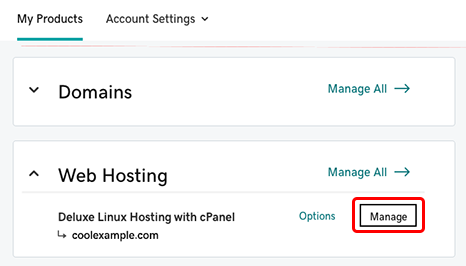
A database stores your website’s data. Go to your web hosting control panel. Find the database section. Create a new database. Give it a name you can remember. You will need a username and password for this database. Keep them safe. WordPress will need these details later.
Downloading WordPress
Visit the WordPress.org website. It is easy to find. Use your browser to search. The website has many resources. You need the download page. Look for the download button. It is usually big and visible. Click it to start downloading.
Always choose the latest version of WordPress. New versions have better features. They are also more secure. Older versions may have bugs. The latest version is usually highlighted. Check the version number before downloading. Make sure it is the newest one. This ensures you get the best experience.
Credit: www.godaddy.com
Uploading Files To Server
Installing WordPress on web hosting requires uploading files to the server. Start by downloading the WordPress package. Then, transfer these files to your hosting account using an FTP client or file manager.
Using Ftp Client
Start by opening your FTP client. Enter the server details. These details include host, username, and password. Click connect. After connecting, find your local files. These are the files you want to upload. Drag them to the server panel. Wait for the upload to finish. Make sure all files are uploaded.
Organizing File Structure
Files must be in the correct folders. Create a folder named “wordpress”. Place all WordPress files in it. Check that no files are missing. Organizing helps in easy access. It also prevents errors. Proper file structure is very important.
Configuring WordPress
The wp-config.php file holds key settings for WordPress. It’s vital to edit it carefully. This file controls things like database details and language settings. Locate wp-config.php in the WordPress folder. Use a text editor to open it. Look for lines with database details. These include database name, user, and password. Ensure these match your hosting info. Save changes when done. Check for errors by visiting your site. If the site loads, changes are correct.
Database details are essential for WordPress. They connect WordPress to your data. Open the wp-config.php file. Look for DB_NAME, DB_USER, and DB_PASSWORD. Enter your database name and user. Input your password. This links WordPress to your database. Double-check entries to avoid errors. Save and close the file. Visit your site to ensure everything works.
Running The Installation Script
Type the URL of your website in a browser. This starts the WordPress installation. You will see a welcome page. Click on the button to start. It’s important to have your database name, username, and password ready. These are needed in the next steps.
Fill in the details asked by WordPress. Enter your site title and username. Choose a strong password for security. Add your email address. This helps recover your password if you forget it.
Press the Install WordPress button. Wait for the success message. Now your WordPress is installed. You can log in using your username and password.
Setting Up WordPress Dashboard
Starting with web hosting setup, installing WordPress involves a few simple steps. Access your hosting account, find the WordPress installer, and follow prompts to complete installation. Once installed, log into your WordPress dashboard to customize your site and manage content efficiently.
Logging In For The First Time
First, open your web browser. Type your website URL in the address bar. Add /wp-admin to the end of the URL. Press Enter. The login page will appear. Enter your username and password. Click the Log In button. You will see the WordPress Dashboard. This is your main control center. Here, you can manage your website.
Configuring Basic Settings
Find the Settings option on the left menu. Click on it. You will see different settings. Start with General Settings. Set your site title. Add a tagline if you have one. Set your timezone. Choose the right date format. Save your changes. Next, go to Permalink Settings. Choose the Post Name option. This helps with SEO. Save your changes again. Your basic setup is complete.
Credit: www.youtube.com
Troubleshooting Common Issues
WordPress installation errors can be confusing. One common issue is a blank screen. This often means a plugin conflict. Deactivate all plugins first. Then, activate them one by one. You’ll find the troublesome plugin.
Database connection problems can stop WordPress. Check the wp-config.php file. Make sure the database name, username, and password are correct. If unsure, contact your hosting provider. They can help verify details.
Another issue is a database server down. This can block access to WordPress. Visit the hosting control panel. Restart the database server. This often fixes the issue.
Frequently Asked Questions
How To Install WordPress On Web Hosting?
To install WordPress, log into your web hosting account. Navigate to the control panel and find the WordPress installer. Click to install, then follow the prompts to complete the setup. Use your domain and set up admin credentials. Ensure your database details are accurate for successful installation.
How Do I Install WordPress On My Local Host?
Download and install a local server like XAMPP or WAMP. Extract WordPress files into the local server’s “htdocs” directory. Create a database using phpMyAdmin. Open “localhost/wordpress” in your browser. Complete the installation by entering database details, site title, and admin credentials.
WordPress is now ready locally.
Can I Add WordPress To An Existing Website?
Yes, you can integrate WordPress into an existing website. Install WordPress in a subdirectory or subdomain. Customize themes and plugins to match your current site’s design. Maintain site structure for SEO benefits. Ensure backups before making changes to avoid data loss.
This enhances functionality without disrupting your current website.
Can I Install WordPress On Shared Hosting?
Yes, you can install WordPress on shared hosting. Most shared hosting providers offer easy WordPress installation. This option is budget-friendly and suitable for small to medium websites. Ensure your hosting plan meets WordPress’s minimum requirements for smooth performance.
Conclusion
Installing WordPress on web hosting is easy with these steps. Start by choosing a reliable host. Download WordPress from the official site. Upload files using your host’s control panel. Set up the database, then run the installation script. Follow prompts to complete the setup.
Now, access your WordPress dashboard. Customize themes and plugins. Regularly update for security and performance. With practice, you’ll navigate WordPress smoothly. Enjoy creating and managing your website. Remember, a well-maintained WordPress site attracts more visitors. Keep learning and improving your skills.
Your online journey begins here!


