
Have you ever wanted to install apps on your web hosting server but felt overwhelmed by the process? You’re not alone.
Many people find themselves puzzled by the technical jargon and the seemingly complex steps involved. Luckily, installing apps on a web hosting server doesn’t have to be a daunting task. With the right guidance, you can seamlessly add new features and functionalities to your website, enhancing user experience and boosting your site’s performance.
Imagine having the power to expand your website’s capabilities effortlessly. By learning how to install apps on your server, you unlock a realm of possibilities. Whether you want to add e-commerce capabilities, improve security, or enhance user interaction, the right apps can transform your website. You don’t need to be a tech guru to get started; this article will walk you through the process with easy-to-follow instructions and practical tips. Curious about how you can simplify this process and make your website more dynamic? By the end of this article, you’ll have a clear understanding of how to install apps on your web hosting server, empowering you to take full control of your online presence. Dive in and discover how you can elevate your website to the next level effortlessly.
Choosing The Right Web Hosting
Installing apps on a web hosting server involves selecting compatible software, accessing the control panel, and following installation guides. Ensure server specifications align with app requirements for smooth operation. Regular updates and backups enhance security and performance.
Types Of Web Hosting
Web hosting comes in different types. Shared hosting is the most basic. Many websites share one server. It’s affordable but can be slow. VPS hosting offers a virtual space on a server. It’s faster than shared hosting. Dedicated hosting provides a whole server for one site. It’s the best for big sites. Cloud hosting uses many servers. This makes it flexible and reliable.
Factors To Consider
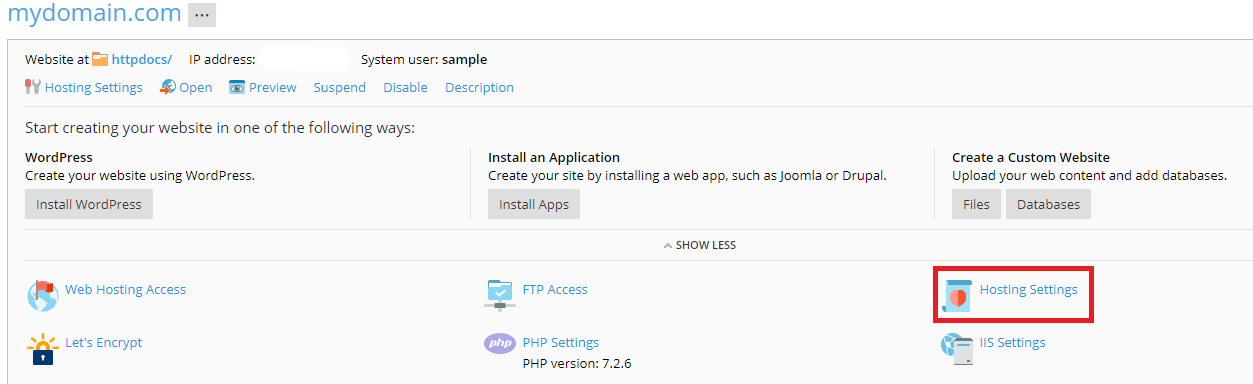
Think about cost when choosing web hosting. Some hosting is cheap, but not always the best. Check the speed of the hosting. Fast servers make happy users. Security is important too. Make sure the host offers SSL certificates. Also, look at the support. Good hosting companies have 24/7 help. Storage space is another factor. You need enough space for your site. Finally, consider the bandwidth. More bandwidth means more visitors can view your site.
Credit: www.liquidweb.com
Preparing The Server Environment
Most servers need enough space to store apps. They also need adequate RAM to run smoothly. Operating system compatibility is crucial. Some apps require specific OS versions. Check your server’s software requirements carefully. This ensures your apps run without issues. Bandwidth should be sufficient. It keeps apps fast and responsive. Security protocols must be up-to-date. They protect your server from threats. Regular checks help maintain a secure environment.
Start by creating strong passwords. Make them hard to guess. Use a mix of letters, numbers, and symbols. Don’t share passwords. Access permissions must be set correctly. Only trusted users should have access. Use two-factor authentication for extra security. This adds a layer of protection. Regularly update your credentials. This keeps your server safe. Backup credentials are important. Store them in a secure place. Review permissions often. Unauthorized access can cause problems.
Installing Applications Via Control Panel
cPanel is a popular tool. It helps manage web hosting easily. To install apps, find the Softaculous or Installatron section. This section lists many apps. Click on the app you want. Follow the steps given. Most installations are simple. You just need to fill in some details. Then, click ‘Install’. Your app is ready to use!
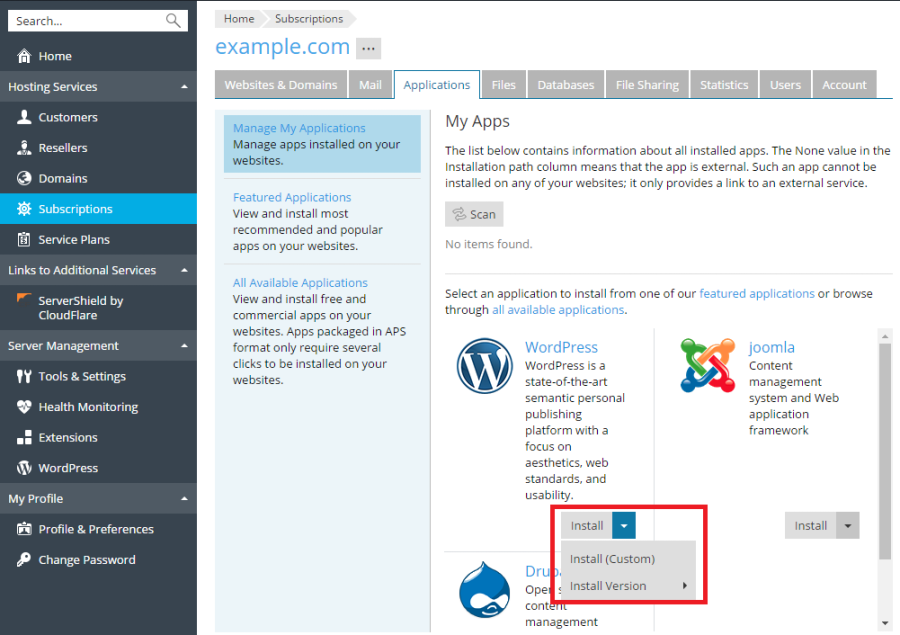
Plesk is another control panel option. It is user-friendly and efficient. Look for the ‘Applications’ tab. This tab shows available applications. Choose your desired app. Click ‘Install’. Follow the on-screen instructions. It’s easy and quick. Plesk makes app management smooth. Enjoy your new application!
Credit: docs.plesk.com
Command Line Installation
To install apps, use SSH Access. First, connect to your server using SSH. You need a username and password. Open your terminal or command prompt. Type the SSH command. It looks like this: ssh user@hostname. Replace “user” and “hostname” with your details. Press enter and wait for the connection. You may see a security warning. Type “yes” to continue. Now, you are connected to your server.
With SSH access, you can use Command Line Tools. These tools help you install apps. Use commands like apt-get install or yum install. These commands download and install apps for you. Each server may have different tools. Check your server type first. Then, use the right command. This makes installing apps easy and fast.
Using One-click Installers
Softaculous is a tool for installing apps quickly. It has many popular apps ready to install. No need for technical skills. Just a few clicks and your app is ready. WordPress, Joomla, and others are available here. You can find it in your hosting control panel. Follow steps to complete the setup. This makes it easy for beginners.
Installatron also helps install apps easily. It is user-friendly and simple. Choose from hundreds of apps. Click to install and follow instructions. It saves time and effort. Great for those new to web hosting. Installatron does the hard work for you. Perfect tool for quick app installation.
Credit: forge.laravel.com
Managing Installed Apps
Updating Applications is important to keep them secure. Always check for new updates. Updates can fix bugs and improve features. Use the admin panel for easy updates. Some apps update automatically, while others need manual updates. Always back up your data before updating. This ensures you don’t lose important files.
Troubleshooting Common Issues is necessary when apps don’t work. Check your internet connection first. Sometimes, clearing cache helps solve problems. Restarting the server can also fix minor issues. If problems persist, contact support. They can provide expert help. Always keep your server software updated. This can prevent many common problems.
Security Considerations
Installing apps on a web hosting server demands careful security considerations. Always use strong passwords and regularly update software to protect against vulnerabilities. Monitor access logs and restrict permissions to minimize risks.
Securing Web Applications
Web applications need strong security to protect data. Use firewalls to block harmful traffic. SSL certificates encrypt data between user and server. This keeps information safe. Regularly update software to fix security holes. Strong passwords are essential. Avoid using the same password for different accounts. Limit access to sensitive areas. Only trusted users should have access. Monitor traffic for unusual activity. This helps catch problems early.
Regular Backups
Backups are important for data safety. Regular backups prevent data loss. Store backups in different places. This ensures data is safe if one location fails. Use automated backup systems. They save time and reduce mistakes. Test backups often. Make sure they can restore data quickly. Keep backup copies secure. Use encryption to protect them from unauthorized access. Backups should be simple to restore. Quick recovery is crucial in emergencies.
Optimizing Performance
Using caching can make apps run faster. It stores data to use again. This means the server works less. Also, your app loads quicker. Choose the right caching method. Memory caching is fast. Disk caching saves space. Both help in different ways.
Check your server’s cache settings. Adjust them for better speed. This can help avoid slowdowns. It keeps your app running smoothly. Remember, a good cache plan is key. It improves user experience.
Keep an eye on your server’s resources. Watch CPU, memory, and disk space. Know when they get too full. This ensures your app works well. Use tools to track these resources. They help you find problems early. Fix them before they grow.
Set alerts for resource limits. Get notified if something is wrong. Act fast to solve issues. This keeps your app available. Always check your server health. A healthy server means a happy app.
Frequently Asked Questions
How To Install Apps On A Terminal Server?
To install apps on a terminal server, log in as an administrator. Open Control Panel, select “Add/Remove Programs”, and choose “Install Application on Terminal Server”. Follow the installation wizard instructions. Ensure compatibility and licensing before installation.
How To Host An Application On A Server?
Install server software like Apache or Nginx. Upload your application files via FTP. Configure server settings for your app. Ensure necessary libraries are installed. Test the application to confirm it’s running smoothly.
How Do I Add Apps To My Godaddy Website?
To add apps to your GoDaddy website, log in to your account, navigate to “My Products,” then select “Manage” next to your website. Choose “Apps” from the menu, browse available apps, and click “Install” on your desired app. Follow on-screen instructions to complete the installation process.
How Do I Install Web Hosting?
To install web hosting, choose a provider and sign up. Access your control panel. Upload your website files using FTP or a file manager. Set up your domain by updating DNS settings. Test your website to ensure it works correctly.
Conclusion
Installing apps on a web hosting server can seem tricky at first. But following simple steps makes it easy. Start by choosing the right app for your needs. Then, ensure your server meets app requirements. Upload the app files to your server and configure settings.
Test the app to ensure it works smoothly. Remember, practice makes perfect. Each installation boosts your skills. Soon, you’ll handle server apps with confidence. Keep learning and experimenting. Your server will be ready for anything.


