
Are you feeling stuck with your current web hosting setup on GoDaddy and considering a move to a different hosting plan within the same provider? You’re not alone.
Many users face the challenge of optimizing their web hosting to better fit their needs. Whether you’re looking for enhanced performance, increased storage, or improved security features, transferring your web hosting from one GoDaddy plan to another might be the solution.
This guide is designed to walk you through the process step-by-step, ensuring a seamless transition. You’ll discover tips and tricks to make the transfer smooth and hassle-free, so you can focus on what truly matters—growing your online presence. Let’s dive in and unlock the potential of your website with a simple hosting plan upgrade.
Preparing For Transfer
Check your current hosting plan details. Understand what features you have. This includes storage space, bandwidth, and support. Compare these with the new plan. Ensure you have what you need. Make a list of what’s important to you.
Always backup your website data. This includes files, databases, and emails. Use backup tools provided by Godaddy. Store this backup safely. You will need it later. Backups prevent data loss during transfer.
Ensure your domain is compatible with the new hosting. Check the domain settings and DNS records. Make sure they can work with the new server. This step is crucial. It helps your website stay online without issues.

Credit: www.godaddy.com
Initiating The Transfer
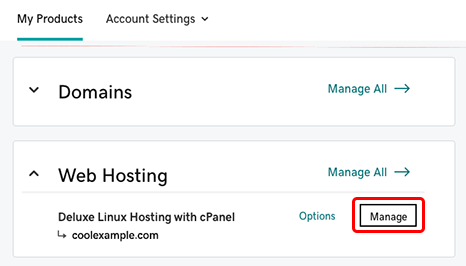
Log into your Godaddy account. Find the section called “My Products”. Look for your current hosting plan. Click on “Manage” to access more options. Make sure to have your account details ready.
Choose the new hosting plan for transfer. Visit the hosting section in your account. Check available plans. Decide which one fits your needs. Click on “Select” to pick it.
Go to the “Transfer” section in your account. Fill out the required information. Confirm the transfer request. You might receive an email. Follow the steps in the email to complete the process.
Transferring Website Files
Transferring website files between GoDaddy accounts is straightforward. Begin by backing up all site data securely. Next, use GoDaddy’s built-in tools to migrate files efficiently, ensuring your website remains live and functional throughout the process.
Using File Manager
File Manager is a helpful tool. It lets you see all your files. Open your hosting account. Go to the File Manager. Find your website folder. Select all files. Click on the download button. Save them to your computer. This keeps your data safe.
Uploading Via Ftp
FTP is another way to transfer files. First, download an FTP client like FileZilla. Connect it to your hosting account. Enter your login details. Locate your website folder. Drag and drop files to your computer. This method is fast and easy.
Ensuring Database Transfer
Databases hold important information. Use phpMyAdmin for the transfer. Open your hosting panel. Access phpMyAdmin. Find your database. Click on the export option. Save the file to your computer. This step is crucial for your website.
Credit: www.godaddy.com
Updating Dns Settings
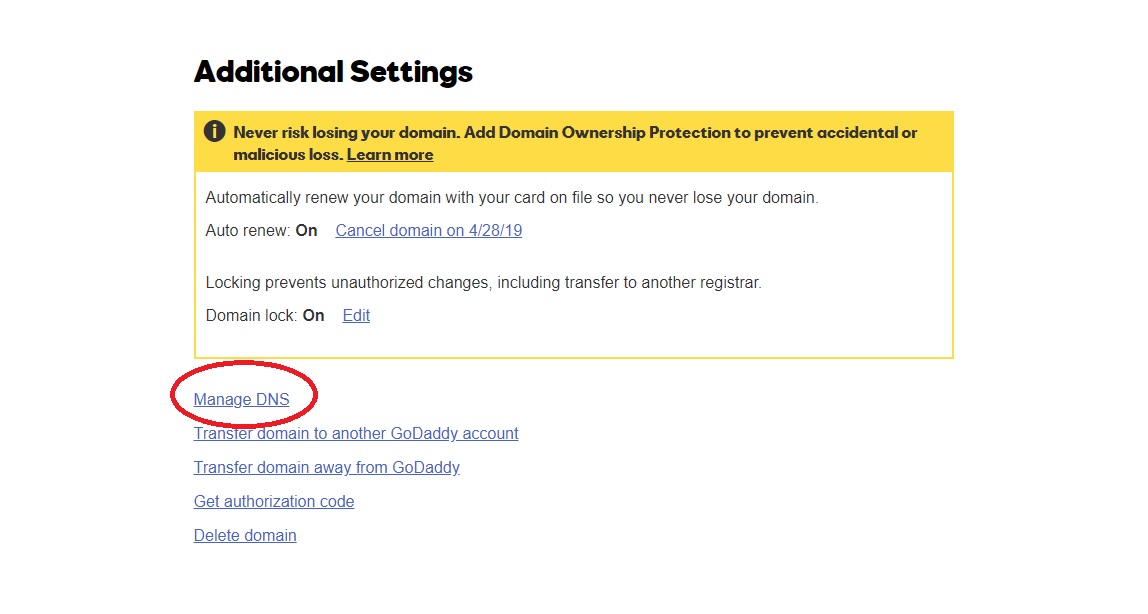
First, log into your GoDaddy account. Go to the Domain Control Center. Find the domain you want to manage. Click on the DNS button. Now, you can see all the DNS settings for your domain. This is where you will make changes.
Locate the Name Servers section. Click on Change to update them. Enter the new name servers provided by GoDaddy. Make sure you save your changes. This will point your domain to the new hosting.
DNS changes can take time to update. Usually, it takes a few hours. Sometimes, it can take up to 48 hours. Check if your site is live on the new server. Use a DNS checker tool online. This will show if the changes are complete.
Testing And Troubleshooting
After moving your website, test its functions. Make sure links work. Check if images load properly. Confirm forms can be submitted. This step helps find broken parts of your site.
Sometimes there are problems. Errors might appear on the screen. Some parts may not show up. Fix these by checking settings. Update configurations if needed. Ensure all files are transferred.
Emails are important. Verify your email works after transfer. Check settings for email accounts. Make sure you can send and receive emails. Adjust the server settings if necessary.
Finalizing The Transfer
To transfer web hosting within GoDaddy, access your account dashboard. Navigate to the “My Products” section. Select the domain you want to move. Follow the prompts to finalize the transfer smoothly.
Cancel Old Hosting Plan
Ensure your new hosting works well. Now, it’s safe to cancel the old plan. Check for any fees. Some plans have cancellation charges. Save important files first. This prevents data loss. Make sure everything is backed up.
Review Billing Details
Check your billing on the new plan. Confirm the pricing is correct. Look for any hidden fees. Update your payment details if needed. Verify the renewal date. Mark it on your calendar. This helps you avoid late fees.
Monitor Website Performance
Track your website’s speed and uptime. Ensure pages load quickly. Slow sites lose visitors. Use tools to check performance. Fix any issues fast. Happy visitors stay longer. Good performance boosts your site.
Credit: www.godaddy.com
Frequently Asked Questions
How To Transfer Hosting From Godaddy To Another Godaddy Account?
Log into your GoDaddy account. Navigate to “My Products” and select the hosting account. Choose “Transfer Ownership” and enter recipient’s email. Follow prompts to complete the transfer. Ensure the recipient accepts the transfer request.
How To Transfer Web Hosting From One Company To Another?
To transfer web hosting, first back up your website files and database. Choose a new hosting provider. Change domain DNS settings to point to the new host. Upload website files to the new server. Test your website to ensure everything is working correctly.
Contact support for assistance if needed.
How Long Does It Take To Transfer A Godaddy Domain To Another Godaddy Account?
Transferring a GoDaddy domain to another GoDaddy account typically takes 5 to 7 days. Ensure both accounts have verified contact information and domains are unlocked for a smooth process. Check your email for transfer confirmation and instructions to complete the transfer promptly.
Can I Transfer My Godaddy Website?
Yes, you can transfer your GoDaddy website. Start by unlocking your domain and obtaining the authorization code. Choose a new hosting provider, initiate the transfer, and follow their instructions. Ensure your content, databases, and email accounts are backed up before the transfer process.
Conclusion
Transferring web hosting within GoDaddy is straightforward with the right steps. Follow the guide to ensure a smooth transition. Double-check settings for accuracy. Keep your account information handy. Contact GoDaddy support if needed. They offer assistance during the transfer. Make sure your site functions well post-transfer.
Test all links and features. Regular backups protect your data. Familiarize yourself with GoDaddy’s tools. Optimize your site for better performance. Hosting change improves your site when done correctly. Stay patient and thorough for the best results. Your website deserves a seamless hosting experience.


