
Are you looking to host files without the hassle of complex server setups? Abyss Web Server might be your perfect solution.
Imagine effortlessly sharing your files or hosting a small website with a straightforward and efficient tool. You don’t need to be a tech wizard to start using Abyss; it’s designed for simplicity and ease of use. By the end of this guide, you’ll be equipped with the knowledge to set up your server and manage your files like a pro.
Dive in and discover how you can leverage Abyss Web Server to meet your hosting needs effortlessly.
Setting Up Abyss Web Server
Begin by going to the Abyss Web Server website. Download the server software from there. The download is free and quick. Once downloaded, find the file on your computer. Double-click it to start the installation. Follow the instructions on the screen. Make sure to accept the license terms. Choose a location on your computer for the installation. Click next to finish.
Open the Abyss Web Server after installation. A setup window will appear. Enter a username and password for security. Choose a port number. Port 80 is common for web servers. Save your settings. Close the setup window. Your server is now ready. You can start hosting files.

Credit: link.springer.com
Configuring Server Settings
Changing ports is easy with Abyss Web Server. The default port is 80. You can change it to any number. Make sure the number is not in use. Open the console. Go to the settings menu. Find the port option. Enter a new number. Click save. Now, your server listens on the new port. This helps in avoiding conflicts. It also keeps the server secure.
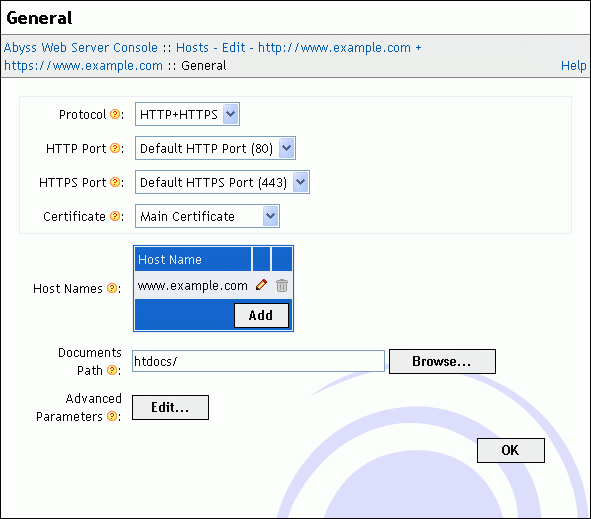
Virtual hosts let you serve many sites. Each site has a different domain. Go to the host settings. Click on add host. Enter the domain name. Set the path to the site files. Save the changes. Now, the server serves multiple sites. Each site works independently. This is good for developers. They can test many sites on one server.
Creating Directories For Hosting
Begin by selecting where to store your files. This is important to keep your files organized. Create a main folder for all files. Inside, make subfolders for different file types. For example, one folder for images and another for documents. Organization helps you find files quickly. Keep your folder names simple and easy to remember.
Permissions keep your files safe. Set permissions to control who can see or change files. Use numbers to set these permissions. For example, 755 means everyone can view, but only you can change. Be careful with permissions. Wrong settings can expose your files to strangers. Always double-check before saving changes.
Uploading Files To The Server
FTP clients help move files to your server. FileZilla is a great choice. Download and install it first. Open the program and type your server details. These details include host address, username, and password. Click ‘Connect’ to access your server. Now, drag your files from the computer to the server. Wait for the upload to finish. Your files are now on the server.
Use Abyss Web Server’s interface for direct uploads. Open your web browser. Go to the server’s address. Log in with your admin credentials. Look for the ‘File Manager’ option. Click it to open. You’ll see a button to upload files. Click it and choose files from your computer. Press ‘Upload’ to start. Files will appear on the server soon.
Accessing Hosted Files
Begin by uploading files to the server. Each file needs a specific path. This path leads to the file location. Use this path to generate a URL. The URL helps access the file online. Place the files in the server’s document root. The document root is the main directory. Files here are publicly accessible. Ensure paths are correct. Incorrect paths lead to errors. Use simple names for files. Simple names help avoid confusion.
After creating the URL, test it. Open a browser and enter the URL. The file should appear. If not, check the path. Ensure the server is running. Restart if needed. Files should be visible online. Test different files. Ensure all files are accessible. Test regularly. Regular testing ensures files are always available.
Securing Your Server
SSL/TLS makes your server safe. It encrypts data. This stops bad people from seeing it. Use a trusted certificate. This ensures trust. Install it on your server. Follow the steps given by the provider. Check settings often. Make sure they are strong. This keeps your data private. Always update your certificates. This avoids expired ones. Keep your website safe.
Firewalls guard your server. They block harmful traffic. Set strong rules. Allow only needed connections. Deny unwanted ones. Firewalls can be hardware or software. Both types work well. Monitor traffic regularly. Change settings if needed. Keep your firewall updated. This protects your server from threats. A safe server means safe files.
Troubleshooting Common Issues
Sometimes, connections may not work as expected. Check if your internet is stable. Ensure that the Abyss Web Server is running. See if the firewall is blocking access. Restart your router and the server if needed. Make sure your IP address is correct. Check the port settings. The most common port is 80. Use it to avoid problems.
Errors can happen when accessing files. Make sure the file path is correct. Ensure files have the right permissions. The server must have access. Files should be in the root directory. This helps in avoiding errors. Check if the file names are spelled right. Small mistakes can cause big issues. Verify the file types are supported by the server.
Credit: aprelium.com
Optimizing Performance
Caching helps make websites faster. It stores data temporarily. This way, the server doesn’t fetch it again and again. Use a cache plugin with Abyss Web Server. It can save time and speed up loading. Choose a plugin that suits your needs. Set the cache duration wisely. Not too short or long. This keeps your files up-to-date. Update the cache regularly for best performance.
Managing resources is crucial. Balance the load on your server. This prevents overload and crashes. Limit the number of requests. Monitor the bandwidth usage. It helps you control data flow. Use resource management tools. They track server usage and help plan better. Free up memory when not needed. This ensures smooth functioning and reliable hosting.

Credit: link.springer.com
Frequently Asked Questions
What Is Abyss Web Server?
Abyss Web Server is a compact, user-friendly web server. It’s ideal for hosting files and websites on Windows, macOS, and Linux. With its intuitive interface, it simplifies server configuration and management. It supports various technologies, including PHP, Perl, and ASP.
This makes it versatile for different hosting needs.
How Do I Install Abyss Web Server?
To install Abyss Web Server, download the installer from their official website. Run the setup file and follow on-screen instructions. Choose your preferred installation settings. Once installed, start the server through the Abyss Web Server console. Configure it as needed for your file hosting requirements.
Can Abyss Web Server Host Multiple Files?
Yes, Abyss Web Server can host multiple files. Simply upload your files to the server’s designated directory. Ensure the directory is accessible to web clients. Use the server’s console to manage and organize these files. This makes it easy to host and serve diverse content.
Is Abyss Web Server Suitable For Beginners?
Absolutely, Abyss Web Server is beginner-friendly. Its intuitive graphical interface simplifies configuration and management tasks. Comprehensive documentation and community support make troubleshooting easier. This makes it an excellent choice for users new to web hosting. It provides a smooth learning curve for beginners.
Conclusion
Hosting files with Abyss Web Server is simple and efficient. It offers a user-friendly interface that makes tasks easy. You can quickly upload and share files. No complex setup required. Just follow the steps mentioned earlier. Your files stay secure and accessible.
Whether for personal or business use, Abyss Web Server suits your needs. Explore its features and find what works best. Reliable and straightforward. Hosting made easy for everyone. Give it a try today and see the benefits. Enjoy seamless file hosting with Abyss.


