
Are you ready to launch your web application but unsure how to host it on Windows Server 2008? You’re not alone.
Navigating through the technical maze can feel daunting, but with the right guidance, you can turn this challenge into a rewarding experience. Imagine the satisfaction of seeing your application live, seamlessly running, and accessible to users worldwide. Hosting on Windows Server 2008 offers robust features and reliability that can elevate your project to new heights.
In this guide, you’ll discover simple, step-by-step instructions to make the process straightforward and stress-free. Whether you’re a seasoned developer or a curious beginner, this article will empower you with the knowledge to confidently bring your application to life. Dive in and unlock the potential of Windows Server 2008 for your web application’s success.
System Requirements
Hosting a web application on Windows Server 2008 requires specific system requirements. Ensure sufficient RAM, processing power, and storage for smooth performance. Compatibility with server software and network configurations is essential for successful deployment.
Minimum Hardware Specifications
Hosting a web app needs a strong server. The CPU must be at least 1 GHz. RAM should be a minimum of 512 MB. At least 10 GB of hard disk space is essential. A good network card is also necessary for smooth operation.
Software Prerequisites
Windows Server 2008 is required. Install IIS to serve web pages. .NET Framework is necessary for many apps. SQL Server helps with database needs. Ensure all software is updated. Security patches are very important. Regular updates keep the server safe.
Installing Windows Server 2008
First, insert the Windows Server 2008 DVD. Restart your computer. The setup will start automatically. Choose the language and time settings. Click Next. Select Install Now. You will see two options. Full Installation or Server Core Installation. Full Installation is easier. It has a graphical user interface. Server Core has no GUI. It uses fewer resources. Choose the type you need. Follow the instructions. Finish the setup. Your server is ready.
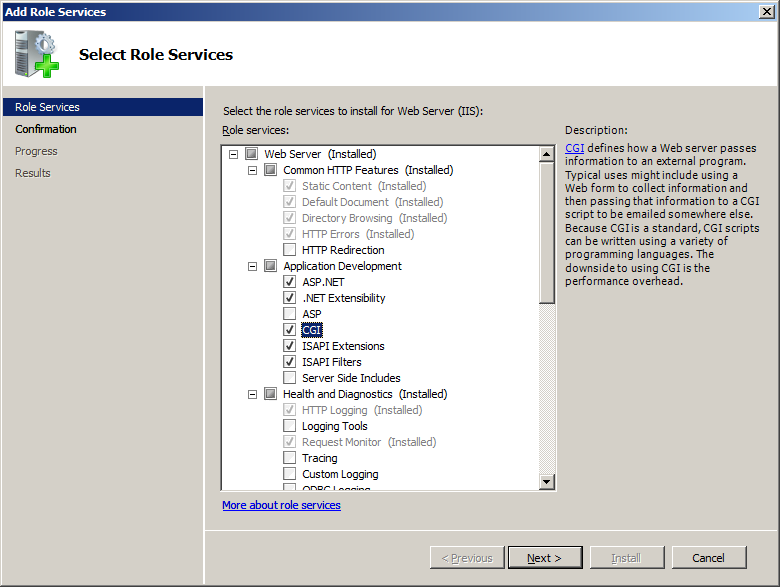
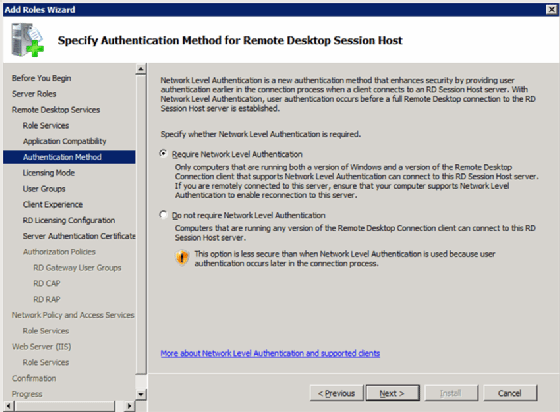
Open the Server Manager. Find the Roles section. Click Add Roles. A wizard will start. You will see many options. Choose the roles you need. Common roles are Web Server (IIS) and DNS Server. Follow the instructions. Click Next to continue. Complete the wizard. The server will install the roles. It may restart. The roles are now active. Test them to ensure they work.
Setting Up Iis
Open the Control Panel. Find Programs and Features. Click on Turn Windows Features on or off. A list will appear. Check the Internet Information Services box. Make sure to expand the list. Check World Wide Web Services. This is very important. Click OK to save changes. Wait for the installation to finish. This may take a few minutes.
Open IIS Manager. Find your site in the list. Click on Bindings. A new window will open. You can add a new binding. Choose HTTP or HTTPS. Enter the IP address. Type the port number. Most common is port 80. Click OK to save. Your site is now ready.

Credit: learn.microsoft.com
Deploying The Web Application
First, gather all the files you need. These files are your web app files. Use a tool to upload them. FileZilla is a good choice. Connect to your server with it. Now, start uploading your files. Make sure they go to the right folder. This folder is your web app folder.
Go to the IIS Manager on your server. Find the Application Pools section. Click on it. Create a new pool for your app. Name it something easy. Your app will use this pool. Set the .NET version if needed. This helps your app run better. Your pool is ready now. Start the pool to activate it.
Database Configuration
Setting up a database configuration on Windows Server 2008 involves installing necessary software and creating database connections. Ensure server security by configuring firewall settings and permissions. Regular backups and updates are crucial for maintaining database integrity and performance.
Installing Sql Server
First, download SQL Server from the official website. Follow the steps on the screen. Choose the right version for your needs. Next, open the setup file. Accept the terms to proceed. Choose the installation type you need. Many choose the default settings. This makes things simple. After installation, restart the server. Now, SQL Server is ready to use. Check for any updates. Always keep software up-to-date for security.
Connecting Web Application To Database
Open the web application settings. Find the database connection section. Enter the SQL Server details. These include server name and database name. Add the username and password. Ensure they are correct. Click save to store changes. Test the connection. Make sure it works properly. Fix any errors if they occur. The application should now connect. Check data access regularly. This ensures smooth operation.
Security Measures
Firewalls are like guards for your server. They keep bad things out. Always enable your firewall on Windows Server 2008. Set rules to allow only trusted sources. This helps keep your web app safe. Open only the ports you need. Closing extra ports is crucial. It stops unwanted access. Review your firewall settings often. Make changes if needed. This keeps your app secure. Firewalls are vital for protection.
An SSL certificate is important for safety. It encrypts data between server and user. Users see a padlock symbol in the browser. It shows your site is secure. Buy a certificate from a trusted source. Install it on your server. Follow the steps provided by your provider. Make sure it is active and valid. Check the certificate’s expiration date. Renew it before it expires. This keeps user data safe.
Testing And Troubleshooting
Sometimes, the web application might not load. This can be due to a firewall blocking the application. Check if the correct ports are open. Another issue could be database connection problems. Ensure the database server is running. Verify that the connection strings are correct. A restart might fix some problems.
Ensure the server has enough RAM and CPU power. This helps the application run smoothly. Update the server software regularly. This keeps the server secure and fast. Use a caching mechanism to speed up loading times. This reduces the load on the server. Monitor the server’s performance. Look for any unusual activity.
Credit: trac.osgeo.org
Maintaining The Server
Hosting a web application on Windows Server 2008 involves configuring server roles and features. Ensure your server is updated and secured. Set up Internet Information Services (IIS) to manage your web app efficiently.
Regular Updates
Regular updates keep your server safe. Windows releases updates often. Installing them is important. Updates fix bugs and improve security. Always check for new updates. Set your server to update automatically. Automatic updates save time and effort. Backup your data before updating. Backups protect your data. They are crucial in case of errors during updates.
Monitoring Tools
Monitoring tools help you watch your server. They track performance and alert you to problems. Use tools like PerfMon or Event Viewer. PerfMon shows CPU and memory usage. Event Viewer logs system events. It’s important to watch these logs. Logs show errors and warnings. Fix issues early to avoid bigger problems. Monitoring keeps your server running smoothly. Choose tools that suit your needs. Many tools offer different features. Find the ones that work best for your server.
Credit: www.techtarget.com
Frequently Asked Questions
How Do I Host A Web Application On A Server?
To host a web application, choose a server provider. Set up your server environment. Upload your application files using FTP or SSH. Configure the server settings. Ensure your application runs smoothly by testing it. Secure the server and monitor performance regularly for optimal operation.
Can You Host A Website On Windows Server?
Yes, you can host a website on Windows Server. It supports IIS for web hosting, offering reliable performance and compatibility with ASP. NET applications. Ensure proper configuration for security and optimal functionality. Regular updates and maintenance are essential for smooth operation and enhanced security.
What Version Of Iis Is On Windows Server 2008?
Windows Server 2008 includes Internet Information Services (IIS) version 7. 0. IIS 7. 0 offers enhanced security and improved performance. It provides a modular architecture, allowing customization based on specific needs. With IIS 7. 0, administrators can easily manage web applications using its user-friendly interface.
This version supports more efficient application hosting and reliable management tools.
Where Is The Host File In Windows Server 2008?
The host file in Windows Server 2008 is located at C:WindowsSystem32driversetc. You can edit it with Notepad.
Conclusion
Hosting a web application on Windows Server 2008 is straightforward. Follow the steps and ensure smooth setup. Check server compatibility for better performance. Regular updates keep your server secure. Always monitor your application for any issues. Security settings are crucial to protect your data.
Use reliable sources for troubleshooting tips. Remember, practice leads to better understanding. A well-hosted application benefits your users. Feel confident in your hosting skills. Keep learning to improve your server management. Stay informed on new technology trends. Your application’s success depends on good hosting practices.


