
Are you struggling to make your website run smoothly on your chosen web host? Opening ports might be the key you need to unlock better connectivity and performance.
Imagine your website as a bustling city, with data and information constantly flowing in and out. When ports are closed, it’s like having a traffic jam at the city’s entrance, slowing everything down and frustrating your visitors. But when ports are open, data flows freely, enhancing your site’s speed and accessibility.
In this guide, you’ll learn how to open ports on your web host effortlessly. Whether you’re a beginner or have some experience, we’ll simplify the process and arm you with the knowledge to improve your site’s performance. By the end of this article, you’ll feel confident in managing your web host settings and ensuring your website runs as efficiently as possible. Dive in and discover how easy it can be to enhance your online presence!
Credit: www.theengineeringprojects.com
Understanding Ports And Their Role
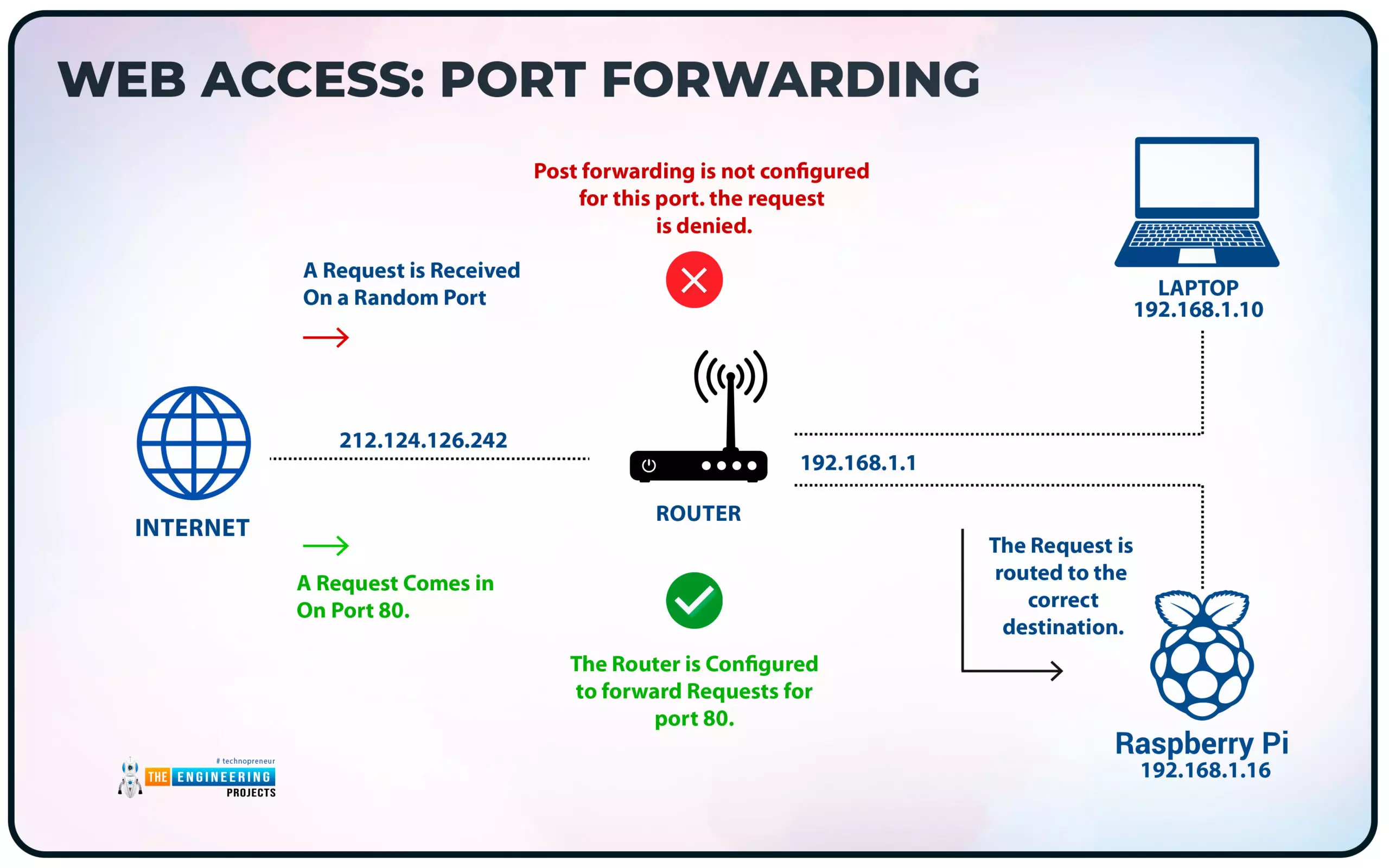
Ports are like doors on a computer. They help data move in and out. Every port has a number. These numbers help computers know where to send information. Some ports are open, some are closed. Open ports let data come in. Closed ports keep data out. This is important for security.
Web hosts use ports to send and receive data. Websites use special ports, like port 80 for normal pages. Port 443 is used for secure pages. These ports help websites work properly. It is important to know which ports your web host uses. This helps keep your site safe and working well.
Opening ports on your web host can change how your website works. Only open ports you need. Open ports can be risky if not managed well. Always check your web host settings. Protect your site by understanding ports.
Identifying Necessary Ports For Your Application
Some applications need specific ports to work. Ports are like doors. They let data in and out. Find out which ports your app uses. Check the app’s documentation or settings. Common ports include 80 for web and 443 for secure web. Games might use 27015 or similar. Email uses ports like 25, 110, and 587. Knowing these ports helps keep your app running smoothly. Not all ports need to be open. Only open the ones your app needs. This keeps your server secure. Opening too many ports can be risky. Choose wisely for security and performance.
Accessing Your Web Host Control Panel
First, find the login page for your web host control panel. This is often in your welcome email. You can also check the host’s website. Look for a button or link that says “Login” or “Control Panel”. Enter your username and password. Now you are in the control panel.
Inside the control panel, find the security settings. It might be under a tab or menu. Look for words like “Security” or “Firewall”. Click on it to open the settings. Here, you can manage which ports are open. Make sure to save any changes you make.
Credit: doc.yunohost.org
Configuring Firewall Settings
Firewalls keep our computers safe. They block dangerous connections. Each rule tells the firewall what to do. Rules can let data in. Or keep data out. Understand each rule carefully. Wrong settings can cause problems. Computers need protection. But they also need to work well. Balance safety and function.
First, find the port number you need. Port numbers help computers talk. Go to your firewall settings. Add a new rule. Type the port number. Choose to allow or block it. Save your changes. Test to see if it works. Repeat if needed. Always be careful. Bad rules can be risky.
Testing Open Ports
Many websites help check if ports are open. These tools are easy to use. Enter the port number and press check. The tool tells if the port is open or closed. Simple steps make it quick. No need for special software. Easy for everyone. Results are clear and fast. Helps in solving problems. Use these tools for checking ports anytime.
Computers have network tools for ports. Use command prompt or terminal for testing. Type commands to test port status. Tools show if ports are open. Easy and clear. No extra software needed. Just basic computer commands. Useful for all users. Helps in fixing network issues. Quick way to verify ports on computers.
Troubleshooting Common Issues
Sometimes, ports won’t open. This can be frustrating. First, check the firewall settings. Ensure the port is allowed. Firewalls can block ports. Next, verify the port number. It must be correct. Double-check it. Also, restart your server. This can solve many issues. If the port still won’t open, contact your web host. They can provide more help.
Connection timeouts happen often. They stop your access. Begin by checking your internet. It should be stable. A slow connection can cause timeouts. Also, review server settings. The server might be too busy. Try again later. You can also check your network cables. They must be plugged in well. If problems persist, ask your web host for help.
Security Considerations
Opening ports on your web host demands careful attention to security. Each opened port can expose vulnerabilities, making it crucial to monitor and restrict access. Implementing firewall rules helps safeguard data while maintaining necessary connectivity.
Risks Of Open Ports
Open ports can be risky. Hackers might find them easily. They look for weak ports. Data can be stolen through these ports. They can also spread malware. Open ports need careful checking. Always know which ports are open. Close unused ports quickly. This helps protect your server.
Implementing Secure Practices
Secure practices are key to safety. Use firewalls to block bad traffic. Firewalls keep your data safe. Always update your security software. Updates fix security holes. Choose strong passwords for your server. Weak passwords are easy to crack. Strong passwords are hard to guess. Educate your team on safety rules. Good training reduces risks.
Maintaining Port Configurations
Opening ports on your web host allows traffic to reach your server. Begin by accessing your hosting control panel. Adjust firewall settings to permit specific port numbers, ensuring secure and efficient connections.
Regular Monitoring
Ports help computers talk to each other. They must stay open for this. Regular checks ensure they work well. Closed ports can stop communication. This can cause problems. It’s wise to check them often. Use tools for easy monitoring. Watch for unusual activity. Strange behavior might mean trouble. Keep logs of what you see. Logs help track changes over time.
Updating Firewall Rules
Firewalls protect computers from harm. They need rules to do this. Update these rules often. Old rules might allow threats. New rules block them. Check for new updates regularly. Updates keep your firewall strong. Make sure all ports are covered. Unprotected ports can be risky. Use simple rules for safety. Complex rules are hard to follow. Regular updates keep your system safe.
Credit: host4geeks.com
Frequently Asked Questions
How Do You Open Ports With Your Own Internet Provider?
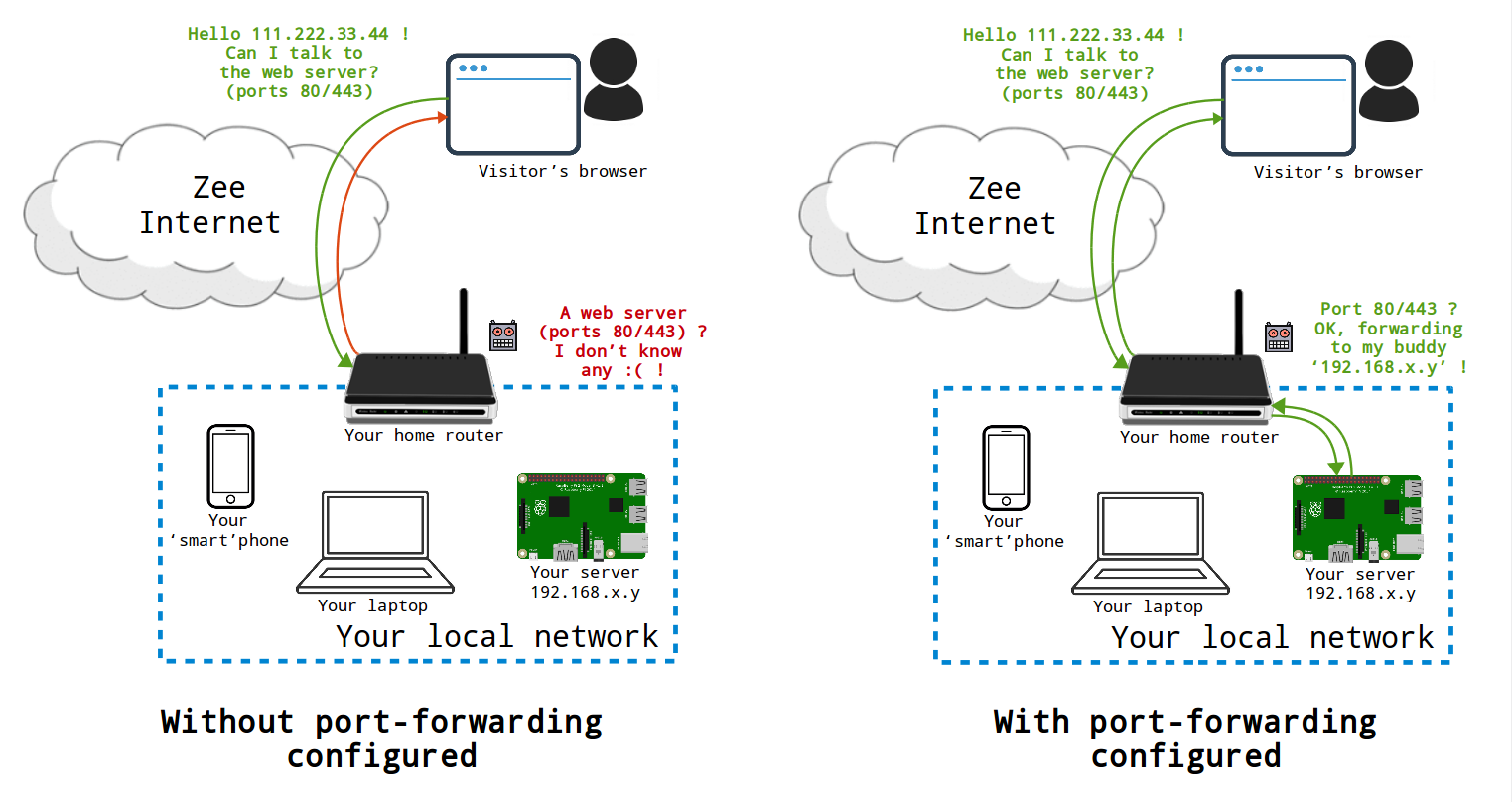
Contact your internet provider for assistance with opening ports. Access your router settings via its IP address. Locate the port forwarding section, enter required details, and save changes. Restart your router to apply settings. Use online tools to verify if ports are open successfully.
How To Open Port 8080?
Open port 8080 using the command prompt or firewall settings. Ensure the port isn’t blocked by your antivirus. Modify router settings if needed. Use admin privileges for access. Check documentation for specific software requirements.
How Do I Open A Port In My Browser?
Browsers don’t open ports directly. Use router settings or firewall configurations to manage port access for applications. Ensure security measures are in place to prevent unauthorized access. Consult your device’s documentation for specific steps.
How Do I Open Ports On My Server?
To open ports on your server, access the firewall settings. Locate the port management section. Add desired port numbers and protocols. Save changes to apply settings. Ensure security measures are in place to protect open ports from unauthorized access. Consult your server documentation for specific instructions.
Conclusion
Opening ports on your web host is crucial. It improves accessibility and security. Follow the steps outlined to ensure smooth operations. Always check port settings regularly. This helps prevent potential issues. Remember to consult your host provider if unsure. Their support can guide you effectively.
Proper port management enhances your website’s performance. It ensures users have a seamless experience. Keep learning and stay updated on best practices. Your efforts will pay off in the long run. Happy hosting!


