
Are you facing issues with an expired SSL certificate on your web hosting? It can be frustrating when a crucial component like this disrupts your website’s security and credibility.
You might notice warnings pop up, deterring your visitors and potentially affecting your site’s performance. But don’t worry—you’re not alone in this. Many website owners find themselves in the same situation at some point. Understanding how to remove an expired SSL certificate is essential to maintain a seamless user experience and keep your site secure.
We’ll guide you through the simple steps to resolve this issue, ensuring your website remains trustworthy and operational. Stay with us, and you’ll regain control over your site’s security in no time.
Identifying Expired Ssl Certificates
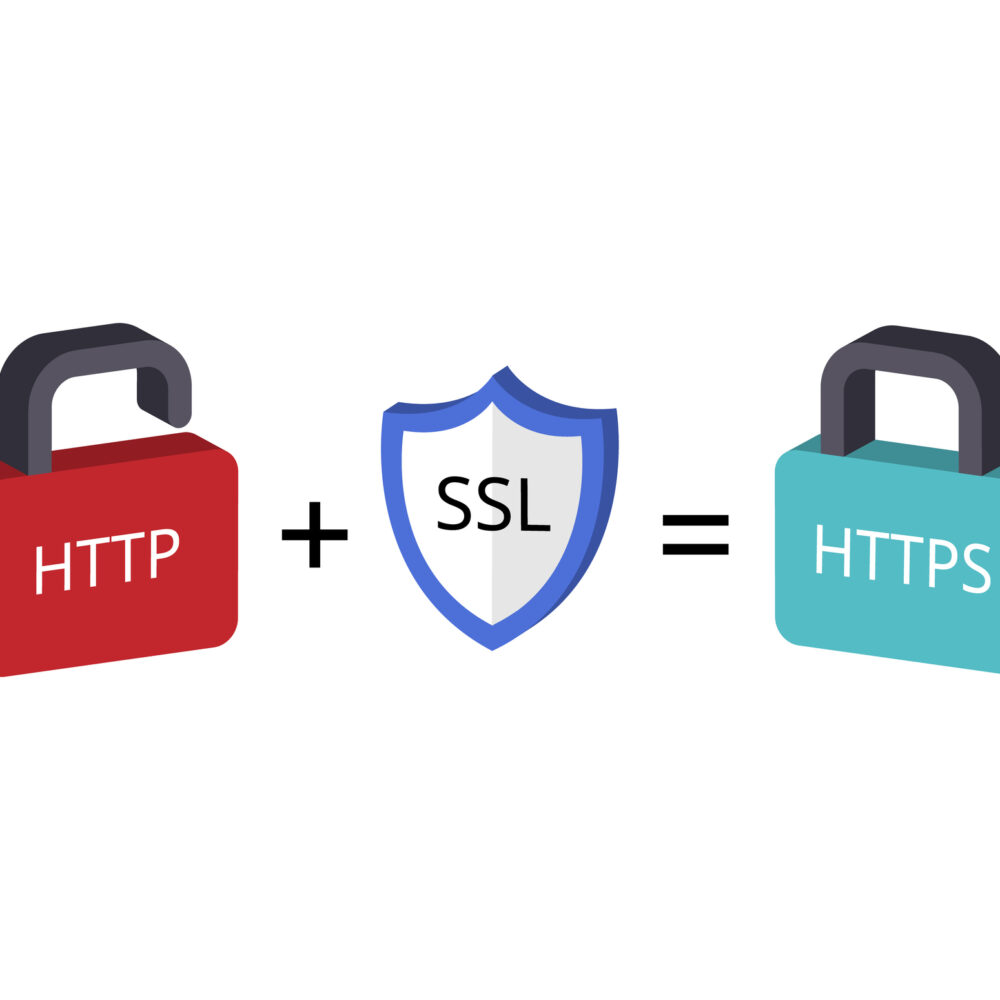
Websites with expired SSL certificates show security warnings. Browsers display a not secure message. These warnings scare visitors. HTTPS turns into HTTP. This change shows your site is not safe. The padlock icon disappears. This also shows the certificate is expired. Traffic drops when SSL is expired. Users feel unsafe. They leave the site quickly. Search engines rank your site lower. This affects your online presence.
Use tools to check SSL status. SSL Checker is a popular tool. It shows if SSL is expired. Qualys SSL Labs is another tool. It provides a detailed report. WhyNoPadlock checks for mixed content. This helps in fixing issues. SSL Shopper is easy to use. It tells you when SSL will expire. These tools help keep your site secure.
Impact Of Expired Ssl Certificates
An expired SSL certificate puts websites in danger. Hackers can attack easily. Users lose trust when they see warnings. Data might get stolen. This is not good. Safety is important. Always keep certificates updated.
Google loves secure sites. An expired SSL harms SEO. It leads to low search rankings. People can’t find your site easily. Traffic goes down. Fewer visitors mean fewer sales. Keep certificates fresh. Improve your site’s health.
Preparing For Certificate Removal
Keep your data safe by creating a backup. This helps if anything goes wrong. Use an external hard drive or cloud storage. It is important to save all your files. Check the backup to make sure everything is there. Regular backups keep your data secure.
Inform everyone involved about the change. This includes your team and any clients. Let them know the date and time of the removal. They should understand the process. They might need to adjust their schedules. Good communication helps avoid confusion. Everyone will be ready for the update.
Credit: www.keyfactor.com
Removing Expired Certificates
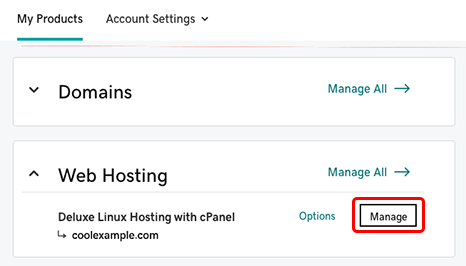
First, log in to your hosting account. Find your control panel. It might be called cPanel or Plesk. Look for login details in the welcome email. Enter your username and password. Once inside, you’re ready to begin.
Search for the SSL/TLS or security section. It holds your certificates. Sometimes it’s under security tools. Click to open it. Look for a list of your certificates. Find the expired one. You are almost there.
Click on the expired certificate. Look for an uninstall or delete option. Follow the prompts. Confirm to remove it. Now, the expired certificate is gone. Your site is safer.
Installing New Ssl Certificates
Choosing the Right SSL Provider is very important. A good provider offers strong protection. Compare different providers. Check their reviews. Look at their prices. Pick one that suits your needs best. This choice keeps your website safe.
To get started, you need to generate a Certificate Signing Request (CSR). This is like asking for a new key. Use your web hosting panel to create it. Fill in the required details. The CSR will be used to get your certificate.
Next, it’s time for installing the new certificate. After you receive your SSL certificate, log in to your hosting account. Find the SSL section. Upload the new certificate file. Follow the instructions to complete the process. Your website will be secure again.

Credit: aspisfun.com
Testing The New Ssl Installation
Testing the new SSL installation ensures secure connections. Remove expired SSL certificates from web hosting to maintain safety. Avoid security risks by updating certificates regularly.
Verifying Certificate Validity
Check if the SSL certificate is active. Visit your website using https://. Look for a padlock icon in the browser’s address bar. This icon shows the SSL is valid. Click on it to view certificate details. Ensure it shows the correct expiration date. Confirm that the domain name matches your website. If these details are correct, your SSL is valid.
Checking Site Functionality
Ensure your website loads properly. Browse different pages to test. Look for any errors or warnings. Make sure all images and links work well. If something is broken, it may be due to SSL issues. You might need to adjust your site settings. Check that the forms on your site submit data correctly. This ensures the SSL works for all functions.
Maintaining Ssl Certificates
SSL certificates have a limited lifespan. Checking their expiry dates is important. Set reminders to avoid missing these dates. Tools are available to help with tracking. Use online services to get alerts. They will email you before the certificate expires. This keeps your website safe and trusted.
Renewing SSL certificates can be automated. This saves time and reduces errors. Many hosting providers offer this feature. Enable auto-renewal in your hosting account. It ensures certificates update without manual steps. Websites stay secure and users feel confident. No more worries about expired certificates.
Credit: www.godaddy.com
Frequently Asked Questions
How Do I Remove An Expired Ssl Certificate?
To remove an expired SSL certificate, access your server’s control panel. Locate the SSL settings and select the expired certificate. Choose the delete or remove option. Restart your server to ensure changes are applied. Consider installing a new SSL certificate for continued security.
How Do I Remove An Ssl Certificate From A Website?
To remove an SSL certificate, access your hosting control panel. Locate the SSL/TLS section. Delete the installed certificate. Update your website’s settings to operate without SSL. Ensure your server configurations reflect this change. Backup your website before making any changes for safety.
How To Fix An Expired Certificate On A Website?
Renew the expired SSL certificate through your hosting provider or certificate authority. Update the certificate files on your server. Verify installation by checking your website’s security settings. Ensure automatic renewal is enabled to prevent future expirations. Regularly monitor certificate status for seamless website access.
How Do I Clear The Ssl Certificate Cache?
To clear the SSL certificate cache, restart your browser or clear browser cache settings. Use “ipconfig /flushdns” command for Windows systems. This ensures your system fetches the latest SSL certificates. Regularly updating can prevent security warnings and enhance browsing experience.
Conclusion
Removing expired SSL certificates is crucial for website security. Regular updates prevent data breaches. Follow simple steps to ensure your site stays safe. Check certificate expiration regularly. Replace expired ones promptly. This maintains trust with users. A secure site boosts credibility.
Keep your hosting provider informed. They can help with technical issues. Website security is ongoing. Stay proactive to avoid problems. Protect your site and user data. Prioritize SSL certificates in your maintenance routine. Your site’s safety matters. Stay vigilant. Regularly monitor and update SSL certificates.
Secure your website effectively.


