
Imagine this: you’ve spent hours meticulously organizing your files into a neat folder, and now, you’re ready to showcase your work on your Wix website. But the question looms – how do you upload an entire folder to Wix Web Host without losing your sanity?
You’re not alone in this puzzle. Many website owners face this very challenge, and finding a seamless solution can feel like unlocking a secret level in your favorite game. You deserve to know the easiest way to get your folder onto your site, saving you time and frustration.
By mastering this simple process, you’ll not only enhance your website’s functionality but also free up more time to focus on the creative aspects of your site. Dive into this guide, and discover the straightforward steps to upload your folder to Wix Web Host, ensuring your site is as organized and professional as you envision. Let’s make it happen!
Preparing Your Files
Keep your files in a neat order. Place all related files in one folder. This helps to find files easily later. Name your files clearly. Use simple names like “image1” or “document1”. Do not use special characters in names. Only use letters and numbers. This prevents errors during upload. Always check your folder before uploading. Make sure all files are present.
Ensure files have correct formats. Images should be in JPEG or PNG. Documents work best in PDF or DOCX. Audio files should be MP3 or WAV. Videos are best in MP4 or AVI. Wrong formats may not upload. Double-check each file format.
Accessing Wix Dashboard
First, open your web browser. Go to the Wix website. Look for the login button at the top. Click it. Enter your email and password. Click on the “Log In” button. Now, you are in your Wix account.
Once logged in, find the dashboard. It shows your sites. Select the site you want to edit. Click on the site. You will see the site manager. The site manager helps you organize your site. It is important to learn how to use it.
Uploading Files
The Media Manager helps you keep your files in one place. Click on the Media icon to open it. You can see all your files here. Organize them by dragging folders. You can also add files by clicking ‘Upload Media’. Choose the files from your computer. Then, click ‘Open’. Your files will upload to Wix. It’s easy to manage your files this way. You can also rename them. Use simple names to find them quickly.
Another way is the Drag and Drop method. Open your folder on your computer. Select the files you want to upload. Drag them to the Wix page. Drop them where you see the upload area. Wait for the upload to finish. This method is fast. You can see your files appear on Wix. Make sure to save your changes. Check if all files are uploaded.
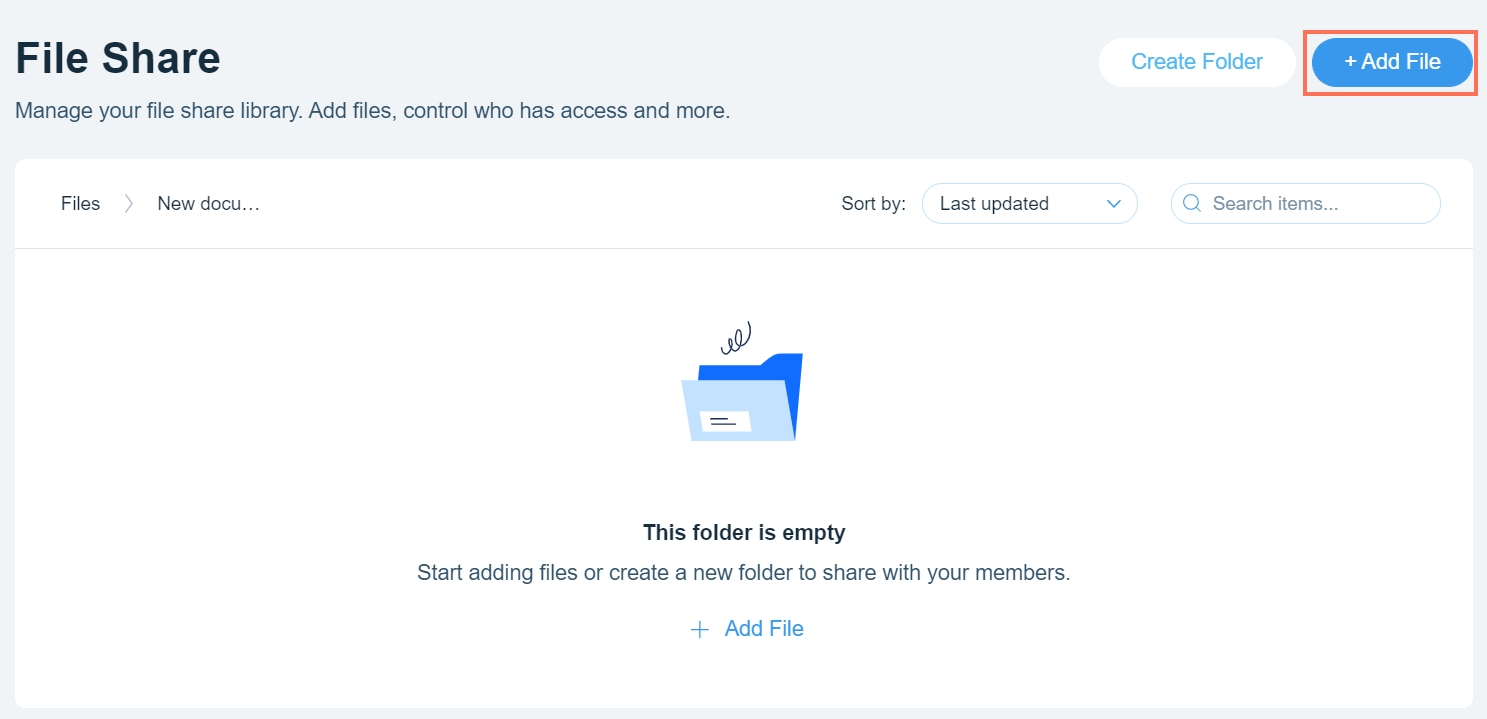
Credit: support.wix.com
Setting Up Folder Structure
Creating New Folders is easy. First, choose a main folder. This will hold everything. Inside, add new folders. Each folder can have a name. Use names that tell what is inside. For example, one folder can be “images”. Another can be “documents”. This helps to find files faster.
Arranging Files Within Folders is like organizing a room. Put similar files together. All pictures go in the “images” folder. All text files go in “documents”. This keeps things neat. It is important for quick access. When files are in the right place, work is easier.
Linking Files To Your Website
Add files to your Wix page with ease. Start by going to the Wix Editor. Click on the “Add” button. Choose “File” from the dropdown menu. Upload your desired file. Make sure the file is the right type. Once uploaded, drag the file onto your page. You can also set it as a button. Doing this helps visitors download it. Keep your page organized.
Use URLs to let people access files. After uploading, get the file’s URL. Right-click on the file and select “Copy URL.” Share this URL with others. They can click on it to see the file. Ensure your file is public. Otherwise, people can’t view it. URLs make file sharing easy. Always check the links. Broken links can be frustrating.

Credit: luxhosting.com
Troubleshooting Upload Issues
Uploading folders to Wix can sometimes be tricky. File size limitations cause problems. Ensure your files are within Wix’s size limits. Another issue is unsupported file formats. Convert your files to compatible formats before uploading.
Browser compatibility can also affect uploads. Use browsers like Chrome or Firefox for best results. Internet connection problems may interrupt uploads. Check your Wi-Fi or network strength.
Contacting Wix Support
If problems persist, contact Wix Support. They can guide you through solutions. Use the Help Center for common questions. You can also chat online with support agents. They are quick to help. Email support is available too. Describe your issue clearly. This helps them assist faster.
Best Practices For File Management
Regular updates keep your files fresh. New content attracts visitors. Old files can slow down your website. Check your files monthly. Remove any that you don’t use. This helps keep your site tidy. It also makes it run faster.
Organizing media is key to easy finding. Make folders for different types of files. For example, keep images in one folder. Store videos in another. Label files clearly. This saves time when you need them. You can find things fast.

Credit: support.sportsground.com
Frequently Asked Questions
Can You Upload Folders To Wix?
No, Wix does not allow direct folder uploads. You can upload individual files instead. Use the File Manager to manage and organize your files efficiently. Consider compressing files into a ZIP for easier uploads and downloads.
How Do I Add Folders To My Wix Website?
To add folders in Wix, go to the Media Manager. Click “New Folder,” name it, and click “Create. ” Organize your files by dragging them into the folder. This helps keep your website content structured and easy to manage.
How Do I Upload Files To My Wix Website?
To upload files to your Wix website, log into your Wix account, select your site, click “Media” in the dashboard, and choose “Upload Media. ” Drag and drop files or select from your computer. Ensure proper file formats and sizes for optimal performance.
Save changes to update your site content.
Can Visitors Upload Files To Wix?
Visitors cannot directly upload files to a Wix website. Use Wix’s File Upload App to enable file uploads. This app lets visitors submit files through a form. Ensure your Wix plan supports this feature. Adjust settings to manage file types and sizes.
Conclusion
Uploading folders to Wix is now a simple task. Follow the steps outlined here. You can organize files easily. Your website will look professional. Make sure all files are correctly named. Check the file size limits on Wix. This ensures a smooth upload process.
Keep your site updated with fresh content. Regular updates can improve user experience. Remember, practice makes perfect. The more you upload, the easier it gets. Now, you’re ready to manage your site like a pro. Happy uploading!


