
Are you tired of directing your visitors to the wrong page on your website? Imagine losing potential clients because they land on a dull or irrelevant page instead of your stunning homepage.
Setting the default page in your web hosting might seem like a technical task, but it’s easier than you think. By mastering this simple yet powerful technique, you can ensure that your audience sees exactly what you want them to see first.
This guide will help you understand how to seamlessly set your default page, enhancing your website’s user experience and boosting your engagement rates. Dive in to learn how you can control your visitors’ first impressions and make your site more appealing.

Credit: www.greengeeks.com
Choosing The Default Page
The default page is the first page visitors see. It gives a first impression. A good default page helps keep visitors. It guides them to other parts of your site. Without a default page, visitors may see an error. This can make them leave your site quickly. Thus, choosing the right default page is very important.
Many websites use an index.html file as the default. It loads automatically when someone visits the site. Some other options are index.php or default.html. These files act as the welcome page. You can change the default page in your hosting settings. Always check which file your host supports. This ensures your site works well for visitors.

Credit: stackoverflow.com
Accessing Web Hosting Control Panel
Changing the default page in your web hosting control panel is simple. Navigate to the control panel, find the section labeled “Default Page” or “Index Settings,” and select your preferred file. This quick adjustment ensures visitors see your chosen page first.
Logging Into Hosting Account
Enter your username and password on the hosting website. Be sure to keep your login details safe. Passwords should be secret. Once logged in, find the dashboard. This is the main page of your account. From here, you can manage settings and files. If you face any issues, check the FAQ section. They can help solve common problems.
Navigating To Control Panel
Look for the Control Panel button. It might say cPanel or Plesk. Click on it to open. The control panel is where you control your website. Here, you can change settings and files. It’s like the command center of your site. If you’re lost, use the search bar. It will help you find tools quickly.
Using .htaccess File
The .htaccess file is often in the root folder. This folder is your main directory. Sometimes, it is hidden. Use your hosting control panel to find it. You might need to show hidden files. Click on the settings to do this. If you still can’t find it, create a new file. Name it .htaccess. But be careful. The file name must start with a dot.
Open the .htaccess file with a text editor. Add this line: DirectoryIndex your-default-page.html. Replace “your-default-page.html” with your actual file name. Save the changes. Now, your default page is set. Remember, edits in .htaccess affect your site. Test your website after changes. If it doesn’t work, check your spelling. Also, check the file path. This process is simple and quick.
Configuring Default Page In Cpanel
Open your web browser. Log into your cPanel account. Look for the File Manager icon. Click it. A new window will open. This is where your website files are.
Find the public_html folder. This is your main web folder. Inside, you will see your site’s files. You can change these files here.
Find the file named index.html or index.php. This file is your site’s homepage. If you want a different page as the default, rename it. Use a name like old_index.html.
Next, find the page you want as the new default. Rename it to index.html or index.php. This makes it the first page people see. Save your changes. Now, your default page is set!
Working With Plesk Panel
Plesk is a tool to help manage your website. First, log in to your Plesk account. Look for the Domains section on the left side. Click it. Then, choose the domain you want to work on. The interface is easy. Everything is on the left. Find the settings and click on them. Explore the options available. Plesk is designed for easy use.
To set a default page, go to the Hosting Settings. Find the field that says Default Page. Enter the name of the file you want as default. It might be “index.html” or “home.html”. Save your changes. Now, your website will show this page first. This helps visitors find what they need quickly. Always double-check your settings after changes.
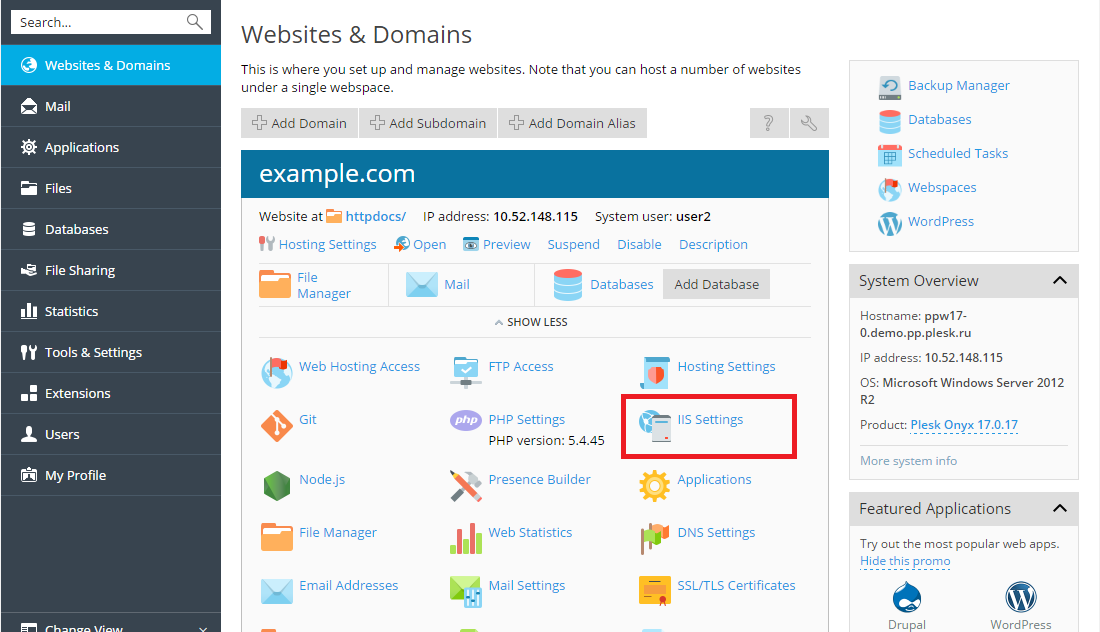
Credit: www.plesk.com
Troubleshooting Common Issues
File conflicts can stop your default page from loading. Make sure there is only one default file, like index.html or index.php, in your web directory. Different names can confuse the server. This confusion can cause errors. Look for extra files with similar names. Remove or rename them if necessary. Double-check your settings. Ensure your server knows which file to load first. This step is crucial for smooth operation.
Permissions determine who can see your files. Wrong permissions can block access to your default page. Ensure the default file has correct permissions. Use read permissions for visitors. You can set permissions using your hosting control panel. Find the file, then set permissions like 644 or similar. This ensures everyone can view your default page. Check other folder permissions too. They should allow access, but keep your site safe.
Verifying Changes
Check if the default page appears on your website. Open the browser. Type your website URL. The default page should load first. If it doesn’t, there might be a setup mistake. It’s important to fix this quickly. Look for common errors. Double-check your settings. Make sure the file name is correct. Watch out for typos in the file name. Ensure the file is in the right folder.
Testing Default Page Setup
Visit your website. The default page should greet you. If not, try clearing your browser cache. This might help. Sometimes, cache stores old pages. This can confuse your browser. Refresh the page after clearing cache. Check different browsers. Maybe one browser shows the correct page. This means the setup is likely correct.
Resolving Display Errors
Errors can be frustrating. They affect how your site looks. If an error appears, check the error message. It often gives clues. Follow the clues to fix the problem. Look at your hosting settings. Ensure they match the instructions. Check your file permissions. Files need correct permissions to display. Wrong permissions cause errors. Adjust them if needed.
Frequently Asked Questions
How Do I Change The Domain Default Page?
To change the domain default page, access your hosting control panel. Locate the “File Manager” and find the “public_html” directory. Rename or replace the current “index. html” file with your desired file. Ensure the new file is named “index. html” for it to become the default page.
How To Set The Default Page In Cpanel?
To set the default page in cPanel, navigate to File Manager. Locate the. htaccess file in the public_html directory. Edit the file and add “DirectoryIndex yourpage. html” at the top, replacing “yourpage. html” with your default page’s name. Save changes to update the default page setting.
What Is The Default Page Of A Website?
The default page of a website is typically the homepage. It often appears as “index. html” or “index. php”. This page serves as the main entry point, welcoming visitors and guiding them to other sections. It’s crucial for SEO and user experience.
What Is Web Server Default Page?
A web server default page is the initial page displayed when accessing a domain. It typically includes index. html or index. php. This page provides basic information or redirects visitors to the main site content. Web servers automatically deliver this page if no specific file is requested.
Conclusion
Setting a default page in web hosting is simple and crucial. It helps visitors find what they need quickly. Use your control panel to make these changes. Most hosting services offer easy-to-follow steps. Check your settings regularly for smooth operation.
Remember, a welcoming homepage enhances user experience. Keep your default page updated with fresh content. This ensures visitors return. With these tips, you can improve site navigation. Your audience will appreciate the effort. Better user experience often leads to more engagement.
Happy hosting!


