
Are you feeling stuck with a Godaddy web hosting plan that no longer suits your needs? Maybe you’ve found a better option or simply want to cut down on expenses.
Whatever your reason, canceling your Godaddy web hosting doesn’t have to be a daunting task. In this guide, we’ll walk you through the process step-by-step, ensuring you avoid common pitfalls and make a smooth transition. You’ll gain clarity on what to expect and how to handle any potential hiccups along the way.
Stick around, because taking control of your web hosting choices can be empowering, and we’re here to make sure you succeed effortlessly.
Reasons To Cancel Godaddy Hosting
Some people find Godaddy hosting too expensive. Others say their customer support is not helpful. Sometimes, websites can be slow or even go down. This can be bad for business.
Some users want more features or better security. They may switch to other hosts. Many people need better technical support. They need help when things go wrong.
Many users want more storage or bandwidth. They need these for their growing websites. Some find the interface hard to use. They want something easier.
Credit: www.godaddy.com
Pre-cancellation Checklist
Ensure all your important files are safe. Backing up is vital. Use a reliable tool for this. Save your website content and databases. Store them in a secure location. This step protects against data loss.
Check any outstanding bills. Clear all dues to avoid issues. Review your payment history. It helps you understand charges. Ensure no hidden fees exist. This keeps your account in good standing.
Keep your domain safe. Transfer it to a new host if needed. Follow the steps carefully. Ensure you have the authorization code. This code is essential for the transfer. Protect your domain ownership.
Accessing Your Godaddy Account
First, go to the Godaddy website. Find the “Sign In” button. It’s at the top. Click it to log in. Enter your username and password. Make sure the details are right. Click the “Sign In” button again. Now, you are inside your account.
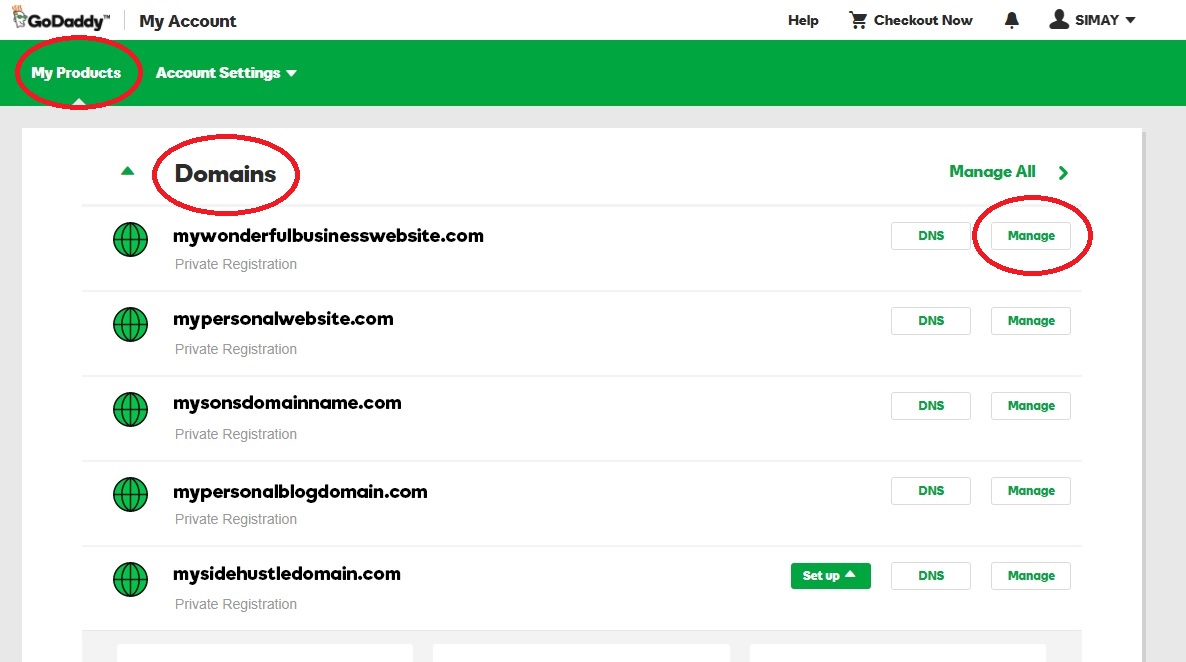
Look for the “My Products” page. It’s on the dashboard. This is where you can see all your services. Find the web hosting section. This is where you can manage hosting. It’s easy to see. The page is simple and clear.
Navigating To The Hosting Section
First, open your GoDaddy account page. Then, sign in with your details. Look for the My Products section. It’s where all your services are listed. Click on it. You will see a list of your products. Find the Web Hosting option. Click on it to expand the options. This is where you manage your hosting plan. Check for the hosting plan you want to cancel. Make sure you have selected the correct one.
Look for the options or settings next to your plan. Click to view more details. You will see a Manage button. Click it to proceed. Now, you’re ready to cancel your hosting.
Initiating The Cancellation Process
Open the Godaddy website. Log into your account. Find the “My Products” section. This section lists all your services. Look for your web hosting plan. Click on “Manage”. You will see many options. Search for the cancel option. It may be under settings. Read the instructions carefully. This ensures the cancellation is done right.
Click on the cancel button. A confirmation message may appear. Confirm your decision to cancel. Follow each step shown. Check any required information. Sometimes, you need to enter reasons. After completing steps, wait for a confirmation email. This email confirms your cancellation. Keep it for future reference.
Credit: www.godaddy.com
Managing Refunds And Final Charges
Cancel your GoDaddy hosting with ease. Log in to your GoDaddy account. Navigate to the “My Products” section. Find your hosting plan. Click the “Manage” button next to it. Select “Cancel Renewal” to stop future charges.
Refunds are available within 30 days. Ensure you’re eligible before proceeding. Check the refund policy on their website. Some products may have different terms.
Contact customer support if needed. They can assist with final charges. Be ready with your account details. This helps speed up the process.
Monitor your bank account for any refunds. It might take a few days to reflect. Keep an eye on your email for confirmation.
Post-cancellation Considerations
Canceling Godaddy web hosting requires a few steps. Log into your account, locate your hosting plan, and select “Cancel Renewal” or “Cancel Plan. ” Always back up your data beforehand. Double-check any cancellation fees or refund policies.
Confirm Cancellation
Check your Godaddy account. Ensure the hosting is cancelled. Look for any active services. This step is very important. You don’t want surprises later. Contact support if something is wrong. They can help you. Keep all cancellation information safe. This helps in future issues.
Monitor Email For Confirmation
Godaddy will send an email. Watch your inbox closely. It confirms your cancellation. This email is proof. Save it carefully. It’s important for records. Check your spam folder too. Sometimes emails go there. Ensure you don’t miss this email. It confirms everything is done.
Credit: www.godaddy.com
Alternative Hosting Options
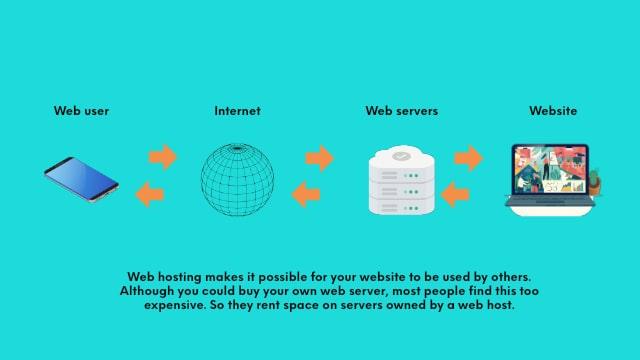
Many people use Godaddy for hosting. But there are other choices. Bluehost is one option. They have good prices. SiteGround offers strong security. Many people like their support. HostGator is known for easy use. Beginners find it helpful. A2 Hosting is fast. It makes websites load quickly. DreamHost is another choice. They offer different plans. Each host has unique features. It’s important to compare them. Choose what fits your needs best. Read reviews for more ideas. Your website deserves the best host.
Frequently Asked Questions
How Do I Cancel Godaddy Hosting?
Log in to your GoDaddy account, visit “My Products,” select your hosting plan, and click “Manage. ” Choose “Cancel Renewal,” confirm cancellation, and follow any prompts to complete the process.
How Do I Cancel My Website Hosting?
Log into your hosting account and navigate to the “Billing” or “Subscription” section. Select “Cancel Hosting” and follow the instructions. Confirm cancellation, and check for any final charges or confirmations. Contact support if you need help.
How Do I Shut Down My Godaddy Website?
Log in to your GoDaddy account and navigate to “My Products. ” Click “Manage” next to your website. Choose “Delete” to shut it down. Confirm the action when prompted to complete the process.
How Do I Remove Hosting From Godaddy?
Log in to your GoDaddy account. Navigate to your “My Products” page. Find the hosting plan you wish to remove. Click on “Manage,” then select “Cancel” or “Delete. ” Follow the prompts to confirm the cancellation. Your hosting will be removed from GoDaddy.
Conclusion
Canceling GoDaddy web hosting is simple with these steps. First, log into your account. Next, find the hosting plan you want to cancel. Follow the instructions to complete cancellation. Double-check your account status afterward. This ensures your hosting is canceled.
Don’t forget to backup your important data. It’s crucial before cancellation. If you face issues, GoDaddy support can help. They offer guidance on technical concerns. This guide helps you navigate the process smoothly. Feel empowered to manage your hosting needs.
Stay informed and proactive. Your web hosting decisions are in your hands.


