
Are you ready to take your Java web application to the next level by hosting it on IIS? Imagine the possibilities of enhanced performance, security, and scalability that come with integrating your Java application into the robust IIS environment.
You might think that merging these two technologies sounds complex, but it’s simpler than you might expect. In this guide, you’ll discover step-by-step instructions that make the process straightforward and efficient. Whether you’re a seasoned developer or just starting out, you’ll find actionable insights that can transform your hosting experience.
Dive in to learn how you can seamlessly host your Java web application in IIS and unlock its full potential.
Prerequisites
A computer with enough RAM is necessary. At least 4GB is recommended. A 64-bit operating system is also important. Make sure you have a fast processor. At least a dual-core is advised. Ensure your system has enough disk space. Around 10GB should be free.
First, download and install Java Development Kit (JDK). Then, you need Apache Tomcat. This helps run Java apps. Finally, install Internet Information Services (IIS). This helps host your web application. Make sure to configure these tools properly. Proper configuration ensures smooth operation.

Credit: www.helicontech.com
Configure Java Environment
The Java Development Kit (JDK) is essential. Download it from the official Java site. Install the JDK by following simple instructions. Ensure you choose the right version for your system. After installation, set the JAVA_HOME path. This tells your computer where Java is. Check the JDK is installed by typing java -version in the command prompt. You should see the version number displayed. If not, check the installation steps again.
The Java Runtime Environment (JRE) is needed to run Java applications. It usually comes with the JDK. Check if the JRE is installed by typing java -version. You should see the version details. If not, download the JRE from the Java site. Install it by following simple steps. The JRE helps run Java programs smoothly. Ensure the system path includes the JRE folder. This makes Java applications run without issues.
Install Internet Information Services (iis)
Open the Control Panel on your computer. Find the option called Programs and click it. Next, choose Turn Windows features on or off. A list will appear. Look for Internet Information Services and check the box next to it. Click OK to enable IIS. This process may take a few minutes. Once done, IIS is ready on your computer.
Ensure the right features are active. Start by revisiting the Windows features list. In IIS, select Web Management Tools and World Wide Web Services. Expand these options for more features. Look for Application Development and enable options like CGI and ISAPI Extensions. These are crucial for Java apps. Confirm your selections and click OK. Your IIS setup is now prepared for hosting Java applications.

Credit: hostadvice.com
Integrate Java With Iis
First, download and install the ISAPI Extensions. These help IIS talk with Java. Ensure you have the correct version. The installation process is simple. Follow the steps given by the installer. This ensures everything works smoothly.
After installation, configure the ISAPI Redirector. This tool connects IIS and the Java application. Open the configuration file. Set the paths for your Java files. Double-check all entries. Save the changes and restart IIS. Your Java web app should now run with IIS.
Deploy Java Web Application
Explore hosting Java web applications on IIS with ease. Configure IIS for Java by installing the necessary extensions. Ensure your server is ready to serve Java applications efficiently.
Prepare Application Files
Ensure your Java application files are ready. Check for any missing files. Make sure all configurations are correct. Verify the application structure.
Create a WAR file from your Java project. Use a tool like Maven or Gradle. This file will be uploaded to the server. Double-check the WAR file for errors.
Upload To Iis Server
Access the IIS server using Remote Desktop. Navigate to the correct directory. Upload the WAR file to the server. Use the IIS Manager tool.
Configure the server to run the Java application. Set up permissions for the application files. Test the application after uploading. Ensure everything works correctly.
Configure Iis For Java
Create a new Application Pool in IIS Manager. Select the right framework. Choose No Managed Code for Java applications. Set the pool to start automatically. This helps your app run without delay. Use integrated mode for better performance. Ensure all settings are saved. This pool is now ready.
Open IIS Manager and locate your site. Right-click and add a Virtual Directory. Enter the alias name and path. This path is where Java files are stored. Ensure the path is correct. Set permissions for read and write. These permissions allow your app to function well. Save all changes and test the setup. Your directory is now active.
Test Java Web Application
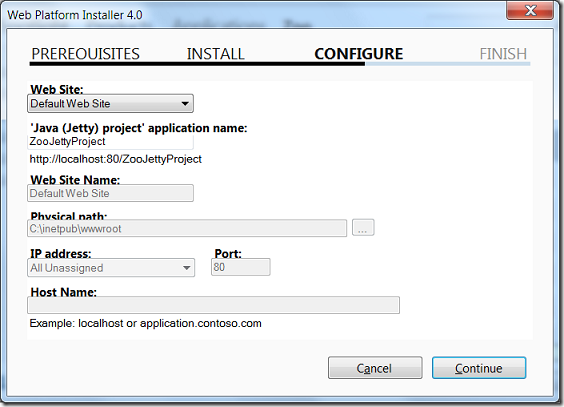
Access Application via Browser is easy. First, open your browser. Type the URL of your Java Web Application. Press Enter to load the page. Wait for the application to appear. Check if everything looks correct. Make sure all links work. Try clicking buttons. Ensure forms submit properly. If something seems wrong, it might need fixing.
Troubleshoot Common Issues to keep your application running smoothly. Sometimes pages won’t load. Check the server first. Make sure it’s running. Sometimes the URL is wrong. Double-check it for typos. Look for errors in code. Debugging can help. Use logs to find problems. Restart the server if needed. Contact support if issues persist.
Credit: www.helicontech.com
Optimize Performance
Enable Caching to speed up your Java web application. Caching saves data for later use. This means the server works less and pages load faster. Use a cache that fits your needs. This can make a big difference in how your app runs. Always remember to clear old cache data.
Monitor Server Load to keep your app running smoothly. Check server usage often. If the server is busy, the app slows down. High load can cause problems. Use tools to watch server health. Adjust settings to reduce load when needed. Keep an eye on trends to predict future needs.
Security Considerations
HTTPS protects your website. It uses encryption to keep data safe. Install a SSL certificate on your server. This makes your site secure. Users trust sites with HTTPS. Data sent is encrypted. Hackers can’t read encrypted data. It is important for privacy. Ensure your site uses HTTPS.
Firewalls protect servers. They block harmful traffic. Configure firewalls correctly. Allow only trusted IPs to access. Block suspicious activity. Regularly update firewall rules. This keeps the server safe. Firewall settings are crucial. They stop unauthorized access. Protects from cyber threats. Keep your web app secure.
Frequently Asked Questions
Can We Host A Java Application In Iis?
Hosting a Java application directly in IIS isn’t possible. Use a bridge like JNBridge or IKVM. NET to integrate. Alternatively, deploy the Java app on a dedicated Java server like Apache Tomcat, then use IIS as a reverse proxy. This approach ensures compatibility and optimal performance.
How To Host A Java Web Application?
To host a Java web application, choose a reliable web hosting service supporting Java. Deploy your application using a servlet container like Apache Tomcat or Jetty. Configure your server environment, including JVM settings, database connections, and security. Regularly update and maintain your server to ensure optimal performance.
How Do I Host A Web Application In Iis?
To host a web application in IIS, install IIS via Windows Features. Create a new website in IIS Manager, set the site path to your application folder, and bind it to a port. Ensure necessary permissions and start the site.
Ensure the. NET framework is correctly configured if needed.
How To Run A Java Program On A Web Server?
Install a Java web server like Apache Tomcat. Deploy your Java application as a WAR file. Configure server settings, and start the server. Access your program via the server’s IP address or domain name. Ensure your server supports the required Java version and libraries.
Conclusion
Hosting a Java web application on IIS is achievable. Follow the steps outlined above. Ensure you have the necessary software and configurations. Check for compatibility with your system requirements. Test your application thoroughly before going live. Address any issues promptly to maintain functionality.
Always keep your server secure and updated. Engage with community forums for support if needed. Your Java web application can run smoothly on IIS. With practice, this process becomes simpler and more efficient. Embrace the learning experience. You gain valuable skills and insights along the way.


