
Are you ready to unlock the full potential of your website? Logging into Web Host Manager (WHM) is your gateway to managing and optimizing your web hosting environment.
Whether you’re a seasoned developer or a curious beginner, mastering the WHM login process can revolutionize the way you handle your digital assets. Imagine having the power to control server settings, monitor resources, and streamline your site’s performance, all at your fingertips.
In this guide, you’ll discover the simple steps to access WHM, ensuring you can take charge of your online presence confidently and effortlessly. Dive in and let’s simplify your web hosting experience together!
Accessing Web Host Manager
Find your Web Host Manager URL first. It usually follows a pattern. Your URL might look like: https://yourserverip:2087. You can replace “yourserverip” with the actual server IP address. Check with your web host provider if unsure.
Always use secure connections. This keeps your data safe. Look for URLs starting with “https”. This means the connection is secure. Avoid using “http” for WHM login. It is less secure. Using secure connections protects your login details.
Gathering Login Credentials
Choose a unique username for security. Avoid using common names or words. Usernames should be easy to remember but not easy to guess. Never share your username with strangers.
Passwords must be strong and secure. Use a mix of letters, numbers, and symbols. Longer passwords are better. Avoid using simple words or your name. Change passwords regularly.
Navigating The Login Page
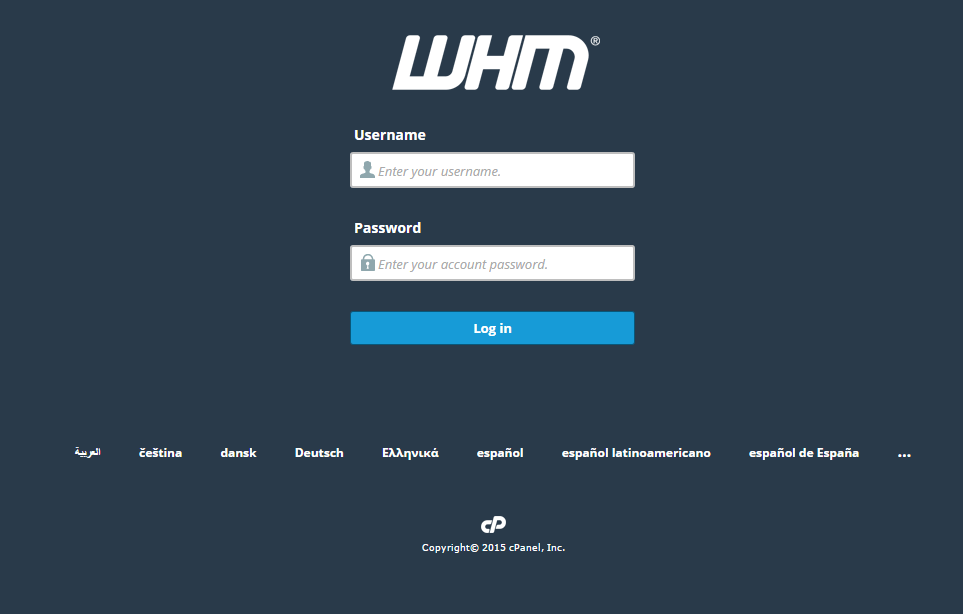
Understanding the interface is key for a smooth login. The page shows a few boxes. Enter your username in the first box. Type your password in the next box. Check for any typos. The login button is below. Click it to proceed. If you see an error, don’t worry. It can be fixed easily.
Error message handling helps you fix issues fast. An error message might pop up. It may say wrong username or password. Double-check your details. Make sure the Caps Lock is not on. If the problem stays, try resetting your password. Look for a “Forgot Password” link. Follow the steps to reset. Always use a strong password. This keeps your account safe.
Credit: www.thesslstore.com
Two-factor Authentication
Two-Factor Authentication adds extra security. First, find the 2FA option in settings. Then, scan the QR code with your phone. Enter the code shown on your app. This links your account to your phone. Always save recovery codes. They help if you lose your phone. Keep them safe.
Problems can happen with 2FA. Check your phone’s time settings. They must be correct. Code not working? Try refreshing the app. Make sure your internet is on. If still stuck, contact support. Always have recovery codes ready. They help when things go wrong.
Security Best Practices
Accessing Web Host Manager requires entering your credentials on the login page. Ensure your password is strong and unique. Enable two-factor authentication for added security.
Updating Your Password Regularly
Change your password every few months. This keeps your account safe. Choose passwords that are hard to guess. Avoid using simple words or dates. Mix letters, numbers, and symbols. Never share your password with others. Write it down in a safe place. Use a password manager if possible. It helps keep track of your passwords securely. Be careful when entering your password in public spaces. Someone might be watching.
Recognizing Phishing Attempts
Phishing tries to trick you. Be careful with emails asking for your login info. They might look real but are fake. Check for spelling mistakes in emails. Look at the sender’s email address closely. Do not click on unknown links. They might lead to harmful websites. Always log in directly through known sites. Do not use links from suspicious emails. If unsure, contact your web host provider. They can confirm if the email is real.

Credit: www.resellerclub.com
Common Login Issues
Logging into Web Host Manager often leads to common issues like forgotten passwords or incorrect usernames. Double-check login credentials and ensure server settings are correct. Clearing browser cache or trying another browser can resolve access problems.
Forgotten Credentials
Many users forget their login details. This is a common problem. Passwords can be hard to remember. It’s important to write them down. Keep them in a safe place. Using a password manager helps. It stores your login details securely.
Account Lockout Procedures
Accounts may get locked after many failed attempts. This is a security feature. It protects your account from hackers. To unlock, follow the account recovery steps. You might need to contact support. They can assist you. Resetting your password might be required. Be ready to verify your identity. This ensures your account stays safe.
Contacting Support
Sometimes, things don’t work as they should. Support is there to help. Reach out when you face login issues. If you can’t access your account, it’s time to contact them. Technical glitches need support attention. Struggling with password recovery? They can assist. Support is also helpful for billing questions. If something is unclear, don’t hesitate. Security concerns are important too. Inform them about any suspicious activity. Support can provide guidance and solutions. You are not alone. They aim to solve problems fast. Patience helps while waiting for a response. Support is your ally. Contact them through email or chat.

Credit: www.inmotionhosting.com
Frequently Asked Questions
How Do I Access Web Host Manager?
Access Web Host Manager by entering your server’s IP address in your browser. Use “:2087” for secure login. Enter your credentials and click “Login”. Ensure you have admin privileges to manage server settings. Always log out after use to maintain security.
How Do I Login Directly To Cpanel?
Log in to cPanel by entering “yourdomain. com/cpanel” in your browser. Enter your username and password. Access cPanel directly through your hosting provider’s dashboard, often found in the account settings or services section. Ensure credentials are correct for a successful login.
How Do I Login To The Hosting Control Panel?
To login to the hosting control panel, visit your hosting provider’s website. Enter your username and password in the login section. Click the login button to access your control panel. Ensure your credentials are correct to avoid login issues.
How To Access Webmail Cpanel?
Log in to your cPanel account. Locate the “Email” section and click on “Email Accounts. ” Select “Check Email” next to the desired account. Choose your preferred webmail application to access emails.
Conclusion
Logging into Web Host Manager is simple with the right steps. Follow the guide to ensure a smooth process. Always keep your login details secure. This prevents unauthorized access. Regularly update your passwords for extra security. Familiarize yourself with the interface.
It helps in managing your hosting tasks efficiently. Remember, practice makes perfect. Use this guide whenever you need a refresher. With time, logging in will be second nature. Stay consistent and manage your web hosting effortlessly. We hope this guide helps you confidently access Web Host Manager.
Keep exploring and learning.


