
Are you ready to take your web application live and make it accessible to the world? Hosting your web application in IIS 6.0 might sound daunting, but with the right steps, it becomes a manageable task.
Imagine the satisfaction of seeing your application running smoothly, serving users around the globe. In this guide, you’ll discover how to host your web application in IIS 6. 0, turning your ideas into reality. We’ll break down the process into clear, actionable steps, ensuring you don’t miss a beat.
By the end, you’ll feel confident and empowered, knowing you can handle your hosting needs like a pro. Let’s dive in and unlock the potential of your web application.
Setting Up Iis 6.0
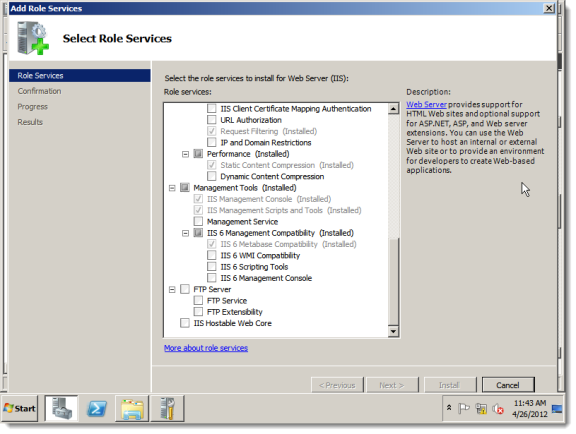
To start, open Control Panel. Click on Add or Remove Programs. Choose Add/Remove Windows Components. Select Internet Information Services (IIS). Check the box and press Next. Wait for the installation to finish. Ensure all components are selected. This makes sure IIS works well.
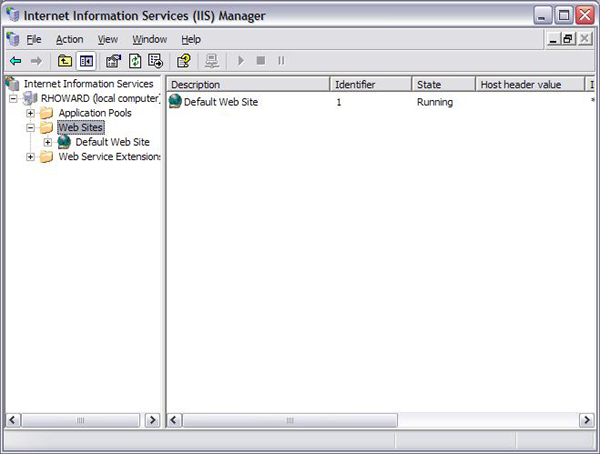
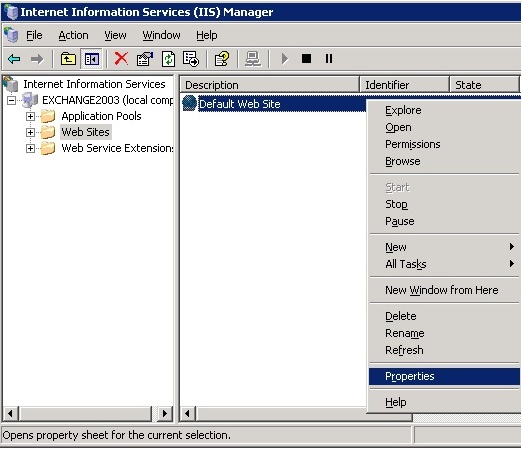
Open IIS Manager from the Start menu. Right-click on the Default Web Site. Choose Properties. Set the home directory path. Make sure to use the correct path. Check the HTTP Headers tab. Set up basic settings like Content Expiration. This helps with caching. Click on OK to save changes.
Preparing Your Web Application
Check your web app for compatibility with IIS 6.0. Ensure it supports ASP.NET and required features. Use simple technology that IIS 6.0 understands. Avoid advanced features that may not work. Ensure your app uses basic scripts and functions.
Test your app on a similar system. Identify any issues or errors. Fix them before hosting. This helps prevent problems later.
Keep your files organized. Use clear folder names. This helps in finding files easily. Group similar files together. For example, keep all images in one folder.
Ensure your index or main file is easy to find. This is the file IIS will load first. Place this file in the root folder. Organize stylesheets and scripts in separate folders. This makes the structure clean and easy to manage.
Creating A New Website
Open IIS Manager on your computer. Find the option to add a new website. Click on it. A box will appear. Fill in the details. Type the website name in the box. Choose the folder where your files are. This is important. Click OK when done.
A domain name helps people find your site. Pick a name that is easy to remember. Type this name in the domain box. Check if the name is free. You can use tools online for this. Buy the domain if it is free. Link the domain to your website. This makes the website live.
Credit: learn.microsoft.com
Configuring Application Pool
First, open IIS Manager on your server. Look for the Application Pools node. Right-click on it. Select New and then Application Pool. A window will pop up. Enter a name for your pool. Choose the Use default settings option. This option is often the best choice. Click OK to create the pool.
Find your web application in IIS Manager. Right-click on it. Choose Properties from the menu. A new window will open. Go to the Home Directory tab. Look for the Application Pool dropdown. Select the pool you created earlier. Click Apply, then OK. Your app is now assigned to the new pool.
Setting Up Security
IIS 6.0 uses different ways to check who you are. Anonymous Authentication lets anyone view your site. Basic Authentication asks for a username and password. It’s simple but not very safe. Windows Authentication is safer and uses your computer’s login info. Pick the right method for your needs. Choose wisely.
Permissions control who can see or change your files. Give Read permission if you want people to view only. Write permission lets them change things. Be careful with this. Execute permission runs programs on your server. Only allow this if needed. Always check your permissions. Keep your site safe.
Credit: webfiles-sc1.blackbaud.com
Deploying The Application
To host a web application in IIS 6. 0, start by installing IIS on your server. Configure the application pool and set up the website using the IIS Manager. Ensure the application is in the designated directory and adjust the security settings for smooth deployment.
Uploading Files To Server
First, gather all your web files. Place them in one folder. Use an FTP client or Windows Explorer to upload the folder. Connect to the server using your credentials. Drag and drop the folder to the server’s web directory. Make sure all files are uploaded. Check for any errors during transfer. Files should now be on the server.
Testing The Deployment
Open a web browser. Enter the server’s IP address. The application should load. Check each page for errors. Test links and buttons. Ensure everything works as expected. If there are issues, look at the server logs. Fix any problems you find. The application should now be live.
Managing Website Performance
Setting up a web application in IIS 6. 0 enhances site performance. Start by installing IIS on your server. Configure application pools and sites for optimal functionality.
Monitoring Server Resources
Monitoring server resources helps keep your website running smoothly. CPU usage and memory consumption should be checked regularly. They show how much work the server is doing. Use tools to see these numbers. Too much usage can slow down your site. Regular checks prevent problems. This keeps your site fast for users. Fast sites are more enjoyable to visit.
Optimizing Settings
Optimizing settings improves how your website performs. Adjust IIS settings for better speed. Set timeout limits to prevent hanging. Enable compression to reduce data size. This makes pages load faster. Turn on caching to store data temporarily. This reduces the load on the server. Keep your settings updated for best results. A well-optimized site is quick and efficient.
Troubleshooting Common Issues
Hosting a web application in IIS 6. 0 can be tricky. Common issues include incorrect permissions and missing configurations. Ensure all settings align with the application requirements for smooth operation.
Resolving Configuration Errors
Configuration errors can stop your application. Check your web.config file for mistakes. A missing or wrong setting can cause trouble. Ensure paths are correct and settings are accurate. Sometimes, files are missing. Make sure all needed files are in the right folder. Double-check IIS settings. Incorrect settings can block access. Permissions must be correct. Users need permission to access files. Verify settings for each user.
Handling Application Crashes
Applications crash due to memory issues. Watch server memory closely. Low memory can cause crashes. Logs hold clues. Check logs for error messages. They can show what’s wrong. Debugging tools are helpful. Use them to find problems. Code errors lead to crashes. Review code for mistakes. Fix errors to stop crashes. Regular updates help. Keep software updated. New versions fix bugs and improve stability.
Credit: www.namecheap.com
Frequently Asked Questions
How To Host A Web Application On Iis?
Install IIS via Control Panel. Add a new website in IIS Manager. Set site name, physical path, and bindings. Configure application pool settings. Deploy your web application files to the specified directory. Test the setup by accessing the site URL in a browser.
How To Host .net Core 6 Web Api In Iis?
Install. NET Core Hosting Bundle on the server. Publish your API using Visual Studio. Copy published files to IIS directory. Open IIS Manager, create a new site, and point it to the API directory. Set the. NET Core runtime version.
Start the site to host your. NET Core 6 web API.
How To Run An Application From Iis?
Open IIS Manager, navigate to your site, right-click and choose “Manage Application. ” Select “Browse” to run your application. Ensure your application pool settings match your application’s requirements for smooth execution. Adjust permissions if necessary for proper access.
Is Iis A Web Server Or Application Server?
IIS, or Internet Information Services, is primarily a web server. It hosts websites and web applications. IIS can also function as an application server by supporting web applications with features like ASP. NET, PHP, and more. It provides a flexible platform for web hosting and application deployment.
Conclusion
Hosting a web application in IIS 6. 0 is straightforward. Follow the steps closely. Prepare your server first. Set up the application next. Adjust settings for security and performance. Test the application thoroughly. Ensure everything works smoothly. Troubleshooting helps fix common issues.
Remember, practice makes perfect. Revisit steps if needed. Keep learning to improve skills. Hosting takes patience. But, it’s rewarding when done right. Your web application is ready for users. Enjoy seeing your work online. It’s a valuable experience. Keep exploring new features.
Enhance your application as you go. Embrace the journey of web hosting.


