
Are you looking to supercharge your online store and take it to the next level? Adding Magento to your web hosting might just be the game-changer you need.
Imagine having a platform that’s not only robust but also incredibly flexible, allowing you to customize your e-commerce site just the way you want it. You might wonder if this is a complex process, but worry not. With the right guidance, you can easily integrate Magento into your hosting environment and start reaping its numerous benefits.
In this guide, you’ll uncover step-by-step instructions that make this process a breeze. Whether you’re a tech novice or a seasoned developer, you’ll find the insights and tips needed to get Magento up and running smoothly. Don’t let technical jargon hold you back. Dive in, and let’s transform your e-commerce experience together. Your customers will thank you, and your sales might just skyrocket.
Credit: www.nexcess.net
Choosing The Right Hosting Provider
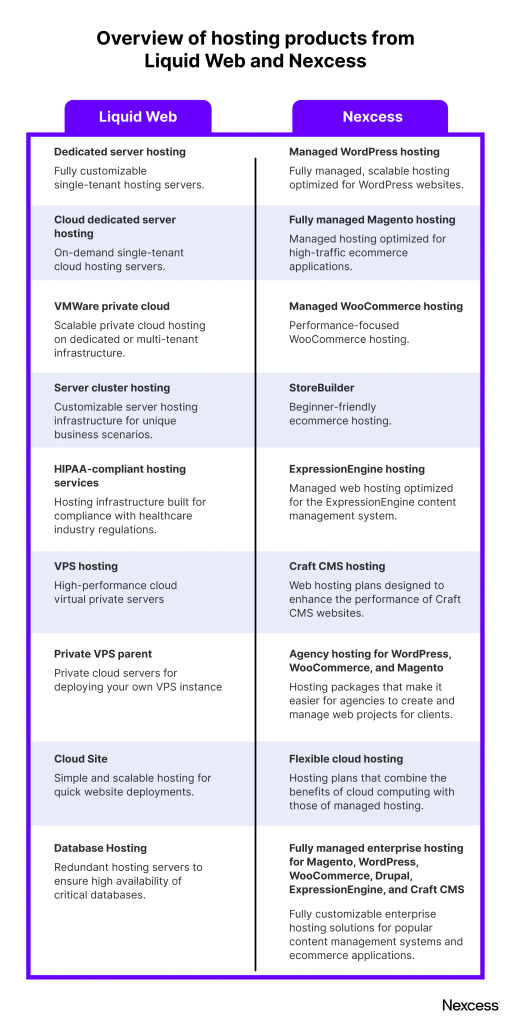
Choosing between shared and dedicated hosting is important. Shared hosting is cheaper. But, it may be slow. Many websites share the same server. Dedicated hosting is faster. It is more expensive. You get your own server. Consider your needs and budget.
Magento has specific system requirements. It needs PHP 7.4 or higher. MySQL 5.7 or later is needed. Apache 2.4 or Nginx 1.x is required. Ensure your hosting supports these. Check for enough RAM and disk space. Magento needs at least 2GB of RAM. This ensures smooth running.
Credit: www.liquidweb.com
Preparing Your Hosting Environment
First, ensure your server meets all requirements. The server needs to be Linux-based. It should have at least 2GB RAM for smooth operation. A stable internet connection is essential. Secure access to your server is necessary. Use SSH for remote connections. This keeps your data safe.
Install PHP version 7.3 or higher. This is crucial for Magento. Set up MySQL version 5.6 or later. MySQL is your database. Ensure both are properly configured. Adjust PHP settings like memory limit. This helps in smooth Magento operation. Create a MySQL database for Magento. Remember the username and password.
Downloading Magento
Magento comes in different versions. Each version has unique features. There are two main types: Open Source and Commerce. Open Source is free. Commerce offers more features but costs money. Choose based on your needs. Check for the latest version. Newer versions have better security.
You can download Magento from the official website. Go to Magento’s site. Find the download section. Choose the version you need. Click download. Save the file on your computer. Be sure to have enough space. The file might be large. Follow the instructions given on the site.
Uploading Magento To Your Server
FTP clients help move files to your server. FileZilla is a good choice. First, download and install FileZilla. Connect to your server using FTP credentials. These are username, password, and host. Drag the Magento files from your computer. Drop them into the server’s root directory. Wait for files to upload. This may take time. All files must be uploaded. Check all files are in the right folder.
Correct file permissions are important. They keep your site secure. Set folders to 755. This means they can be read and written. Files should be set to 644. This means they can be read but not changed. Use your FTP client to change these settings. Right-click on folders or files. Choose ‘File Permissions’. Enter the correct number. Click OK to save changes.
Installing Magento
Find the Magento setup wizard. This wizard helps you install Magento. You need a web browser to access it. Type the URL in the address bar. Press enter. The wizard will open. Follow the steps carefully. Each step is important. Read each instruction. Click ‘Next’ to proceed. Keep moving forward.
Magento needs a database to store data. Create a new database for Magento. Note the name and password. You will need them later. Enter the database details in the setup wizard. Be careful with the details. Ensure they are correct. Incorrect details cause errors. Double-check each entry.
Configuring Magento Settings
Setting up your store information is vital. Enter your store’s name. Add your business email for customer contact. Provide a phone number for support. Include your business address. This helps customers find you easily. Keep the information accurate and updated. Trust builds with clear details.
Choose your local language for the store. Pick the main currency for transactions. Set the correct time zone for your region. These settings affect customer experience. Easy navigation is key. Ensure prices reflect the chosen currency. Accurate time settings prevent confusion. Adjust settings as needed. It makes shopping smooth.
Enhancing Magento Performance
Caching improves Magento performance. Store data temporarily. Reduce load times. Less server requests needed. Use Varnish for full-page caching. It’s fast and efficient. Redis is great for session storage. Memcached helps with database queries. All speed up your site. Choose the right caching tool for your needs. Simple setup. Better user experience. Faster store loading. Happy customers.
Images can slow down your website. Keep them small. Use formats like JPEG or PNG. Compress images without losing quality. Tools like TinyPNG are helpful. Optimize image size for web. Reduce server load. Improve page speed. Lazy load images for better performance. Only load images when needed. Simple adjustments can enhance site speed. Faster sites attract more visitors.
Securing Your Magento Store
SSL Certificates keep your store safe. They encrypt data between users and servers. This protects personal information. Customers feel safer buying from your store. A secure site shows a padlock icon in the browser. This builds trust with visitors. Many hosts offer free SSL. Always check your hosting plan. Install the certificate through your control panel. It’s an easy process. Follow the instructions provided by your host.
Keep Magento updated. Updates fix security issues. They also add new features. Always check for updates often. Set reminders if needed. Use the Magento admin panel to update. This tool makes updating simple. Updates protect your store from hackers. They also make your store run better. Never skip an update. It keeps your store safe and fast.
Troubleshooting Common Issues
Sometimes, installing Magento can cause errors. These errors might be because of incorrect file permissions. Make sure your files have the right permissions. Double-check the server requirements. Your server should match Magento’s needs. Also, check your database settings. Incorrect settings can stop the installation. Always use the latest version of Magento. New versions fix old problems.
Magento can be slow if not set up right. Start by checking your server resources. It needs enough memory and CPU. Use caching to make it faster. Caching saves time. Also, try using a content delivery network (CDN). This helps load pages quicker. Keep Magento updated. Updates fix performance issues. Lastly, remove any unnecessary extensions. Too many extensions slow things down.

Credit: www.ecenica.com
Frequently Asked Questions
How To Install Magento On Server?
To install Magento, first download the software from the official website. Upload files to your server. Set up a database. Run the web-based installer and configure settings. Follow the on-screen instructions to complete installation. Ensure server meets Magento’s requirements for optimal performance.
How To Install Magento In Cpanel?
Log into cPanel and use Softaculous to install Magento. Navigate to “eCommerce” and select “Magento. ” Click “Install Now,” configure settings, and complete the installation. Ensure your server meets Magento’s requirements for a successful setup.
How To Host A Website In Magento?
To host a Magento website, choose a compatible hosting provider. Install Magento using their one-click installation. Configure the server environment for performance optimization. Secure the website with SSL. Regularly update Magento for security and features.
How To Install Magento On Localhost?
To install Magento on localhost, first download Magento from its official website. Set up a local server using XAMPP or WAMP. Create a new database in phpMyAdmin. Extract Magento files into the server’s root directory. Run the installation wizard by accessing “localhost/magento” in your browser.
Follow on-screen instructions to complete.
Conclusion
Setting up Magento on your web hosting is straightforward. Follow these steps carefully. Begin with checking your hosting compatibility. Next, download Magento and upload it. Use your control panel to create a database. Connect it during installation. Configure settings as needed.
That’s it. Your online store is ready to go. Regular updates keep it secure. Ensure your hosting supports these updates. Now, you can manage your products easily. Enjoy the flexibility Magento offers. Happy selling!


