
Are you struggling to delete a web page on BlueHost? You’re not alone.
Managing your website can sometimes feel overwhelming, especially when it comes to making changes you’re not entirely familiar with. But don’t worry; you’re about to discover how easy it can be to delete a web page on BlueHost. Imagine the relief of clearing out old content or mistakes with just a few clicks, making your site cleaner and more efficient.
In this guide, we’ll walk you through the process step by step, ensuring you feel confident and in control of your website. Let’s dive in and simplify your web management experience together!

Credit: www.youtube.com
Accessing The Bluehost Dashboard
First, log into your Bluehost account. The dashboard holds all the controls. Locate the login section on the homepage. Enter your username and password. Click the “Log In” button. You will see the main dashboard. It shows your websites, settings, and tools.
Find the “My Sites” tab. Click on it to view your sites. Select the site you want to delete. This will open more options. Look for the “Manage Site” button. Click it to access more controls. You can make changes to your site here.
Navigate to the settings menu. Here, you can change site preferences. Scroll down to find the “Delete Site” option. Before you proceed, ensure you have backed up all data. Confirm the deletion by following prompts. Your site will be removed from the server.

Credit: www.bluehost.com
Navigating To File Manager
Start by logging into your Blue Host account. Find the control panel on the main page. Look for the File Manager option. Click on it to open.
The File Manager lets you see all your website files. It’s like a big folder. You can find your web pages here. Select the page you want to delete. Look for the delete option in the toolbar.
Make sure you choose the right file. Press the delete button. Confirm your choice to remove the page. Be careful not to delete important files. It’s easy to manage your site from here.
Locating The Web Page
Directories are folders. They hold your web pages. Log in to your Blue Host account. Navigate to the File Manager. Identify the correct directory. Check folders and files. Locate the web page you want to delete. Verify its name and location. Be careful. Wrong deletion can cause issues. Always double-check.
Sometimes finding files is hard. Use the search feature. Open File Manager. Type the web page name in the search bar. Results show matching files. Verify file details before deletion. Make sure it’s the right one. Select the file. Proceed with caution. Double-check your choice. Avoid mistakes.
Deleting The Web Page
First, log in to your Blue Host account. Find the control panel. Look for the File Manager icon. Click on it. A list of directories will show. Locate the public_html folder. This is where your web files live. Navigate through the folders. Find the file you want to delete. Check the file name. Make sure it’s the right one.
Select the file by clicking on it. Look for the delete button on top. Click it. A confirmation box will appear. It will ask if you want to delete. Press the confirm button. The file is now gone. Check your website. The page should no longer show. If it does, refresh your browser.
Clearing Browser Cache
Browser cache stores website data. It helps pages load fast. Sometimes, cache causes issues with websites. Clearing it can fix problems. Each browser has a different method. Here’s a simple guide for popular browsers:
| Browser | Steps to Clear Cache |
|---|---|
| Chrome | Go to settings. Click “Privacy and Security”. Select “Clear Browsing Data”. |
| Firefox | Open menu. Choose “Options”. Click “Privacy & Security”. Hit “Clear Data”. |
| Edge | Go to settings. Click “Privacy, Search, and Services”. Select “Choose What to Clear”. |
Clearing cache makes a difference. It ensures you see the latest page version. Try it and see the change.
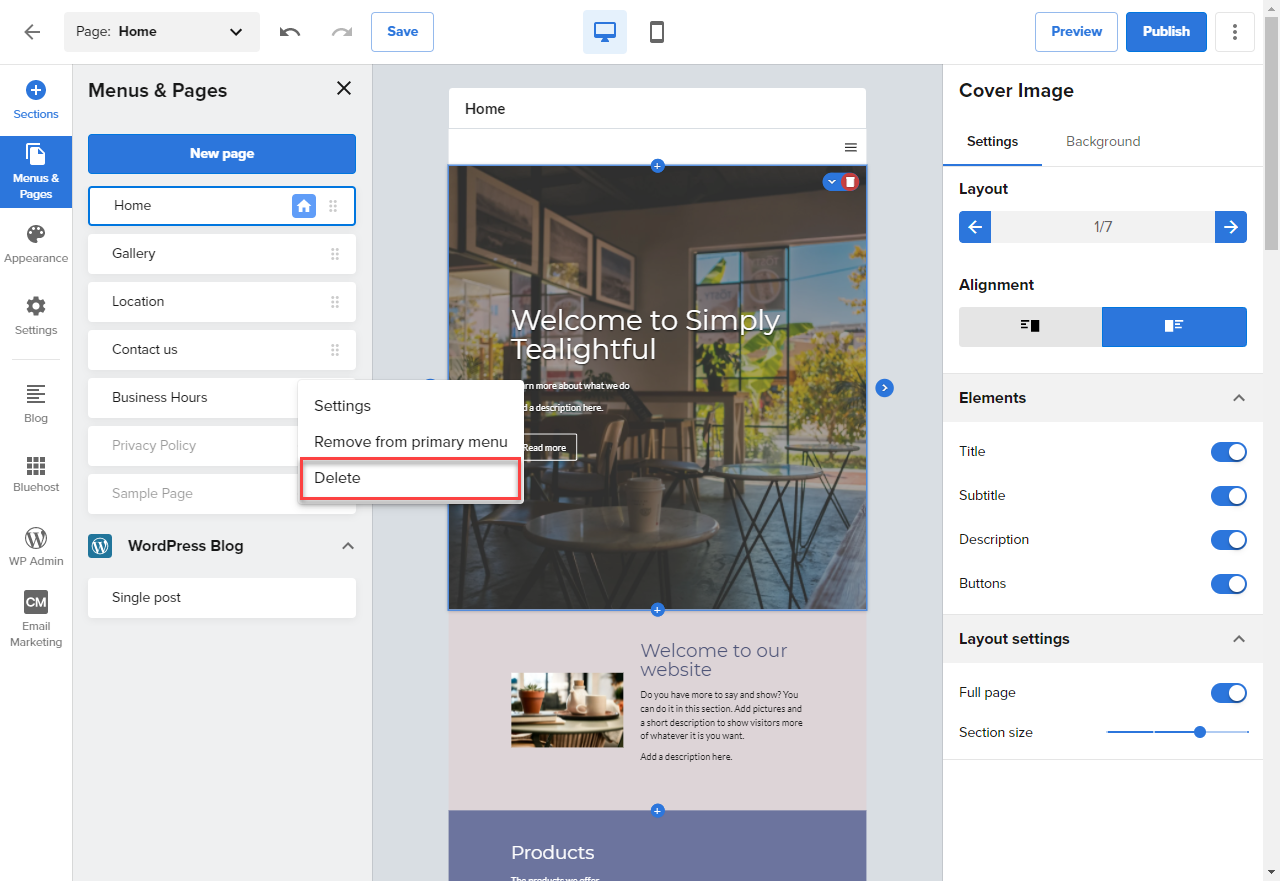
Credit: www.bluehost.com
Verifying The Deletion
Ensure the web page is deleted by checking your Bluehost account. Visit the file manager to confirm removal. Refresh your browser to see changes.
Checking Website Frontend
Ensure the web page is truly gone. Open your browser. Type your website address. Press Enter. The page should not load. It must show an error or blank page. This confirms the deletion. Refresh the page to double-check. No old content should appear. If the page still loads, check settings again. Make sure you saved changes.
Ensuring No Broken Links
Broken links can confuse visitors. They can harm your website’s ranking. Use a link checker tool. Scan your website for broken links. Fix or remove any broken links found. This keeps your website clean and user-friendly. It also helps in maintaining a good user experience. Regular checks are important for a healthy website.
Troubleshooting Common Issues
Deleting a web page in Blue Host can resolve many common issues. First, log in to your Blue Host account. Navigate to the file manager, locate the page, and delete it. Always back up your data to avoid unexpected losses.
File Deletion Errors
Sometimes, files won’t delete. Check if the file is locked. A locked file cannot be removed. Try to unlock the file first. Ensure you have the right permissions. Without correct permissions, deletion fails. Double-check the file path. A wrong path causes errors. If errors persist, contact Blue Host support.
Website Display Problems
After deleting, the website may show errors. Clear your browser cache to fix this. Refresh the page to see changes. Ensure links are updated. Old links may lead to errors. Check if your CSS or JavaScript files are affected. These files can cause display issues. Use a site tool to identify problems. This helps in finding errors quickly.
Restoring Deleted Web Page
Backups help recover deleted pages. Check if you have recent backups. Log into your Bluehost account. Find the backup section. Look for the page you need. Click “Restore” to get the page back. It’s easy and quick. Always make sure to have regular backups.
Using Backups
Backups are like saving your work. They keep your pages safe. You can restore anytime. Just follow the steps in the backup section. It’s a simple process. You won’t lose your page forever. Backup is your friend.
Contacting Bluehost Support
If restoring is hard, Bluehost support can help. Reach out to them. They can guide you. They’re friendly and helpful. Explain your problem clearly. They’ll understand and assist you. Support is available anytime. Don’t hesitate to ask.
Frequently Asked Questions
How Do I Delete A Website On Bluehost?
Log into your Bluehost account. Navigate to “My Sites. ” Select the website you want to delete. Click “Manage Site,” then “Settings. ” Scroll down and click “Delete Site. ” Confirm your decision.
How Can We Delete A Web Page?
Delete a web page by accessing your website’s CMS or FTP. Locate the page file and remove it. Update internal links and sitemap to ensure SEO efficiency. Confirm deletion by checking the page URL. Ensure backups are available before deletion to avoid accidental loss.
How Do You Delete A Web Page On WordPress?
Log into WordPress, go to the Pages section, select the page to delete, and click “Trash. ” Confirm deletion by emptying the trash. This removes the page permanently from your site. Always back up your site before deleting any content to prevent accidental loss.
How Do I Edit A Bluehost Website?
Log in to your Bluehost account and navigate to the WordPress dashboard. Use the editor to modify content, update pages, or change themes. Access the Plugins section to add features. Ensure you save changes after editing. Use the Bluehost support center for additional help if needed.
Conclusion
Deleting a webpage in Bluehost is simple with these steps. Start by logging into your account and accessing the control panel. Navigate to your file manager, and locate the webpage you want to delete. Make sure to back up any important data before proceeding.
Once confirmed, select the webpage and delete it. This process ensures your site remains current and organized. Regular maintenance helps keep your website user-friendly and efficient. Always double-check your actions to avoid accidental deletions. Stay proactive in managing your web presence for optimal results.
Happy managing!


