
Are you trying to run a .jar file on your web host but feeling stuck? You’re not alone.
Many people find the process confusing and frustrating. But don’t worry—you’re in the right place. This guide will break down the steps into simple, easy-to-follow instructions that anyone can understand. Imagine the satisfaction of seeing your application come to life on the web, accessible to users around the world.
With just a bit of guidance, you’ll have your. jar file running smoothly in no time. Ready to dive in and make it happen? Let’s get started!
Understanding Jar Files
A Jar file is a package. It holds many Java files. These files are compiled and ready to use. People use Jar files to run Java programs. It helps keep files organized. Jar files make software sharing easy. They compress files for better space. Jar files are like zip files. But, they are for Java programs.
Jar files are used for many things. They run Java applications. People use them for Java games. Jar files help in web development. They store libraries for Java code. Companies use them for software updates. Developers save time with Jar files. They don’t need to send many files. Just one Jar file is enough.

Credit: www.reddit.com
Preparing Your Web Host
Ensure your web host supports Java. This is crucial for running a Jar file. Java is like a special language for computers. Many web hosts provide Java support. Some hosts may not offer it. You can check by looking at your host’s features. Contact support if unsure. Java is needed for your Jar file to work. If Java is missing, the Jar file won’t start. Verify Java version too. New versions have better features. Old versions might not work well. Always use a supported version.
Configure server settings to run Jar files smoothly. First, log in to your web host control panel. Find the section for server settings. Look for options related to Java. Enable Java if it’s not already active. Adjust memory limits if needed. Jar files might require more memory. Allocate enough memory for them. This helps in smooth operation. Save changes after configuring settings. Restart the server if necessary. This ensures all settings are applied. Now, your server is ready for Jar files.
Uploading Jar Files
FTP helps move files from your computer to a server. First, install an FTP client like FileZilla. Open the client and enter your server’s hostname, username, and password. Connect to the server. Once connected, find your Jar file on your computer. Drag and drop the file into the server’s folder. Make sure the file transfers completely. This method is fast and simple. Many use it for large files.
Many web hosts have a built-in file manager. This tool lets you upload files directly. First, log into your web hosting account. Next, find the file manager in the control panel. Open it and locate the upload button. Click it and select your Jar file. The file will upload to the server. This option is easy and does not need extra software. It’s good for small files.
Running Jar Files On A Server
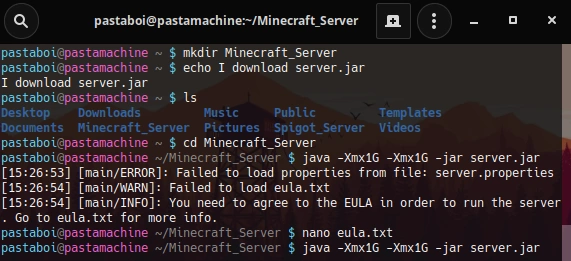
First, connect to your server. Use a command line tool like SSH. Enter the directory where the Jar file is located. Type the command: java -jar filename.jar. Replace “filename” with your Jar file’s name. This command will start the Jar file. Make sure Java is installed on your server. Check by typing java -version. Update Java if needed. This ensures your Jar file runs smoothly.
Scripts can make tasks easy. Create a script file with the `.sh` extension. Write the Java command inside it. Example: #!/bin/bash. Save and exit the script file. Make it executable with
java -jar filename.jarchmod +x scriptname.sh. Run the script by typing ./scriptname.sh. This will start your Jar file automatically. Use scripts for repeated tasks.
Troubleshooting Common Issues
Starting a Jar file on a web host often presents challenges. Ensure Java is installed correctly on the server. Check file permissions and paths to avoid errors.
Permission Errors
Permission errors can block your Jar file. Check the file’s permissions. Ensure that the file is readable and executable. Use your web host’s file manager. Locate the Jar file. Right-click on the file. Select ‘Permissions’ or ‘Properties’. Set the permissions correctly. Give read and execute rights. Check the web server user has access. Fixing permissions can solve many problems.
Java Version Conflicts
Java version conflicts can cause trouble. Jar files need the right Java version. Check your web host’s Java version. Compare it with your Jar file’s requirements. Use the command line to check Java version. Type java -version. Ensure the versions match. Ask your web host to update Java, if needed. Ensure compatibility to run your Jar file smoothly. Keep Java updated for best results.
Security Considerations
Sensitive data needs strong protection. Always use encryption. This keeps data safe. Passwords should be hard to guess. Use a mix of letters, numbers, and symbols. Change passwords often. Never share them with others. Backups are important too. Keep a copy of your data safe.
Secure connections are a must. Always use HTTPS. It encrypts data between user and server. SSL certificates help with this. They make sure connections are safe. Always check if your certificate is valid. Update it if needed. Firewalls add extra security. They block unwanted access. Keep them updated for best protection.
Optimizing Performance
Starting a Jar file on a web host requires understanding server configurations and Java support. Ensure the host supports Java runtime environment. Follow the server’s specific steps to upload and execute the Jar file efficiently.
Resource Management
Managing resources well is key. A jar file can use a lot of memory. It can slow down your server. Keep an eye on the memory use. You can set limits on how much memory the jar file uses. This helps the server run smoothly. Use tools like Java Virtual Machine (JVM) to control memory. You might also consider using a garbage collector. It helps free up unused memory. This keeps your server fast. Balance resource use for best performance.
Monitoring Server Load
Always check the server load. High load can slow down your site. Tools like server logs help you monitor load. You can set alerts for high load. This lets you know when to take action. Adjust settings to manage load better. You might need to reduce jar file activity. Keep load balanced for smooth operation. Regular monitoring is crucial. It helps prevent problems before they occur.

Credit: stackoverflow.com
Future Developments
Starting a Jar file on a web host involves configuring the server properly. Ensure Java is installed and accessible. Use command line tools for execution, maintaining security and compatibility.
Emerging Technologies
New technologies help make jar files better. The cloud allows easier sharing. It makes storage faster and safer. AI helps improve file management. Smart systems organize and protect data. These tools make jar files more useful.
Improving Jar File Utilization
Jar files are becoming easier to use. Tools simplify their creation and management. They help programmers save time. Better software improves performance. It keeps files running smoothly. Updates enhance compatibility with other programs. Improved security measures protect jar files from threats. These changes make them more reliable.
Credit: minecraft.fandom.com
Frequently Asked Questions
How To Run A Jar File In A Web Browser?
To run a JAR file in a browser, use a Java applet or convert it to a web application. Ensure Java plugin is enabled. Alternatively, use tools like Java Web Start or deploy it on a server with a web interface.
Modern browsers may have limited support for Java applets.
How To Deploy Jar File In Web Server?
Deploy a JAR file by uploading it to your web server’s directory. Configure the server to recognize and execute the JAR. Use command lines or scripts to launch the JAR file. Ensure server permissions allow execution. Verify successful deployment by accessing the application URL.
How To Run A Jar File In Html?
Running a JAR file directly in HTML is not possible. Use Java Web Start or convert JAR to an applet. Ensure the necessary Java plugins are installed in the browser. Consider using JavaScript or alternative methods for better compatibility with modern browsers.
What Is The Command To Run A Jar File?
Use the command `java -jar filename. jar` to execute a JAR file. Replace `filename. jar` with your file’s name. Ensure Java is installed on your system to run the command successfully.
Conclusion
Starting a jar file on a web host can seem tricky. But it’s manageable with clear steps. Make sure your server supports Java. Upload your jar file to your server. Use the command line to run it. Check for any errors.
Fix them promptly for smooth operation. This process helps your applications function online. Practice makes perfect. The more you do it, the easier it gets. Keep learning and experimenting. Soon, you’ll be confident in managing jar files. Enjoy the journey of mastering this skill.
Your web applications will thank you.


