
Ever found yourself puzzled by a mysterious error message on your WordPress site? Or perhaps you want to dive deeper into the inner workings of your website, unveiling issues before they spiral out of control.
If so, you’re not alone. You might have heard whispers about something called “debug mode,” a powerful tool that can transform your WordPress experience. But what does debug mode actually do? And more importantly, how can it benefit you? In this blog post, we’ll unravel the secrets of debug mode in WordPress, showing you how it can become your site’s best friend.
Stick around, and you’ll discover how to take control of your website, making troubleshooting a breeze and ensuring everything runs smoothly. Ready to unlock the hidden potential of your WordPress site? Let’s dive in!
Credit: kinsta.com
Debug Mode Basics
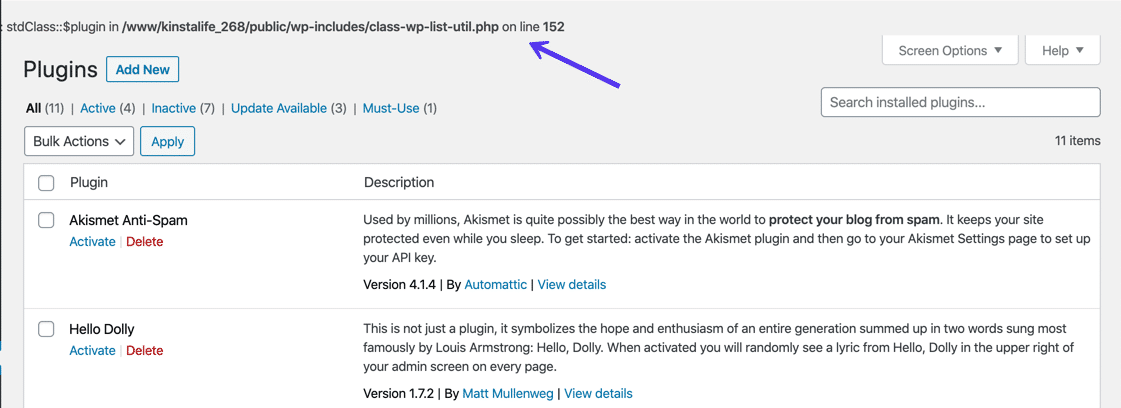
Debug mode helps find errors in WordPress. It shows warnings and notices. Developers use it to fix issues. It makes code better and cleaner. Debug mode is important for testing. It helps keep sites safe and reliable. When turned on, it shows messages on the screen. These messages tell what is wrong. Debug mode helps make websites work well. It is a tool for developers. They use it to make themes and plugins better.
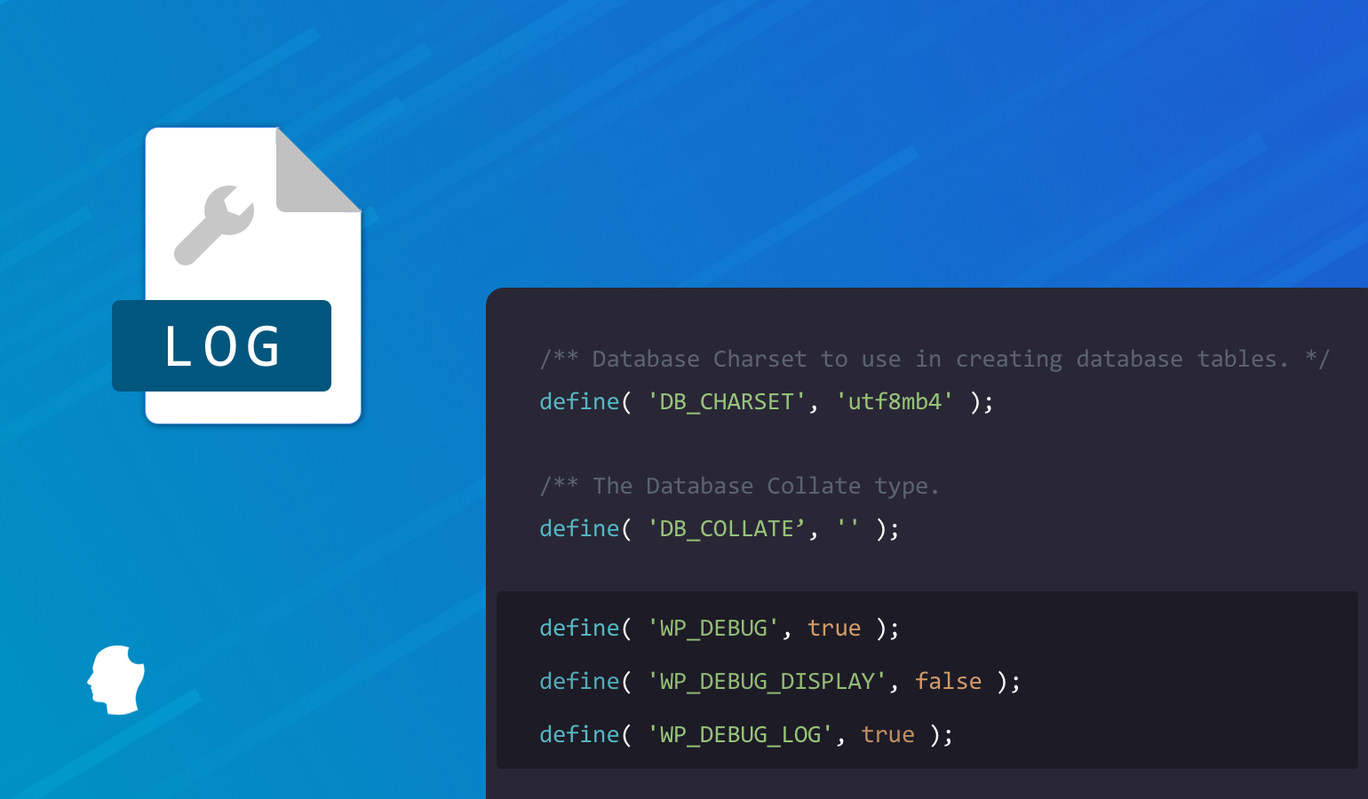
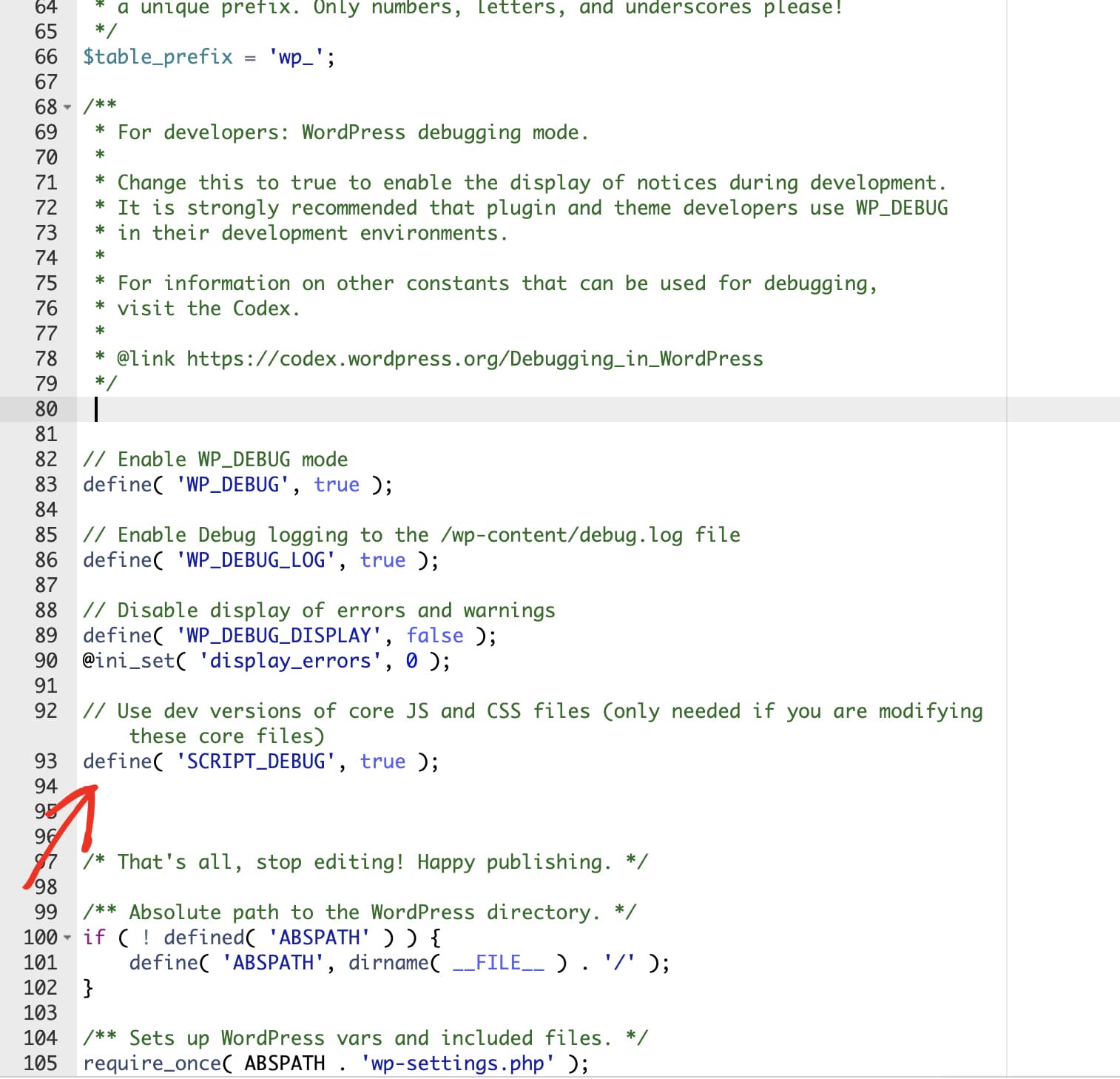
Debug mode uses a file named wp-config.php. This file is in the WordPress folder. To turn it on, change a line in this file. The line says define(‘WP_DEBUG’, true);. This tells WordPress to show error messages. These messages are visible to the developer. They help find bugs in the code. Debug mode can also be used to log errors. It saves them in a file. This helps track issues over time. Debug mode is a key part of making WordPress better.
Enabling Debug Mode
To enable debug mode, you need to edit the wp-config.php file. This file is in the root folder of your WordPress site. Open the file in a text editor. Look for the line that says define('WP_DEBUG', false);. Change false to true. Save the file and upload it back to your server. This will turn on debug mode. It helps find errors and warnings in WordPress.
Debugging plugins are useful tools. They help identify issues without editing files. Some popular plugins include Query Monitor and Log Deprecated Notices. These plugins show errors in a user-friendly way. They are easy to install and use. Just go to the plugin section and search for them. Install and activate them to start debugging. They offer extra features like tracking slow queries and deprecated functions.
Key Features Of Debug Mode
Debug mode in WordPress helps track errors. It uses error logs to find issues. These logs are like a diary. They note down every mistake. Developers read these logs to fix problems. It’s like a detective finding clues. Error logs are very helpful. They make fixing problems easier.
Debug mode shows errors on the screen. This helps developers see issues fast. Errors appear in real-time. It’s like a red flag waving. This feature is useful during development. It helps catch mistakes early. Fixing them becomes quick and easy.
Debug mode checks scripts for errors. It helps find mistakes in JavaScript and CSS. This is important for websites. Scripts control how things look and work. Debugging scripts keeps sites running smooth. Developers use this to ensure everything works well.
Benefits Of Using Debug Mode
Debug mode helps find errors in the code. Errors can break your site. It shows where the error happens. This makes fixing the issue easier. Errors are like clues. They help you understand what is wrong.
Debug mode can help make a site faster. It shows slow parts of your site. Fixing these can make your site load quick. Fast sites are good for users. They make people happy and keep them on your site.
Debug mode can help keep your site safe. It finds weak spots in the code. Fixing these can protect your site from bad people. Safe sites are good for everyone. They keep your data and users safe.
Best Practices
Debug mode in WordPress helps identify errors by displaying warnings and notices. It offers valuable insights for troubleshooting. Enabling it makes error messages visible, assisting developers in fixing issues.
When To Use Debug Mode
Debug mode helps find errors in WordPress. Use it during development. It shows error messages on the screen. This helps fix problems quickly. Avoid using it on live sites. It can show sensitive information. Always switch it off after fixing issues. Keep your site secure.
Avoiding Common Mistakes
Some forget to turn off debug mode. This can show errors to visitors. Always check your settings. Make sure debug mode is off on live sites. Another mistake is ignoring error messages. These messages give clues. They help solve problems fast. Pay attention to them.
Troubleshooting With Debug Mode
Debug mode in WordPress helps find problems. Syntax errors are common. These happen if code is wrong. Fatal errors stop sites from working. They need fixing fast. Warnings show less serious issues. They can be ignored sometimes. Notices are hints for better code. They improve site quality.
Conflicts happen if plugins or themes clash. Debug mode shows details. It helps find conflicting code. Fixing these makes sites run smoothly. Debug mode helps see what’s wrong. Changing settings can solve conflicts. Removing bad plugins can help too. Always check compatibility before adding new plugins.
Disabling Debug Mode
Debug mode can show errors in WordPress. It helps find problems. But, leaving it on can be risky. Turning it off is easy.
First, find the wp-config.php file. It’s in your WordPress folder. Open it with a text editor. Look for define(‘WP_DEBUG’, true); line. Change true to false. This stops debug mode.
After turning off debug, check your site. Make sure everything works. Test your plugins and themes. Sometimes, updates fix errors. Keep your site updated. It’s important for security. Also, clear cache. It helps make changes visible. Don’t forget to backup. It saves your work from future issues.
Credit: deliciousbrains.com
Credit: wpforms.com
Frequently Asked Questions
What Is WordPress Debug Mode?
WordPress debug mode is a feature that helps identify errors in your website’s code. It displays error messages on your site, allowing developers to quickly find and fix issues. This mode is essential for troubleshooting and improving your site’s performance during development or problem-solving.
How To Enable Debug Mode In WordPress?
To enable debug mode, edit the `wp-config. php` file in your WordPress directory. Set the `WP_DEBUG` constant to `true`. This action activates the debug mode, displaying error messages on your site. Remember to disable it after troubleshooting to avoid revealing sensitive information to visitors.
Why Use Debug Mode In WordPress?
Debug mode helps developers identify and fix issues in WordPress sites. It displays error messages, making it easier to locate problematic code. This feature is crucial for maintaining a site’s performance and functionality, especially during development or when resolving unexpected errors.
Can Debug Mode Harm My Site?
Debug mode can expose sensitive information, which might pose security risks if left enabled on live sites. Always disable it after troubleshooting to protect your site’s data. Use debug mode only during development or when addressing specific issues to ensure your site remains secure.
Conclusion
Debug mode in WordPress is a powerful tool. It helps identify and fix errors. Developers and beginners both benefit from it. With debug mode, issues become clear. This leads to smoother website performance. Always remember to use it in a safe environment.
Never on a live site. It can expose sensitive information. So, test changes locally or on a staging site. Debug mode is essential for maintaining a healthy WordPress site. Use it wisely. Keep your site running smoothly. Understanding debug mode ensures a better WordPress experience.


