
Are you thinking about switching your web hosting from Bluehost but feel overwhelmed by the technicalities involved? You’re not alone.
Many website owners find the process intimidating, but it doesn’t have to be. With the right guidance, you can transfer your hosting smoothly and efficiently, ensuring your website stays live with minimal downtime. Imagine having complete control over your website’s performance and security, all without unnecessary stress.
By reading this article, you’ll discover a step-by-step plan that makes the transfer process easy to understand and execute. Ready to take control and make your website work better for you? Let’s dive into the details and simplify your hosting transfer journey.

Credit: www.bluehost.com
Preparing For The Transfer
Always save your work. Make a copy of your website data. This includes files and databases. Use a reliable backup tool. Store the backup safely. You might need it later.
Different hosts have different rules. Check the new host’s requirements. Compare them with Bluehost. Ensure your website fits. This avoids problems later.
Collect all account details. You need login credentials for Bluehost. Also, gather new host info. Keep these safe. They are important for the transfer.
Credit: www.bluehost.com
Choosing A New Hosting Provider
Different hosting plans offer unique features. Some plans have more storage. Others focus on speed. Check the features closely. Storage space is crucial for large websites. Bandwidth matters if you have many visitors. Make sure to compare the costs too. Some plans are budget-friendly. Others can be expensive. Choose one that fits your needs best.
Good support helps when problems arise. 24/7 support is helpful. You can reach them anytime. Live chat is quick. Email support is detailed. Phone support is personal. Check if they solve issues fast. Read customer reviews. Happy customers mean good support. Poor reviews? Consider another option.
Fast servers make websites quick. Slow servers can frustrate users. Look for uptime guarantees. 99.9% uptime is ideal. This means the server is almost always working. Page load speed is important too. Fast loading keeps visitors happy. Test the speed with online tools. Choose a host with fast and reliable servers.
Initiating The Transfer Process
First, unlock your domain from Bluehost. This step is crucial. Next, get your EPP code from Bluehost. This code is needed for the transfer. Then, visit the new host’s site. Enter the EPP code there. Confirm your email to start the transfer. This may take a few days. Be patient during this time.
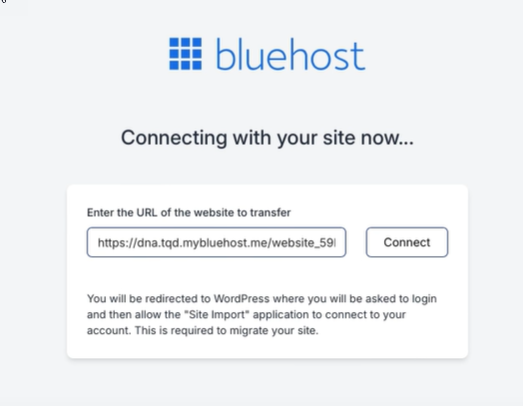
Start by downloading all your website files. Use an FTP client like FileZilla. Connect to your Bluehost account. Drag and drop files to your computer. Then, upload these files to your new hosting account. Check if all files are uploaded correctly. This ensures your site runs smoothly.
Log in to your Bluehost account. Go to phpMyAdmin to export your database. Save it on your computer. Now, log in to the new hosting provider. Open their phpMyAdmin. Import the database file you saved. Make sure there are no errors. Check everything is set up correctly. Your site should work as before.
Updating Domain Settings
Start by accessing your domain registrar’s dashboard. Locate the section for DNS settings. You will need to update the Name Servers. Enter the new hosting provider’s DNS information. This change helps direct traffic to the new server. Save your changes.
Ensure email is set up on the new server. Access the email settings in your hosting account. Create new email accounts if needed. Check the server’s incoming and outgoing mail settings. Update any required details. This step keeps your email working smoothly.
Visit your website to check its functionality. Ensure all pages load correctly. Test links and images on your site. Look for broken links or missing files. Fix any errors you find. Check that forms on your website work. Confirm the site’s speed and performance.
Post-transfer Checks
Website speed needs checking after transfer. Slow sites lose visitors fast. Use tools like Google PageSpeed Insights. They show speed issues. Fix them for better performance. Check server response time too. It should be quick. This ensures users have a smooth experience.
Data safety is crucial. Backups protect against data loss. Use secure connections for data transfers. SSL certificates encrypt site data. This keeps information safe from hackers. Regular security checks are a must. They help find any vulnerabilities. Fix them promptly to prevent breaches.
Transfer sometimes causes issues. Broken links are common. Use link checkers to find them. Fix broken links quickly. Check for missing files. Upload them if needed. Ensure all plugins work. Update them if necessary. This helps avoid functionality problems.
Optimizing For Future Stability
Always keep a backup of your website. This helps if something goes wrong. You can save your backup on a computer or cloud storage. Choose a safe place. Regular backups protect your data. They help in restoring your website quickly.
Make your website fast and smooth. Use simple images. Too many plugins can slow your site. Remove the ones you do not need. Check your website speed often. A fast website makes visitors happy.
Keep your website secure. Use strong passwords. Update your software regularly. Avoid using old software versions. Install a firewall for extra protection. Security is very important for safety.

Credit: www.bluehost.com
Frequently Asked Questions
Can You Transfer Web Hosting?
Yes, you can transfer web hosting. Choose a new host, backup your site, and initiate the transfer. Verify domain settings and update DNS records for smooth migration. Ensure minimal downtime by coordinating with both hosts.
How Do I Transfer A Domain From Bluehost To Wix?
Unlock your domain at Bluehost. Obtain the EPP code. Go to Wix’s domain transfer page. Enter the domain and EPP code. Follow Wix’s prompts to complete the transfer process.
How Do I Transfer From One Host To Another?
To transfer hosts, backup your website files and database. Choose a new host, upload files, and import the database. Update DNS settings to point to the new host. Test the website to ensure functionality. Ensure all links and functionalities are working correctly after the transfer.
How Much Does Bluehost Migration Cost?
Bluehost migration costs $149. 99 for professional website transfer services. This includes moving up to five sites and 20 email accounts. Additional services include free domain registration and 24/7 customer support. This ensures a seamless transition for your web presence.
Conclusion
Transferring web hosting from Bluehost is straightforward with careful planning. Start by backing up your website data. Choose a reliable new host that fits your needs. Update your domain settings for smooth transition. Test your site on the new server before finalizing the move.
Monitor the site performance post-transfer to ensure everything runs smoothly. With patience and attention to detail, the process becomes manageable. Remember to check each step to avoid issues. Seek support if needed to ensure a successful transfer. This way, your website remains accessible and functional during the change.


