
Are you ready to take your online presence to the next level but feeling overwhelmed by the idea of setting up web hosting? You’re not alone.
Diving into the world of web hosting can feel like trying to learn a new language. But what if I told you that setting up Amazon Web Hosting is easier than you think? Yes, even if you’re not a tech expert.
By the end of this guide, you’ll have the confidence and knowledge to get your website live using Amazon’s powerful and reliable hosting services. Stick with us, and you’ll discover not only how to set it up but also the benefits that can transform your online efforts into a streamlined, efficient, and successful venture. Let’s make this process simple and stress-free, so you can focus on what matters most—your business or project.
Credit: vuyisile.com
Choosing The Right Aws Service
Amazon EC2 and Lightsail are two popular choices. EC2 is very flexible. It offers many features and settings. You can control everything. But it is more complex. It may be harder for beginners. Lightsail is simpler. It’s like a ready-made package. It includes storage, networking, and a fixed price. This makes budgeting easy. Choose EC2 for custom needs. Pick Lightsail for simple projects.
Amazon S3 is great for storing files. You can save photos, videos, and documents. It’s safe and secure. Your files are backed up. You pay only for what you use. This makes it cost-effective. S3 scales with your needs. No worry about running out of space. It’s easy to use with other AWS services. Perfect for websites and apps.
Creating An Aws Account
Go to the AWS website. Click on the sign-up button. Enter your email and choose a password. Pick a unique account name. Follow the steps on the screen. Check your email for a confirmation link. Click the link to verify your account.
Enter your credit card details. AWS needs this for billing. Add your address and phone number. This info is important for your account. AWS will charge you for some services. Review the billing details carefully. Make sure everything is correct. Once done, your AWS account is ready!
Launching An Ec2 Instance
First, choose an instance type. This means how much power your server will have. More power means faster work. Look for options like t2.micro if you’re starting small. This is a good choice for beginners. It is free for a year.
Next, set up security groups. These are like firewalls. They keep your server safe. You can decide who can enter your server. Allow only trusted IPs to connect. This keeps bad guys out.
Last, do the key pair setup. This is important for security. It is like a lock and key for your server. You need the key to open it. Save the key file in a safe place. You will need it to connect later.
Configuring The Server
Choose an operating system for your server. Popular options are Linux and Windows. Linux is free and open-source. Windows is user-friendly. Decide based on your needs. Install the chosen OS on your server. Follow the guide from Amazon. Make sure the installation is complete. Check for updates regularly. This keeps your system secure. Set a strong password for safety.
Web server software is crucial. Apache and Nginx are popular choices. Both are easy to use. Apache is more common. Nginx is faster. Pick one that suits your needs. Install the software on your server. Follow the steps provided. Ensure the installation is successful. Test the server. Make sure it responds to requests. Keep your software updated. This ensures better performance and security.
Domain Name Setup
First, find a name for your website. This is called a domain name. It is your address on the web. You can buy a domain from sites like GoDaddy or Namecheap. Search for your desired name. If available, proceed to purchase. You will receive an email with your domain details. Keep these details safe. They are important for setup.
Amazon EC2 is a service to host websites. You need to link your domain to EC2. Log in to your Amazon Web Services account. Go to the EC2 dashboard. Find your instance’s IP address. Then, visit your domain provider’s site. Look for DNS settings. Enter the EC2 IP address. Save the changes. It may take a few hours for changes to update.

Credit: runcloud.io
Data Management With S3
Creating a bucket in S3 is simple. First, log into your AWS account. Then, go to the S3 service. Click on “Create Bucket”. Choose a unique name for your bucket. This name must be different from others. Select your preferred region. Click “Create” to finish.
To upload files, go to your bucket. Click on “Upload”. Choose the files from your computer. Click “Next” to continue. Set permissions for your files. This decides who can see them. Review your settings. Finally, click “Upload” to add your files to S3.
Monitoring And Maintenance
Setting up Amazon Web Hosting involves careful monitoring and regular maintenance. Ensure your server runs smoothly with routine checks. Adjust configurations as needed to optimize performance and secure data.
Using Cloudwatch
Amazon’s CloudWatch helps keep an eye on your website. It checks the health of your servers. You can see how much traffic your site gets. Alerts are sent when something goes wrong. This helps fix problems quickly. You can choose which metrics to monitor. This keeps your site running smoothly. Logs give details about your site. They help find issues fast. CloudWatch is easy to use.
Automated Backups
Automatic backups save your site’s data. They keep it safe in case of problems. You set backup times and dates. This makes sure data is always protected. Backups can be stored in different locations. This helps if one fails. Amazon offers reliable backup options. They ensure your data stays secure. Restoring data is simple and quick. This keeps your site running all the time.
Scaling Your Infrastructure
Load balancing helps distribute traffic evenly. This keeps your servers from getting too busy. It makes sure each server does its fair share of work. This is important for smooth performance. It also helps if one server fails. The load balancer sends traffic to other servers. This way, your website stays online and reliable.
Auto scaling groups adjust the number of servers. This is based on traffic levels. If traffic increases, the group adds more servers. If traffic decreases, it removes some. This keeps costs low. It also ensures optimal performance. Setting rules is easy. You decide when to add or remove servers. This helps your site handle more visitors.
Security Best Practices
Setting up Amazon Web Hosting requires careful attention to security. Always use strong passwords and enable multi-factor authentication. Regularly update software and monitor access logs to protect your data.
Iam Roles And Policies
AWS Identity and Access Management (IAM) helps keep your account safe. Use IAM roles to control who can see and use your stuff. Give each user only the permissions they need. Do not share passwords. Create different roles for different tasks. This keeps data safe and organized.
Ssl/tls Configuration
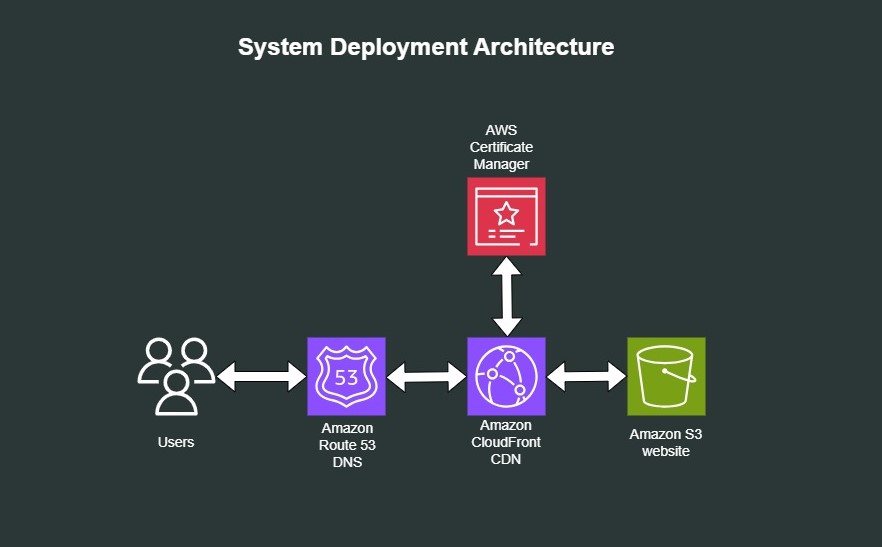
SSL/TLS makes your website safe for visitors. It encrypts the data sent and received. This stops bad guys from stealing information. Always keep your SSL certificates up to date. Use strong encryption methods. Ensure all web pages use HTTPS. A secure site builds trust. Visitors feel safe sharing details.

Credit: docs.aws.amazon.com
Frequently Asked Questions
How Much Does It Cost To Host A Website On Amazon?
Hosting a website on Amazon Web Services (AWS) can cost as little as $3. 50 per month. The price varies depending on factors like the AWS services chosen, data transfer, and storage requirements. It’s crucial to assess your specific needs to estimate the total cost accurately.
AWS offers a pricing calculator for detailed planning.
Can I Host A Website On Amazon Aws?
Yes, you can host a website on Amazon AWS. Use services like EC2, S3, or Lightsail for hosting. AWS offers scalable and reliable solutions for both static and dynamic websites. Explore AWS resources to optimize your site’s performance, security, and cost-effectiveness.
AWS is suitable for both small and large projects.
How To Create Amazon Web Server?
Sign up for AWS, access the console, and choose EC2 from services. Launch a new instance, select configuration, and key pair. Customize network settings and start the server. Monitor and manage the server using AWS tools. Follow AWS documentation for detailed guidance and best practices.
How To Create An Amazon Website?
Sign up for Amazon’s affiliate program. Choose a domain name and hosting service. Install a website builder like WordPress. Customize your site using Amazon’s product links. Optimize for SEO using relevant keywords and quality content. Publish and promote your Amazon affiliate website.
Conclusion
Setting up Amazon Web Hosting can seem challenging. But with the right steps, it’s doable. Begin by understanding your hosting needs. Choose the right plan for your business. Follow the setup instructions carefully. Use available resources for guidance. Regularly check your site’s performance.
Make adjustments as needed. Always prioritize security and backups. With patience and practice, you’ll manage your hosting effectively. AWS offers flexibility and scalability. Perfect for growing businesses. Keep learning and stay updated. Your efforts can lead to a reliable online presence.
Happy hosting!


