
Have you ever wondered how to make your WordPress blog stand out with stunning visuals? If you’re nodding yes, then you’re about to discover a powerful tool that can enhance your posts: Get_The_Post_Thumbnail.
This magical function holds the key to transforming your blog into a visual masterpiece, capturing your audience’s attention instantly. Imagine your readers scrolling through your content, captivated by eye-catching thumbnails that speak louder than words. You’ll uncover exactly what Get_The_Post_Thumbnail can do for your WordPress site.
We’ll break down its features and guide you on how to use it effectively, ensuring your posts look professional and engaging. Don’t miss out on learning this essential trick that could be the secret weapon in your blogging toolkit. Dive in and see how you can turn your blog into a visual wonderland.
Role In WordPress
Get_The_Post_Thumbnail is a useful tool in WordPress. It helps show images for posts. This tool adds visual appeal to websites. Pictures grab attention quickly. They make content more engaging. Using this tool, images appear with posts automatically. This saves time for users.
Many themes use this tool. It keeps the design consistent. Users can choose different sizes for images. Thumbnails can be small, medium, or large. This flexibility helps in design choices. Get_The_Post_Thumbnail improves website appearance. It makes posts attractive. Easy to use and set up.
Function Syntax
The get_the_post_thumbnail function is in WordPress. It helps to display featured images. This image is often called a thumbnail. The basic syntax is simple. It looks like this: get_the_post_thumbnail( $post_id, $size, $attr );.
The $post_id is the ID of the post. It tells WordPress which post needs a thumbnail. The $size defines the thumbnail’s size. Options include ‘thumbnail’, ‘medium’, or ‘large’. Custom sizes are possible too. The $attr is for extra attributes. Examples are class or alt text.
Understanding the syntax helps in customizing images. It’s useful for developers and site owners. The function is easy to use. It’s a key part of WordPress themes.
Parameters Explained
The Post ID is a special number. It helps WordPress know which post you want. Without it, WordPress gets confused. Every post has a different Post ID. It is like a fingerprint. This ID is really important for the function to work.
Size decides how big the picture is. You can pick small, medium, or large. The size you choose changes how the picture looks on the screen. Picking the right size is important. A small size loads faster. A large size shows more details.
Attributes change how the picture behaves. They can add classes or styles. Attributes help make the picture look nice. You can add a border or shadow. This makes the image stand out. Using attributes is a way to customize your post.

Credit: www.youtube.com
Usage In Themes
The get_the_post_thumbnail function is useful in WordPress themes. It shows the main image of a post. In single post templates, this is very important. It helps readers see the image right away. The image makes the post look nice. Also, it gives more details about the post. This function uses the post ID to find the image. It then shows the image in the right place. This makes your blog look organized and pretty.
Archive pages show many posts at once. Using get_the_post_thumbnail here can be helpful. Each post on the page can have its own image. This makes it easy for readers to pick a post. Images help catch the reader’s eye. They also give a quick idea of what the post is about. The function helps keep the page neat and tidy.
Custom templates let you design unique pages. With get_the_post_thumbnail, you can add images easily. You decide where to place the images. This helps make your site special. The function works well with different designs. It fits into the layout you choose. This gives you control over how your site looks. Plus, images make the page more interesting to visitors.
Customizing Output
Changing the HTML structure can help in many ways. It makes your site look unique. You can alter the tags and attributes as needed. This helps to match the design of your website. Use div and span tags to wrap your content. Change the layout by adding classes and IDs. Make sure to test these changes. It ensures everything works well on your site.
Modify classes to give a unique style to images. Add custom classes to the thumbnail for better design. This helps in improving the appearance. Use CSS to style these classes. Adjust the size, border, and shadow of the images. Keep styles simple and clean. This ensures a pleasant user experience. Always check the changes on different devices. It ensures consistency across all platforms.
Performance Considerations
Understanding ‘get_the_post_thumbnail’ in WordPress is crucial for site performance. This function retrieves a post’s featured image. Optimizing image size reduces load times, enhancing user experience.
Image Optimization
Images are heavy. They slow down sites. Use smaller images. Choose the right format. JPEG or PNG works best. Resize images to fit your site. Compress images for faster loading. This saves bandwidth. Speed is vital for users. They like quick sites. Optimize images for better performance.
Lazy Loading
Lazy loading is smart. It only loads images when needed. This saves resources. Users will see images as they scroll. Pages load faster. This improves user experience. Lazy loading is easy to set up. Use plugins or code. It’s a great way to enhance site speed. Users enjoy faster sites.
Common Pitfalls
Many struggle with using ‘get_the_post_thumbnail’ in WordPress. Common pitfalls include incorrect thumbnail sizes and missing default images. Understanding its parameters helps avoid these issues, ensuring your website displays images effectively.
Missing Thumbnails
Thumbnails sometimes don’t show on posts. This can confuse users. Check if the featured image is set. Also, ensure the correct theme settings. Some themes hide thumbnails by default. A plugin might also cause this issue. Disable plugins one by one to find the problem. This helps in fixing the missing thumbnail issue.
Incorrect Sizing
Thumbnails may appear too big or too small. This can make a site look bad. Use the right image size settings. Check your WordPress settings for media. Adjust the sizes in the “Settings” section. You can also use CSS to fix sizes. This helps in making thumbnails fit well. Always preview changes to see the effect.

Credit: webolute.com
Advanced Techniques
Thumbnails can change based on conditions. This is helpful for different screens. Mobile devices need smaller images. Larger screens can show bigger images. You can use code to check the device. Then, it shows the right thumbnail. This saves loading time. It makes the site faster. Fast sites are good for users.
Plugins can add more features. Some plugins work with thumbnails. You can use them to make thumbnails better. For example, a plugin might change how a thumbnail looks. Or it can add text to it. This makes images more interesting. It keeps users on your site longer.
Credit: www.paperstreet.com
Frequently Asked Questions
What Is Get_the_post_thumbnail In WordPress?
The `get_the_post_thumbnail` function in WordPress retrieves the featured image of a post. It’s commonly used to display thumbnails in themes. This function is essential for enhancing visual appeal and providing a better user experience. It supports various sizes, ensuring images fit perfectly within different design layouts.
How Do I Use Get_the_post_thumbnail?
To use `get_the_post_thumbnail`, add it to your theme’s template files. Typically, it’s used within the loop to fetch the current post’s thumbnail. You can specify size and attributes as parameters. It enhances your theme’s appearance by displaying featured images consistently.
Can Get_the_post_thumbnail Display Custom Sizes?
Yes, `get_the_post_thumbnail` can display custom sizes by specifying them as parameters. You can register custom sizes using `add_image_size` in your theme’s functions. php file. This flexibility allows you to maintain image consistency across different sections of your website, enhancing its visual appeal.
Does Get_the_post_thumbnail Support Default Images?
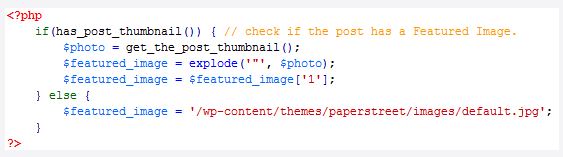
`get_the_post_thumbnail` does not support default images directly. However, you can use conditional logic to display a default image if no featured image is set. This ensures that your posts always have a consistent look, even if some lack specific featured images.
Conclusion
Understanding the `get_the_post_thumbnail` function is crucial for WordPress users. It helps display featured images efficiently. This function enhances your site’s visual appeal. Images attract visitors and keep them engaged. Using it correctly improves user experience. Practice by adding thumbnails to your posts.
Experiment with different sizes and styles. This way, your site looks professional. Always remember, visuals speak louder than words. A well-placed image tells a story. So, integrate it wisely for optimal results. With this knowledge, elevate your WordPress site. Happy blogging!


