
Are you looking to make your WordPress website stand out? Customizing fonts can be a powerful way to express your brand’s personality and enhance readability.
But with so many options available, it can be overwhelming to decide which fonts will best suit your site. You’re not alone in this struggle. Many website owners face the same challenge, and the right choices can make all the difference.
You’ll discover the secrets to selecting and implementing custom fonts on your WordPress site. Get ready to transform your website’s look and feel, and keep your visitors coming back for more. Dive in, and unleash your site’s full potential!
Credit: pixelgrade.com
Choosing The Right Font
Fonts come in many types like serif, sans-serif, and cursive. Each type has its own feel. Serif fonts have small lines at the ends. Sans-serif fonts have clean lines. Cursive fonts look like handwriting. Knowing these can help you choose better.
Fonts must be easy to read. Choose a size that people can see well. Avoid fonts that are too small. Colors also matter. Dark text on light background works best. Keep it simple for better understanding. This ensures your message gets across.
Your font should match your brand’s style. A tech company might use a modern font. A bakery might use something more playful. Think about what your brand says. Then pick a font that matches. This helps people remember your brand better.
Credit: www.greengeeks.com
Using WordPress Themes
Exploring Theme Options is fun in WordPress. Themes offer different styles and layouts. You can pick a theme that fits your website’s mood. Many themes have font choices. These choices help make your site unique. Changing fonts can make text easier to read.
Built-in Font Customization is a feature in many themes. It lets you change fonts without extra plugins. This feature saves time. You can adjust size, color, and style easily. Some themes even let you choose from Google Fonts. This gives a wide range of options.
Theme Compatibility with Fonts is important. Not all themes support all fonts. It’s good to check before picking a theme. Some themes might need extra plugins for more fonts. Always ensure your theme supports the fonts you like. This helps in keeping your website looking great.
Installing Font Plugins
Many choose popular font plugins to change their website’s look. These plugins make font changes easy. Easy Google Fonts is a good choice. It offers many fonts. Use Any Font is another option. It lets you upload any font you like.
Popular Font Plugins
These plugins work well with WordPress. They help users make changes fast. WP Google Fonts is simple and quick. Fontsy gives creative font options. These tools make websites more engaging.
Plugin Installation Steps
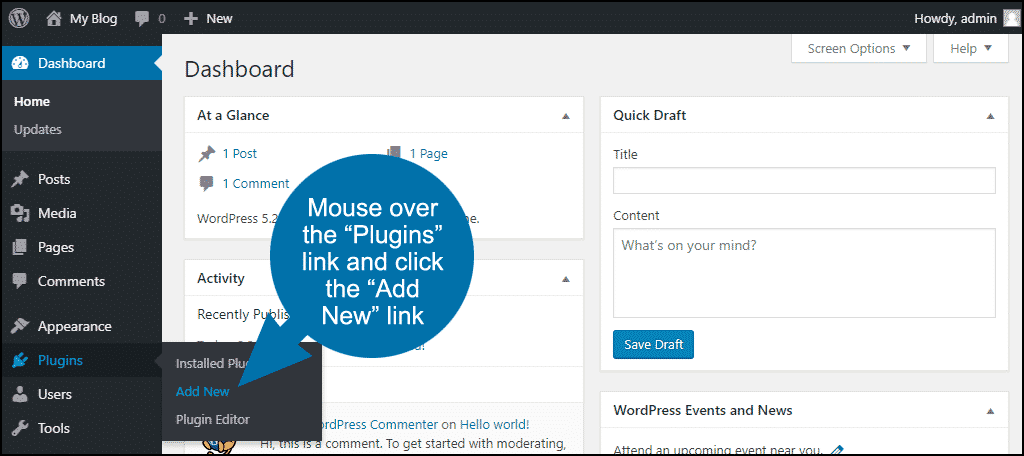
First, go to your WordPress dashboard. Click on Plugins. Then choose Add New. Search for your desired plugin. Click Install Now. After that, click Activate. Your plugin is now ready.
Managing Font Settings
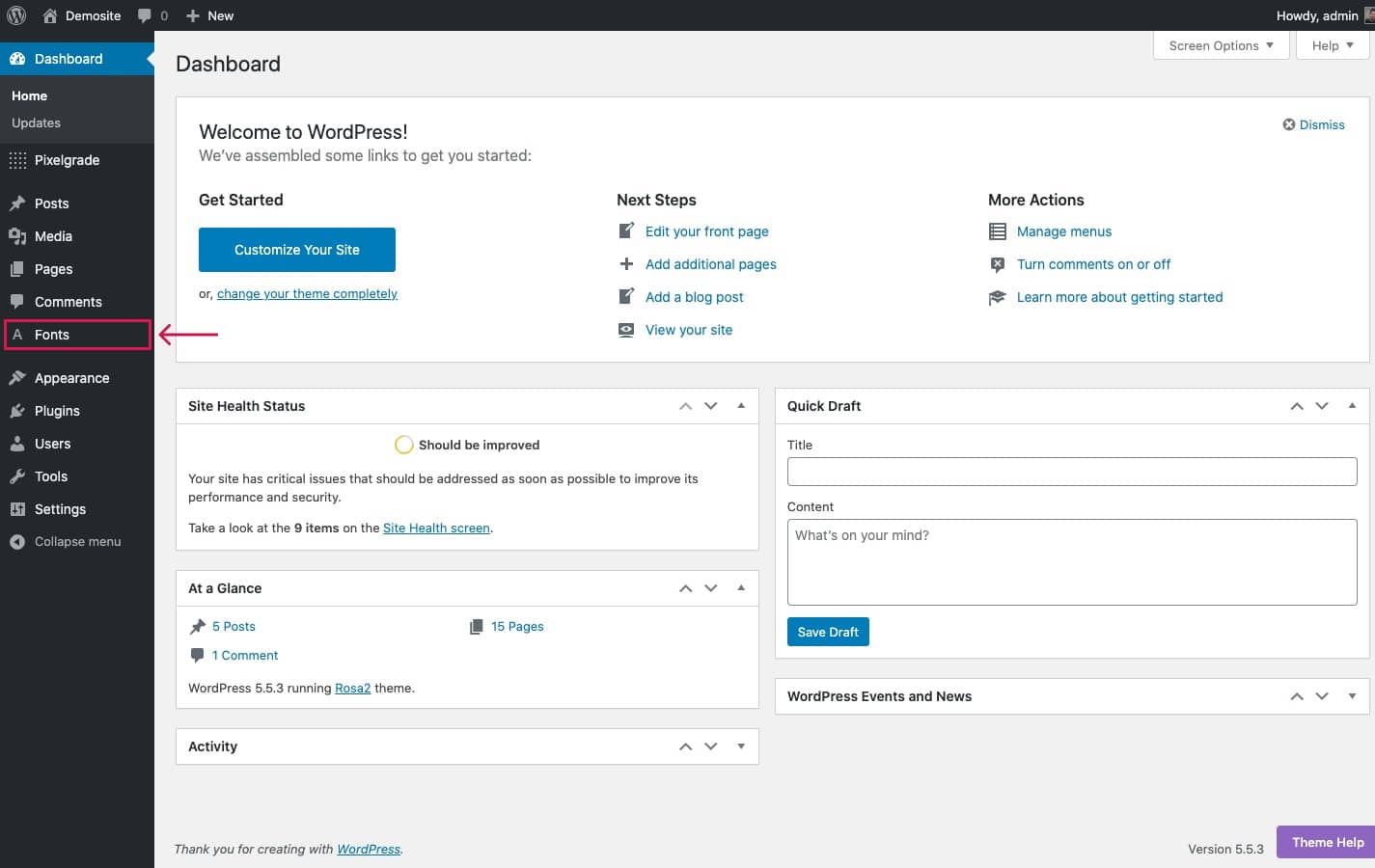
You can change fonts through the plugin settings. Go to Appearance and select Fonts. Choose a font from the list. Adjust size and style as needed. Save your changes. Your site will look different.
Google Fonts Integration
Google Fonts offers many beautiful and unique fonts for free. These fonts make your website look modern and stylish. There are many fonts to choose from. This makes it easy to find one that fits your style. Google Fonts also loads quickly. This helps your website run smoothly. Using Google Fonts can improve the look of your site a lot.
Adding Google Fonts is easy. First, visit the Google Fonts website. Choose a font you like. Click on the font and select “Select this style”. Next, copy the code they give you. Then, paste this code into your WordPress theme. You can do this in the header.php file. Now, your website can use the new font.
After adding a font, it’s time to customize. Go to the WordPress customizer. You can find it under Appearance in the dashboard. There, you will see options to change fonts. Choose your new Google Font from the list. Adjust the size and style to fit your needs. This helps your website look just right.
Custom Css For Fonts
Customizing fonts in WordPress with CSS involves selecting the right font family, size, and style. Use CSS selectors to target specific elements for changes. Adjust line-height and letter-spacing to enhance readability and design.
Basics Of Css In WordPress
CSS is like clothes for your website. It changes how things look. Custom CSS lets you make fonts bigger, smaller, or different colors. It is easy to find the CSS editor in WordPress. Go to Appearance > Customize > Additional CSS. Type your special CSS codes there. Changes happen in real time. Watch your fonts change instantly.
Applying Custom Font Styles
To change font style, use CSS selectors. Pick the right element. For example, use “h1” for big headings. Use “p” for regular text. Write your CSS like this: h1 {font-family: 'Arial'; color: blue;}. This line makes your heading blue and in Arial style. Try different fonts and colors. See what fits best.
Troubleshooting Common Css Issues
Sometimes CSS doesn’t work. Check if your code is correct. Look for missing semicolons or brackets. Make sure you use the right selectors. Clear your browser cache. It helps to see new changes. If problems persist, check your theme settings. Some themes block custom CSS. Disable plugins one by one. Find which one causes issues. Make changes carefully and test often.
Font Pairing Techniques
Choosing the right fonts makes a big difference. Fonts set the mood of your text. Balance is key in font pairing. Two fonts can look good together. They should have contrast but still work well. A good pairing shows harmony. Fonts should not fight with each other. They should complement. Like friends, fonts should match in style.
Serif fonts have small lines at the end of strokes. Sans-serif fonts do not have these lines. Combining these two types can be effective. Serif fonts are great for titles. Sans-serif fonts are clear for body text. Together, they create a nice look. One is classic; the other is modern. Use them to make your text easier to read.
Some fonts do not look good together. Choosing too many fonts can be confusing. Stick to two or three fonts. Mixing similar fonts is risky. They can clash. Avoid pairing fonts that are too bold or too thin. This causes imbalance. Fonts should have a clear difference. This gives each font its own space.
Responsive Font Design
Responsive fonts adjust to fit different screens. This makes text easy to read. Small screens need different fonts than big screens. Big screens show more details. Small screens need simple fonts. Clear and easy to read. This keeps readers happy.
Use relative units like ems or percentages. These units make fonts flexible. Test fonts on different devices. Use media queries to change font size. This helps in making text readable. Mobile users like clear and simple fonts.
Check fonts on phones and tablets. Look at different browsers too. Use tools like Google’s Mobile-Friendly Test. This shows how fonts appear on mobile. Make changes if needed. Keep testing until it looks right.
Accessibility Considerations
Fonts should be easy to read. Choose simple fonts like Arial or Verdana. Avoid fancy, curly fonts. They can be hard to read. Keep the text size regular. Make sure letters are clear. This helps everyone read better.
Small fonts can be tough to see. Use larger font sizes for better visibility. At least 14px is good. But, bigger is better for reading. Adjust sizes for different screens. On mobile, fonts should still be clear.
Colors matter for reading. Dark text on a light background works well. Or, light text on a dark background. Check color contrast for clarity. Avoid using colors that blend. They make reading hard. Use tools to check contrast.

Credit: wordpress.com
Frequently Asked Questions
How Do I Change Fonts In WordPress?
To change fonts in WordPress, access the theme customizer. Navigate to “Appearance” and then “Customize. ” Look for typography settings. You can choose different fonts for headings and body text. Some themes offer additional options for font size and style.
Consider using a plugin for more customization.
Can I Use Google Fonts In WordPress?
Yes, you can use Google Fonts in WordPress. Many themes support Google Fonts directly in the customizer. Alternatively, use a plugin like Easy Google Fonts. This allows you to integrate Google Fonts easily. Ensure your theme is compatible with the selected fonts for optimal performance.
What Plugins Help Customize WordPress Fonts?
Several plugins help customize WordPress fonts. Popular ones include Easy Google Fonts and Use Any Font. These plugins offer extensive font libraries and easy integration. They allow you to apply custom fonts site-wide. Check compatibility with your theme before installing for the best results.
Is It Possible To Add Custom Fonts?
Yes, adding custom fonts to WordPress is possible. Use a plugin like Use Any Font or upload them manually. Ensure the font files are web-safe formats like TTF or WOFF. Custom fonts can enhance your site’s aesthetics and branding significantly.
Conclusion
Customizing fonts in WordPress enhances your site’s appeal. Fonts add personality to your website. Users enjoy a visually attractive site. Choose fonts that match your brand. Ensure readability for all visitors. Play with sizes and colors for effect. Test different styles before settling.
Keep your site’s design coherent. Avoid using too many fonts. Stay consistent with your overall theme. Font choices reflect your site’s character. Make them count. Ready to refresh your WordPress fonts? Dive in with confidence. Transform your site into something memorable.
Your visitors will appreciate the effort.


