
Imagine you’re about to make your WordPress site faster, more secure, and just plain better. How?
By mastering the art of tweaking your php. ini file. This little file holds the keys to optimizing your WordPress performance and ensuring everything runs smoothly. But what exactly should go into your php. ini file to make your site shine?
You’re about to discover the secrets behind the code that can transform your WordPress experience. Stick around, because once you unlock this knowledge, you’ll wonder how you ever managed without it. Ready to dive in and take control of your site’s destiny? Let’s get started!
Php.ini Configuration
The php.ini file is very important for WordPress. It controls many settings. These settings affect how your website works. Changing these settings can make your site faster. Or it can help avoid errors.
Some key settings include memory_limit and upload_max_filesize. Memory limit helps your site handle more tasks. Upload max filesize lets you upload bigger files. Both are important for a smooth website.
Always save a backup before making changes. Mistakes can break your site. Keep your php.ini file safe.
Memory Limits
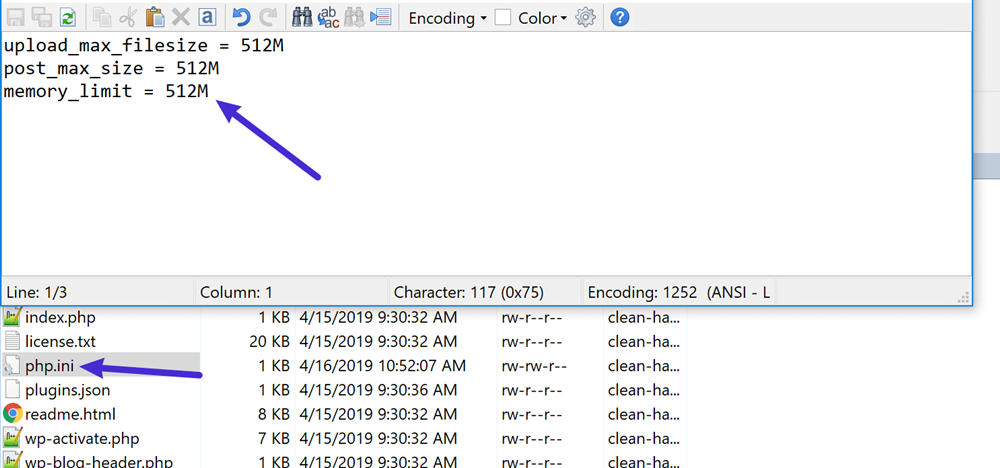
Setting the memory limits in the php.ini file is crucial. It helps your WordPress site run smoothly. The default memory limit is often too low for bigger sites. Increasing the memory limit can solve many issues. It lets your site handle more data at once. This is important if you have many plugins or large images. Too low limits can make your site slow or crash. To fix this, you can change the line memory_limit = 128M to a higher number. This number sets how much memory your site can use. A higher number means more memory, like 256M or 512M. Always make sure your server can handle the change. Check with your host if you are unsure.
Upload File Sizes
The php.ini file controls file upload sizes. To increase upload size, change the upload_max_filesize value. A common setting is 64M. This means you can upload files up to 64 megabytes. Also, adjust the post_max_size. It should be a bit higher than upload_max_filesize. For example, set post_max_size to 70M.
Remember to set the memory_limit. This should also be higher than post_max_size. A typical value is 128M. These settings ensure uploads work smoothly. Always check server limits too. They can affect upload abilities. Configuring these settings helps with large file uploads.
Execution Time
Setting the execution time is important for your website. It helps when scripts run longer than expected. The default time is often 30 seconds. This can be too short for some tasks. Increase it to prevent script errors. Use a higher value like 60 or 120 seconds. This gives scripts more time to complete. Change the max_execution_time in your php.ini file. It is easy to do. Just find the line with max_execution_time. Then, change the number to your desired time. Save the file and restart your server. This ensures the changes take effect.
Error Reporting
Error reporting helps find bugs in WordPress. It shows errors in PHP code. This is helpful for developers. To turn on error reporting, change settings in php.ini.
Set display_errors to On. This will show errors on the screen. Use error_reporting to decide what errors to show.
The setting E_ALL shows all errors. This is useful for testing. For live sites, showing errors is risky. It can show site paths and other details. This may help hackers.
Turn off display_errors for live sites. Use log_errors to save errors in a file. This helps track errors later. Keep error logs safe and private.

Credit: jetpack.com
Security Settings
Keeping your WordPress site safe is important. The php.ini file helps with this.
You can disable functions that are risky. Add disable_functions = exec, shell_exec
in your php.ini file. This stops bad code from running.
Error messages can show important information. It’s best to turn them off.
Use display_errors = Off to hide them. This keeps your site secure.
Also, limit file uploads. Set file_uploads = On and upload_max_filesize = 2M.
This stops large files that might be harmful.
Always keep security in mind.
Resource Management
Managing resources efficiently in WordPress is crucial. The php.ini file plays a significant role. It helps control memory limits. Set the memory_limit to at least 256M for smooth performance. You can adjust upload_max_filesize to handle larger files. Many users find 64M or 128M to be ideal. Change post_max_size to match the upload size. This ensures uploads work without issues.
Consider tweaking the max_execution_time. This parameter controls script run time. Setting it to 300 seconds helps prevent timeouts. max_input_vars is another key setting. Limit it to around 3000. This prevents issues with large data submissions. Remember to save changes in the php.ini file. Restart your server for updates to take effect.
Credit: wpdevart.com
Session Handling
The php.ini file controls session handling in WordPress. This file helps manage user sessions. Sessions store information like user preferences. The code can set the session timeout. It also defines where session data is saved.
Important settings include session.save_path and session.gc_maxlifetime. The save path tells where to keep session files. GC max lifetime sets how long sessions last.
Shorter sessions can help with security. Longer sessions keep users logged in. Choose settings that match your needs.
Timezone Configuration
Setting the correct timezone in your WordPress is important. It helps your site show the right time. You can do this by editing the php.ini file. Look for the line that says date.timezone. Set it to your local timezone. For example, use date.timezone = "America/New_York" if you are in New York. This makes sure your site shows the correct time. Always use the official timezone name. Not just numbers or short codes. It helps WordPress work well with dates and times.
Make sure to save changes after editing. This will apply the new timezone settings. Check your site to see if the time is correct. If not, try again or ask for help. The right timezone is key for scheduled posts. It keeps your site reliable and accurate. Always double-check your entries. Proper settings prevent future issues.

Credit: www.malcare.com
Common Issues
WordPress might need more memory. Increase memory in php.ini file. Set memory_limit to 256M or more. This helps big sites run smoothly.
Uploading big files can be tough. Adjust upload_max_filesize to fix this. Set it to 64M or higher. This will allow bigger files to upload.
Long processes may stop suddenly. Increase execution time in php.ini. Set max_execution_time to 300. This gives scripts more time to run.
Sometimes, large posts are a problem. Update post_max_size in php.ini. Set it to 64M or more. This lets bigger posts save without error.
Frequently Asked Questions
What Is The Purpose Of Php.ini In WordPress?
The php. ini file is crucial for configuring PHP settings that affect WordPress performance. It allows customization of server-side functionalities like memory limits, file upload sizes, and execution times. Proper configuration ensures optimal WordPress performance, security, and stability.
How Do I Modify Php.ini For WordPress?
To modify php. ini, locate the file on your server via FTP or cPanel. Edit it using a text editor to adjust parameters like memory_limit or upload_max_filesize. Save changes and restart your server for them to take effect. Always back up the original file before making modifications.
What Settings Are Essential In Php.ini For WordPress?
Essential settings in php. ini include memory_limit, upload_max_filesize, and max_execution_time. Adjusting these ensures efficient media uploads, adequate memory allocation, and timely script execution. These settings optimize WordPress performance and accommodate resource-intensive plugins or themes, enhancing the overall user experience.
Can Php.ini Affect WordPress Plugin Performance?
Yes, php. ini settings directly influence WordPress plugin performance. Configurations like memory_limit and max_execution_time impact plugin functionality. Insufficient resources can lead to plugin failures or slow performance. Adjusting php. ini ensures plugins run smoothly, providing a seamless user experience.
Conclusion
Optimizing php. ini settings enhances WordPress performance. It ensures smooth operations. Correct configurations can prevent issues. They improve speed and security. Adjust memory limits carefully. Keep error reporting on for debugging. Secure file uploads with strict rules. Regular updates are crucial for stability.
Check database connections regularly. Proper settings lead to better user experiences. A well-tuned php. ini supports growth. It makes managing WordPress easier. Prioritize essential settings for efficient functioning. Stay informed about best practices. Your WordPress site thrives with attention to php.
ini details. Keep refining settings for optimal results.


