
Imagine you’re working on your WordPress site, tweaking designs, or adding fresh content, and suddenly, a question pops into your mind: “How do I tell what WordPress version I have?” Knowing your WordPress version is crucial.
It keeps your site secure and ensures compatibility with plugins and themes. But how do you find this information quickly and efficiently? In this guide, you’ll discover simple steps to identify your WordPress version. Whether you’re a seasoned blogger or just starting out, this knowledge empowers you to maintain a smooth-running website.
Dive in to unlock the secrets that can enhance your site’s performance and security. Keep reading to learn how this small detail can make a big difference for your online presence.
Checking Version Through Admin Dashboard
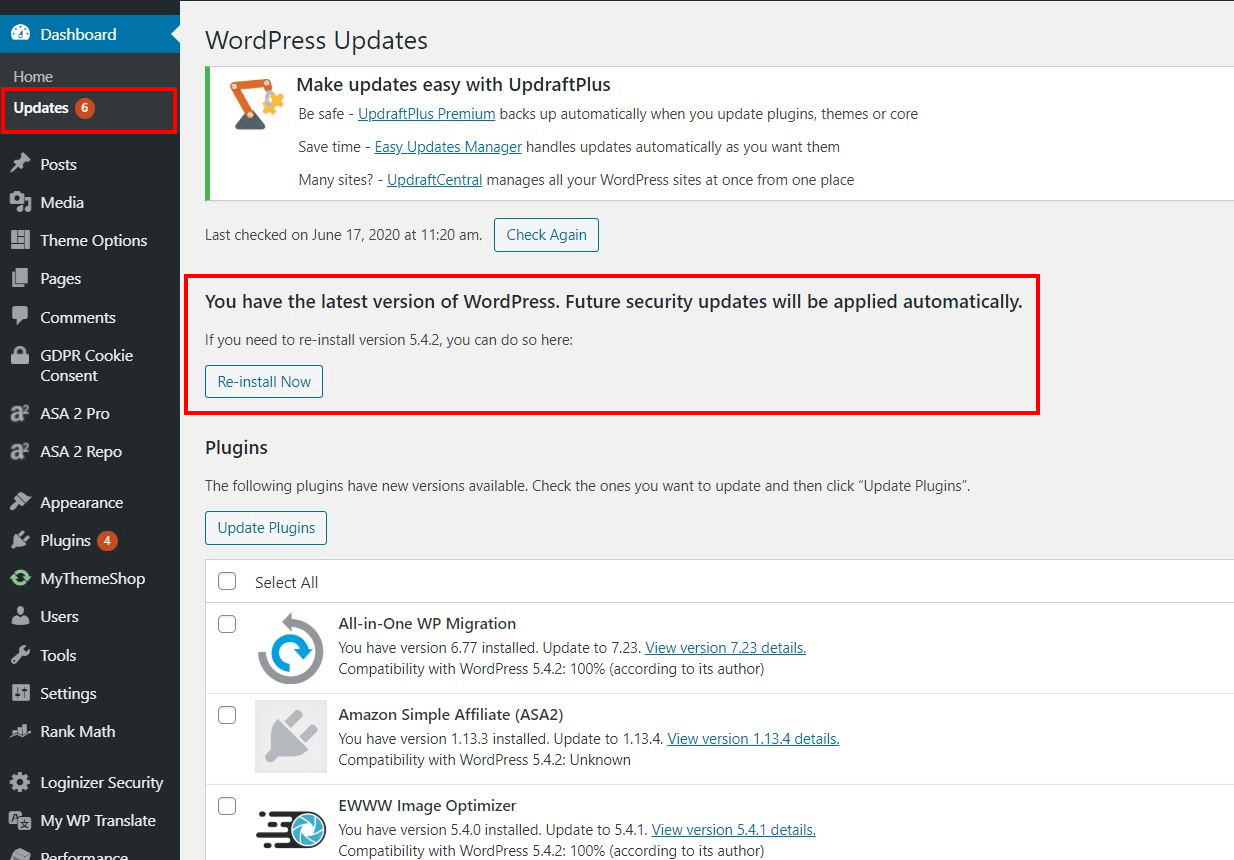
Locating your WordPress version is simple using the admin dashboard. First, log in to your WordPress account. Once logged in, look at the bottom right corner of your dashboard. The version number is usually displayed there. This tells you which version you are using. Seeing the version helps in keeping your site updated and secure. Always make sure your WordPress version is the latest. This protects your site and improves its performance. If you don’t see the version number, check your updates section. It’s a handy way to find out. Knowing your version helps manage your site well.
Credit: www.ionos.com
Finding Version In Page Source
Checking the WordPress version is simple. First, go to your website. Right-click on the page and select View Page Source. Look for a line that says meta name=”generator”. This line shows the version number. It is usually near the top of the page source. The number is next to the content= tag. This tells you which version you are using. If you can’t find it, try checking other pages. Some themes hide the version details. If this happens, use other methods to check.
Using WordPress Readme File
A simple way to find your WordPress version is by using the readme.html file. This file is inside your WordPress folder. Open the file in a web browser. You will see the version number on the first page. It is usually near the top. This method works if the file is not deleted. Some users remove it for security reasons. If you cannot find the file, try another method. Always keep your WordPress updated for safety. Updates fix bugs and improve features. Using old versions can be risky. Ensure you check the readme file regularly. Stay informed about your WordPress version.

Credit: www.greengeeks.com
Accessing Version Via Ftp
First, connect to your FTP server. Use a tool like FileZilla. Navigate to the root directory of your WordPress site. Look for a folder named wp-includes. This folder is important.
Inside the wp-includes folder, find the version.php file. Open this file. Look for a line with $wp_version. This line shows your WordPress version. Note the version number. Keep it safe.
Utilizing Online Tools
Online tools can help check your WordPress version. These tools are easy to use. You just need to enter your website URL. They then tell the WordPress version you have. This method is quick and simple.
Some tools are free, while others might cost money. Make sure to choose a trusted tool. A reliable tool gives accurate information. Always check reviews before using a new tool.
Using these tools saves time. You don’t need to log into your website. It is a good choice for beginners. Make sure your internet is working. This is important for the tool to work.
Security Implications Of Version Visibility
Exposing your WordPress version can lead to problems. Hackers can find out your version. This makes it easier for them to attack. Some versions have known bugs. These bugs can be used by hackers. Keeping your version hidden helps protect your site.
Risks Of Exposed Version
Old versions have security holes. Hackers search for these holes. They can break into your site. Your data can be stolen. Your site can be damaged. Keeping your version hidden reduces these risks.
Steps To Hide WordPress Version
- Go to your WordPress dashboard.
- Install a security plugin.
- Choose a plugin with version hiding features.
- Activate the plugin after installation.
- Check the plugin settings.
- Enable the option to hide the version.
Credit: www.hostinger.com
Frequently Asked Questions
How Can I Check My WordPress Version?
To check your WordPress version, log into your WordPress dashboard. Look for the “At a Glance” section on the homepage. Your version number will be displayed there. Alternatively, you can find the version number in the “Updates” section under the dashboard menu.
Where Is WordPress Version In Admin Panel?
In the WordPress admin panel, your version is visible in the “At a Glance” section. It’s located on the dashboard homepage. Additionally, it can be found in the “Updates” section. This section is accessible through the dashboard menu, ensuring you always know your current version.
Can Plugins Show WordPress Version?
Yes, some plugins can display the WordPress version. Plugins like “Site Health” provide detailed information about your site. They offer insights into your WordPress version, helping you manage updates efficiently. It’s a useful feature for maintaining site health and security.
Why Is Knowing WordPress Version Important?
Knowing your WordPress version is crucial for maintaining site security. It helps you ensure your site is up-to-date. Updates often include security patches and new features. Keeping track of your version ensures optimal performance and protection against vulnerabilities.
Conclusion
Finding your WordPress version is simple. Just check your dashboard. Look for the “At a Glance” section. It shows your current version. Alternatively, view the version in the site’s source code. Update your WordPress regularly for security. Always back up before updating.
These steps ensure a safe website. By knowing your version, you stay informed. This helps you manage your site better. Keep your WordPress updated to protect your site. Stay secure and enjoy smooth operation. Happy blogging and managing your WordPress site!


