
Setting up a web server for hosting Garry’s Mod, commonly known as Gmod, can seem daunting, but it’s easier than you think. Imagine having the power to customize your game experience, invite friends, and create unique worlds, all while maintaining control over your server.
This guide is here to simplify the process for you, ensuring that even if you’re a beginner, you can confidently get your server up and running. Ever wondered how others manage to host their own Gmod servers seamlessly? The secret lies in understanding the right steps and tools, and we’re about to unlock that for you.
This isn’t just about tech; it’s about enhancing your gaming freedom. Stick around, and you’ll discover tips and tricks that will not only make the setup process straightforward but also optimize your server for the best performance. Whether you’re doing this for fun or to build a community, you’re in the right place. Let’s dive in and get your Gmod server live!
Choosing The Right Server
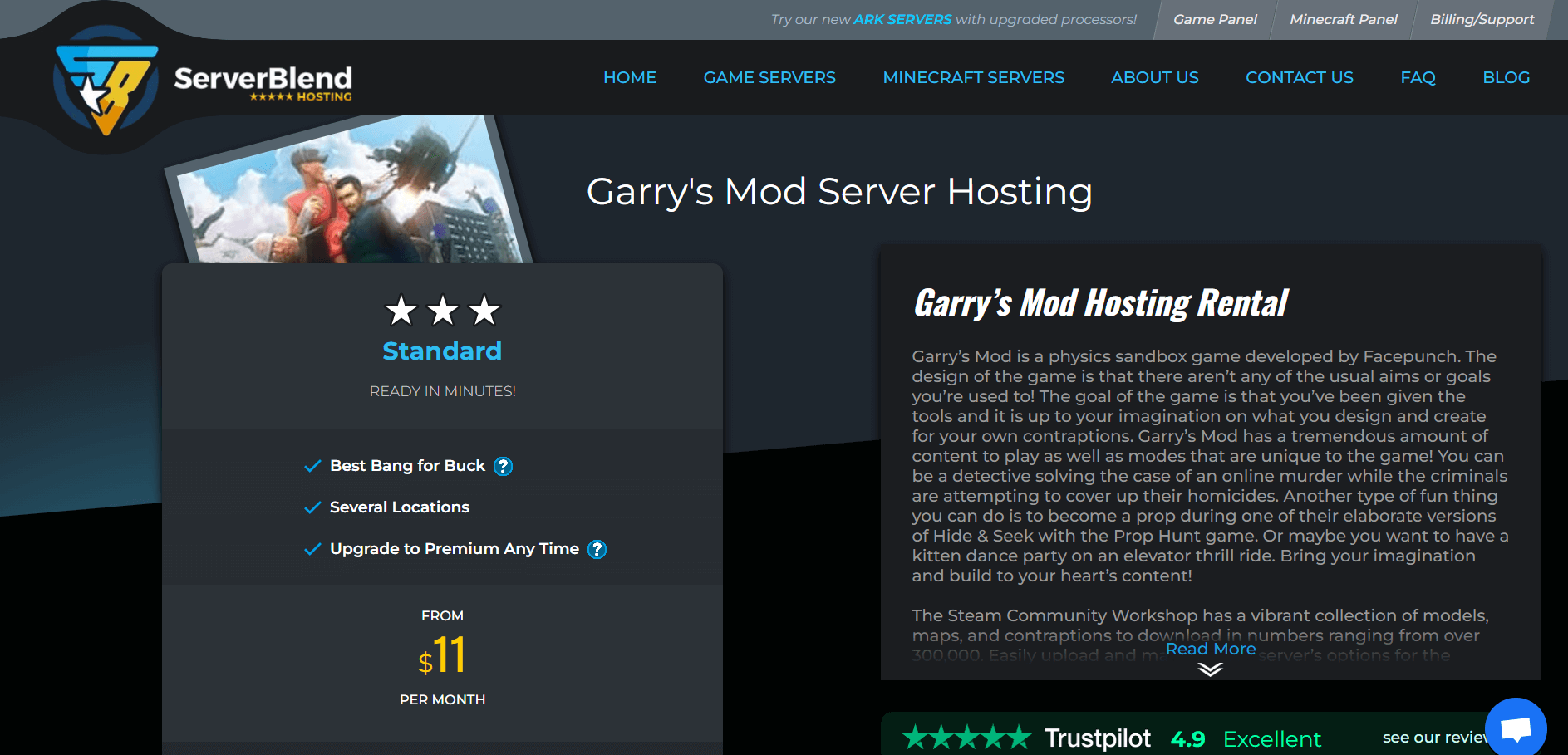
A dedicated server is a whole computer just for you. It offers more power and control. But it can be costly. A Virtual Private Server (VPS) is like sharing a computer with others. It is cheaper and still gives you some control. Think about what you need. If you want more control and have the budget, choose a dedicated server. For saving money, a VPS can work well.
Picking the right operating system is important. Windows is easy to use but can be expensive. Linux is free and many people use it for servers. Linux can be a bit hard to learn. Check if your games need a special system. If not, Linux might be a good choice.
Credit: sitechecker.pro
Installing Required Software
Download SteamCMD from the official website. Extract the files to a folder. Open the folder and run the SteamCMD.exe file. Wait for the updates to complete. This tool helps install games on servers. It’s important for setting up your Gmod server. Keep it updated for best performance.
Use SteamCMD to download the server files. First, log in anonymously in SteamCMD. Then, set a folder for the server files. Use the command: force_install_dir. Next, download the files with app_update 4020 validate. This installs the latest Garry’s Mod server version. Check the files in your chosen folder. Make sure they are complete and ready.
Configuring Server Settings
Start by opening the server config files. These files help your server run well. Look for settings like max players and server name. Change them to fit your needs. Make sure to save changes. Check the config for any errors. Errors can cause problems later.
Choose your favorite game modes. Game modes decide how you play. Add the best maps for your players. Maps are the places you play in. Download them to your server. Add map names to the config files. Save changes and restart your server. Now you are ready to play!
Ensuring Security
Setting up a web server for hosting Gmod involves crucial security steps. Protect data by configuring firewalls and using secure passwords. Regular updates and monitoring guard against vulnerabilities, ensuring a safe environment for online gaming.
Firewall Setup
A strong firewall protects your server from bad traffic. Make sure the firewall is always on. Allow only the ports you need. Most servers need ports 80 and 443. Block all others. Updating the firewall regularly is crucial. This keeps it ready for new threats. Use simple tools like UFW on Linux. They make setup easy.
Ddos Protection
DDoS attacks can make your server slow or even crash. Use services like Cloudflare for protection. They can help stop attacks. Keep your server software updated too. This fixes bugs that attackers might use. Always check your server logs. Look for unusual activity. Act quickly if you see any signs of an attack.
Network Configuration
Setting up a web server for hosting Gmod involves configuring network settings for optimal performance. Ensure a stable internet connection, then install necessary server software. Adjust firewall settings to allow traffic, and verify ports are open for seamless gameplay experience.
Port Forwarding
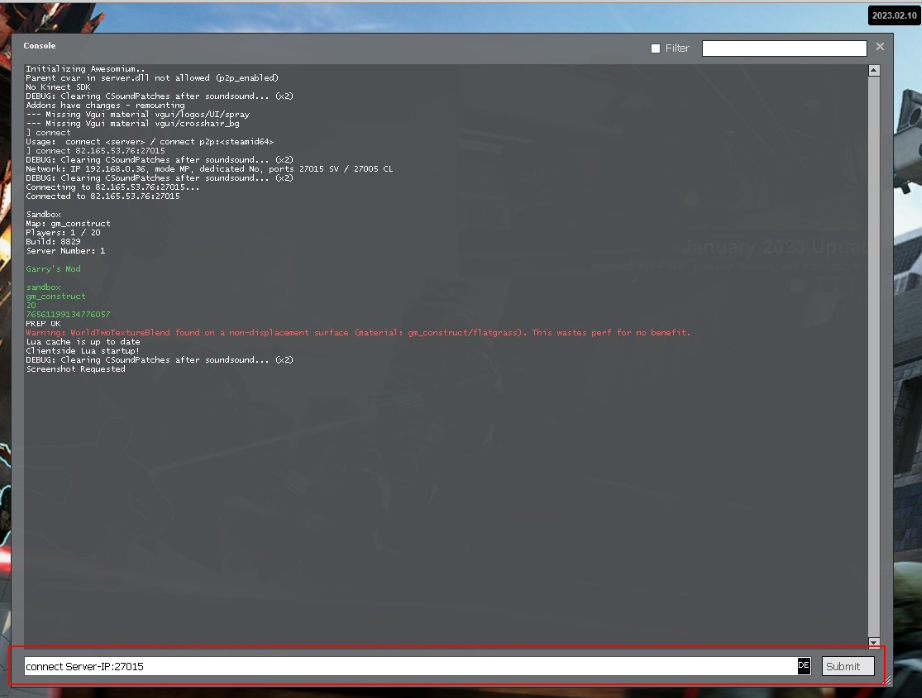
Setting up port forwarding is key for a web server. It allows outside users to connect. Use your router’s settings to open ports. Common port for Gmod is 27015. Find the port settings on your router page. Enter your server’s IP address. This directs traffic correctly. Port forwarding ensures smooth connections. Check if your firewall blocks the port. Adjust settings if needed. Test the connection after setup. Make sure it works from outside networks. This step secures server access for players.
Bandwidth Considerations
Enough bandwidth is vital for hosting. Bandwidth affects server performance. A higher bandwidth supports more players. Check your internet plan for limits. Streaming or downloading affects bandwidth. Ensure a stable connection. Avoid slowdowns during peak hours. Monitor usage to prevent issues. Upgrade your plan if needed. A reliable connection enhances user experience. Good bandwidth ensures a smooth gaming session for all.
Credit: www.ionos.com
Testing And Troubleshooting
Begin by checking if the server starts without errors. Ensure the game files load properly. Use basic commands to verify the server responds. Test with a friend joining the server. Confirm they can connect without issues. If all works, the setup is correct. Repeat tests after any changes.
Sometimes, connection errors occur. Check your firewall settings. Ensure the correct ports are open. Verify your IP address is right. Lag might happen if the server is slow. Reduce player count or improve your internet speed. If mods fail to load, ensure they are compatible. Keep all software up to date for best results.
Optimizing Performance
Resource Management is crucial for a smooth server. Limit the number of addons. Too many addons can slow down the server. Monitor CPU usage regularly. High CPU usage can cause lag. Optimize your server settings. Lower graphics can help reduce lag. Allocate enough RAM for your server. Insufficient RAM can crash the server. Keep the server software updated. Updates fix bugs and improve performance.
Enhancing Player Experience involves stable connections. Ensure a strong internet connection. A weak connection causes disconnections. Set up server rules clearly. Rules help players understand the game better. Provide helpful tips during gameplay. Tips can guide players and enhance fun. Enable voice chat for better communication. Players can strategize and interact easily. Offer regular events and challenges. Events keep players engaged and excited.
Credit: www.ghostcap.com
Frequently Asked Questions
How Do I Host A Gmod Server?
To host a GMod server, first download SteamCMD. Install and configure the server files. Select game modes and maps. Open ports 27015 and 27005 for networking. Customize settings through the server. cfg file. Launch the server using srcds. exe. Share your IP address for friends to join.
Can You Host A Gmod Server For Free?
Yes, you can host a GMod server for free using platforms like SteamCMD and community-hosted servers. These options require technical knowledge for setup and management. Consider using free hosting services or your own hardware for better control and customization. Always check for terms and conditions of free hosting services.
How To Create A Local Server In Gmod?
To create a local server in GMod, launch the game and select “Create Multiplayer” from the menu. Customize your server settings, choose a map, and click “Start Game. ” Invite friends by sharing your local IP address. Ensure necessary ports are open for connection.
How To Make A Private Server In Gmod?
To create a private server in GMod, install SteamCMD. Download the Garry’s Mod dedicated server files. Configure server settings in the cfg folder. Set up port forwarding on your router. Launch the server using the srcds. exe file. Share your server IP with friends to join.
Conclusion
Setting up a web server for Gmod hosting is straightforward. First, follow the steps carefully. Install the necessary software. Configure your server settings. Ensure security measures are in place. Test your server to check performance. Troubleshoot any issues promptly. With these steps, your Gmod server should run smoothly.
Enjoy hosting games for your friends. Happy gaming!


